How to Hide or Unhide Copilot Button on Windows 11

You can hide or unhide the Copilot button on your Windows 11 taskbar to declutter your workspace.
Copilot is Microsoft’s integrated AI assistant within Windows 11, designed to help you perform tasks and get quick answers.
Hiding the Copilot icon removes it from your taskbar, giving you more screen real estate and reducing potential distractions.
This feature is available for users running Windows 11 Moment 4 updates or newer versions.
Open Settings, go to Personalization, then Taskbar, and toggle the Copilot (preview) switch to Off to hide or On to show it. Alternatively, use the Group Policy Editor or Registry Editor for more advanced control.
Why hide or show the Copilot button?
Why would you want to hide or show the Copilot button? You might hide it for a cleaner taskbar if you don’t use AI features. Or, you might want to show it again if you accidentally removed it, giving you quick access to the tool.
What happens when done?
Once you complete these steps, the Copilot icon will either appear on your taskbar or disappear from it immediately, depending on the method you chose.
Method 1Using Windows Settings
You can hide or show the Copilot button on your Windows 11 taskbar easily using the Settings app.
- Open the Windows Settings app. Click the Start menu and select Settings, or press the Windows key + I.
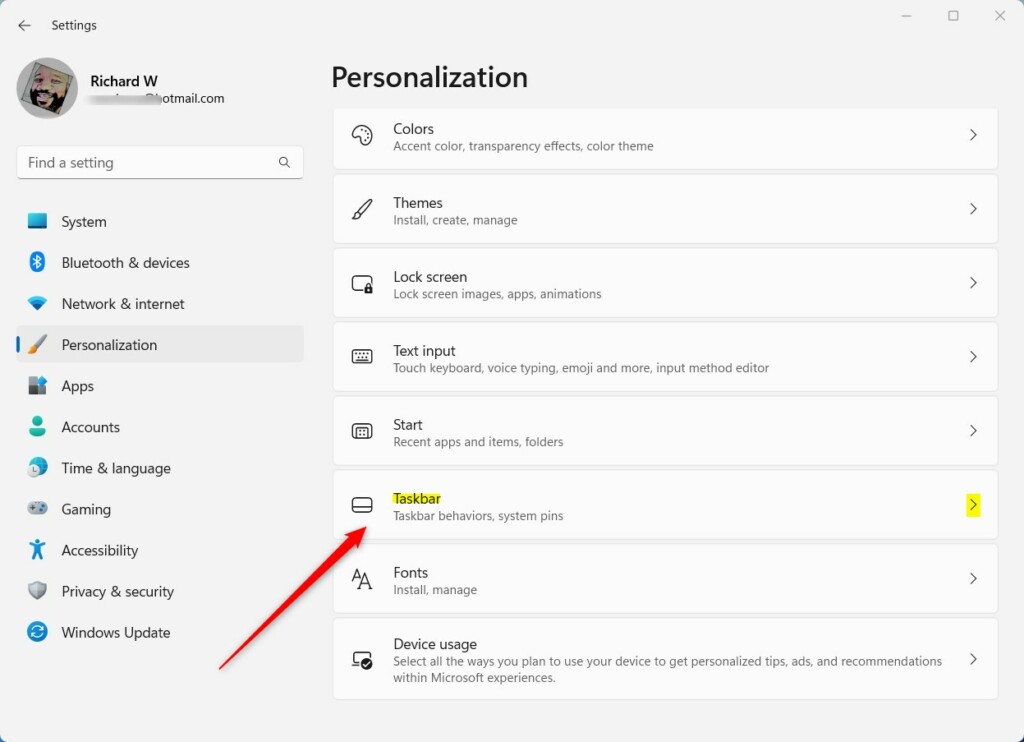
- Click on Personalization in the left menu.
- Click on the Taskbar tile on the right side.
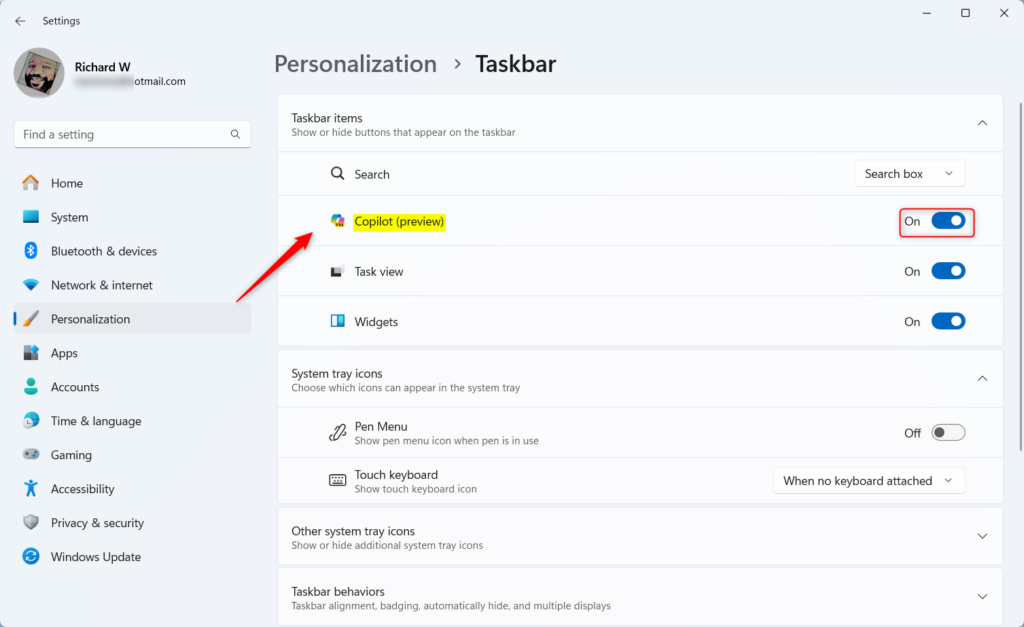
- Look for Copilot (preview). Toggle the switch to On to show the button or Off to hide it.
Method 2Using Local Group Policy Editor
Hiding the Copilot button on Windows 11 for all users on a PC is possible using the Local Group Policy Editor.
You can control the button through the Local Group Policy Editor. Search for “Edit group policy” in your Start menu and open the Local Group Policy Editor. This tool lets you change advanced settings on your computer.

- On the left side, go to: Computer Configuration > Administrative Templates > Start Menu and Taskbar.
- Find Hide the Copilot button in the right pane and double-click it.
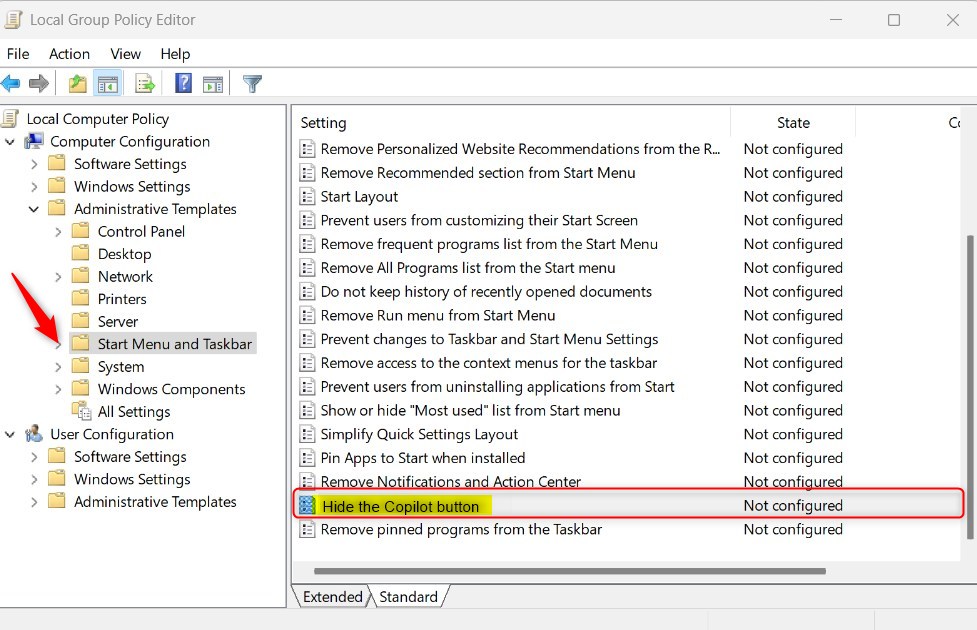
- Choose Enabled to hide the button, or Disabled to show it.
- Click OK and close the editor.
Method 3Using the Registry Editor
Advanced users can hide the Copilot button on Windows 11 by making changes in the Registry Editor, but be careful as this edits system files.
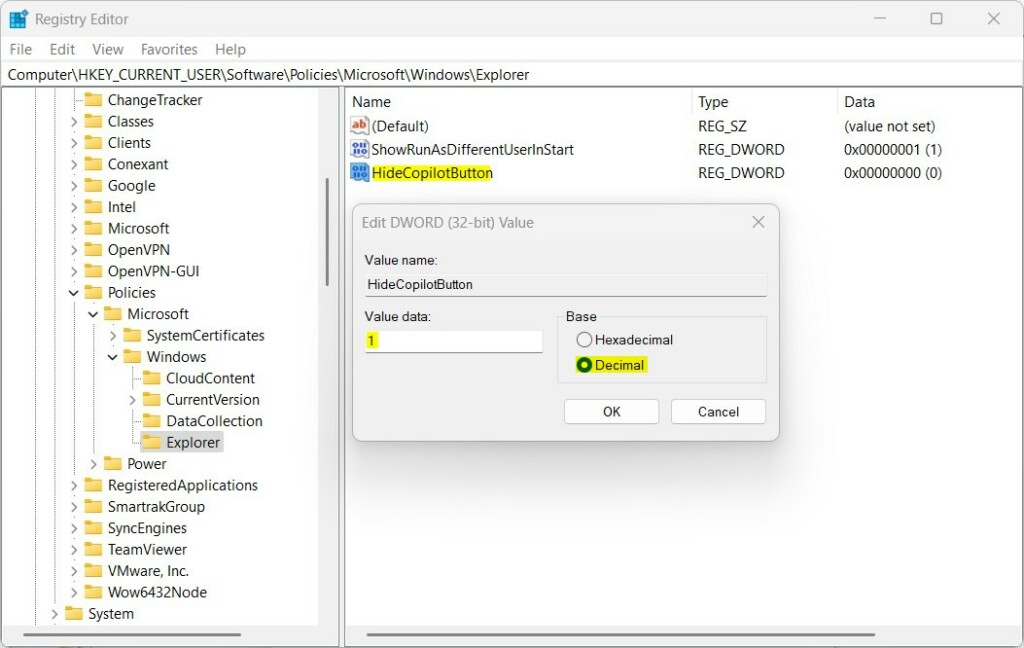
Open the Windows Registry editor by searching for “regedit” in the Start menu. Navigate to this path:
HKEY_CURRENT_USER\Software\Policies\Microsoft\Windows\ExplorerIf you don’t see the Explorer folder, right-click the Windows folder, select New, then Key, and name it Explorer.
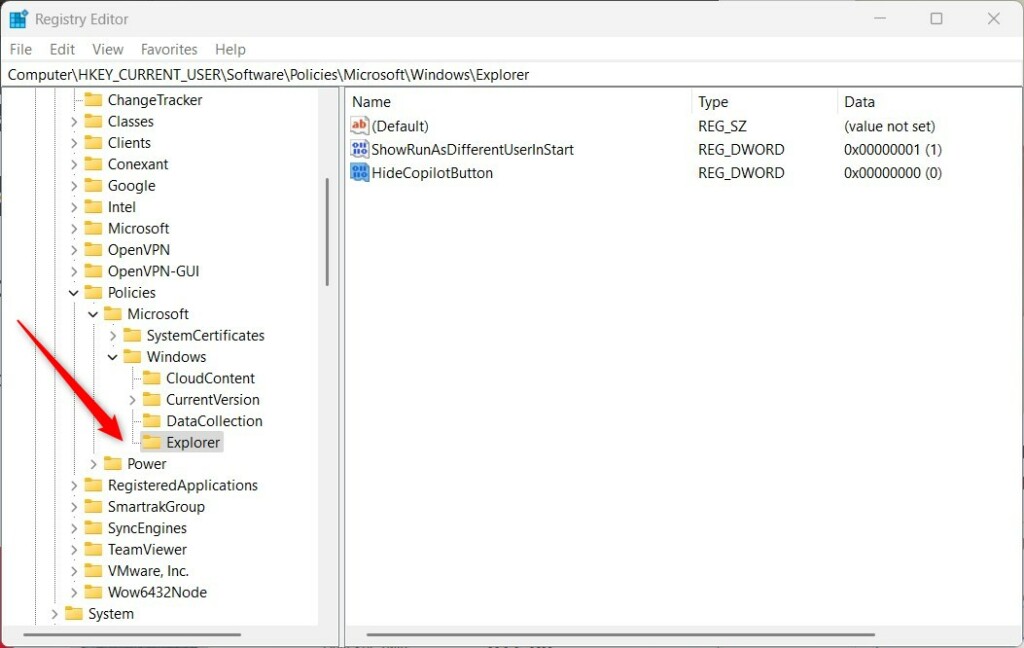
- Right-click in the empty space on the right side and select New > String Value.
- Name the new item
HideCopilotButton. - Double-click
HideCopilotButtonand set the “Value data” to 1 to hide the button. - To show the button again, simply delete the
HideCopilotButtonitem.
Restart your computer to apply the changes.
Understanding the Physical Copilot Keyboard Key
Newer laptops feature a dedicated Copilot hardware key. This key launches the AI assistant instantly. If you disable the software component, the key may still trigger a notification or open the app. You cannot disable the physical key without third-party software to remap it.
Summary
You have several ways to manage the Copilot button on your Windows 11 taskbar, including the simple Settings app, the more advanced Group Policy Editor, or the Registry Editor for fine-tuning. Each method lets you hide or show the icon depending on your needs.
Does disabling Copilot improve system performance?
Disabling the Copilot button removes the icon from your taskbar, which saves a tiny amount of system resources. However, it does not significantly improve overall system performance. The underlying AI services may still run in the background if you use other Microsoft 365 apps that integrate with Copilot.
Is it possible to completely uninstall Copilot from 🪟 Windows 11?
Copilot is deeply integrated into the Windows 11 operating system. You cannot fully uninstall it like a standard application. You can only hide the interface or disable its access through system policies. Microsoft updates may occasionally reset these preferences, requiring you to re-apply your chosen settings.
Why does Copilot keep reappearing after I disable it ?
Copilot often reappears after a Windows Update or if your account settings sync across devices. Microsoft frequently updates the OS to promote its AI features. If you use Group Policy or Registry edits, these settings are more persistent, but major system updates can still override them occasionally.
Was this guide helpful?

About the Author
Richard
Tech Writer, IT Professional
Richard, a writer for Geek Rewind, is a tech enthusiast who loves breaking down complex IT topics into simple, easy-to-understand ideas. With years of hands-on experience in system administration and enterprise IT operations, he’s developed a knack for offering practical tips and solutions. Richard aims to make technology more accessible and actionable. He's deeply committed to the Geek Rewind community, always ready to answer questions and engage in discussions.




[…] computers that have Copilot added, a new Copilot button will appear on the Taskbar. It will appear as a flyout interface when you press the button or use the keyboard shortcut […]
[…] computers that have Copilot added, a new Copilot button will appear on the Taskbar. It will appear as a flyout interface when you press the button or use the keyboard shortcut […]
[…] computers that have Copilot added, a new Copilot button will appear on the Taskbar. Clicking the button or using the keyboard shortcut (Windows key + C) will appear as a flyout […]
[…] computers that have Copilot added, a new Copilot button will appear on the Taskbar. Clicking the button or using the keyboard shortcut (Windows key + C) will appear as a flyout […]
[…] computers that have Copilot added, a new Copilot button will appear on the Taskbar. Pressing the button or using the keyboard shortcut (Windows key + C) will appear as a flyout […]
[…] can use a passkey to sign in to Microsoft apps and websites, including Microsoft 365 and Copilot on desktop and mobile browsers. On your Microsoft account sign-in screen, use your passkey by […]
[…] computers that have Copilot added, a new Copilot button will appear on the Taskbar. Clicking the button or using the keyboard shortcut (Windows key + C) will appear as a flyout […]
[…] computers that have Copilot added, a new Copilot button will appear on the Taskbar. Clicking the button or using the keyboard shortcut (Windows key + C) will appear as a flyout […]
[…] computers that have Copilot added, a new Copilot button will appear on the Taskbar. Clicking the button or using the keyboard shortcut (Windows key + C) will appear as a flyout […]
[…] computers that have Copilot added, a new Copilot button will appear on the Taskbar. Clicking the button or using the keyboard shortcut (Windows key + C) will appear as a flyout […]
[…] computers that have Copilot added, a new Copilot button will appear on the Taskbar. Clicking the button or using the keyboard shortcut (Windows key + C) will appear as a flyout […]
[…] computers that have Copilot added, a new Copilot button will appear on the Taskbar. Clicking the button or using the keyboard shortcut (Windows key + C) will appear as a flyout […]
[…] computers that have Copilot added, a new Copilot button will appear on the Taskbar. Clicking the button or using the keyboard shortcut (Windows key + C) will appear as a flyout […]
[…] computers that have Copilot added, a new Copilot button will appear on the Taskbar. Clicking the button or using the keyboard shortcut (Windows key + C) will appear as a flyout […]
[…] computers that have Copilot added, a new Copilot button will appear on the Taskbar. Clicking the button or using the keyboard shortcut (Windows key + C) will appear as a flyout […]
[…] computers that have Copilot added, a new Copilot button will appear on the Taskbar. It will appear as a flyout interface when you press the button or use the keyboard shortcut […]
[…] is launching the new Copilot experience that works with Bing Chat AI. It lets you use plain language to change settings or complete tasks. […]