How to Get Photo Notifications from Your Phone on Windows 11

Do you take photos or screenshots on your Android phone? Your Windows 11 PC can notify you about them right away. This guide will show you how to turn on photo notifications from your phone to your PC. It’s simple and quick.
What You Need to Know
Windows 11 has a feature called Mobile devices (also known as Phone Link). It lets your PC connect with your phone. With a recent update, you can instantly see new photos or screenshots from your Android device on your PC.
Why this matters: When this is set up, your PC shows you a notification every time you take a photo or screenshot on your phone. You don’t have to check your phone all the time.
Steps to Turn On Photo Notifications
- Open Windows Settings — Click the Start menu (the Windows icon at the bottom left) and then click Settings. Or press Windows key + I on your keyboard to open Settings directly.
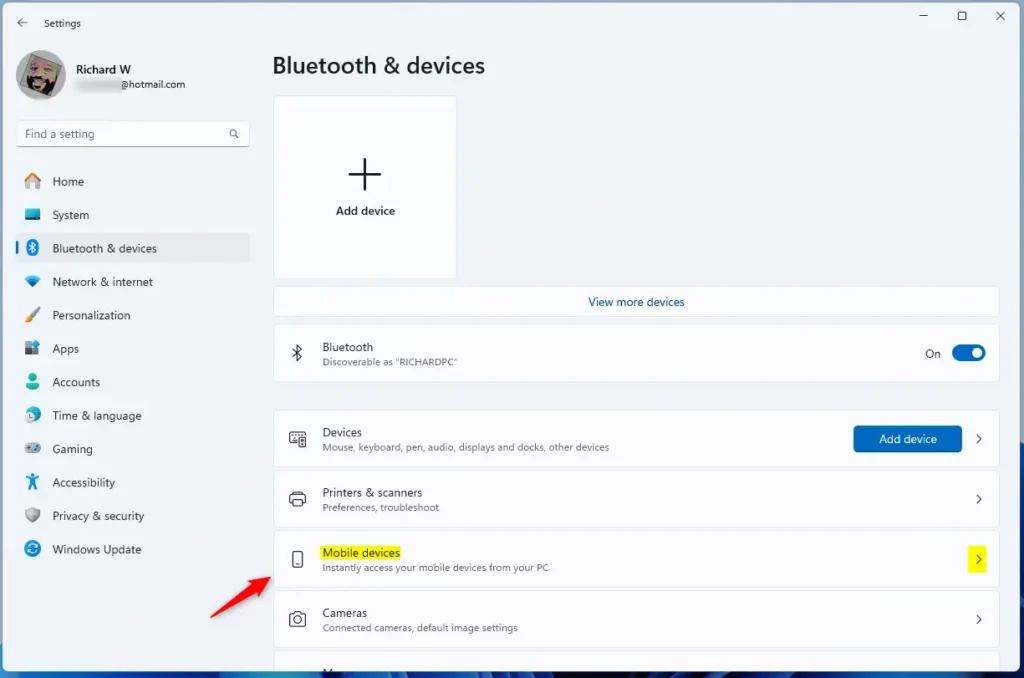
- Go to Bluetooth & Devices — In the Settings window, click on Bluetooth & devices on the left side.
- Open Mobile Devices — Find and click the Mobile devices section on the right.
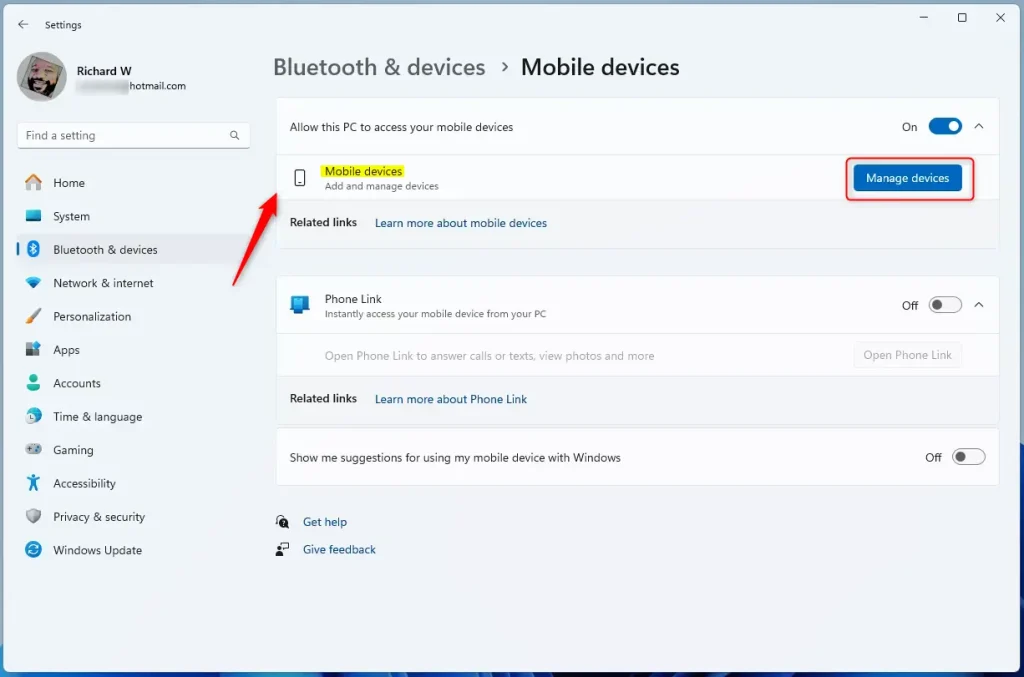
- Allow Your PC to Access Your Phone — Click on the Manage devices button under Allow this PC to access your mobile device.
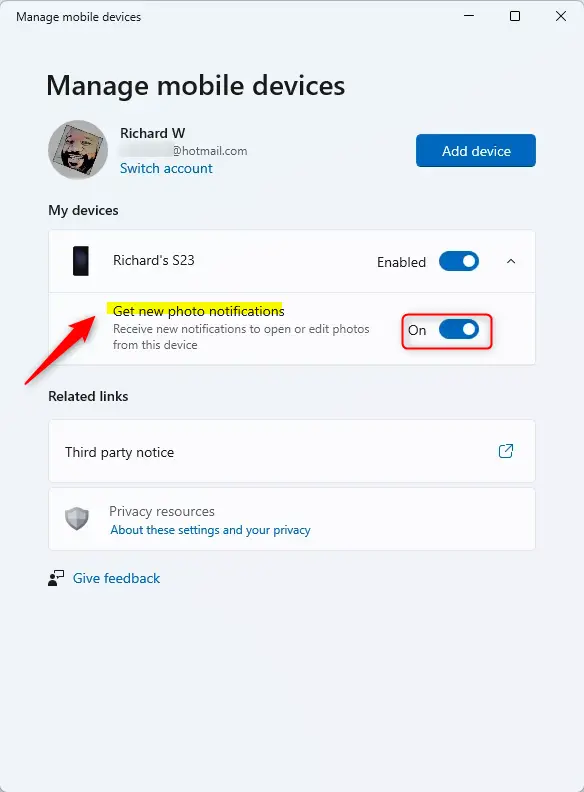
- Turn On Photo Notifications — Find the option called Get new photo notifications and switch it On.
What Happens Next?
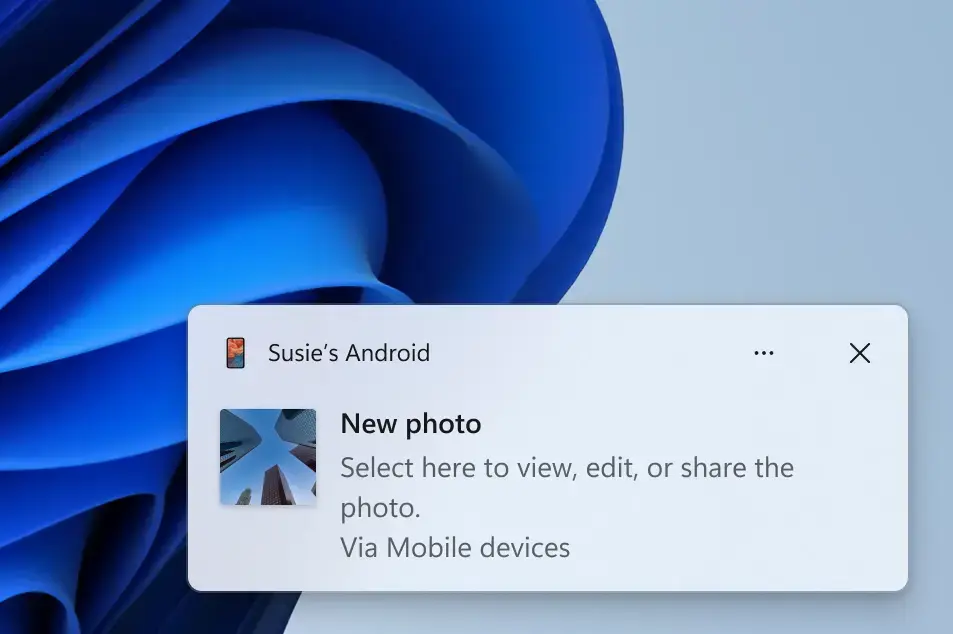
Once you turn this on, your PC will show notifications whenever you take new photos or screenshots on your Android phone. You can even open and edit these photos quickly using the Snipping Tool on your PC.
More Help & Info
If you’d like to learn more about this feature or see official details, check out the Microsoft blog.
Summary
- You can get instant notifications on your Windows 11 PC when new photos or screenshots are taken on your Android phone.
- To use this, open Settings > Bluetooth & devices > Mobile devices on your PC and allow it to access your phone.
- Turn on Get new photo notifications to start receiving alerts.
- This makes it easier to view and edit your phone photos right from your PC.
- Enjoy staying connected to your phone photos without needing to pick up your device!
Was this guide helpful?

About the Author
Richard
Tech Writer, IT Professional
Richard, a writer for Geek Rewind, is a tech enthusiast who loves breaking down complex IT topics into simple, easy-to-understand ideas. With years of hands-on experience in system administration and enterprise IT operations, he’s developed a knack for offering practical tips and solutions. Richard aims to make technology more accessible and actionable. He's deeply committed to the Geek Rewind community, always ready to answer questions and engage in discussions.




No comments yet — be the first to share your thoughts!