

This article explains how to enforce a BitLocker encryption type on a removable data drive in Windows 11.
BitLocker helps protect computer data so only authorized users can access it. New files created on a BitLocker-enabled drive will also be protected.
Users can protect external, fixed, and operating system drives using BitLocker. When you enable BitLocker to protect the OS drive, it automatically unlocks the drive at startup using a TPM chip.
When users turn on BitLocker for removable data drives, the BitLocker setup wizard prompts users to choose between full encryption or used space only encryption.
The full encryption type requires that the entire drive be encrypted when BitLocker is turned on. The used space only encryption type requires that only the portion of the drive used to store data is encrypted when BitLocker is turned on.
You can use the Enforce drive encryption type on removable data drives policy setting to control the use of BitLocker on removable data drives.
Enforce drive encryption type on removable data drives
As mentioned above, users can use the Enforce drive encryption type on removable data drives policy to control the use of BitLocker on removable drives.
Here’s how to do it.
First, open the Local Group Policy Editor (gpedit.msc). (Search for “Edit group policy”) on the Start menu.
Then, navigate the folders below:
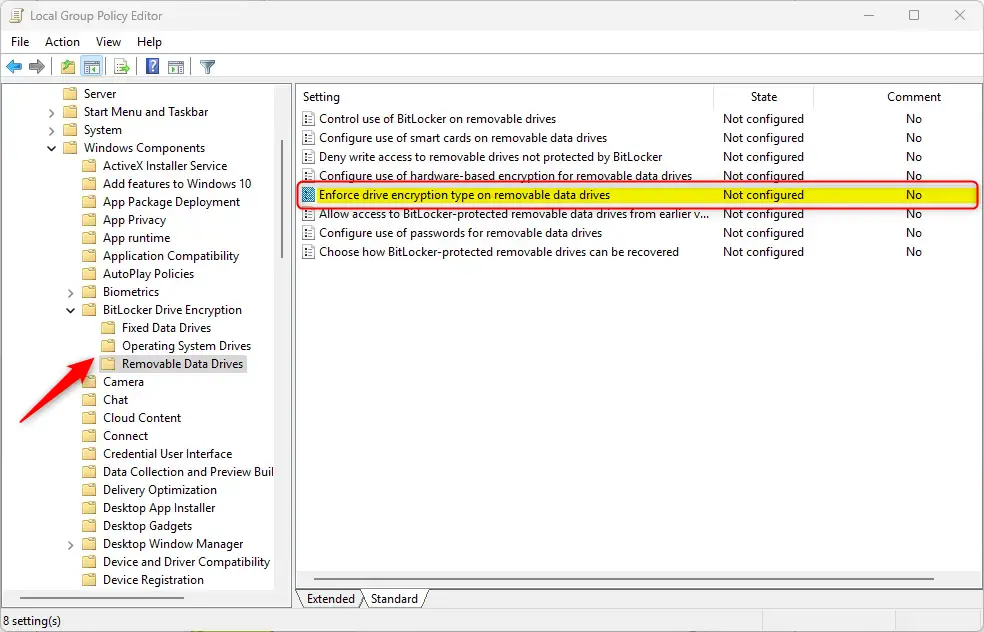
Computer Configuration -> Administrative Templates -> Windows Components -> BitLocker Drive Encryption -> Removable Data Drives
In the Removable Data Drives details pane on the right, locate and double-click the “Enforce drive encryption type on removable data drives” settings.
On the “Enforce drive encryption type on removable data drives” window, set the option to Not Configure, Enabled, or Disabled.
- Not Configured (default) – Same as Disabled.
- Enabled – BitLocker will use the policy below to encrypt drives and the encryption type option will not be presented in the BitLocker setup wizard.
- Full encryption
- Use Space Only encryption
- Disabled – BitLocker setup wizard will continue to ask the user to select the encryption type before turning on BitLocker.
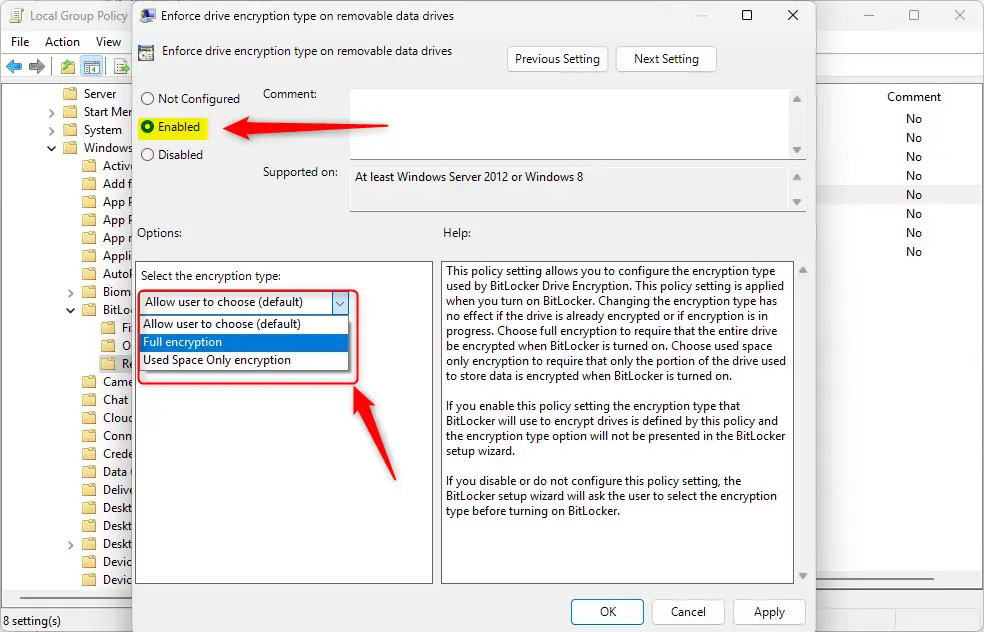
Click OK to save your changes. You may have to reboot your device to apply the settings.
Enforce drive encryption type on removable data drives using the Windows Registry Editor
Yet another way to configure the BitLocker policy to enforce drive encryption type on removable data drive is to use the Windows Registry editor.
First, open Windows Registry editor as administrator.
Then, navigate to the registry key below.
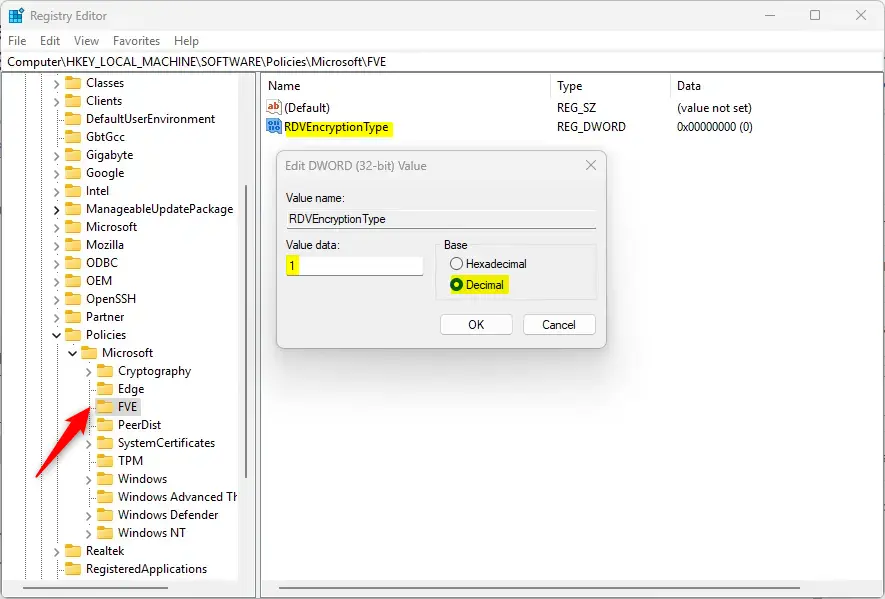
ComputerHKEY_LOCAL_MACHINESOFTWAREPoliciesMicrosoftFVE
Next, double-click the RDVEncryptionType (DWORD) 32-bit Value name on the FVE key’s right pane to open it.
Then, enter a value 1 to enforce “Full encryption” on removable data drives. Enter the value 2 to enforce “Use Space Only encryption” on removable data drives
If you do not see the “RDVEncryptionType” item, right-click a blank area and create a new DWORD 32-bit Value registry item.
Then, type the name “RDVEncryptionType” and enter a value data 1 or 2 to control how BitLocker is used on removable data drives.
To restore the default behavior and continue to show the option to select the encryption type for removable data drives, delete the “RDVEncryptionType” item created above.
Save your changes and restart your computer.
That should do it!
Conclusion:
- Enforcing the BitLocker encryption type for removable data drives in Windows 11 provides an added layer of security for sensitive data.
- Users can control how BitLocker is used on removable data drives using the “Enforce drive encryption type on removable data drives” policy setting or the Windows Registry Editor.
- This article has outlined the steps to enforce the encryption type, empowering users to protect their data effectively.
Leave a Reply