This guide will help you turn on or off Passkey Managers on Windows 11. Passkeys make signing in safer and easier by using your face, sign in with fingerprint, or a PIN instead of a password.
What are Passkeys?
Passkeys are a new way to sign in without typing a password. You can use Windows Hello facial recognition to sign in with a PIN, facial recognition, or fingerprint. This makes logging in faster and safer.
Windows usually saves your passkeys on your device when you use Windows Hello. After saving, you can sign in easily with your face, fingerprint, or PIN.
Windows 11 also lets you use popular tools like 1Password or Bitwarden to manage your passkeys if you want.
By default, you cannot turn off saving passkeys to Windows, but if you add one of these third-party managers, you can easily turn it on or off.
How to Turn On or Off Passkey Managers on Windows 11
Follow these simple steps to manage your passkey settings:
- Open Windows Settings:
- Click the Start menu (the Windows icon in the lower-left corner) and select Settings.
- Or press Windows key + I on your keyboard to open Settings quickly.
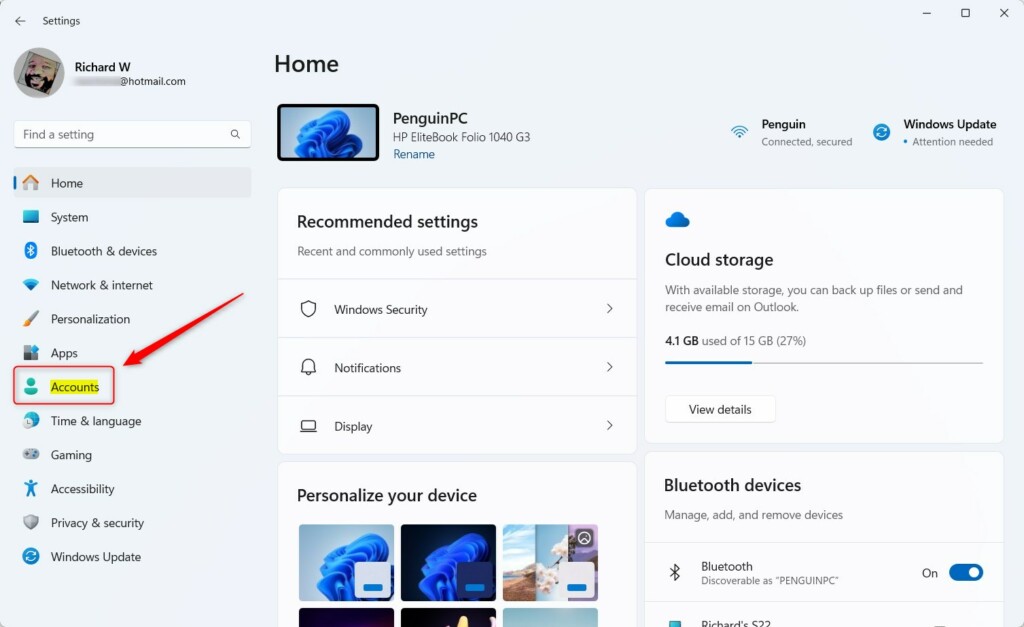
- Go to Accounts:
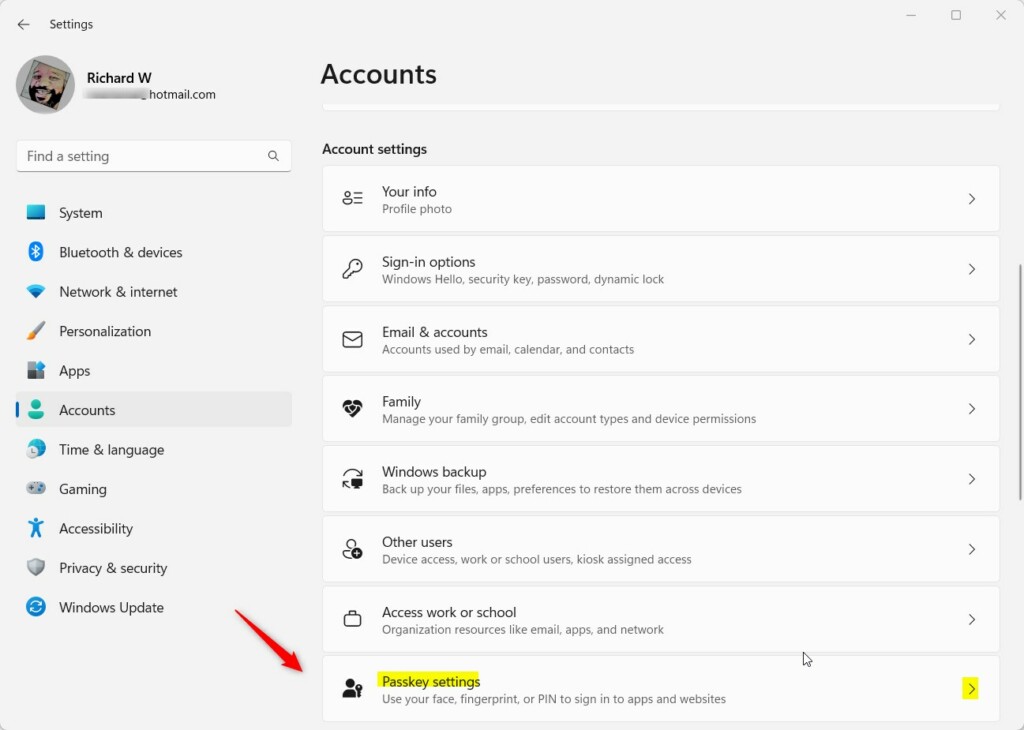
In the Settings window, click on the Accounts option on the left side. - Find Passkey Settings:
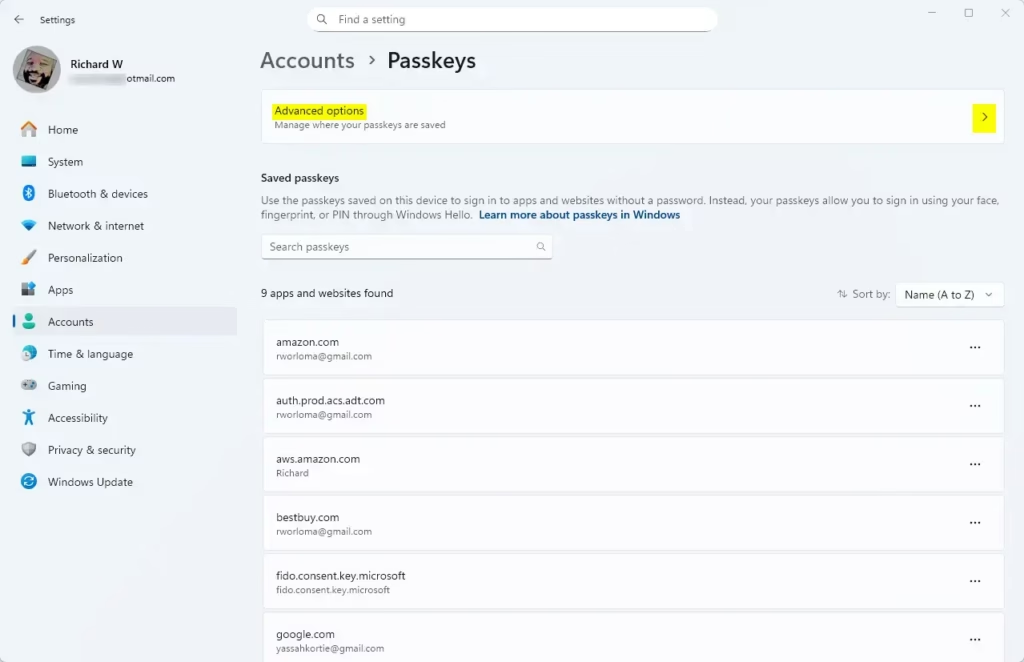
On the right side, look for the Passkey settings box and click it to open. - Open Advanced Options:
Inside Passkey settings, click the Advanced options to see more settings. - Turn Saving Passkeys On or Off:
You will see a switch to save passkeys to your Windows device. Click it to turn saving passkeys on or off.
Here are some pictures to help you:
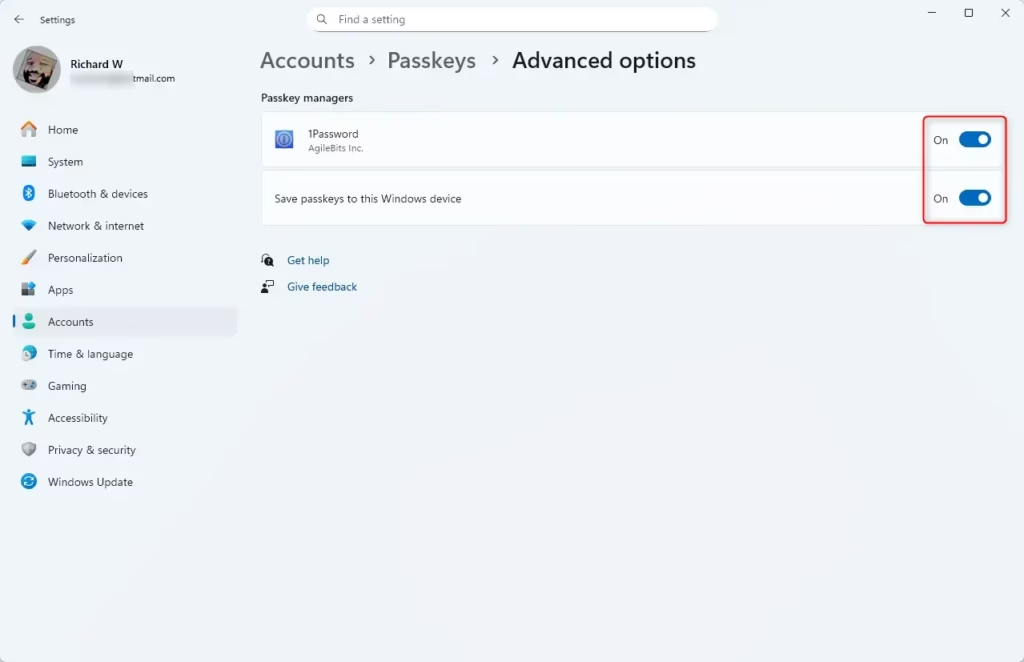
That’s all! You’ve now managed your passkey settings.
Why Use Passkeys?
- Safer than passwords: Passkeys use your face, fingerprint, or PIN instead of typing passwords that can be stolen.
- Works with popular apps: You can use tools like 1Password or Bitwarden to keep your passkeys safe and organized.
- Easy to turn on/off: You decide if Windows should save your passkeys or not, especially if you use third-party apps.
- Better sign-in experience: Passkeys make signing in faster and smoother.
- Keep your software updated: For the best security, always keep Windows and your apps up to date.
For more information on how to use your face or fingerprint to sign in, check out these guides:
- How to sign in with your face on Windows 11
- How to sign in with your fingerprint on Windows 11
- How to sign in with a PIN on Windows 11

Leave a Reply