How to Turn On or Off Paging File Encryption in Windows 11

Paging file encryption secures the temporary data Windows 11 writes to your storage drive when your PC runs out of RAM. Windows uses a hidden file named pagefile.sys for this overflow data, and turning on this setting stops other people from reading it.
You can turn this security feature on or off through the Registry Editor (a built-in tool that lets you view and change system settings) on Windows 11 Pro, Enterprise, and Education editions. While encryption keeps your private data safe from physical theft or offline attacks, it adds a small performance cost to your system.
Encrypting your paging file in Windows 11 protects sensitive data. Use the `fsutil behavior set encryptpagingfile` command in Windows Terminal, the Local Group Policy Editor, or the Registry Editor to enable or disable this feature. Always restart your computer after making changes.
What is Paging File Encryption?
Paging file encryption in Windows 11 protects temporary data stored on your hard drive by scrambling it so no one can read it if they steal your drive. When your computer runs out of physical memory, Windows uses the paging file (a space on your hard drive) to store overflow data, making encryption important for privacy.
When physical memory (RAM) runs out during heavy tasks, Windows uses a hidden virtual memory file called the paging file to store temporary data. The paging file does not encrypt sensitive data by default, allowing unauthorized users to read stored information if they access the computer. Encrypting the paging file protects this temporary data from snooping and unauthorized access, safeguarding information stored by the system.
What happens during encryption? Data becomes safer. The computer might work a little harder, however, which can slow performance slightly.
How to Check and Change Paging File Encryption
Enabling or disabling this encryption requires specific configuration methods:
- Using Command Prompt or Windows Terminal
- Using the Local Group Policy Editor
- Using the Windows Registry
Method 1Use Command Prompt or Windows Terminal
Windows Terminal lets you check or change paging file encryption in Windows 11 using a quick command. You can open Windows Terminal as an administrator, run a specific command to see if the feature is turned on, and secure your virtual memory without digging through menus.
- Open Windows Terminal as Administrator. To do this, search for "Windows Terminal" in the Start menu, right-click it, and select Run as administrator. ⚠️ Admin required
- Type this command and press Enter to check if encryption is on or off:
fsutil behavior query encryptpagingfile - Look at the result:
- If you see EncryptPagingFile = 0, encryption is off.
- If it says EncryptPagingFile = 1, encryption is on.
- To turn on encryption, type this command and press Enter:
fsutil behavior set encryptpagingfile 1
⚠️ Admin required - To turn off encryption, type this command and press Enter:
fsutil behavior set encryptpagingfile 0
⚠️ Admin required - Restart your computer after running these commands. The changes won't work until you do.
Method 2Use Local Group Policy Editor
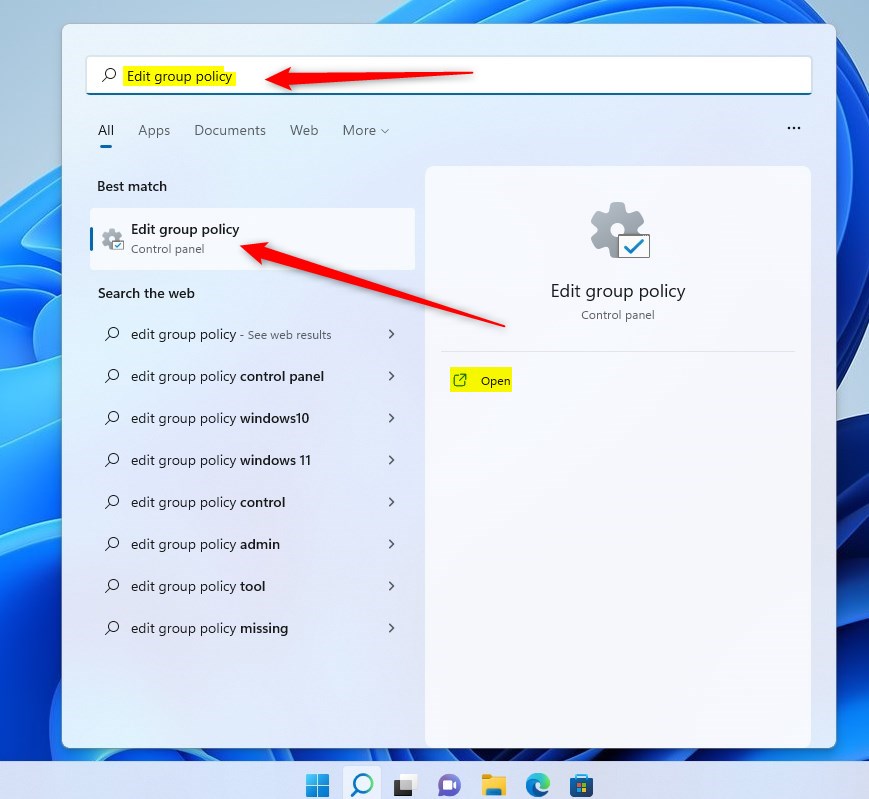
Local Group Policy Editor provides a built-in menu to turn paging file encryption on or off in Windows 11 Pro and Enterprise editions. You can open this tool using the Run dialog box to change your system security settings without using command line tools.
- Press Windows + R keys together.
- Type
gpedit.mscand press Enter to open the Local Group Policy Editor. ⚠️ Admin required - Navigate to this folder:
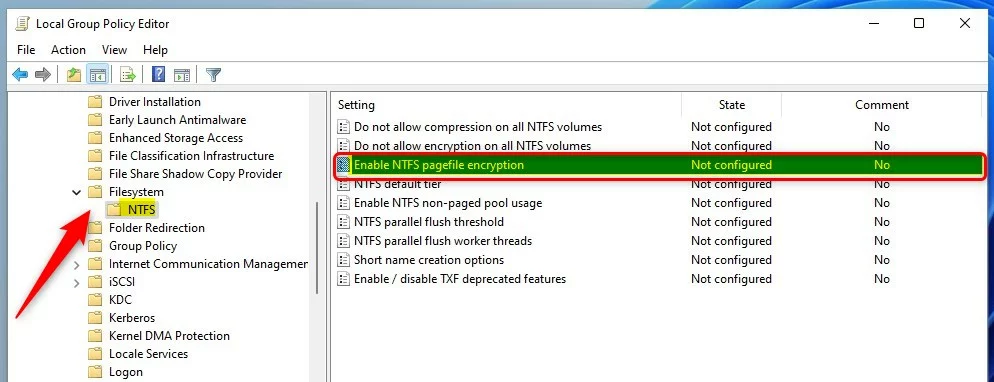
Computer Configuration\Administrative Templates\System\Filesystem\NTFS - On the right side, find and double-click Enable NTFS pagefile encryption.
- Choose one of these options:
- Not Configured – The default setting.
- Enabled – Turn on pagefile encryption.
- Disabled – Turn off pagefile encryption.
- Click OK and close the editor.
- Restart your computer to apply the changes.
Method 3Use Windows Registry Editor
Registry Editor lets you enable paging file encryption in Windows 11 Home editions where the Group Policy Editor is missing. By opening regedit and changing a specific system value, you can force Windows to secure your virtual memory.
- Press Windows + R keys together.
- Type
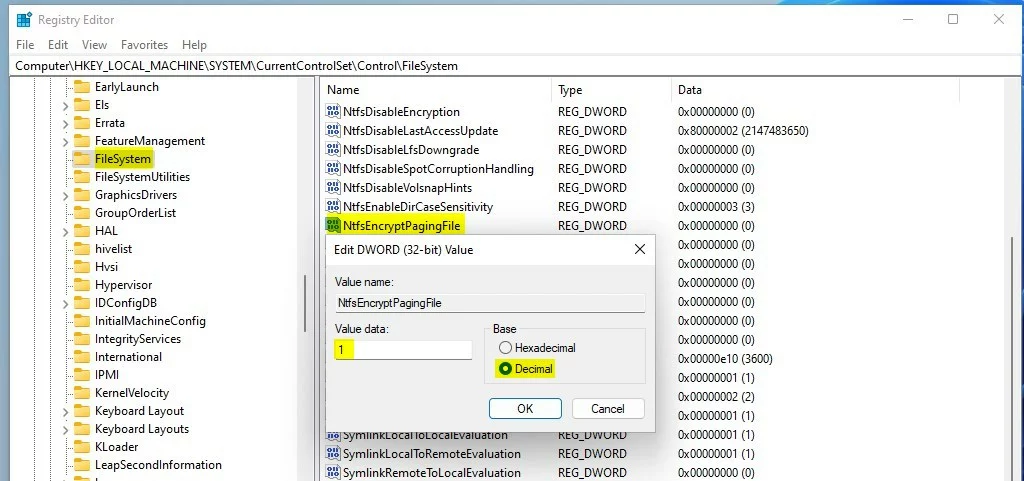
regeditand press Enter to open the Registry Editor. ⚠️ Admin required - Go to this location:
HKEY_LOCAL_MACHINE\SYSTEM\CurrentControlSet\Control\FileSystem - On the right side, find NtfsEncryptPagingFile and double-click it.
- Change the value to:
- 1 to turn encryption on
- 0 to turn encryption off
- Click OK and close the Registry Editor.
- Restart your computer to apply the change.
Summary
Paging file encryption in Windows 11 keeps your temporary data safe from prying eyes if your computer is lost or stolen. While it improves security by locking down virtual memory, it can slightly slow down your system because your processor has to constantly lock and unlock the data.- Why encrypt your paging file? It keeps your data safer by stopping others from reading temporary files on your hard drive.
- What's the downside? Turning on encryption may cause your computer to work a little harder, which can slow it down slightly.
- How many ways can you do this? You can use the Command Prompt, Local Group Policy Editor, or Registry Editor to change this setting.
- Don't forget! Always restart your computer after making changes for them to take effect.
- Need more help? Check the official Microsoft page: Enable Pagefile Encryption - Microsoft
Should I turn off paging files in 🪟 Windows 11?
Paging files remain necessary in Windows 11 even with ample RAM, because disabling them causes system instability and frequent crashes.
Does 🪟 Windows 11 have file encryption?
The Encrypted File System is unavailable on Windows 11 Home Edition, requiring an upgrade to Windows 11 Pro for this specific functionality.
How do I encrypt PageFile in Windows?
To encrypt the paging file, enter 'cmd' in the Windows Start search field. Right-click Command Prompt and select 'Run as administrator.' Inspect the output: 'EncryptPagingFile = 0' indicates disabled encryption, while 'EncryptPagingFile = 1' shows active encryption.
How do I manage paging files in 🪟 Windows 11?
Navigate to "Advanced System Settings," click "Settings" under the Performance section, and open the "Advanced" tab. Virtual memory configuration lives here, allowing custom paging file sizes. Sufficient paging file sizing ensures proper workload supplementation for physical RAM.
Was this guide helpful?

About the Author
Richard
Tech Writer, IT Professional
Richard, a writer for Geek Rewind, is a tech enthusiast who loves breaking down complex IT topics into simple, easy-to-understand ideas. With years of hands-on experience in system administration and enterprise IT operations, he’s developed a knack for offering practical tips and solutions. Richard aims to make technology more accessible and actionable. He's deeply committed to the Geek Rewind community, always ready to answer questions and engage in discussions.




No comments yet — be the first to share your thoughts!