How to Enable Bing’s Scroll to Open Copilot Feature


You enable Bing’s “Scroll to Open Copilot” feature to quickly access AI assistance while browsing.
This handy tool allows you to trigger Copilot by scrolling up and down with your mouse wheel, often appearing around the middle of your screen, without needing to click a dedicated button.
To activate it, you typically need to be using the Microsoft Edge browser and have Copilot enabled in your browser settings.
This feature is particularly useful for users who frequently use Copilot for tasks like summarizing web pages or generating content on the fly.
Open Bing, type a search query, click the menu icon (≡), select Copilot Settings, and toggle “Scroll to open Copilot” on or off. This instantly enables or disables the feature for your browser session.
Why use this feature?
The “Scroll to open Copilot” feature lets you quickly access AI tools. Scrolling or swiping up at the top of a page makes Copilot appear instantly. Swiping down hides it. Some users love this shortcut, while others find it gets in the way of their browsing.
What happens when you are done?
After you follow these steps, your browser remembers your choice. Copilot will either appear or stay hidden when you scroll, depending on your new setting.
How to change your Copilot settings
You can change your Copilot settings right in your web browser to control features like Bing’s Scroll to Open Copilot.
- Open Bing in your web browser.
- Type any search query into the search bar.
- Click the menu icon (≡) located in the top-right corner of the page.
- Select Copilot Settings from the menu.
- Find the option labeled “Scroll to open Copilot” and toggle the switch to the On or Off position.
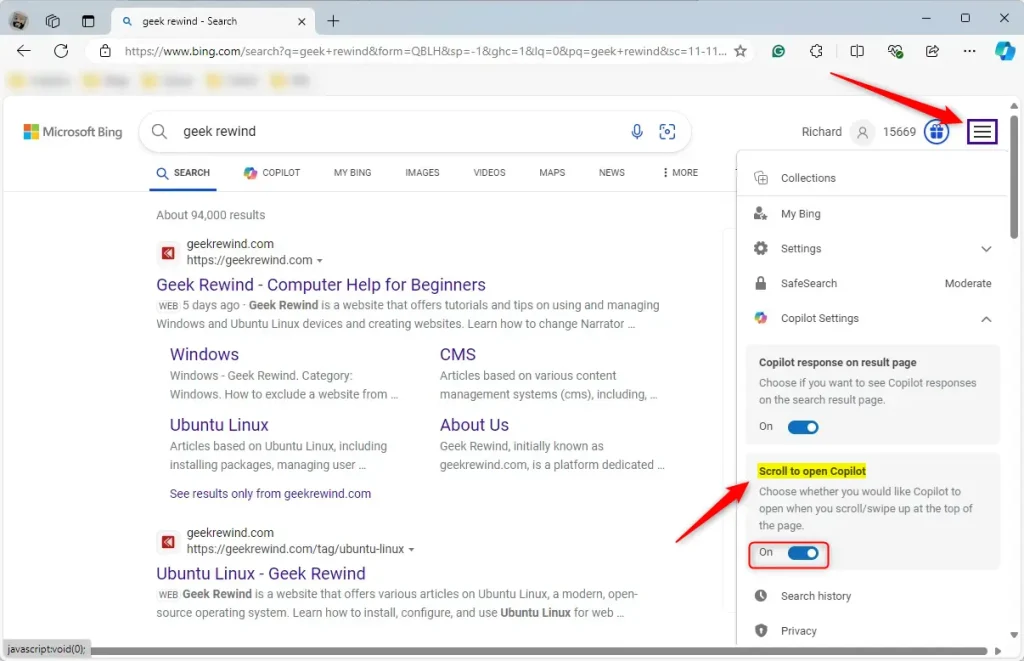
That is all you need to do to customize your search experience!
Summary
- This feature allows you to open or close the Copilot sidebar by scrolling up or down on a search results page.
- You can enable or disable this function by accessing the Copilot Settings menu within the Bing search page.
- This change applies immediately to your current browser session.
What is the shortcut to open Microsoft Copilot?
In Windows, you can launch the Copilot app at any time in one of the following ways: Press the Copilot key on your keyboard. Using the Windows key + C keyboard shortcut.
Can I open Copilot in the browser?
You can access Microsoft Copilot at https://copilot.microsoft.com/, Microsoft Copilot Android and iOS apps, Copilot in Windows app, or via Edge by clicking the Copilot icon (icon). To learn tips for using Copilot in Edge and other AI features in the browser, visit AI tips page.
Where is the Copilot button in Bing?
Guys from the left panel here you can get the option. Sidebar just click and open it. And here you can get the option co-pilot just open it. And from here you can easily enable. And disable this.
Can you turn off Copilot Bing?
You can turn off Copilot icons in Windows, but you can’t completely remove the feature from your computer.
Was this guide helpful?

About the Author
Richard
Tech Writer, IT Professional
Richard, a writer for Geek Rewind, is a tech enthusiast who loves breaking down complex IT topics into simple, easy-to-understand ideas. With years of hands-on experience in system administration and enterprise IT operations, he’s developed a knack for offering practical tips and solutions. Richard aims to make technology more accessible and actionable. He's deeply committed to the Geek Rewind community, always ready to answer questions and engage in discussions.




No comments yet — be the first to share your thoughts!