

This article explains how to turn on or off the blinking cursor on a Braille display in Windows 11
Narrator is a screen-reading app built into Windows that reads the text on your screen aloud and describes events for users with low vision or blindness.
When you use the Narrator app, you can turn on or off its keyboard shortcuts, launch it automatically, adjust the voice, speed, and volume, manage natural voices, lower other apps volume when the Narrator is speaking, change Narrator audio output device, change verbosity level, emphasize formatted text, enable or disable Narrators phonetic reading, pause for punctuation, adjust how the Narrator read advanced details, adjust the way capitalized text is read, add a braille display with Narrator, change the input/output language for a braille display, change input/output table types, change notification timeout settings, change the text cursor display, and more.
When you use a braille display with Narrator, you can enable or disable the blinking cursor.
Enabling or disabling the blinking cursor on a braille display in Windows is a personal choice. The blink cursor is a visual cue indicating the cursor’s current position on the screen. Some users may find it helpful, while others may find it distracting or unnecessary.
Enable or disable blink cursor on braille display in Windows
As mentioned above, users can turn on or off the blink cursor on the braille display in Windows.
Here’s how to do it.
First, open the Windows Settings app.
You can do that by clicking on the Start menu and selecting Settings. Or press the keyboard shortcut (Windows key + I) to launch the Settings app.
When the Setting app opens, click the Accessibility button on the left and select the Narrator tile on the right to expand it.

On the Narrator settings pane, under “Braille,” expand the “Use a braille display with Narrator” tile to access the braille page.
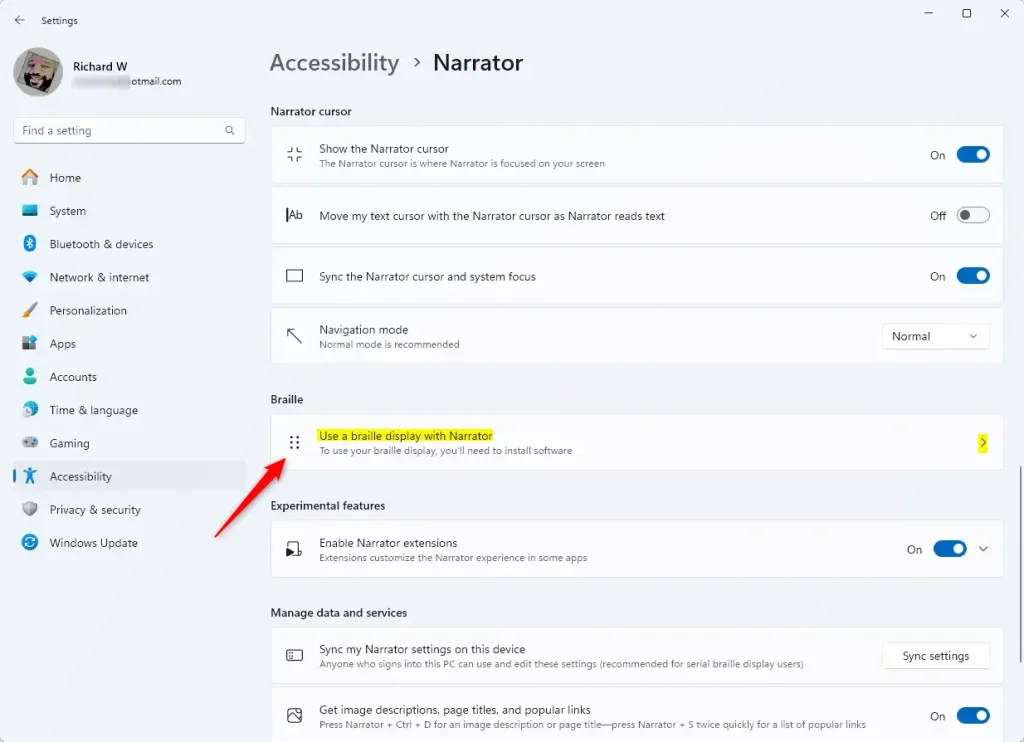
On the braille page, click the “Download and install braille” button to start the installation if not already installed.
Once installed, you will have the option to turn Braille on or off.
Next, click the “Add a braille display” button under Braille displays and drivers, and choose your Braille display manufacturer and connection type.
Then, select the “Blink cursor on braille display” tile under “Braille cursor.” Next, toggle the switch button to the On or Off position to enable or disable the blinking cursor.
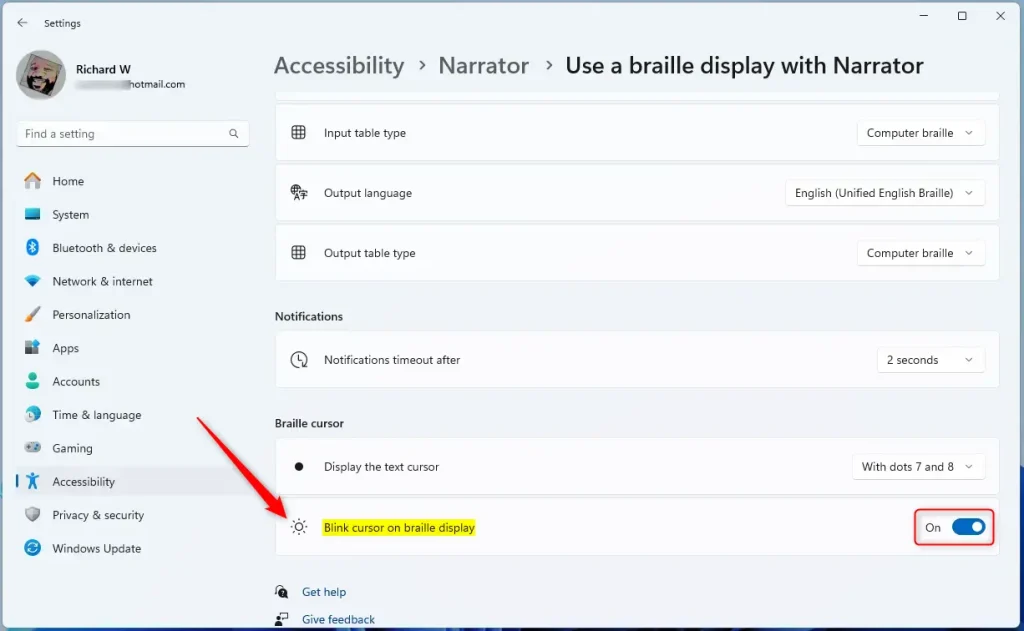
That should do it!
Conclusion:
- Enabling or disabling the blinking cursor on a braille display in Windows 11 is a personal choice, offering users control over their display preferences.
- Windows Settings and the Narrator app provide a straightforward process for adjusting the blinking cursor on a braille display.
- The ability to customize the cursor display adds to the accessibility features, catering to users’ diverse needs.
Leave a Reply Cancel reply