Enable Printer Sharing in Windows Sandbox


Printer sharing in Windows Sandbox lets you send documents from the isolated desktop environment directly to your physical printers. Windows Sandbox is a temporary 10-gigabyte virtual workspace that deletes all changes the moment you close it.
Because this sandbox runs in total isolation by default, it blocks your host computer’s hardware devices like printers. You need to update a configuration file with a simple code line to bridge the connection between your main system and the sandbox.
Enable printer sharing in Windows Sandbox by opening Local Group Policy Editor and navigating to Computer Configuration Administrative Templates Windows Components Windows Sandbox. Double-click “Allow printer sharing with Windows Sandbox” and set it to Enabled.
How to turn on or off printer sharing with Sandbox in 🪟 Windows 11
To turn on printer sharing Windows Sandbox features, you need to update the configuration file so your isolated desktop can access your physical printers. By default, Windows Sandbox blocks access to local hardware for security. Changing this setting lets you send print jobs directly from the sandbox to any printer installed on your main computer without needing to transfer files first.
Below, the Sandbox is isolated; you can’t print from it. If you want to print, you must enable printer sharing between the host and sandboxed environment.
Here’s how to do that.
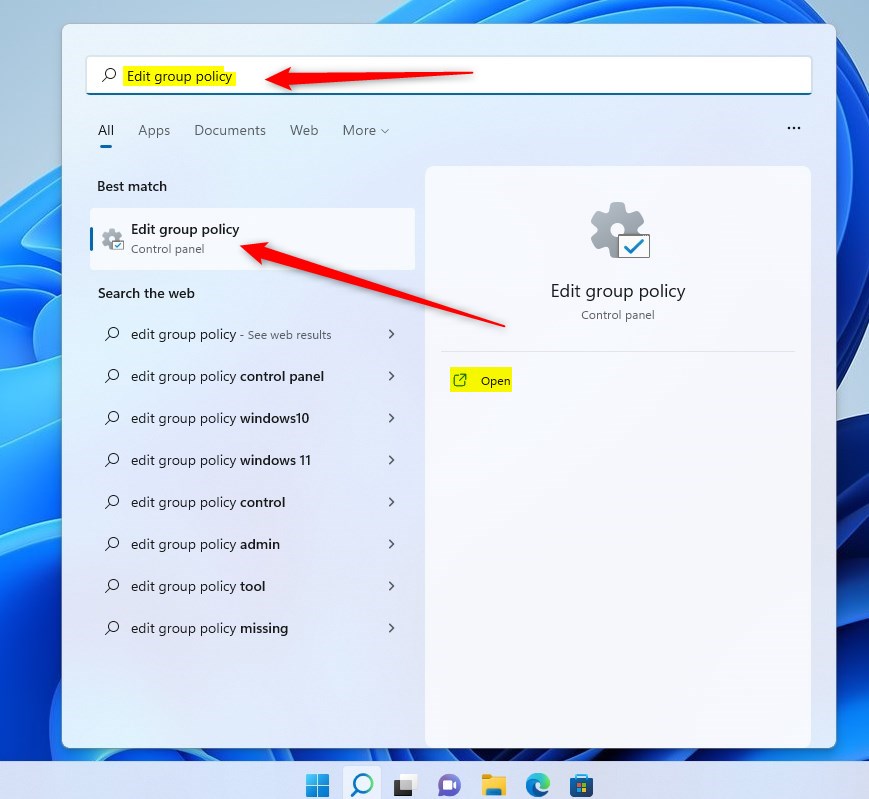
First, open Local Group Policy Editor by clicking the Start Menu and searching for Edit group policy, as highlighted below.
Under Best match, select Edit group policy to launch Local Group Policy Editor.
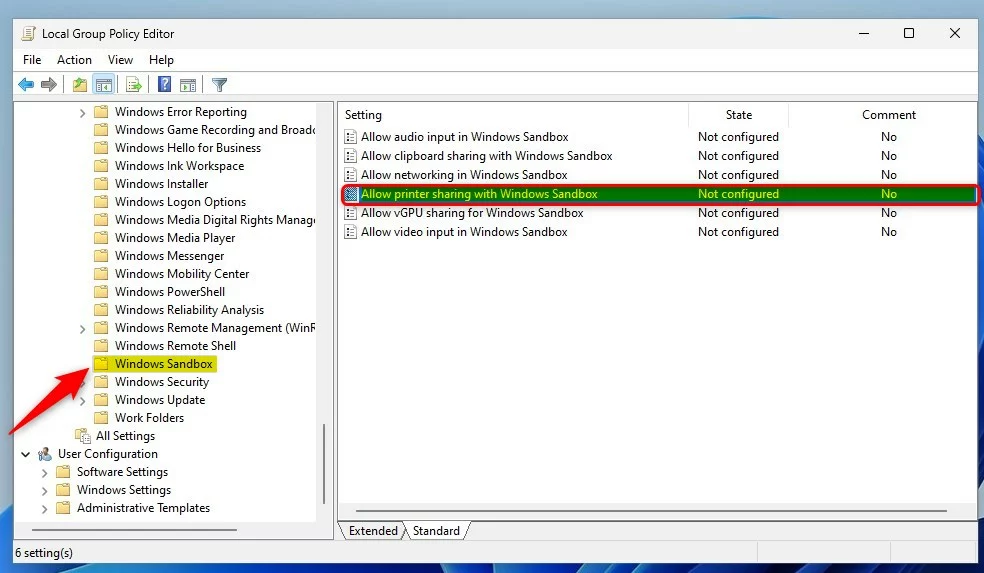
In the left pane of Local Group Policy Editor, expand the tree:
Computer Configuration > Administrative Templates > Windows Components > Windows Sandbox
Then, in the Windows Sandbox details pane on the right, find and double-click the "Allow printer sharing with Windows Sandbox" setting.
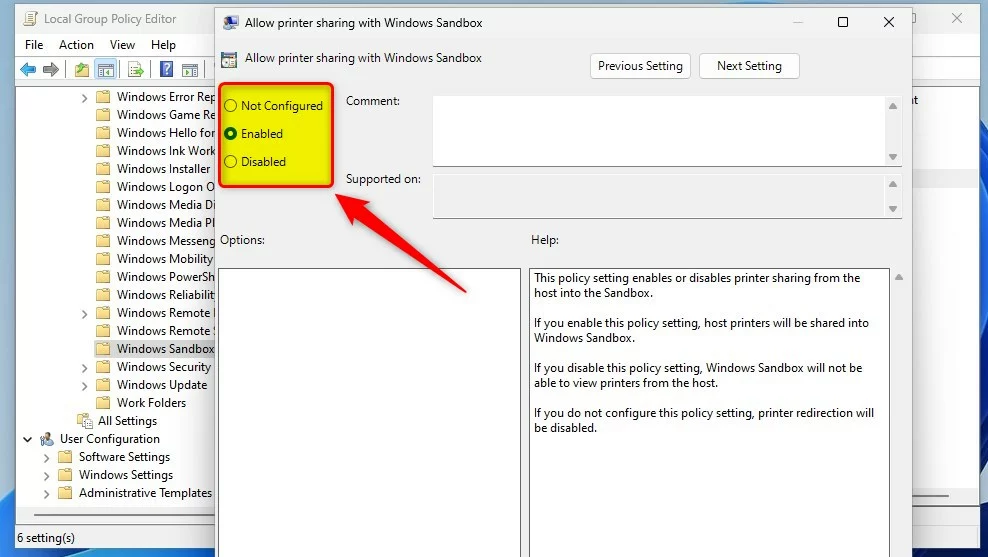
In the Allow printer sharing with Windows Sandbox window, choose either Not Configured, Enabled, or Disabled.
- Not Configured (default)
- Enabled - host printers will be shared into Windows Sandbox.
- Disabled - Sandbox will not view printers from the host.
Enable or disable printer sharing with Sandbox via Windows Registry
You can enable printer sharing Windows Sandbox settings using the Registry Editor if your version of Windows lacks the Group Policy Editor. Open the Registry Editor and go to HKEY_LOCAL_MACHINE\SOFTWARE\Policies\Microsoft\WindowsSandbox to create or modify the printer redirection key. This method applies the necessary system policy changes directly through the registry database.
Open the Windows Registry and navigate to the folder path (like a file folder) shown below.
HKEY_LOCAL_MACHINESOFTWAREPoliciesMicrosoftWindowsSandbox
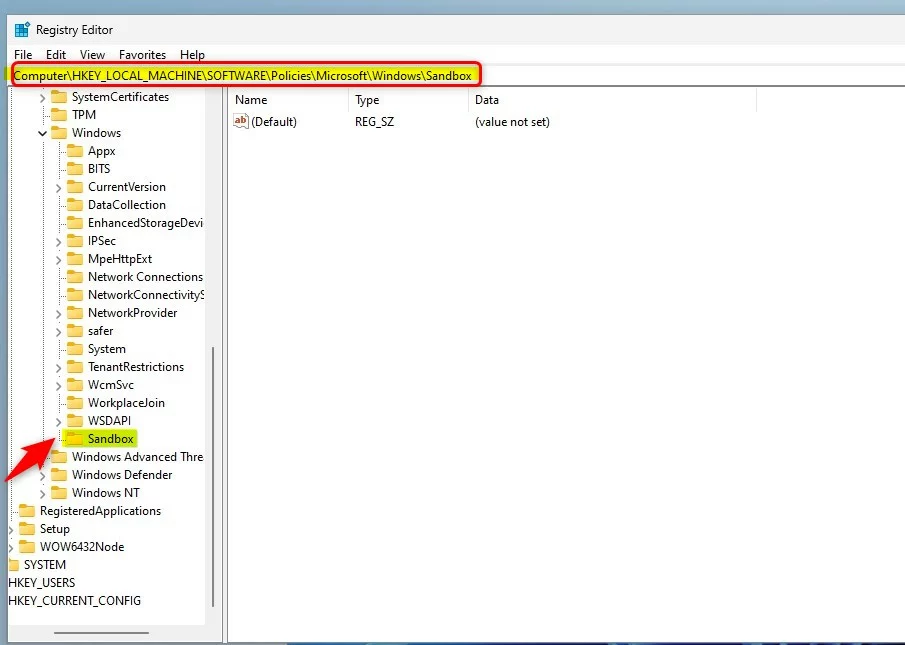
If you don't see a Sandbox folder key, right-click on the Windows key and create a new subfolder named Sandbox.
In the right pane of the Sandbox folder, right-click and choose New DWORD (32-bit) Value. Name this new key AllowPrinterRedirection.
Double-click it and set the Value data to 1 to turn on sharing.
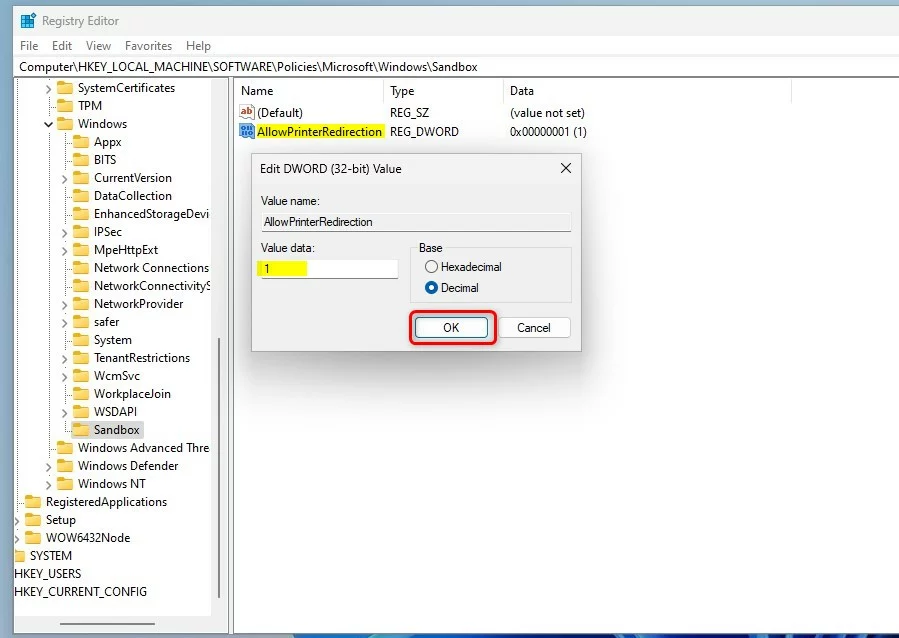
That should do it!
Reference:
Conclusion:
- Enabling printer sharing between the host and sandbox environment in Windows 11 provides the ability to print from the isolated sandbox environment.
- The process involves accessing the Local Group Policy Editor or the Windows Registry to configure the printer-sharing settings accordingly.
- These steps ensure seamless communication between the host machine and the Sandbox, allowing for a more versatile and productive workflow.
Should printer sharing be on or off?
A much better security practice is to remove File and Print Sharing.
Was this guide helpful?

About the Author
Richard
Tech Writer, IT Professional
Richard, a writer for Geek Rewind, is a tech enthusiast who loves breaking down complex IT topics into simple, easy-to-understand ideas. With years of hands-on experience in system administration and enterprise IT operations, he’s developed a knack for offering practical tips and solutions. Richard aims to make technology more accessible and actionable. He's deeply committed to the Geek Rewind community, always ready to answer questions and engage in discussions.


No comments yet — be the first to share your thoughts!