How to Enable or Disable Controlled Folder Access for Microsoft Defender Antivirus in Windows 11

Controlled Folder Access in Windows 11 blocks ransomware and unapproved apps from changing or deleting files inside your protected folders, such as Documents and Pictures. It is a built-in Microsoft Defender Antivirus feature. Unknown programs cannot touch your data unless you add them to the allowed apps list.
You need an administrator account and Real-time Protection turned on. If Real-time Protection is off, the Controlled Folder Access switch is greyed out in Windows Security. When a blocked app tries to change a protected file, Windows stops the attempt and shows a notification.
Open Windows Security, navigate to Virus & threat protection, then Manage ransomware protection. Toggle Controlled folder access On or Off. Alternatively, use the command line with Set-MpPreference -EnableControlledFolderAccess [Enabled/Disabled].
Option 3Use Local Group Policy Editor
Local Group Policy Editor lets you turn Controlled Folder Access on or off on Windows 11 Pro, Enterprise, and Education. Windows 11 Home does not include this tool, so Home users should use one of the other methods in this tutorial. The policy writes the setting to the registry for you, so you do not have to edit it by hand.
- ⚠️ Admin Required: Type gpedit.msc in the Start menu search bar and press Enter. The Local Group Policy Editor window opens.
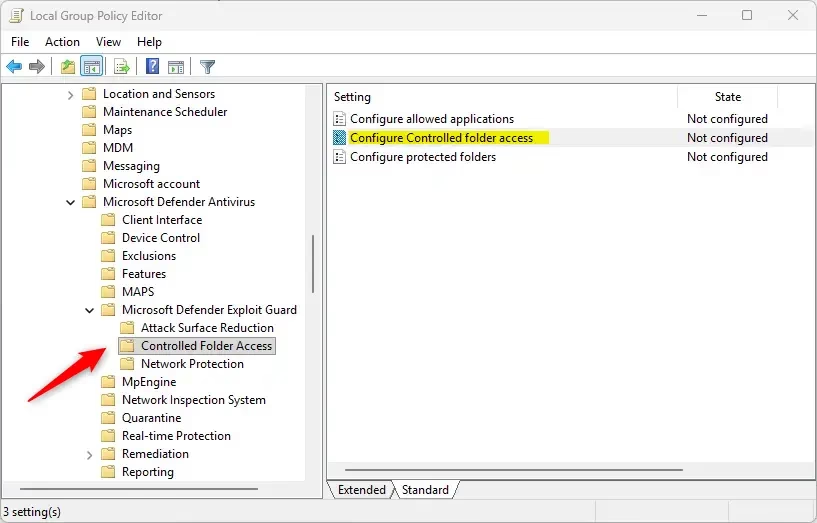
- In the left panel, navigate to this location:
Computer Configuration\Administrative Templates\Windows Components\Microsoft Defender Antivirus\Microsoft Defender Exploit Guard\Controlled folder access - In the right panel, double-click the Configure Controlled folder access policy. Its settings window opens.
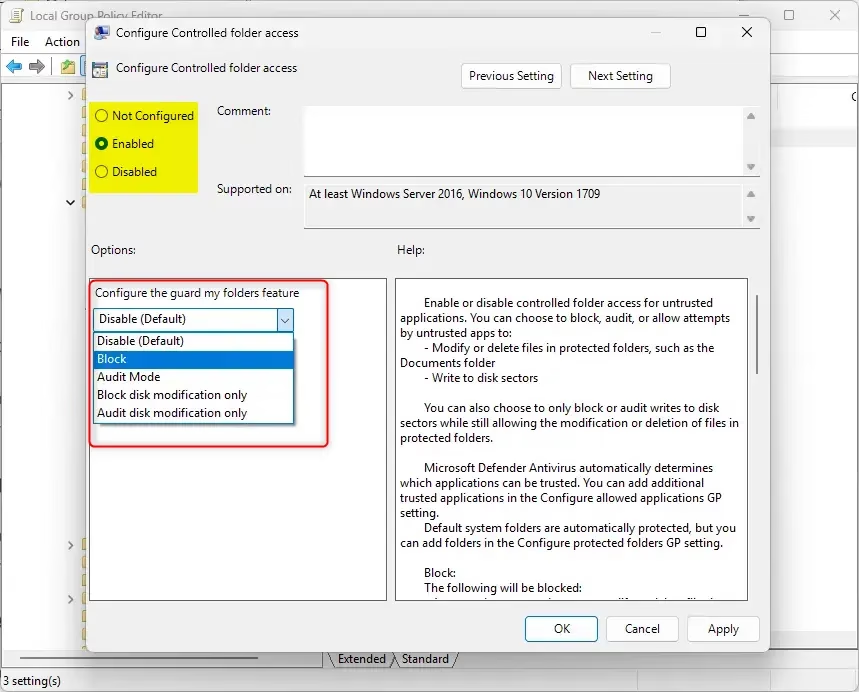
- Pick the option you want from the lists below, then click OK. The window closes and the policy is saved.
To always turn on Controlled Folder Access:
- Select Enabled.
- In the Configure the guard my folders feature dropdown, select Block.
- Click OK.
The dropdown has other choices, such as an audit mode that only logs events without blocking. Use Block if you want real protection.
To turn off Controlled Folder Access:
- Select Enabled.
- In the Configure the guard my folders feature dropdown, select Disable (Default).
- Click OK.
To use the default settings:
- Select Not Configured.
- Click OK.
Not Configured removes the policy and hands control back to Windows Security. This is also the way to undo any change you made here.
When you are done, close the Local Group Policy Editor. A restart is normally not needed. If the change does not show up right away, sign out and back in, or restart. While a policy is set to Enabled, the matching switch in Windows Security may be greyed out or show a message that your organization manages it. That is expected.
Option 4Use Registry Editor
⚠️ Admin Required: Use this method on all Windows 11 editions, including Home. It writes the setting to the registry directly, so sign in with an administrator account first. If you are unsure about a registry change, make a restore point before you apply it.
To Always Turn On Controlled Folder Access:
Click the Download button below to download the file, then follow the installation steps. Save the file somewhere easy to find, such as your Downloads folder. Windows may ask for permission before it applies the change, so approve the prompt to continue.
reg add "HKLM\SOFTWARE\Policies\Microsoft\Windows Defender\Windows Defender Exploit Guard\Controlled Folder Access" /v EnableControlledFolderAccess /t REG_DWORD /d 1 /f
To Turn Off Controlled Folder Access:
reg add "HKLM\SOFTWARE\Policies\Microsoft\Windows Defender\Windows Defender Exploit Guard\Controlled Folder Access" /v EnableControlledFolderAccess /t REG_DWORD /d 0 /f
To Use Default Settings:
reg delete "HKLM\SOFTWARE\Policies\Microsoft\Windows Defender\Windows Defender Exploit Guard\Controlled Folder Access" /v EnableControlledFolderAccess /f
Summary
Controlled Folder Access is a built-in security setting in Microsoft Defender Antivirus. It blocks unauthorized apps from changing files in your protected folders. Ransomware and unknown programs cannot lock up your personal documents and photos, because each app must pass a trusted list check first.
The feature protects important documents and personal files from ransomware. It relies on Microsoft Defender Antivirus in Windows 11, so Defender must be active and Real-time Protection must be on.
Windows 11 gives you four ways to turn Controlled Folder Access on or off:
- Windows Security settings
- A command
- Group Policy, on Pro, Enterprise, or Education editions
- The Registry
Every method requires administrator privileges.
With the feature on, trusted apps keep normal access to protected folders. Untrusted apps are blocked, and you get a warning when one of them tries to change a protected file. If a program you trust is blocked by mistake, add it to the allowed apps list instead of turning the whole feature off.
Have a question about this guide?
Answered by AI from this guide. Good questions may be added to this page — please don't include personal details.
Did this guide fix your problem?

About the Author
Richard
Tech Writer, IT Professional
Richard is a writer at Geek Rewind who turns complex IT tasks into clear, step-by-step guides. He draws on years of hands-on experience in system administration and enterprise IT operations, focusing on Windows, Linux and WordPress: the problems people actually run into, and the fixes that work. His server and WordPress guides come from systems he runs himself. Richard builds and maintains the platform behind Geek Rewind, from its Ubuntu servers and Nginx configuration to its custom WordPress plugins. Many new tutorials start with readers' questions, and he's always glad to answer them in the comments.
No comments yet — be the first to share your thoughts!