Enable Fractional Scaling in Ubuntu: A Step-by-Step Guide


Fractional scaling in Ubuntu adjusts your screen display size to intermediate steps like 125% or 150% instead of locking you into basic 100% or 200% jumps. High-resolution displays often make text and buttons look too tiny or too huge at standard settings, but fractional scaling fixes that exact problem.
Ubuntu hides this display adjustment by default, but you can turn it on with a quick command in your terminal. Once you switch it on, you gain precise control over how big everything looks on your desktop.
Open Settings , navigate to Displays, and toggle the Fractional Scaling switch to On. This unlocks additional scaling options like 125% and 150% for your display.
How to turn on or off fractional scaling in Ubuntu Linux
Fractional scaling Ubuntu lets you set screen sizes like 125% or 150% instead of jumping straight from 100% to 200%. You can turn this feature on or off by opening the Settings app, going to the Displays menu, and choosing your preferred scaling percentage under the Scale option to make text and icons the right size for your screen.
Here’s how to enable it.
Ubuntu Linux keeps most settings in one place. System configurations, user management, and updates all live within the System Settings panel.
To open System Settings, go to the Activities overview and type ‘Settings.’

Alternatively, click the System menu in the top-right corner of your desktop.
On the System menu, select Settings, as shown below.

In the Settings app, click the Displays tile.
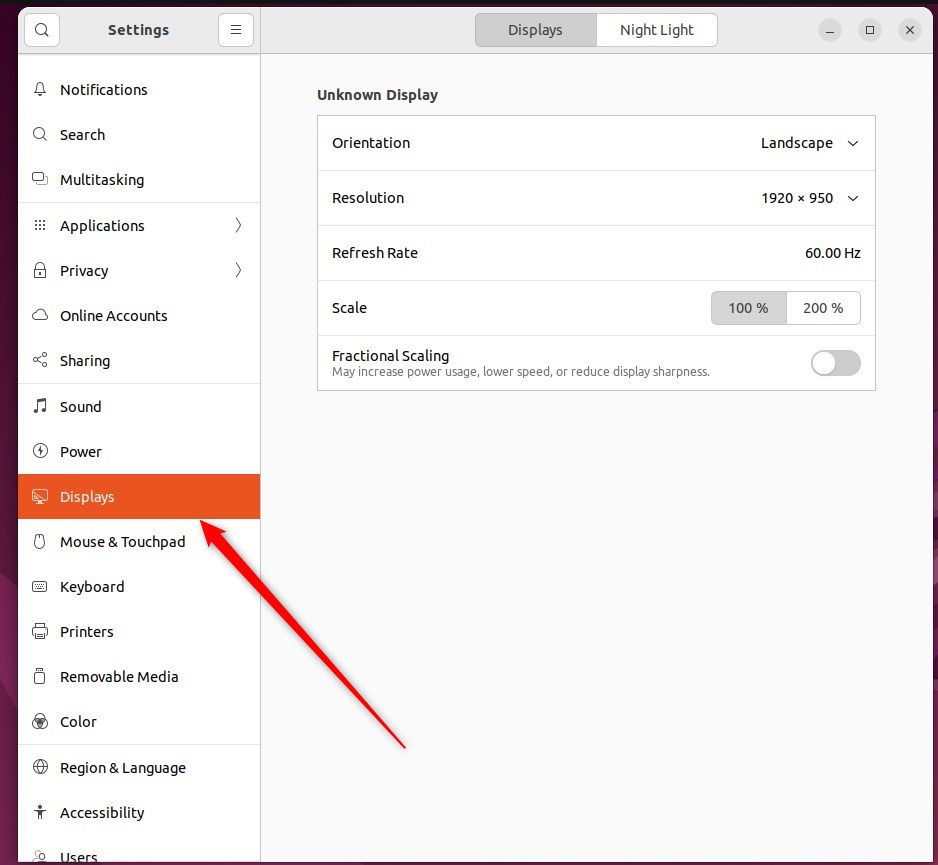
In the System Settings - Displays panel, locate the Fractional Scaling switch under your monitor. Toggle it to 'On' to enable. To disable, flip it back to 'Off'.
To disable, toggle back to the Off position.
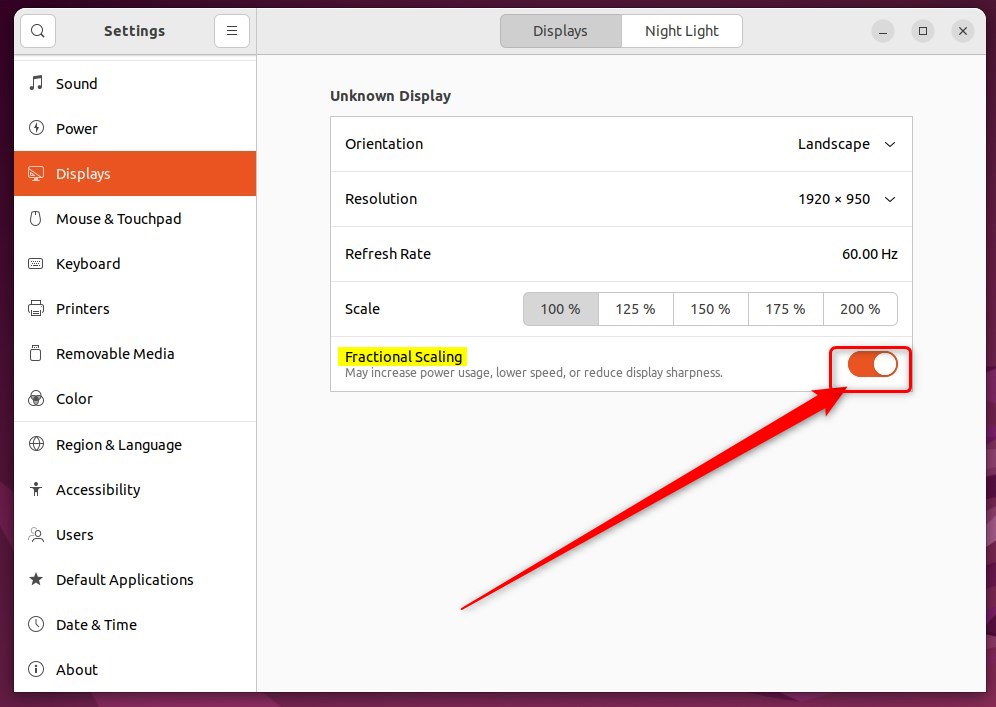
With Fractional scaling enabled, additional scaling values become available: 125%, 150%, and 175%.
That completes the process, and the Settings app can now close.
Conclusion:
- Fractional scaling in Ubuntu Linux allows for more precise control over the display scaling options, particularly beneficial for devices with high-resolution displays.
- Enabling fractional scaling provides additional scaling values such as 125%, 150%, and 175%, offering more flexibility in customizing the display size.
- The System Settings panel in Ubuntu Linux provides a straightforward method for toggling fractional scaling on or off, catering to individual preferences and display requirements.
- This enhanced scaling functionality enhances the overall user experience on Ubuntu, ensuring a more tailored and visually optimized display.
Was this guide helpful?

About the Author
Richard
Tech Writer, IT Professional
Richard is a writer at Geek Rewind who turns complex IT tasks into clear, step-by-step guides. He draws on years of hands-on experience in system administration and enterprise IT operations, focusing on Windows, Linux and WordPress: the problems people actually run into, and the fixes that work. His server and WordPress guides come from systems he runs himself. Richard builds and maintains the platform behind Geek Rewind, from its Ubuntu servers and Nginx configuration to its custom WordPress plugins. Many new tutorials start with readers' questions, and he's always glad to answer them in the comments.



No comments yet — be the first to share your thoughts!