How to Drag and Drop Files Between Phone and Windows 11

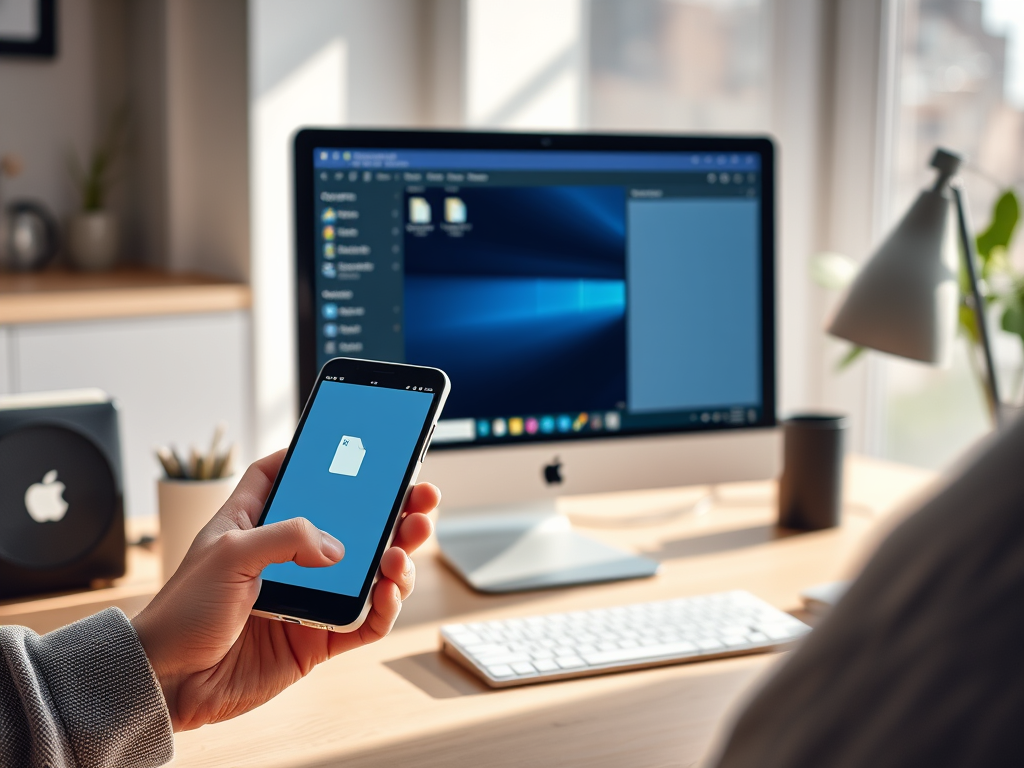
Dragging and dropping files between your phone and Windows 11 moves photos, documents, and other items wirelessly, with no cable. The Phone Link app (a tool that connects your phone to your PC) handles the transfer over Wi-Fi and Bluetooth , so you can manage your phone’s content from your computer screen.
You can send up to 100 individual files at once, as long as each file stays under 512 MB. Before you start, make sure your phone shows as connected in Phone Link. If the connection is down, drag and drop will not work no matter what you change on the PC.
Use the Phone Link app to drag and drop files between your phone and Windows 11. Open Phone Link, then drag files from File Explorer to your phone window, or drag from your phone window to your desktop.
Troubleshooting Drag and Drop in 🪟 Windows 11
Sometimes drag and drop stops working because of a temporary glitch in the Windows 11 interface, or because another program’s shell extension is interfering. Restarting the Windows Explorer process through Task Manager often clears it. Try this first, because it is quick and changes nothing permanent.
The general steps are:
- Right-click the Start button and choose Task Manager . You can also press Ctrl+Shift+Esc.
- On the Processes tab, find Windows Explorer . If you only see a short list, click More details at the bottom first.
- Right-click Windows Explorer and choose Restart. The taskbar and desktop will go blank for a moment and then come back. That is normal.
- Try dragging a file again between your phone window and a folder on your PC.
No full restart of the PC is needed. If drag and drop still fails, restart the PC once before moving on to the registry fix.
Registry Tweak for Drag and Drop Issues
If restarting Explorer does not help, the cause may be a setting in Registry Editor (the database that stores core system settings). A wrong value can make Windows ignore drag movements, so the mouse seems to freeze when you try to move items. Open Registry Editor with administrator rights and go to 🗝️HKEY_LOCAL_MACHINE\
Be careful here. Only change or remove values you recognize as part of the problem, and do not delete whole keys you are unsure about. Back up first: in Registry Editor, choose File Export, pick a location, and save the .reg file. If something goes wrong, double-click that file to restore the settings.
Registry changes require administrator privileges. If you are signed in with a standard account, Windows will ask for an administrator password, and the changes will not save without it.
HKEY_CURRENT_USER\Control Panel\Desktop
Look for the values named DragHeight and DragWidth. Make sure they are set to a low number, such as 4. Higher numbers can stop the computer from registering drag movements, because you would have to move the mouse a long way before Windows treats it as a drag.
To change a value, double-click it, type the new number in the Value data box, and click OK. Then sign out and back in, or restart the PC, so the change takes effect. To undo it, set the value back to what it was before, or import the .reg backup you saved earlier.
Summary
Using drag and drop with the Phone Link app (a tool that connects your phone to your PC) lets you move photos and documents quickly without a USB cable. You can drop individual files back and forth between your phone screen and your computer folders in seconds. Large folders and files over 512 MB need a cloud service such as OneDrive instead.
- The Phone Link app connects your phone to Windows for easy file sharing.
- You can drag and drop individual files, but not folders.
- There is a 512 MB size limit per file, and you can send up to 100 files at once.
- If drag and drop fails, restart File Explorer first, then check your registry settings.
- OneDrive is a good alternative if you need to move folders or larger amounts of data.
Have a question about this guide?
Answered by AI from this guide. Good questions may be added to this page — please don't include personal details.
Did this guide fix your problem?

About the Author
Richard
Tech Writer, IT Professional
Richard is a writer at Geek Rewind who turns complex IT tasks into clear, step-by-step guides. He draws on years of hands-on experience in system administration and enterprise IT operations, focusing on Windows, Linux and WordPress: the problems people actually run into, and the fixes that work. His server and WordPress guides come from systems he runs himself. Richard builds and maintains the platform behind Geek Rewind, from its Ubuntu servers and Nginx configuration to its custom WordPress plugins. Many new tutorials start with readers' questions, and he's always glad to answer them in the comments.
No comments yet — be the first to share your thoughts!