How to Clear Recent Activity in Windows 11 Copilot

You clear recent activity in copilot-on-or-off-in-windows-11/" class="sal-link" rel="noopener" target="_blank" data-sal-id="37398">Windows 11 Copilot by accessing its settings menu and selecting the option to delete your chat history.
Windows 11 Copilot is an AI assistant integrated into your operating system, designed to help you manage settings and find information. It can be accessed through a dedicated button on your taskbar or by pressing Windows Key + C.
This feature stores a record of your interactions, including questions asked and commands given. For privacy and to declutter your experience, knowing how to clear this recent activity is essential.
Specifically, deleting your Copilot activity removes past conversations from your device, ensuring a fresh start for your AI interactions.
Why Clear Copilot Recent Activity?
You might wonder Why you should clear this data. Clearing your history helps keep your information private, removes clutter, and lets you start fresh. What happens when done? Once you delete these items, your past chat prompts are removed from the Copilot sidebar on your computer. This ensures your AI assistant data management remains secure and compliant with your personal privacy standards.
Personal vs. Enterprise Accounts
It is important to know your account type. A Personal Microsoft Account (MSA) stores history in your account profile. A Work or School Account (Entra ID) is managed by your organization. If you use a work account, your company may have strict policies that prevent you from deleting history. This is often done to ensure GDPR compliance for AI and data retention requirements.
How to Clear Copilot Recent Activity
You do not need special permissions to clear your history for personal accounts. Follow these simple steps:
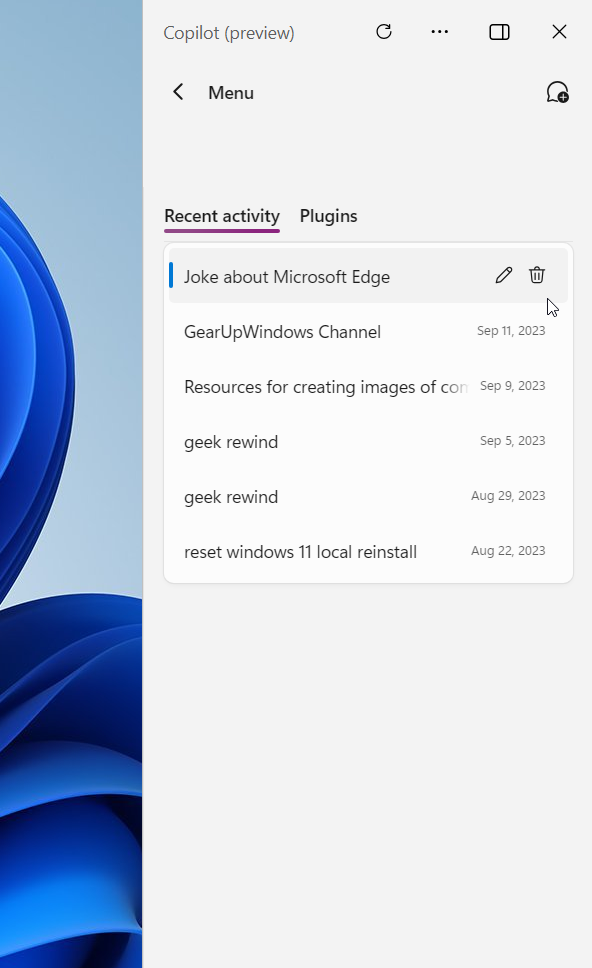
- Open the Windows Copilot by clicking the icon or pressing the Windows key + C on your keyboard.
- Look at the top right corner of the Copilot sidebar. Click the “Recent activity” button, which looks like a small clock.
- You will see a list of your previous chats. Select the activity you want to remove.
- Click the Delete button to remove that specific item from your history.
Managing GitHub Copilot Chat History
If you use GitHub Copilot Chat in VS Code or IntelliJ IDEA, your history is handled differently. You can clear your chat history directly within the extension sidebar. Right-click the chat session and select “Delete” or “Clear All.” Note that this does not delete your saved code snippets in your repository. It only removes the conversation history from the AI assistant interface.
Using the Microsoft Privacy Dashboard
For a complete cleanup, visit the Microsoft Privacy Dashboard. Sign in with your account. Navigate to the “Activity history” section. Here, you can manage your Copilot prompt history across all devices. This is the most effective way to ensure all data is wiped from Microsoft servers.
Troubleshooting Enterprise Restrictions
If you cannot find the delete button, your organization likely has an Enterprise Policy in place. You may see a message stating that your settings are managed by your administrator. In this case, you cannot clear the history manually. You must contact your IT department if you have concerns about data privacy or need to clear specific logs.
Summary
Managing your Copilot history is a great way to maintain your digital privacy. Whether you are using a personal account or a work account, understanding how to clear your data is essential. By using the sidebar tools or the Microsoft Privacy Dashboard, you can keep your information clean and secure. Always check your organization’s policies if you are using a work-issued computer.
Does clearing activity history delete my saved code snippets?
No. Clearing your Copilot activity history only removes the chat logs and prompts you have sent to the AI. It does not affect your actual code files, saved projects, or repositories stored on your local machine or cloud platforms like GitHub. Your work remains safe and unchanged.
How do I disable Copilot activity logging permanently?
You can manage data collection through the Microsoft Privacy Dashboard. While you cannot fully disable the underlying AI processing for the service, you can opt out of data sharing for product improvement. Go to your account privacy settings and toggle off the options related to sharing diagnostic data with Microsoft.
What is the difference between clearing chat history and clearing activity history?
Clearing chat history usually refers to removing the visible conversation threads in the sidebar. Clearing activity history is a broader action that removes the logs from your Microsoft account profile. Both actions help protect your privacy, but the Privacy Dashboard provides a more comprehensive wipe of your data.
Was this guide helpful?

About the Author
Richard
Tech Writer, IT Professional
Richard, a writer for Geek Rewind, is a tech enthusiast who loves breaking down complex IT topics into simple, easy-to-understand ideas. With years of hands-on experience in system administration and enterprise IT operations, he’s developed a knack for offering practical tips and solutions. Richard aims to make technology more accessible and actionable. He's deeply committed to the Geek Rewind community, always ready to answer questions and engage in discussions.


[…] Windows starts, Pin or Unpin the Copilot side panel, Resize the Copilot side panel, delete chat history in Copilot, create a desktop shortcut, hide the sidebar, use your phone with Copilot, enable […]