How to Create a Private Samba Share on Ubuntu 24.04

A private Samba share on Ubuntu 24.04 lets you share files between Linux and Windows computers on your home network, and only people with a username and password can open it. Samba is free software that speaks the SMB protocol, the same file-sharing protocol Windows uses, so the two systems can talk to each other.
You create a folder on your Ubuntu 24.04 machine and lock it down so only trusted people can open it. Other devices on your local network can’t browse your personal files or sensitive data. This guide covers installing Samba, creating the folder and group, editing the configuration, adding users, and mapping the share as a drive on Windows. You need an account with sudo rights on the Ubuntu machine. The Windows PC must be on the same network.
Install Samba using `sudo apt install samba`. Create a shared folder and group with `sudo mkdir /home/private`, `sudo groupadd smbgroup`, `sudo chgrp smbgroup /home/private`, and `sudo chmod 770 /home/private`. Configure `/etc/samba/smb.conf` with your share details, then restart Samba with `sudo systemctl restart smbd`.
Install Samba
Samba is not installed on Ubuntu by default, so you add its packages first. You do this in a terminal, and you need a sudo-capable account because installing software changes the whole system.
- Open a terminal. Press Ctrl+Alt+T, or search for Terminal in the Activities overview.
- Run the command below to install Samba. Enter your password when asked. The terminal shows nothing as you type it, which is normal.
- If Ubuntu asks you to confirm, type Y and press Enter. Wait until you are back at the prompt with no error messages.
sudo apt update
sudo apt install samba
Create a share folder
Next you make the folder you want to share and a dedicated user group to control access. Think of the group as a guest list. Only people on the list can connect to your private folder. Any new user you add later just needs to be put on this list.
The folder (private) below is only visible and accessible to group members, and anyone connecting has to authenticate first. Nobody gets in as a guest.
Before you create the folder, create the Samba member group. It will hold every user who should have access to the private folder. Run the command below in the terminal.
sudo groupadd smbgroup
Now create the private share folder and change its permissions so only group members can use it. The commands below do three things: make the directory, give ownership to the group, and remove access for everyone else. Run them in order.
sudo mkdir /home/private
sudo chgrp smbgroup /home/private
sudo chmod 770 /home/private
Configure Samba
The main Samba settings live in a single file, /etc/samba/smb.conf. Always back it up before you change it. If a typo stops Samba from starting, you can copy the original back and be where you started.
Samba's default configuration file is at /etc/samba/smb.conf. Only root can write to it, so open it with sudo.
First, create a backup before you edit anything. Run the command below. It copies the file under a new name in the same folder and leaves the original untouched.
sudo cp /etc/samba/smb.conf /etc/samba/smb.conf.bak
Then open the file in a text editor with sudo and adjust the highlighted settings shown below. Change only the lines shown. The rest of the file holds Samba's defaults, and it is safest to leave them alone.
sudo nano /etc/samba/smb.conf
Next, add the share definition shown below, usually at the end of the file. It sets the path to the folder, the security settings, and the valid users. The valid users line restricts access to your Samba member group. Check that the folder path and the group name match the ones you created earlier.
#======================= Global Settings =======================

[global]

# Change this to the workgroup/NT-domain name your Samba server will part of
   workgroup = WORKGROUP

# server string is the equivalent of the NT Description field
   server string = %h server (Samba, Ubuntu)

#### Networking ####

# Uncomment and add your interface name

  interfaces = 127.0.0.0/8 ens33

# Uncomment this to bind to the named interfaces and/or networks

  bind interfaces only = yes


#======================= Share Definitions =======================
#
# Under share definitions, create your share with the folder above.

[Private]
   # require authentication
   security = user
   # specify shared directory
   path = /home/private
   # allow all to write
   writable = yes
   # deny guest user (nobody)
   guest ok = no
   # allow only smbgroup members
   valid users = @smbgroup
   # smbgroup will inherit new files/directories
   force group = smbgroup
   # set all new files to members only
   force create mode = 770
   # set all new folers to members only
   force directory mode = 770
   # inherit permissions from parent folder
   inherit permissions = yes
Save the file and exit the editor. If you used nano, press Ctrl+O, then Enter to save, and Ctrl+X to exit.
Restart Samba so it reads the new settings. Samba only loads its configuration when it starts, so you need to restart it after every change to the file. The restart does not need a reboot of the machine.
sudo systemctl restart smbd
Create Samba users
Now you create the Samba users. Each person who needs the share gets a login, and that login is added to the restricted group. You set the password with the smbpasswd tool, so authorized people can sign in from other computers. Samba keeps its own password list, separate from the Linux login password. Every Samba user must already exist as a Linux account.
If you already have a Linux account, create a smbpasswd for it. Run the command below, replacing the username with the account you want to use.
sudo adduser sambauser
sudo smbpasswd -a sambauser
When prompted, type and confirm a new password for the account. The terminal shows nothing as you type, and it asks twice. The password can match the Linux login password, but it doesn't have to.
Finally, add the user account to the Samba group you created earlier. Without this step the user can sign in but can't open the private folder. If the person is already connected from Windows, have them disconnect and reconnect so the new membership takes effect.
sudo usermod -aG smbgroup sambauser
The Samba share is now created. Users on the same network should be able to browse and find the shared folder. If it doesn't show up, check three things. First, Samba restarted without errors. Second, the Ubuntu firewall, if enabled, allows Samba traffic. Third, both machines are on the same network.
Map Samba shares on Windows
On Windows, you connect to the Linux folder with the Map network drive tool in File Explorer. You enter the server address and sign in with your Samba account. The share then appears as a drive letter. The steps are the same on Windows 10 and Windows 11.
- Open File Explorer.
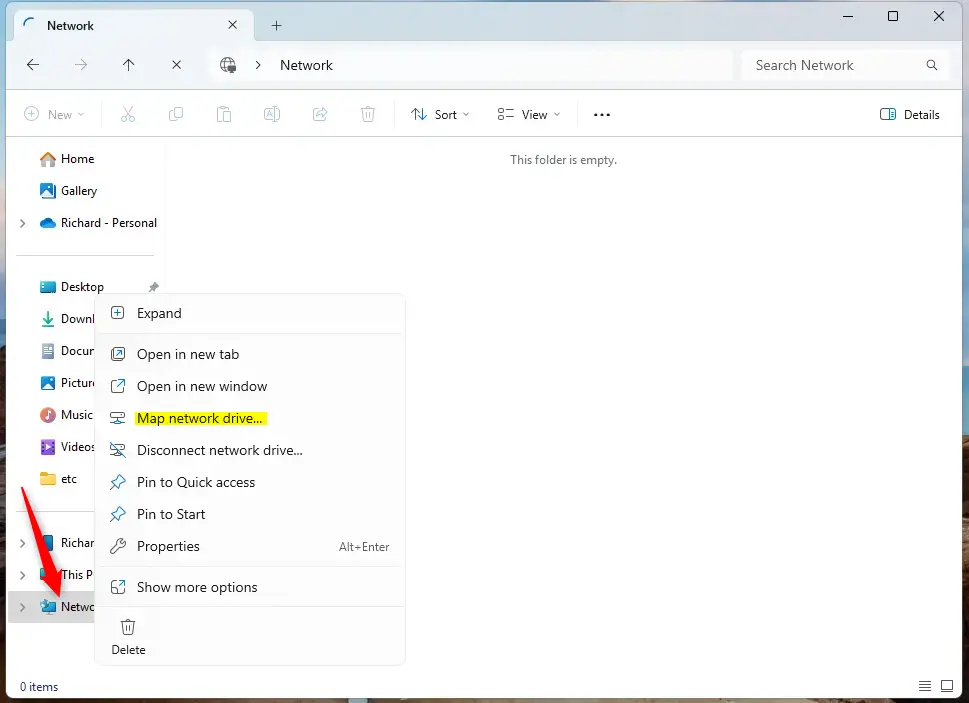
- Right-click the Network folder in the left pane and select Map network drive. On Windows 11 you may need to click Show more options first. The Map Network Drive wizard opens.
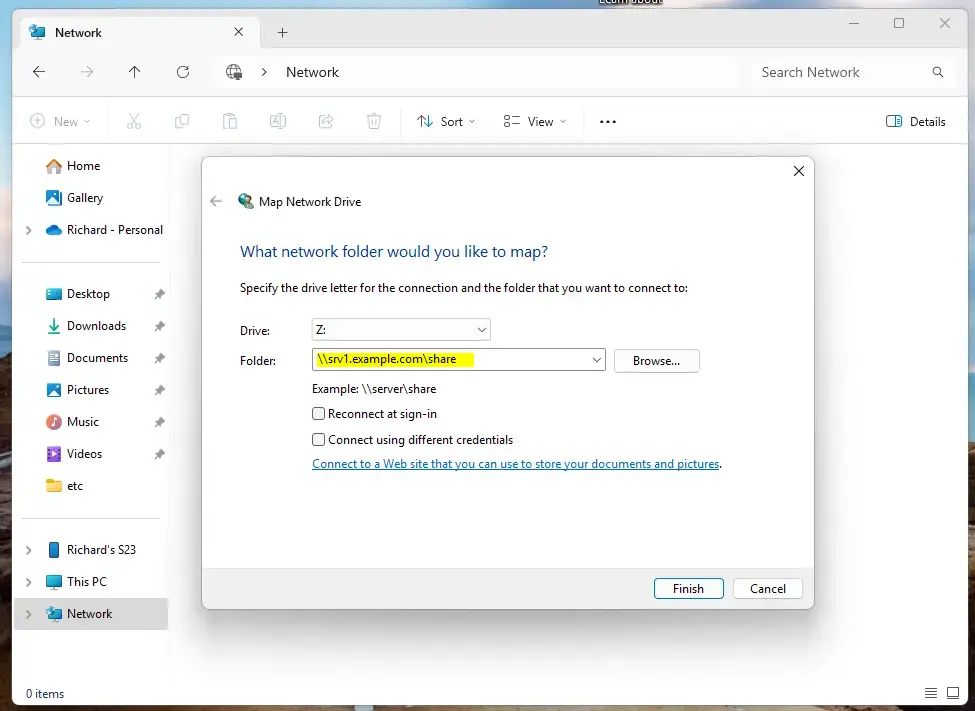
- Pick a letter in the Drive list.
- In the Folder box, enter the server name followed by the share name. Start with two backslashes, then the Ubuntu machine's name or IP address, then a backslash, then the share name. The IP address is the more reliable choice if Windows can't resolve the name.
- Tick Reconnect at sign-in if you want the drive back after every restart.
- Tick Connect using different credentials. Your Windows account is not a Samba user, so Windows needs to ask for the Samba login.
- Click Finish.
\srv1.example.comshare
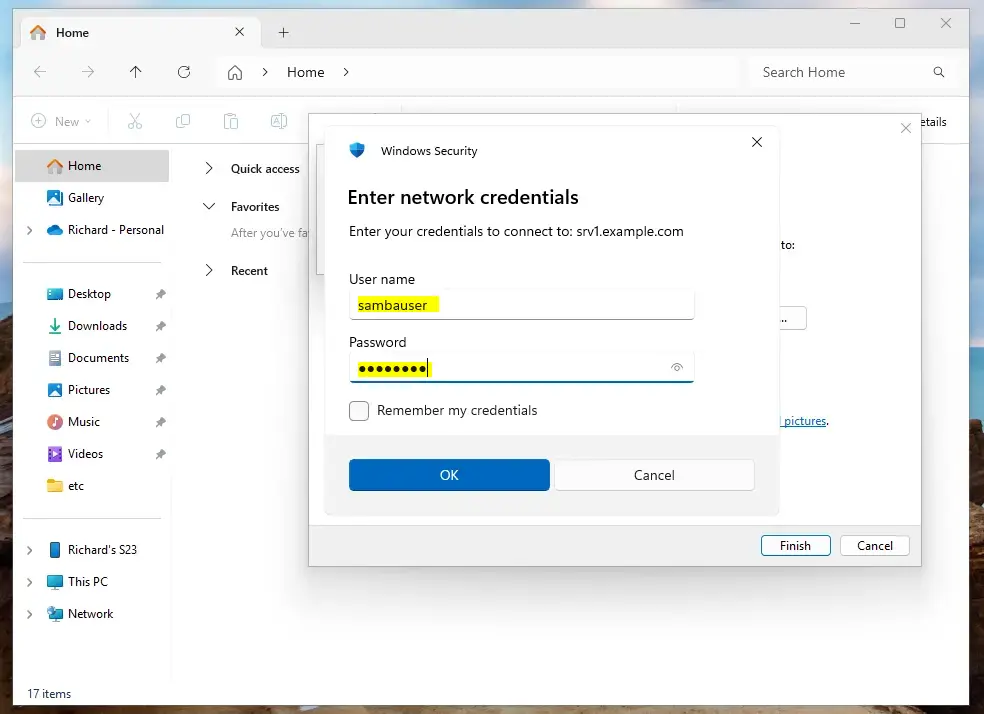
- When the credentials window appears, enter the Samba account created above. Use the Linux username and the password you set with smbpasswd.
- Tick Remember my credentials if this is your own PC, then click OK.
If sign-in fails, check the password first. Remember it is the Samba password, not necessarily the Linux one. Windows also refuses a second connection to the same server under a different username. If you already have one open, disconnect it and try again.
After that, the share should be mapped to your Windows machine. It appears under This PC as a network drive with the letter you chose. Open it and you should see the contents of the private folder. To undo the mapping later, right-click the drive and select Disconnect.
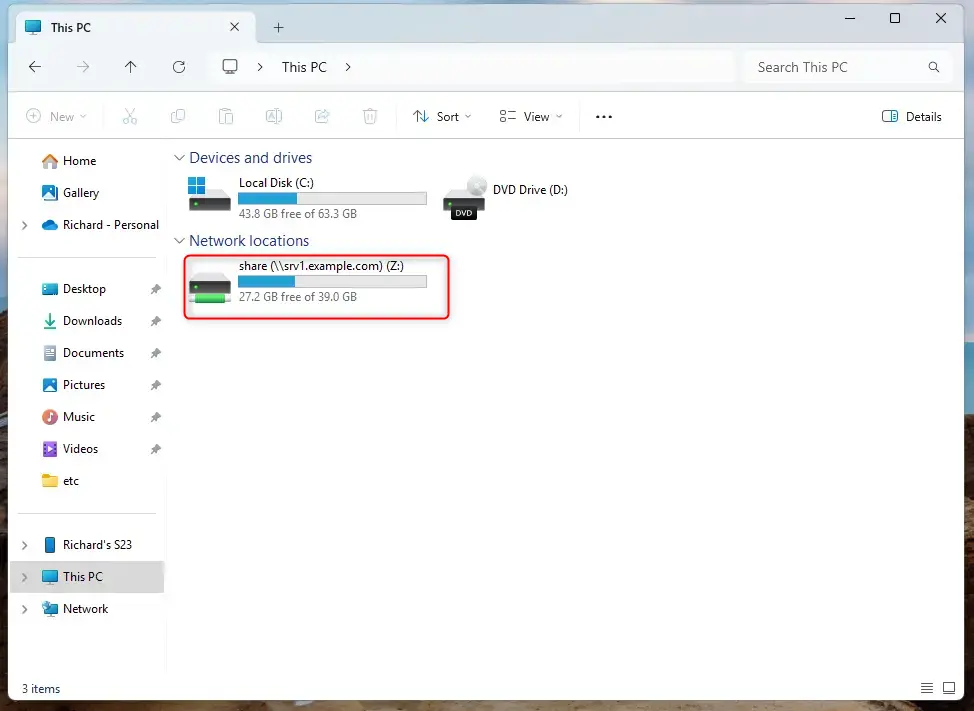
That should do it!
Conclusion:
- Samba provides an effective way to share files and printers between Linux/Unix and Windows systems.
- Creating a private Samba share enhances security by restricting access to authorized users only.
- The installation and configuration of Samba on Ubuntu 24.04 ensures that only members of a specified group can access the shared resources.
- Users can map the Samba share on Windows and open the shared files like any other drive.
- Regular management of user accounts and permissions is crucial to maintaining the integrity and security of the shared environment. When someone no longer needs access, remove them from the Samba group.
Have a question about this guide?
Answered by AI from this guide. Good questions may be added to this page — please don't include personal details.
Did this guide fix your problem?

About the Author
Richard
Tech Writer, IT Professional
Richard is a writer at Geek Rewind who turns complex IT tasks into clear, step-by-step guides. He draws on years of hands-on experience in system administration and enterprise IT operations, focusing on Windows, Linux and WordPress: the problems people actually run into, and the fixes that work. His server and WordPress guides come from systems he runs himself. Richard builds and maintains the platform behind Geek Rewind, from its Ubuntu servers and Nginx configuration to its custom WordPress plugins. Many new tutorials start with readers' questions, and he's always glad to answer them in the comments.
No comments yet — be the first to share your thoughts!