How to Create a Google Cloud Server with Ubuntu Linux


Google Cloud lets you run Ubuntu Linux on a virtual computer inside Google’s network. This setup gives you a reliable server to host websites and run applications.
Compute Engine provides the hardware power you need, while Ubuntu 22.04 LTS gives you a stable operating system to start building your projects in just a few minutes.
Navigate to Compute Engine VM instances in the Google Cloud console. Click CREATE INSTANCE, configure your server details like region and machine type, and select Ubuntu Linux for the boot disk. Finally, click Create to launch your new server.
How to sign up for Google Cloud
New Google Cloud users receive a $300 credit upon registration with a Gmail account, applying directly to server costs for the first 90 days. Navigate to the Google Cloud Platform (GCP) and register for an account if you do not already have one.
Head to Google Cloud Platform (GCP) and register for an account if you don’t already have one.
Click the blue button: “Get started for free” in the page’s upper-right corner.

New Google Cloud users receive a $300 credit upon registration with a Gmail account. This $300 credit applies to server costs for the first 90 days. It serves as a helpful incentive to explore Google Cloud services.
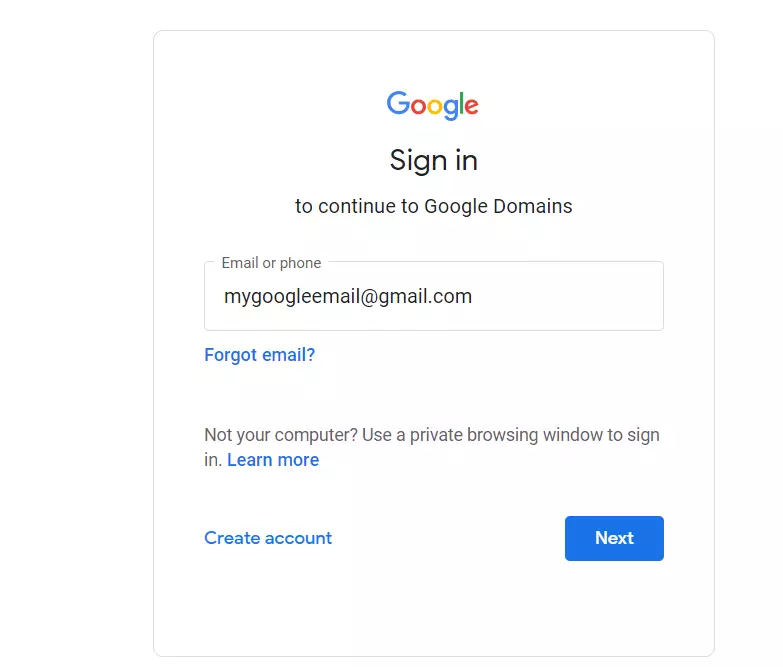
Registration completion leaves the user with an active Google Cloud Platform account. No charges apply initially since no cloud services consume resources yet.
How to create a Google Cloud server
Open the top-left navigation menu and select Compute Engine ==> VM instances to begin building the server. This action launches the virtual machine configuration workflow, preparing the environment to host websites or applications.
The domain created in the previous post forwards visitors to the Google server. This Google server hosts the online content.
To create a new Google Cloud Server, go to the menu on the top left and navigate to Compute Engine ==> VM instances, as shown in the image below.
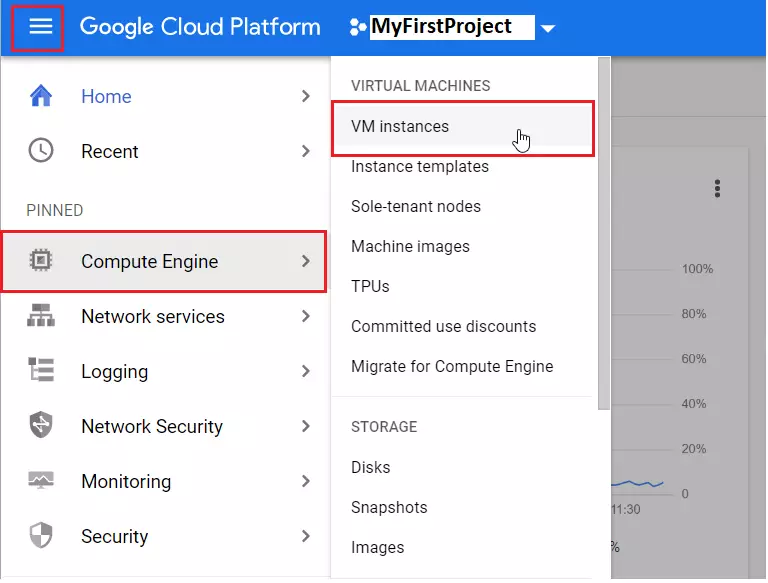
Missing projects prompt the system to request a new project creation before VM instance generation can proceed.
Clicking "CREATE INSTANCE" on the "VM instances" page starts setting up a new virtual machine. This configuration interface lets administrators pick an operating system, such as Ubuntu Linux version 22.04.
Completing this step provisions a brand-new virtual machine inside the Google Cloud infrastructure for hosting content.
Compute Engine usually takes a few minutes to prepare the VM instance. Once ready, the browser displays a page containing the setup details.
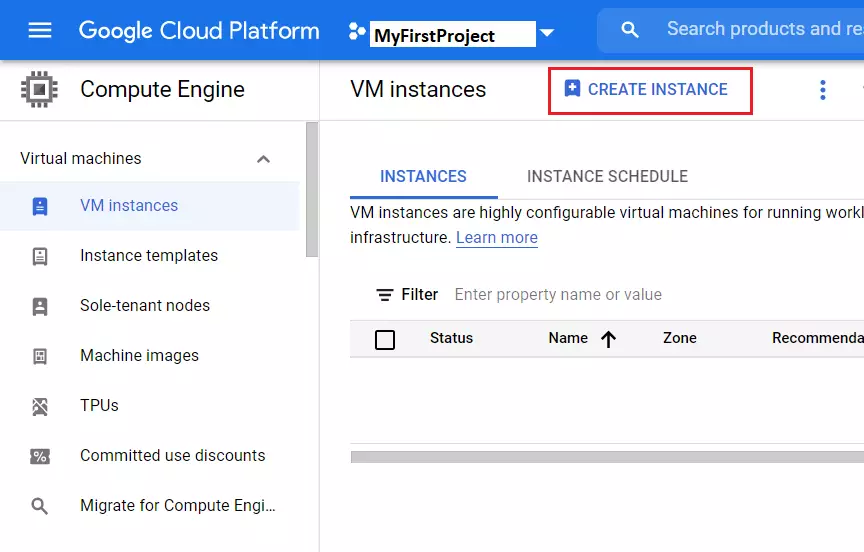
On the VM creation page, choose to Create a new VM from scratch.
Selecting server details configures the Ubuntu Linux virtual machine. Providing specific parameters, such as the desired region and machine type, tailors the server performance to workload demands.
Server names must start with a lowercase letter. Incompatible names trigger an error prompt requiring adjustments to meet Google Cloud naming rules.
Region: Think of a region as a specific geographical location where resources run. Selecting the region closest to the primary audience minimizes network latency.
A zone is an isolated location within a Google Cloud region that determines physical data storage placement. Zones reside in close proximity to their parent regions.
Machine configuration: Google Cloud offers various virtual machine configurations. Selecting the right one depends on operational needs and budget constraints.
Machine family - General purpose
CPU Series - CPU generation
Machine Type - CPU and Memory allocation.
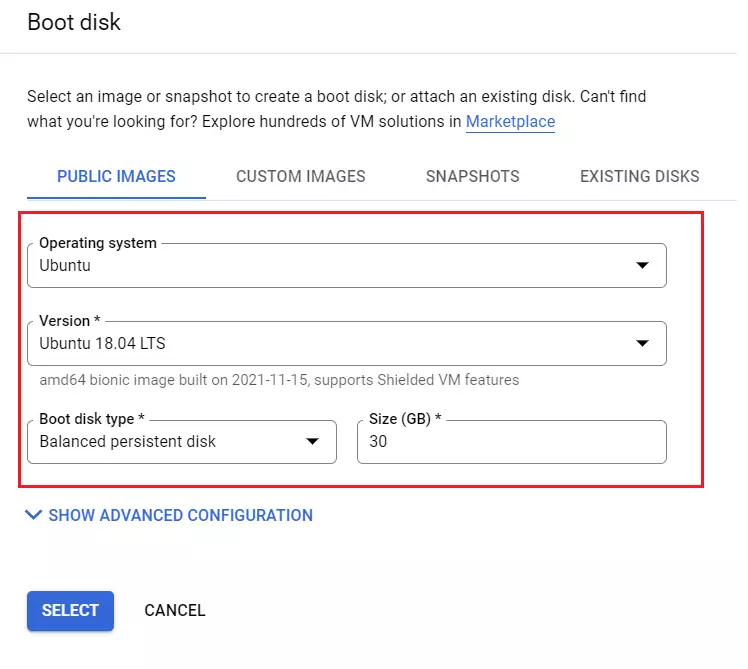
Boot disk: This setting determines the operating system for the Google Cloud server. Linux Debian appears by default, but several alternative operating systems remain available. Ubuntu Linux serves as the operating system of choice for this tutorial.
Click Change; choose Ubuntu Linux.
Firewall: Allowing HTTP and HTTPS traffic enables web connectivity for the Google Cloud server. Adding specific tags and firewall rules permits authorized network traffic originating from the internet.
- Allow HTTP traffic
- Allow HTTPS traffic
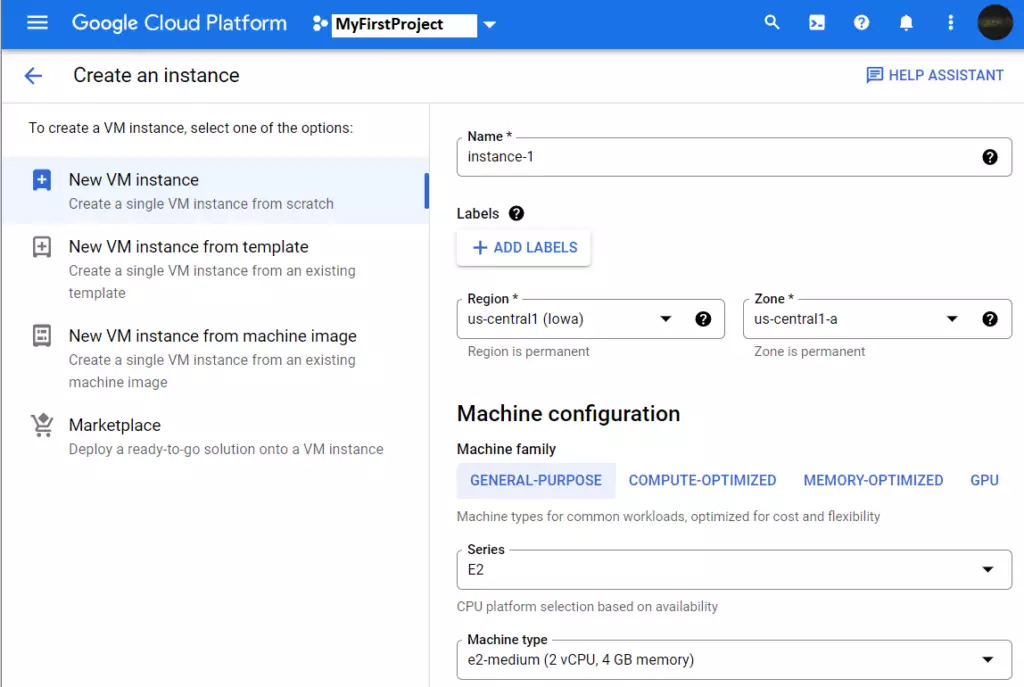
Click the Create button at the bottom of the page to provision the first VM instance.
The new server finishes initialization and reaches operational status after a brief wait.
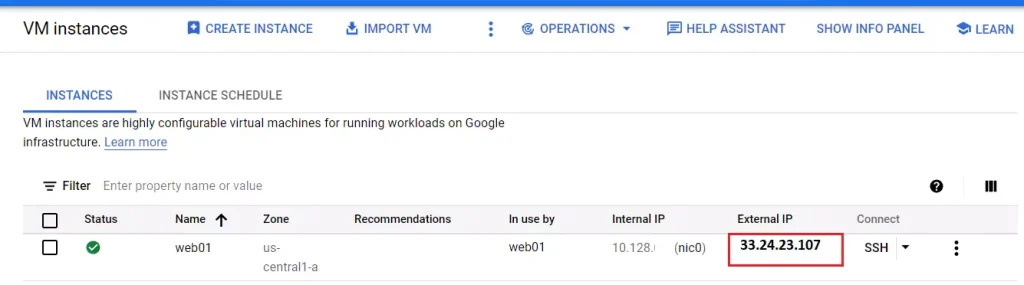
The public or external IP address appears under the External IP column.
Recording this External IP address proves essential for linking the domain name created earlier.
How to point a domain name to the server
The domain name acts as the online street address for visitors reaching the Google Cloud server. Pointing the domain requires using the server's external IP address, such as 34.102.76.12. Log in to Google Domains, click the domain name, and select DNS.
For us, it's Google Domains.
Log in to Google Domains, click the domain name, and select DNS.
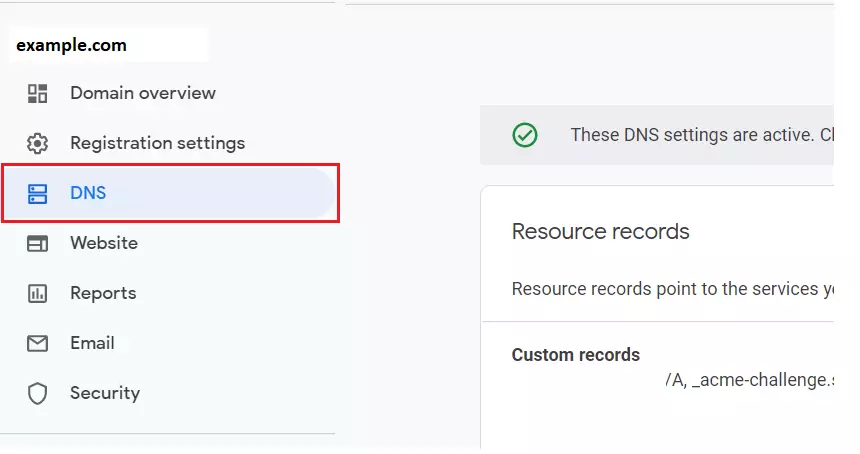
On the DNS page, scroll down to Custom Records in the middle. Then, expand the Custom Records tile and add the first record.
- Host name field, leave blank.
- Type = A
- TTL 3600
- Data: IP address of the host
Click the Save button when finished entering the details.
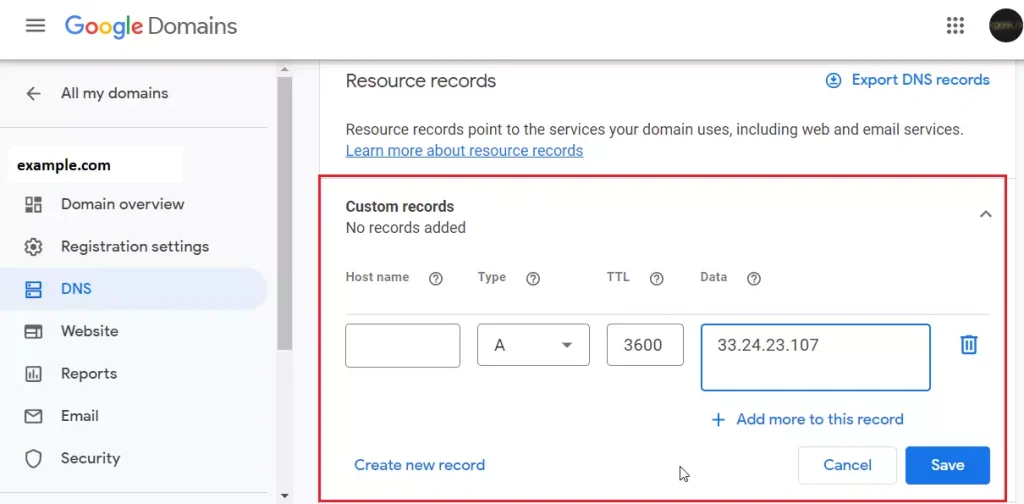
A new record appears, confirming that the website domain points directly to the server IP address.
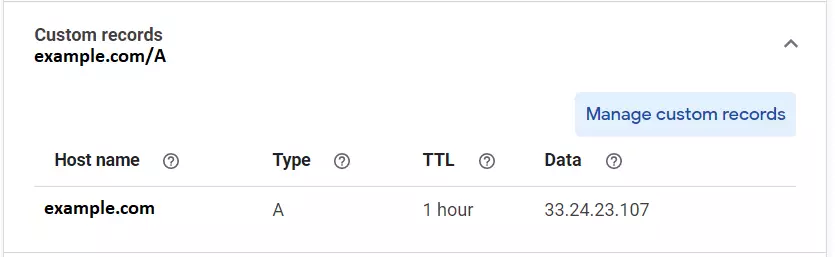
The domain name now correctly points to the host IP address. The server operates online, though web content remains to be added.
The next guide covers web server installation and content deployment on the newly configured Google Cloud server.
That completes the setup process.
Conclusion:
- Setting up a Google Cloud server with Ubuntu Linux is a straightforward process.
- You successfully created a Google Cloud account and a virtual machine (VM) instance.
- Pointing your domain name to the server makes your website accessible online.
- The server is live, but you must create web content to establish your online presence.
- In our next post, we will guide you through creating a web server and adding content to your new Google Cloud server.
Does Google Cloud support Linux?
# AlmaLinux OS on Google Cloud Platform. AlmaLinux OS is a fully supported operating system on Google Cloud Platform (GCP) and is available as a default offering in both the gcloud CLI and the Google Cloud Console GUI.
Does Ubuntu have free cloud storage?
Ubuntu is the world's most popular cloud operating system across public clouds. Thanks to its security, versatility and policy of regular updates, Ubuntu is the leading cloud guest OS and the only free cloud operating system with the option of enterprise-grade commercial support.
Was this guide helpful?

About the Author
Richard
Tech Writer, IT Professional
Richard, a writer for Geek Rewind, is a tech enthusiast who loves breaking down complex IT topics into simple, easy-to-understand ideas. With years of hands-on experience in system administration and enterprise IT operations, he’s developed a knack for offering practical tips and solutions. Richard aims to make technology more accessible and actionable. He's deeply committed to the Geek Rewind community, always ready to answer questions and engage in discussions.



No comments yet — be the first to share your thoughts!