
If you want your Windows 11 computer to share files and printers easily with other devices, you might need to change its workgroup. A workgroup is like a group name for computers on the same local network so they can find and share stuff with each other.
By default, Windows computers use the workgroup name WORKGROUP. But you can change it if you want all your devices to be in the same group with a different name.
What is a Workgroup?
A workgroup is a simple way for computers on the same network to share files, printers, and other resources. If your computers have the same workgroup name, they can see each other more easily.
Learn more about turning file and printer sharing on or off in Windows 11.
How to Change Your Workgroup Using Windows Settings
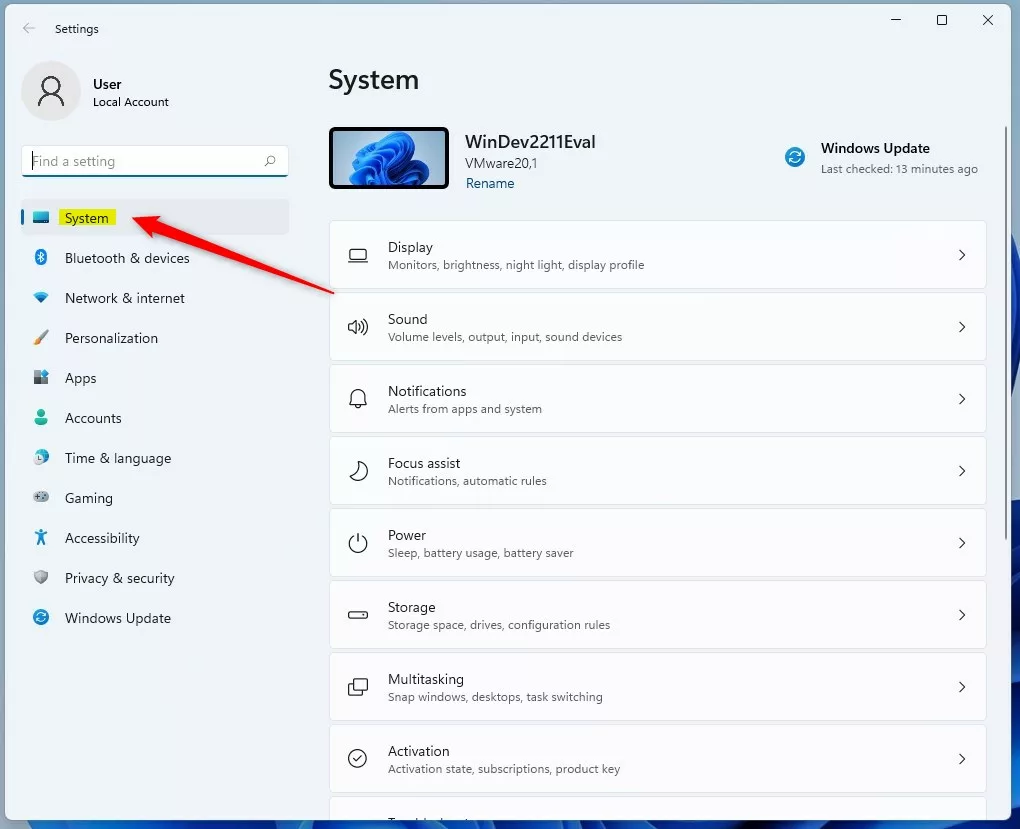
- Open Settings: Click the Start menu and select Settings, or press Windows key + I on your keyboard.
- In Settings, click on System on the left side.
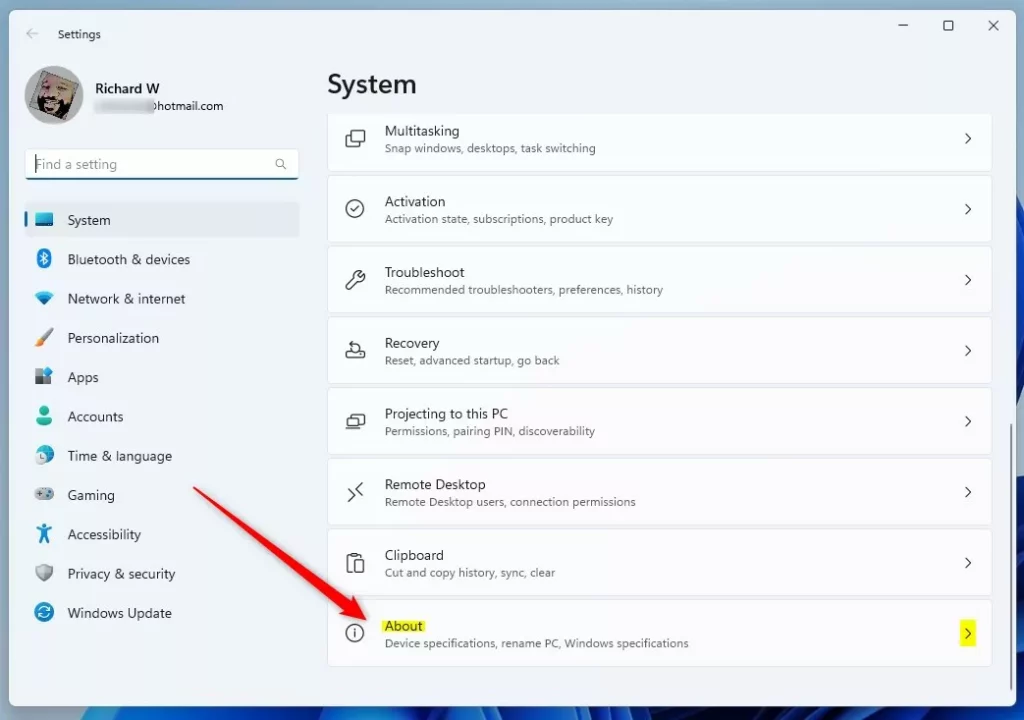
- Scroll down on the right and click About.
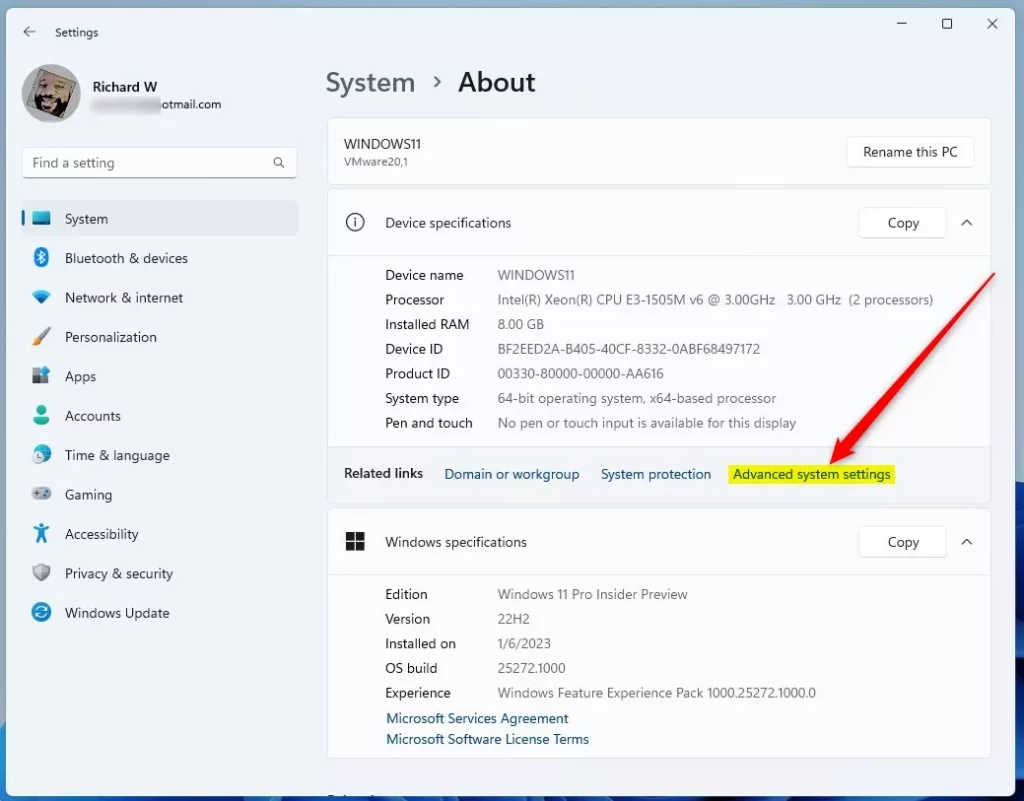
- Under About, click Advanced system settings (you might see a pop-up asking for permission).
- In the System Properties window, click the Computer Name tab.
- Click the Change button.
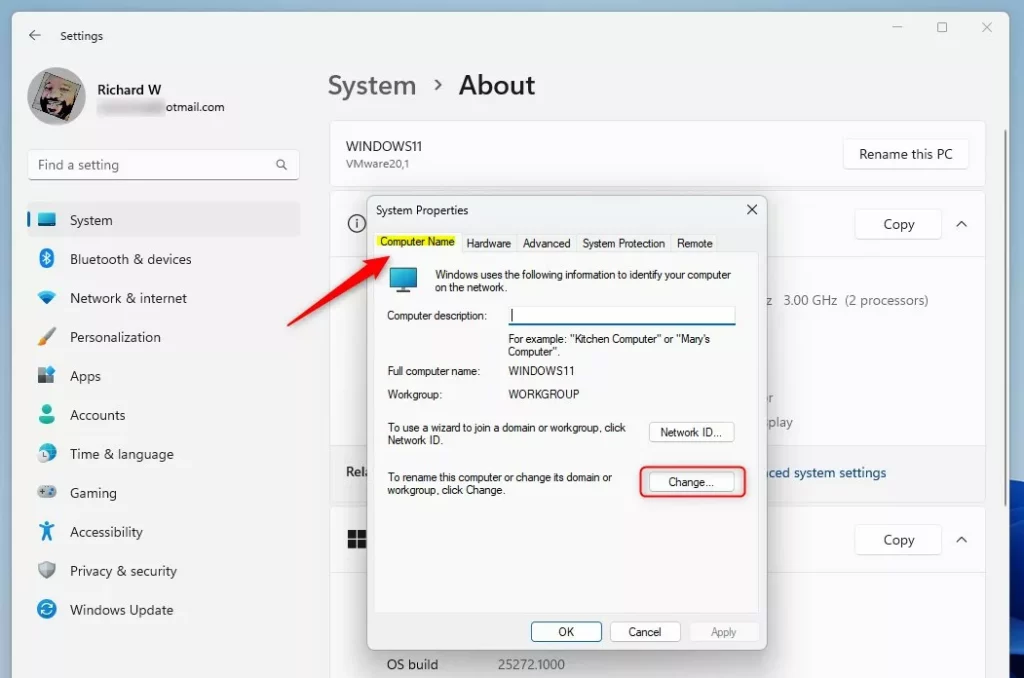
- In the new window, choose Workgroup and enter the name you want for your workgroup.
- Click OK when done.
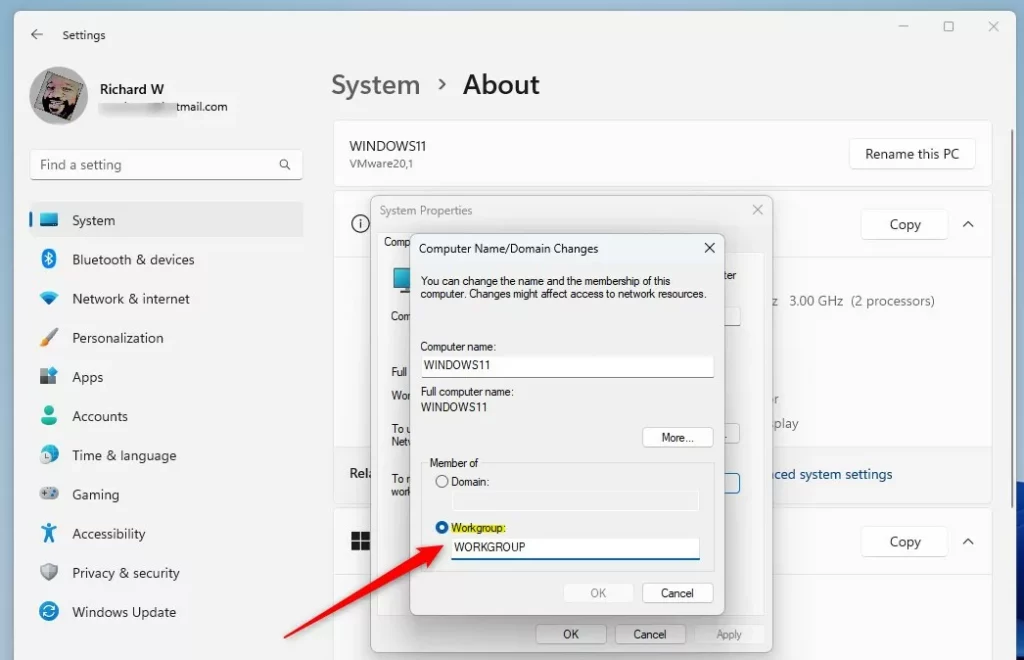
Important: Workgroup names cannot have spaces or special characters like these:
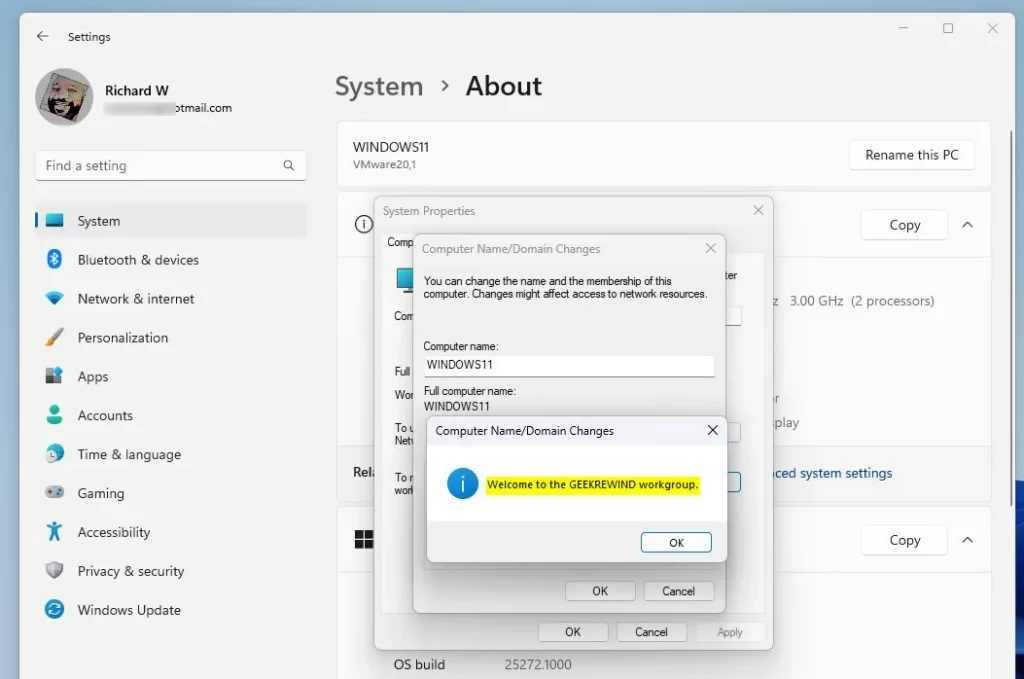
` ~ @ # $ % ^ & ( ) = + [ ] { } | ; : , ‘ “ . < > / ?After clicking OK, restart your computer to apply the new workgroup name.
Change Workgroup Using Command Prompt
If you prefer using commands, here’s how to change your workgroup using Command Prompt:
- Open Command Prompt as Administrator. To do this, type “cmd” in the Start menu, right-click Command Prompt, and select Run as administrator.
- Type the following command, replacing YourWorkgroupName with your desired workgroup name:
wmic computersystem where name="%computername%" call joindomainorworkgroup name="YourWorkgroupName"Example to switch to a workgroup named GEEKREWIND:
wmic computersystem where name="%computername%" call joindomainorworkgroup name="GEEKREWIND"Restart your PC to finish the change.
Change Workgroup Using Windows PowerShell
You can also use Windows PowerShell to make this change:
- Open Windows PowerShell as Administrator.
- Type the command below, replacing YourWorkgroupName with the name you want:
Add-Computer -WorkGroupName "YourWorkgroupName"Example to change to GEEKREWIND workgroup:
Add-Computer -WorkGroupName "GEEKREWIND"Restart your computer to apply the change.
Summary
- Changing your workgroup helps your Windows 11 PC share files and printers with other devices.
- You can do it easily through Settings, Command Prompt, or PowerShell.
- Make sure your workgroup name has no spaces or special characters.
- Don’t forget to restart your computer after changing the workgroup.
Now you know how to change your workgroup on Windows 11! This will make it easier to share things on your home or office network.

Leave a Reply