How to Change Windows Terminal Language in Windows 11

Do you use Windows Terminal on your Windows 11 computer? Want to change the language it uses? This guide will show you how. We’ll walk through each step so you can do it easily.
What is Windows Terminal?
Windows Terminal is an app in Windows 11 that lets you open command-line tools like Command Prompt, PowerShell, and even Linux commands (using WSL).
It’s better than older command-line apps because it gives you more features. You can open many tabs at once. You can split windows into sections. It supports many different characters. And you can change colors and backgrounds to match your style.
Why Does Windows Terminal Use a Certain Language?
By default, Windows Terminal uses the same language as your Windows system. If your Windows is set to English, Terminal will be English too. If you change your Windows language setting, Terminal changes with it. But here’s the good news: you can also change Terminal’s language by itself without changing your whole system!
How to Change the Language in Windows Terminal
Step 1Open Windows Terminal
Click the Start menu button (the Windows icon). Type Terminal in the search box. Click on Windows Terminal when you see it.
Step 2Open the Settings
Once Terminal is open, look at the top bar. Click the small down arrow ▼ button next to the tabs. Then click Settings, or press Ctrl + , (comma) on your keyboard.
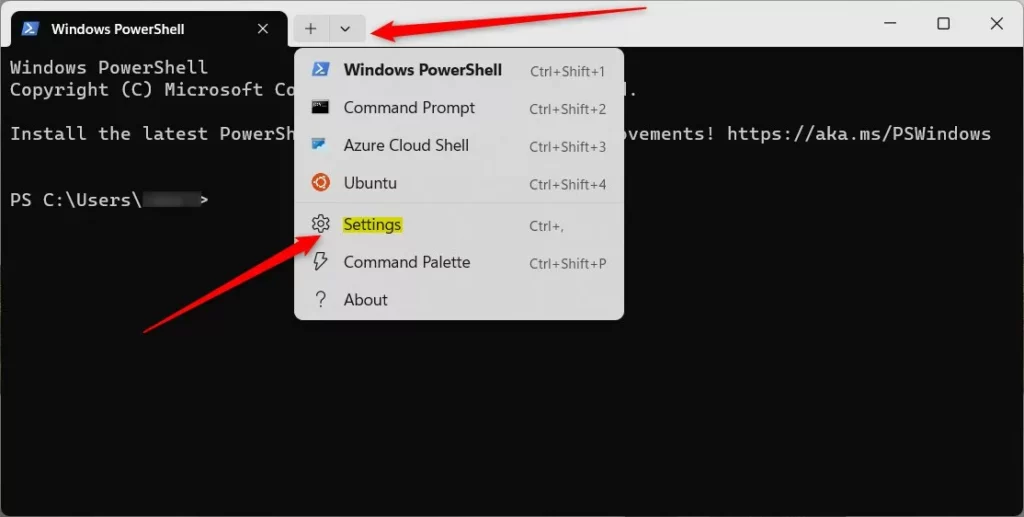
Step 3Change the Language
In the Settings window, click on the Appearance tab on the left side. Look for the option called Language (requires relaunch). Click it and pick your preferred language from the list.
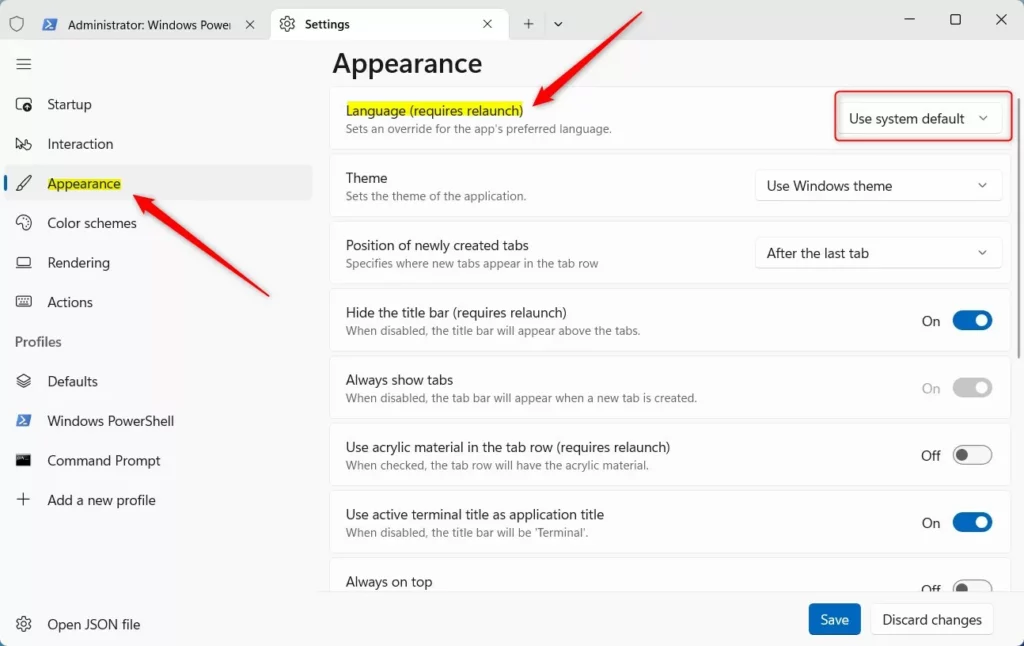
Step 4Save and Restart
Click the Save button at the bottom. Then close Windows Terminal completely and open it again. You will now see the new language in action.
That’s it! You have successfully changed the language in Windows Terminal.
Summary
- Windows Terminal is a modern app for command-line tools in Windows 11.
- It uses your Windows system language by default, but you can set a different language inside the app itself.
- Changing the language is simple: open Terminal, go to Settings → Appearance, pick a new language, save, and restart Terminal.
Want to learn more about Windows Terminal and related tools? Check out these helpful guides:
- How to Open Command Prompt in Windows 11
- How to Open PowerShell in Windows 11
- How to Install Linux on Windows 11 (WSL)
- How to Change Windows 11 Display Language
Do you have questions? Did you try this? Leave a comment below and let us know!
Was this guide helpful?

About the Author
Richard
Tech Writer, IT Professional
Richard, a writer for Geek Rewind, is a tech enthusiast who loves breaking down complex IT topics into simple, easy-to-understand ideas. With years of hands-on experience in system administration and enterprise IT operations, he’s developed a knack for offering practical tips and solutions. Richard aims to make technology more accessible and actionable. He's deeply committed to the Geek Rewind community, always ready to answer questions and engage in discussions.




No comments yet — be the first to share your thoughts!