How to Change Xbox Game Bar Theme in Windows 11

You change your Xbox Game Bar theme in Windows 11 by adjusting settings within the Game Bar itself.
The Xbox Game Bar is a built-in Windows overlay providing gaming features like performance monitoring and recording, accessed via ⊞ Win+G.
Customizing the theme helps you personalize your gaming interface. For instance, Windows 11’s dark mode option often reduces eye strain during extended gaming sessions.
This guide details how you toggle between the available themes, including the default dark mode and the lighter option, directly within the Windows 11 Game Bar.
Open the Xbox Game Bar with Windows key + G, click the Settings gear icon, select Personalization, and choose your preferred theme under the Theme section. You can select Light, Dark, or sync with your Current Windows theme.
What happens when you change the theme?
When you update your settings, the Game Bar overlay instantly changes its look. It switches colors and contrast levels based on your choice, affecting the background, text, and widget borders. Don’t worry, this doesn’t change your game graphics; it only alters the menu overlay on your screen.
How to change the Xbox Game Bar theme
Changing the Xbox Game Bar theme in Windows 11 is simple and lets you pick a look you like.
- Open the Xbox Game Bar by pressing the Windows key + G on your keyboard.
- Click the Settings (gear icon) button on the Game Bar.
- In the Settings window, click the Personalization tab on the left side.
- Look under the Theme section on the right.
- Choose your preferred look: Light, Dark, or Current Windows theme.
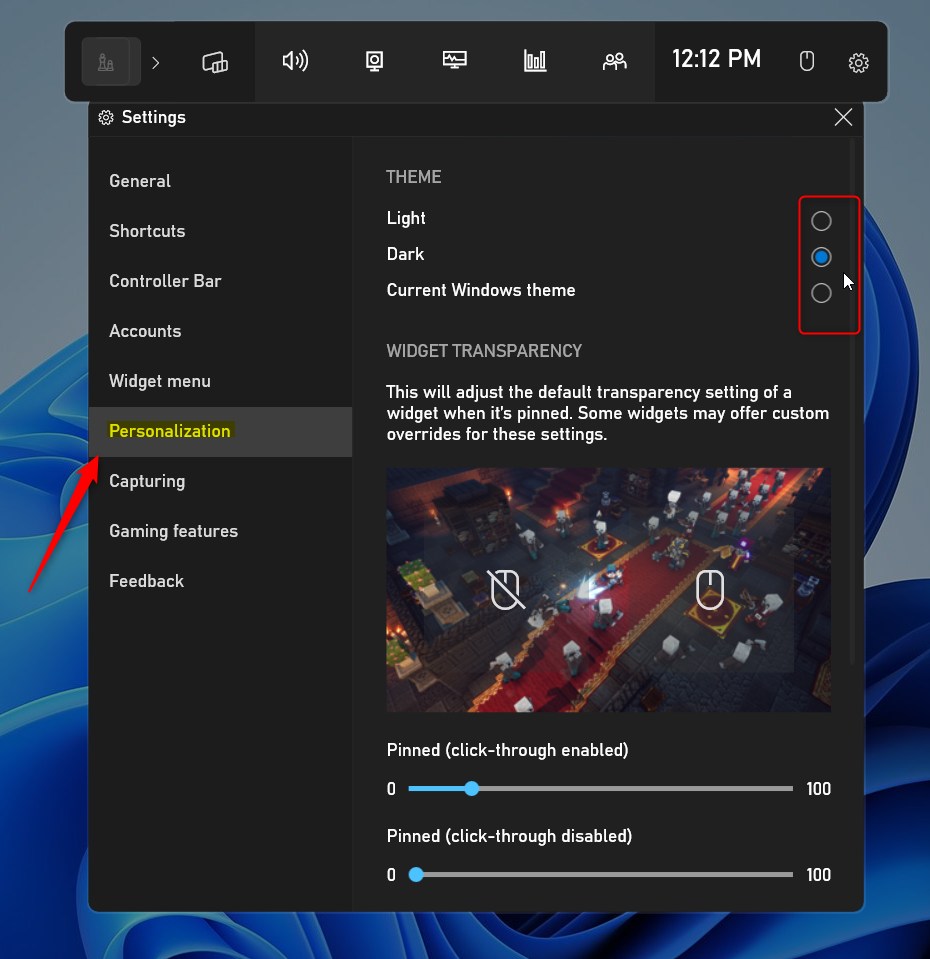
If you pick ‘Current Windows theme,’ the Game Bar will automatically adjust whenever you switch your Windows settings between light and dark modes.
System-wide vs. App-specific theme limitations
The Xbox Game Bar theme is limited to the official Microsoft options, unlike some other Windows apps.
Accessibility and High Contrast modes
You can use Windows High Contrast mode to change the Xbox Game Bar theme for better visibility.
Troubleshooting theme application issues
If your Xbox Game Bar theme is stuck or won’t update, there are a few things you can check.
Summary
Customizing your Xbox Game Bar theme in Windows 11 is simple and helps make your gaming setup feel more personal.
Can I use custom skins for Xbox Game Bar?
No, you cannot install custom skins for the Xbox Game Bar. The application is designed to use official Microsoft themes to ensure stability and performance. You are limited to the built-in Light, Dark, and Windows-synced options provided within the Personalization settings menu to keep the interface consistent and reliable.
Does changing my Windows theme automatically update the Game Bar?
Yes, it will update automatically if you have selected the ‘Current Windows theme’ option in the Game Bar settings. When you toggle your system between light and dark modes in Windows 11, the Game Bar will detect this change and adjust its appearance to match your system-wide preference instantly.
How do I reset Game Bar to default theme settings?
You can reset your Xbox Game Bar theme to its default settings by selecting the ‘Current Windows theme’ option in the Game Bar’s Personalization tab.
Why is my Game Bar theme stuck in Dark Mode?
Your Xbox Game Bar theme might be stuck in Dark Mode because it’s set to follow your Windows system theme, which is likely also in Dark Mode.
Was this guide helpful?

About the Author
Richard
Tech Writer, IT Professional
Richard, a writer for Geek Rewind, is a tech enthusiast who loves breaking down complex IT topics into simple, easy-to-understand ideas. With years of hands-on experience in system administration and enterprise IT operations, he’s developed a knack for offering practical tips and solutions. Richard aims to make technology more accessible and actionable. He's deeply committed to the Geek Rewind community, always ready to answer questions and engage in discussions.



[…] Xbox Game Bar is also customizable. You can change the default theme, add and remove favorites, and […]
[…] Xbox Game Bar is also customizable. You can change the default theme, add and remove favorites, and […]