How to Enable or Disable Xbox Mode in Windows 11

This tutorial shows you how to turn Xbox Mode on or off in Windows 11. Xbox Mode gives you a full-screen gaming experience. It’s designed to feel like you’re using an Xbox console.
Open Settings (⊞ Win+I), go to Gaming, and toggle Xbox mode on or off. Alternatively, use the Registry Editor or the ⊞ Win+F11 keyboard shortcut once enabled.
What is Xbox Mode?
Xbox Mode in Windows 11 is a special setting that makes your PC feel like an Xbox console, giving you a full-screen view just for gaming.
Why would you want this? If you use a controller to play games, Xbox Mode feels natural. It’s designed for leaning back and relaxing while you play.
What You Need
To use Xbox Mode on Windows 11, you’ll need a recent Windows build, the Xbox app, and to be part of the Xbox Insider Program.
- Windows 11 build 26220.7271 or newer (Dev or Beta 25H2)
- Xbox app installed (it comes with Windows 11)
- Xbox Insider Program membership
- Xbox Insider Hub app
To join the Xbox Insider Program:
- Open the Xbox Insider Hub app
- Go to Previews > PC Gaming Preview
- Select Join
How to Enable or Disable Xbox Mode
Option 1Using Settings
Why choose this method? Settings offers the simplest approach. You won’t need to touch any command lines.
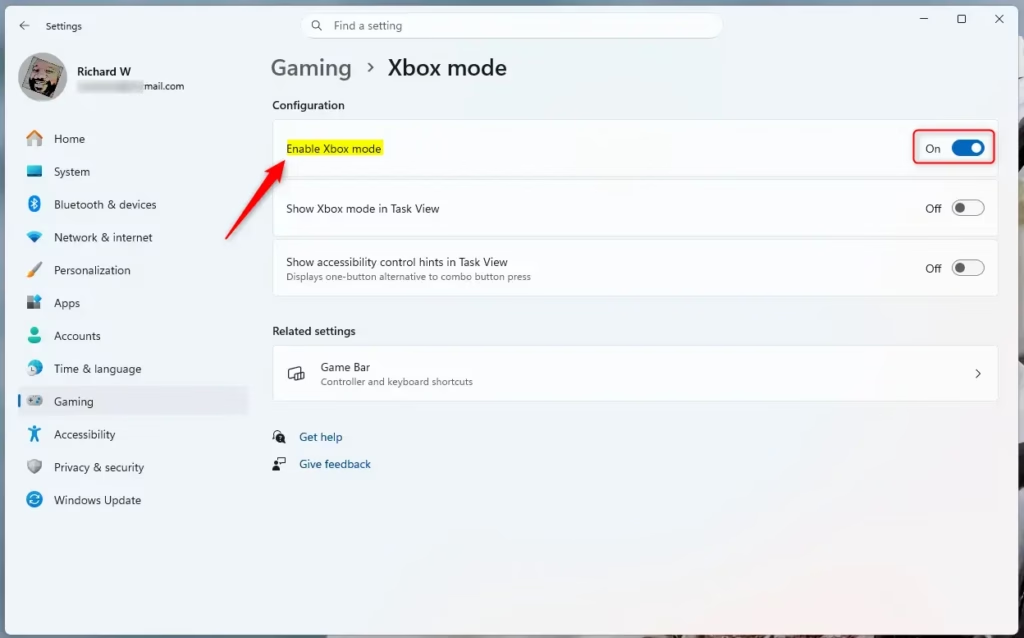
- Press ⊞ Win+I to open Settings
- Click Gaming on the left side
- Click Xbox mode on the right side
Toggle the switch to ‘On’ (which is the default) or ‘Off’.
Close Settings
Option 2Using Registry Editor
You can turn on Xbox Mode by changing settings in the Registry Editor, which gives you direct control but requires administrator rights.
⚠️ Admin Required: You need administrator privileges for this method.
To enable Xbox Mode:
- Press Win and search for “Registry Editor”
- Right-click it and select Run as administrator
- Navigate to this path:
HKEY_CURRENT_USER\Software\Microsoft\GameBar - Look for the key named
GamingHomeApp - Set the value to:
Microsoft.GamingApp_8wekyb3d8bbwe!Microsoft.Xbox.App - Click OK and close Registry Editor
To disable Xbox Mode:
- Follow steps 1-3 above
- Set the
GamingHomeAppvalue to nothing (leave it blank) - Click OK and close Registry Editor
Terminal command:
Enable:
reg add "HKEY_CURRENT_USER\Software\Microsoft\Windows\CurrentVersion\GamingConfiguration" /v GamingHomeApp /t REG_SZ /d "Microsoft.GamingApp_8wekyb3d8bbwe!Microsoft.Xbox.App" /f
Disable:
reg add "HKEY_CURRENT_USER\Software\Microsoft\Windows\CurrentVersion\GamingConfiguration" /v GamingHomeApp /t REG_SZ /d "" /f
Using the Keyboard Shortcut
Once Xbox Mode is enabled, you can enter it anytime by pressing ⊞ Win+F11. Press it again to exit.
If You Don’t See Xbox Mode Yet
If you can’t find Xbox Mode in your Windows 11 settings, you can manually add it using a tool called ViVeTool, which needs administrator access.
⚠️ Admin Required: This method needs administrator privileges.
- Open Windows Terminal as administrator
- Run this command:
vivetool /enable /id:59765208 - Restart your computer
For more information, visit Full screen experience expands to more Windows 11 PC form factors, Full screen experience expands to more Windows 11 PC form factors for Windows Insiders, Starting today, Full Screen Experience for Windows 11 PCs is available for Xbox Insiders! – Xbox Wire, Windows Gaming: Full screen experience – Microsoft Support, Open Xbox mode settings.
Summary
Xbox Mode in Windows 11 helps you focus on games by creating a distraction-free, full-screen view, and you can turn it on through Settings, the Registry Editor, or ViVeTool if needed.
How to enable Xbox mode in 🪟 Windows 11?
To enable Xbox Mode, open Windows Settings by pressing ⊞ Win+I, then navigate to the Gaming tab. Ensure you are running Windows 11 build 26220.7271 or newer and have joined the PC Gaming Preview via the Xbox Insider Hub app. Once enabled, this mode provides a distraction-free, console-like full-screen gaming experience.
Is Xbox mode coming to 🪟 Windows 11?
Yes, Xbox Mode is available on Windows 11 for those in the Xbox Insider Program, starting with specific newer builds like 26220.7271.
What is Xbox mode for Windows?
Xbox Mode for Windows is a feature that changes your PC into a clean, full-screen gaming view, similar to an Xbox console, to help you focus without distractions.
How to get Xbox on 🪟 Windows 11?
You can get Xbox Mode on Windows 11 by joining the Xbox Insider Program through the Xbox Insider Hub app and ensuring your system is updated.
Was this guide helpful?

About the Author
Richard
Tech Writer, IT Professional
Richard, a writer for Geek Rewind, is a tech enthusiast who loves breaking down complex IT topics into simple, easy-to-understand ideas. With years of hands-on experience in system administration and enterprise IT operations, he’s developed a knack for offering practical tips and solutions. Richard aims to make technology more accessible and actionable. He's deeply committed to the Geek Rewind community, always ready to answer questions and engage in discussions.
📚 Related Tutorials


No comments yet — be the first to share your thoughts!