How to Uninstall and Reinstall Xbox Game Bar on Windows 11

You uninstall and reinstall the Xbox Game Bar on Windows 11 to resolve glitches or reclaim system resources.
The Xbox Game Bar is a built-in Windows utility that offers in-game overlays for features like screen recording and social networking, activated by pressing ⊞ Win+G.
If the Xbox Game Bar is causing performance issues or you simply don’t use its features, uninstalling it can improve your PC’s efficiency. This action stops the Microsoft.XboxGamingOverlay background process and disables the overlay.
You can remove it directly from Windows Settings, usually found under “Apps” or “Installed apps.” Reinstalling it is just as simple, requiring a quick trip to the Microsoft Store.
You uninstall Xbox Game Bar using Windows Terminal with the command Get-AppxPackage -PackageTypeFilter Bundle -Name “*Microsoft.XboxGamingOverlay*” | Remove-AppxPackage. Reinstall it by searching for “Xbox Game Bar” in the Microsoft Store and clicking “Install”.
Prerequisites
Before performing these steps, ensure you have administrative access to your computer. Some commands require elevated privileges to modify system-level apps. Always back up your important files before making changes to Windows system components.
How to Uninstall Xbox Game Bar
You can uninstall the Xbox Game Bar on Windows 11 using the Windows Terminal if the normal uninstall button isn’t working.
- Open the Windows Terminal app.
- Copy and paste the following command into the window and press Enter:
Get-AppxPackage -PackageTypeFilter Bundle -Name "*Microsoft.XboxGamingOverlay*" | Remove-AppxPackage - Restart your computer to finish the process.
Note: If you want to remove it for every person who uses this computer, you must run the Windows Terminal app as administrator. Use this command instead: Get-AppxPackage -AllUsers -PackageTypeFilter Bundle -Name "*Microsoft.XboxGamingOverlay*" | Remove-AppxPackage -AllUsers
Troubleshooting Grayed-Out Uninstall Buttons
If the uninstall button for the Xbox Game Bar is grayed out in Windows Settings, it’s usually because Windows considers it a key part of the system.
[Requires Admin Privileges]
- Open PowerShell as Administrator.
- Run the following command to identify the package:
Get-AppxProvisionedPackage -Online | Where-Object {$_.PackageName -like "*XboxGamingOverlay*"} - Remove the package using:
Remove-AppxProvisionedPackage -Online -PackageName "[PackageNameFromAbove]"
How to Reinstall Xbox Game Bar
If you decide you need the features back, you can easily restore the app.
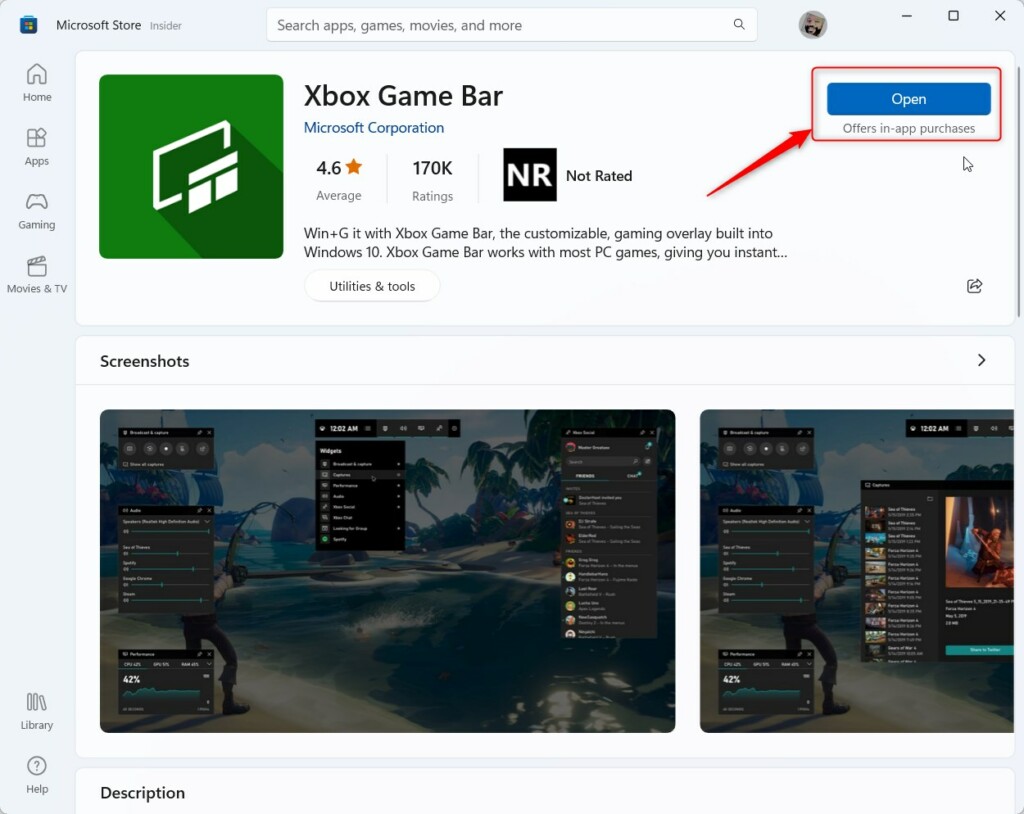
- Click this Xbox Game Bar on the Microsoft Store link.
- Click the Get or Install button on the Microsoft Store app.
Once the download finishes, you can open the Game Bar from your Start menu.
Summary
The Xbox Game Bar can be a helpful tool, but if it’s causing problems, you can easily uninstall and reinstall it on Windows 11 using simple commands.
Will uninstalling Game Bar affect my ability to play games?
No, uninstalling the Xbox Game Bar will not affect your ability to play games. It is simply an overlay tool for recording and social features. Your games will continue to run normally, and your saved game files will remain completely untouched by this process.
Can I just disable it instead of uninstalling?
Yes, you can disable it without removing it. Go to Settings, select Gaming, and then click on Xbox Game Bar. Toggle the switch to Off. This prevents the app from running in the background while keeping the files on your computer if you need them later.
Was this guide helpful?

About the Author
Richard
Tech Writer, IT Professional
Richard, a writer for Geek Rewind, is a tech enthusiast who loves breaking down complex IT topics into simple, easy-to-understand ideas. With years of hands-on experience in system administration and enterprise IT operations, he’s developed a knack for offering practical tips and solutions. Richard aims to make technology more accessible and actionable. He's deeply committed to the Geek Rewind community, always ready to answer questions and engage in discussions.

The Xbox Game bar is not in the Microsoft store. So if you follow this and uninstall Xbox game bar every game will cause a pop up asking for the game bar and you get to reinstall windows.