Change Power Button Behavior in Ubuntu Linux


The power button setting controls what Ubuntu does when you press the physical power button on your computer. It can shut down, suspend, hibernate, or do nothing. Changing it stops accidental shutdowns on Ubuntu 22.04 LTS and newer versions, where a stray press can turn off the machine and lose unsaved work.
You change it in the Settings app on the desktop. It takes less than a minute and you don’t need the terminal.
To change the power button on Ubuntu, open Settings , click Power in the left sidebar, then choose an action from the Power Button Behavior drop-down. Pick Interactive to get a prompt before anything happens, or Nothing to disable the button. The change applies immediately, with no restart or logout needed.
How to change power button behavior in Ubuntu Linux
The option sits in the Power page of the Settings app. You pick one action from a list, such as shut down, sleep, or show a menu. There are two ways to open Settings. Both lead to the same window.
First, use the Activities overview:
- Click Activities at the top-left of the screen, or press the Super (Windows) key.
- Type Settings in the search box.
- Click the Settings icon when it appears to begin %📂%LNK0%%. The Settings window opens.

Or, if you prefer the mouse:
- Click the System menu at the top-right corner of your screen. This is the area with the network, volume and battery icons.
- Select Settings %📂%LNK1%%. The same Settings window opens.

Now go to the power button option:
- In the left sidebar of the Settings app, click Power.
- Find the Power Button Behavior setting on the right. On Ubuntu 22.04 it sits under the Suspend & Power Button heading. On newer releases the layout is a little different, but the name stays the same. If you can’t see it, scroll down the page.
The path is Power Power Button Behavior.
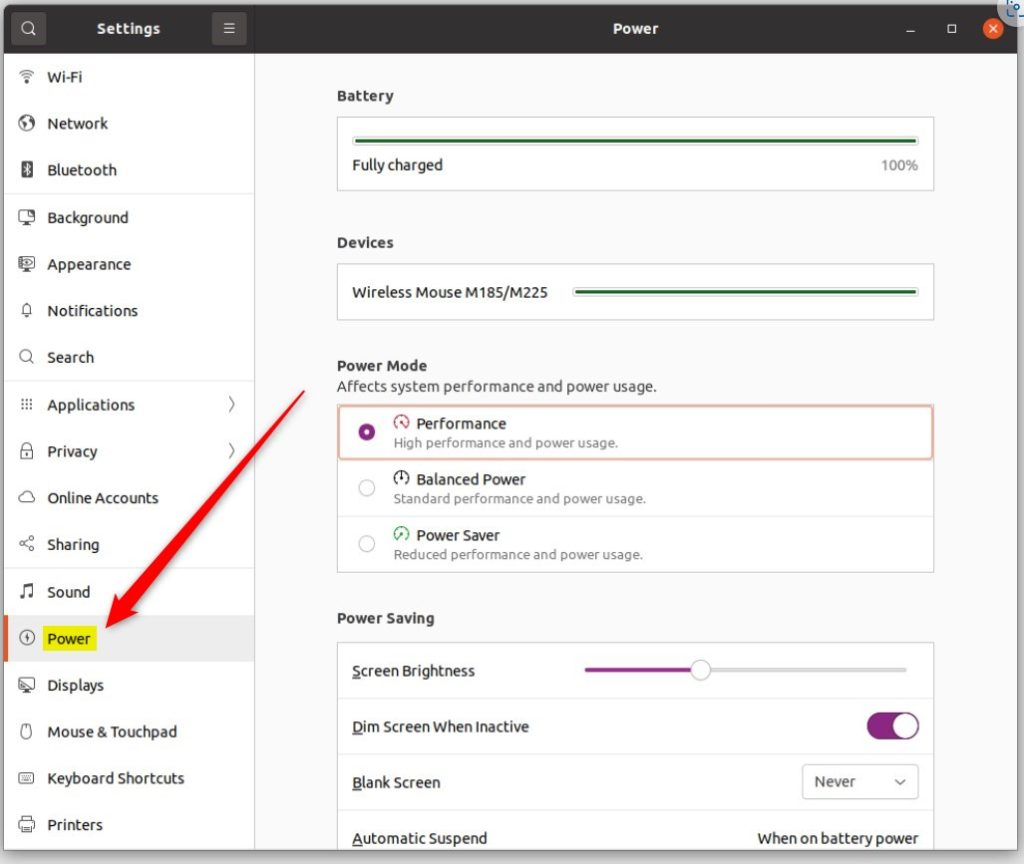
Power Button Behavior options
Click the Power Button Behavior drop-down and choose one of the options. Pick the one that matches how you use the machine. A desktop that other people can reach is safer with Nothing or Interactive. A laptop you carry around often works well with Suspend.
- Suspend: Puts your computer into sleep mode.
- Power Off: Shuts down the computer. This is the default setting on many installs, though your version may differ, so check what is selected now.
- Nothing: The button will not trigger any action.
- Interactive: This option triggers a pop-up menu asking you what you would like to do. It is the safest choice if you want a prompt before anything happens.
- Hibernate: This may appear as an option if you have swap space correctly configured on your system. If you don’t see it, Ubuntu has no swap space set up for hibernation, and that is normal.
The list you see can differ a little between Ubuntu versions and between desktops and laptops. This is normal.
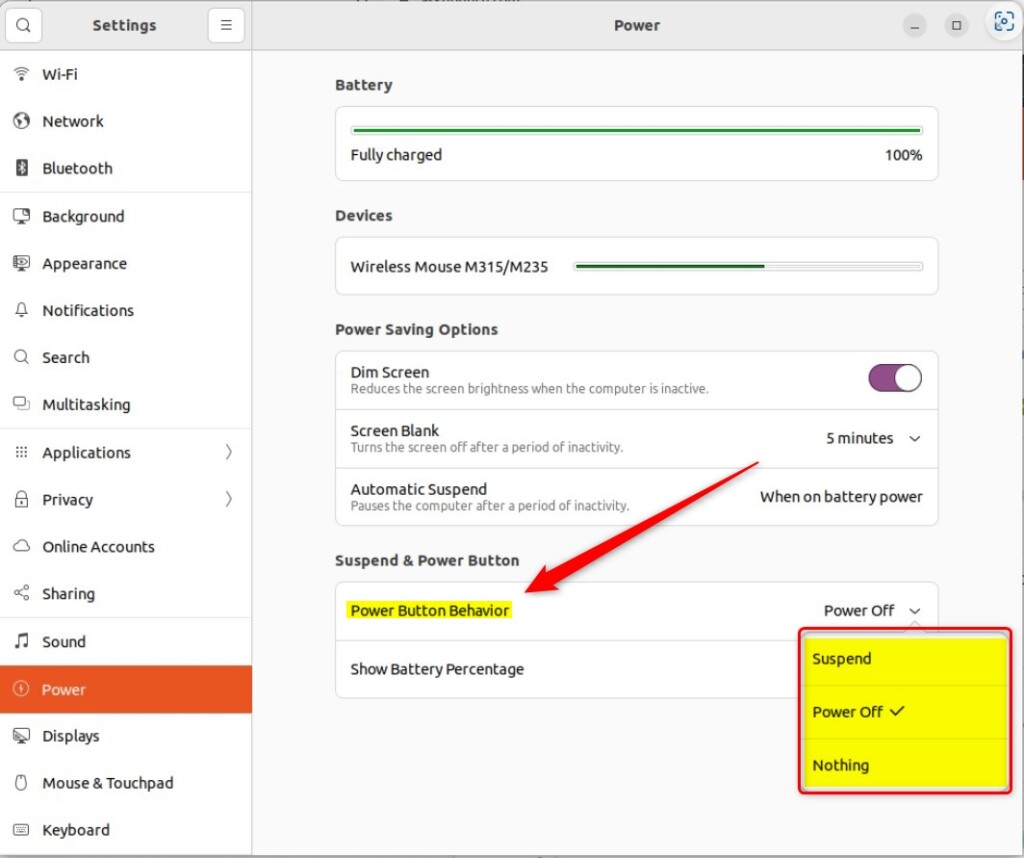
Your choice is applied immediately. You do not need to restart your computer or log out for the change to take effect.
Save your work first if you chose Power Off. To undo the change, return to Power Power Button Behavior and select a different option.
Conclusion
Setting the power button is a quick way to make your PC behave the way you want. Whether you want to prevent accidental shutdowns or add a one-press shortcut to sleep mode, the setting is one drop-down away in Settings.
Have a question about this guide?
Answered by AI from this guide. Good questions may be added to this page — please don't include personal details.
Did this guide fix your problem?

About the Author
Richard
Tech Writer, IT Professional
Richard is a writer at Geek Rewind who turns complex IT tasks into clear, step-by-step guides. He draws on years of hands-on experience in system administration and enterprise IT operations, focusing on Windows, Linux and WordPress: the problems people actually run into, and the fixes that work. His server and WordPress guides come from systems he runs himself. Richard builds and maintains the platform behind Geek Rewind, from its Ubuntu servers and Nginx configuration to its custom WordPress plugins. Many new tutorials start with readers' questions, and he's always glad to answer them in the comments.
No comments yet — be the first to share your thoughts!