Enable Auto Login on Ubuntu Linux: Step-by-Step Guide


Auto login in Ubuntu Linux lets your computer skip the password screen and open straight to your desktop as soon as you turn it on. Recent versions like Ubuntu 22.04 LTS and later handle this sign-in step through a configuration file named custom.conf.
Turning on this feature saves time on single-user computers when you are the only person who uses your PC. You can set this up through the standard desktop settings menu or by editing the system files directly.
Open System Settings, click Users, unlock the panel, and toggle the Automatic Login switch to On. Your computer will now boot directly to your desktop without a password prompt.
How to automatically sign into Ubuntu without a password
Ubuntu automatic login lets your computer skip the sign-in screen and open straight to the desktop every time you turn it on. You can turn on this feature by opening the Settings app, going to the Users menu, and switching on the automatic login option for your user account.
Here’s how to set up the account for automatic login.
Ubuntu Linux keeps most configurations in one central place. System preferences, user accounts, and software updates are all managed from the System Settings panel.

Alternatively, click the System menu in the top-right corner of the desktop top bar.
From the System menu, select Settings, like the example shown here.

The 'Users' tile in Ubuntu Linux's Settings app opens the user account panel. This panel allows administrators to manage login preferences, including enabling auto-login.
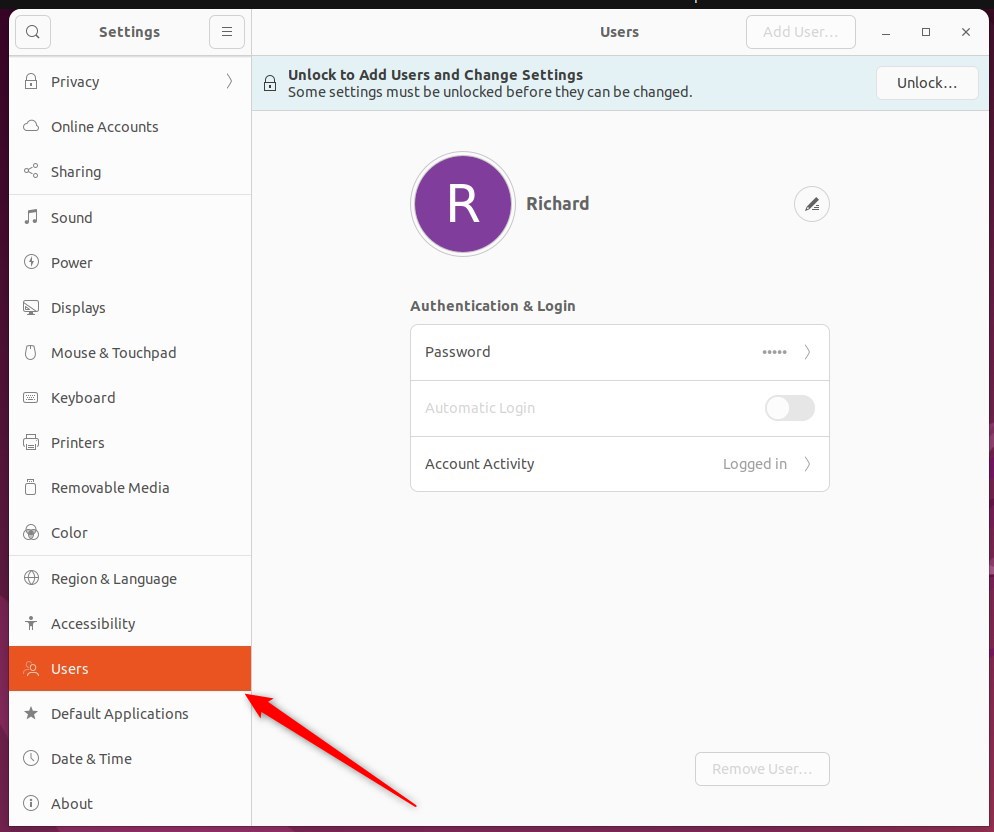
In the System Settings Users panel, pick the account intended for automatic login at startup.
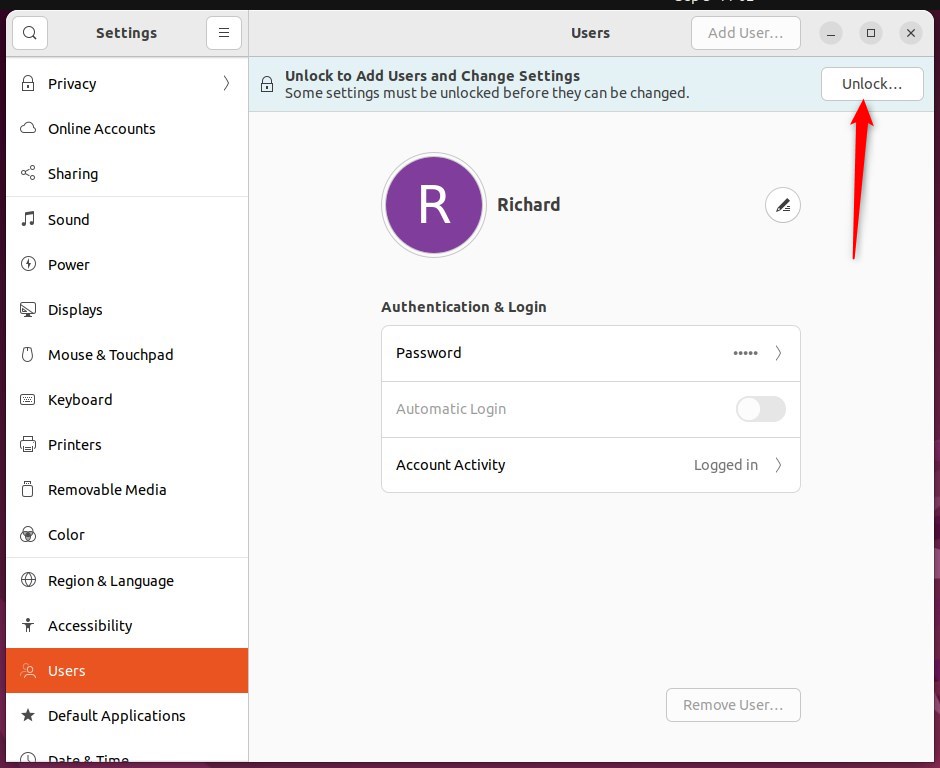
Click 'Unlock' in the top right and enter the password when prompted.
Locate the 'Automatic Login' toggle inside the 'Users' panel and switch it to the 'On' position. This setting allows Ubuntu to bypass the password prompt when the computer starts, saving a manual step during every boot.
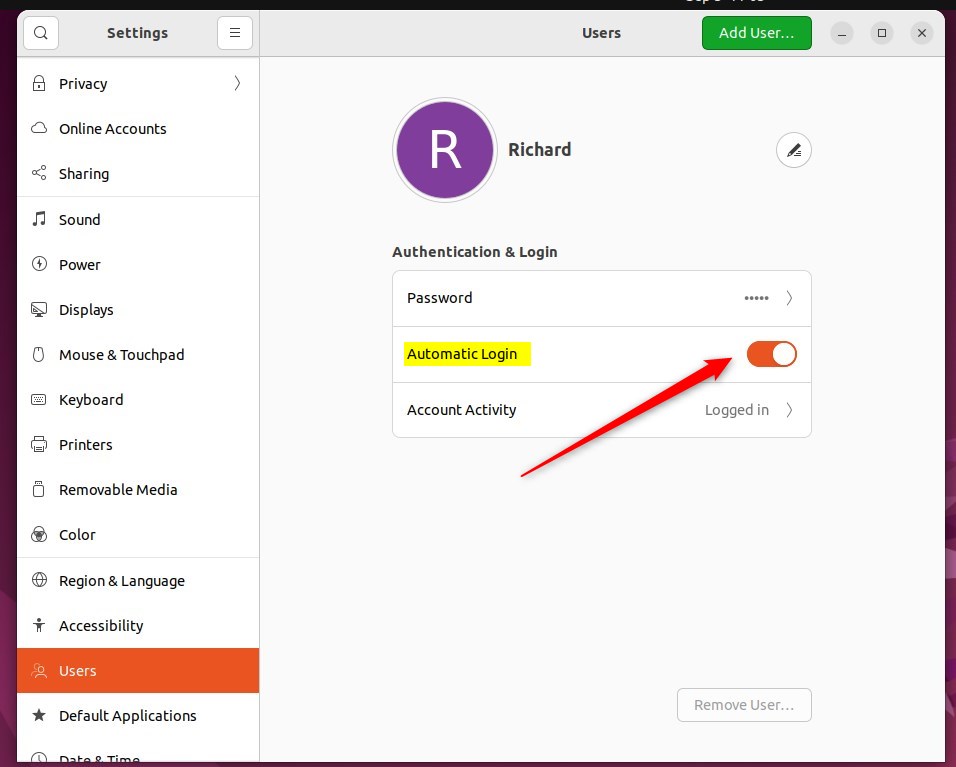
System startup now proceeds directly to the desktop without manual intervention.
Close the Settings app to finish the process.
Conclusion:
- Ubuntu Linux provides the option to automatically log in to your account without having to type a password every time you start your computer.
- You can easily enable or disable automatic login for your user account by navigating to the System Settings and then the Users panel.
- This feature can save time and streamline the login process for users who prefer not to enter their password each time they boot up their PC.
Was this guide helpful?

About the Author
Richard
Tech Writer, IT Professional
Richard is a writer at Geek Rewind who turns complex IT tasks into clear, step-by-step guides. He draws on years of hands-on experience in system administration and enterprise IT operations, focusing on Windows, Linux and WordPress: the problems people actually run into, and the fixes that work. His server and WordPress guides come from systems he runs himself. Richard builds and maintains the platform behind Geek Rewind, from its Ubuntu servers and Nginx configuration to its custom WordPress plugins. Many new tutorials start with readers' questions, and he's always glad to answer them in the comments.



No comments yet — be the first to share your thoughts!