
How to Change Phone Link Download Folder in Windows 11

Phone Link is a Windows feature that lets you connect your Android phone or iPhone to your PC. You can access your phone’s apps and files right from your computer. It’s helpful because you can browse, play games, order things, chat, and more using your PC’s bigger screen and keyboard while your phone stays in your pocket.

When you link your phone to your Windows PC, you can seamlessly share files happens between your PC and mobile device through the Phone Link app.

By default, all files you get on your Windows PC from your phone are saved in this folder: C:\Users\UserName\Downloads\Phone Link. You can change where these files go if you want.

Why Change Your Download Folder?

Maybe you want files in a different location. Or perhaps you want to organize them better on your computer. Changing the folder is easy and takes just a few clicks.

How to Change the Phone Link Download Folder

  1. Open the Phone Link app.
  2. If you don’t have a phone connected yet, choose to add one. If you already have a phone connected, click the Settings button (gear icon) at the top right corner. Then select Features from the menu.
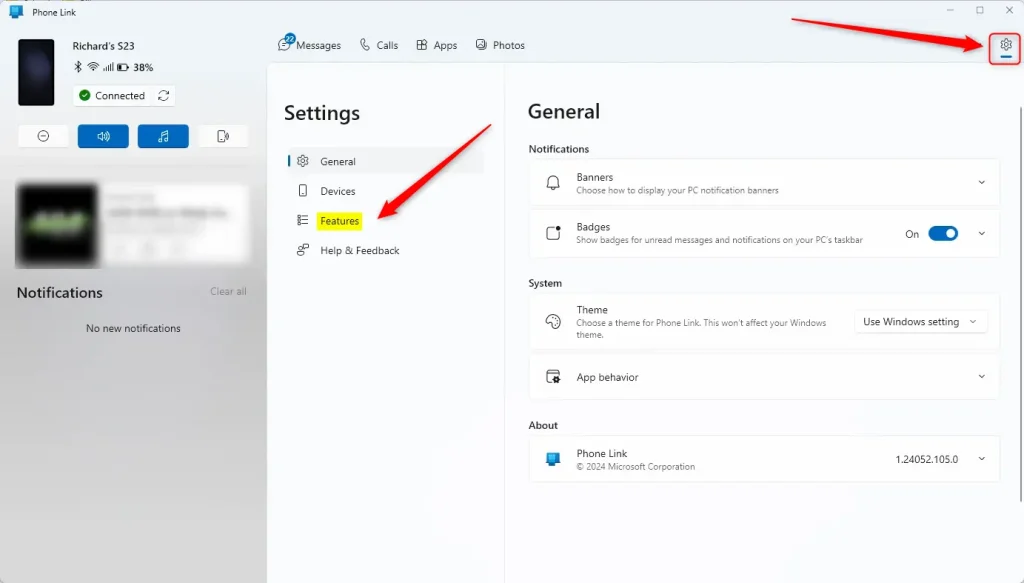
  3. Phone Link app features settings in Windows 11
  4. On the Features settings page, look under Additional settings. Find the text that says “Transferred files will save to“. Click the Change Folder link below it.
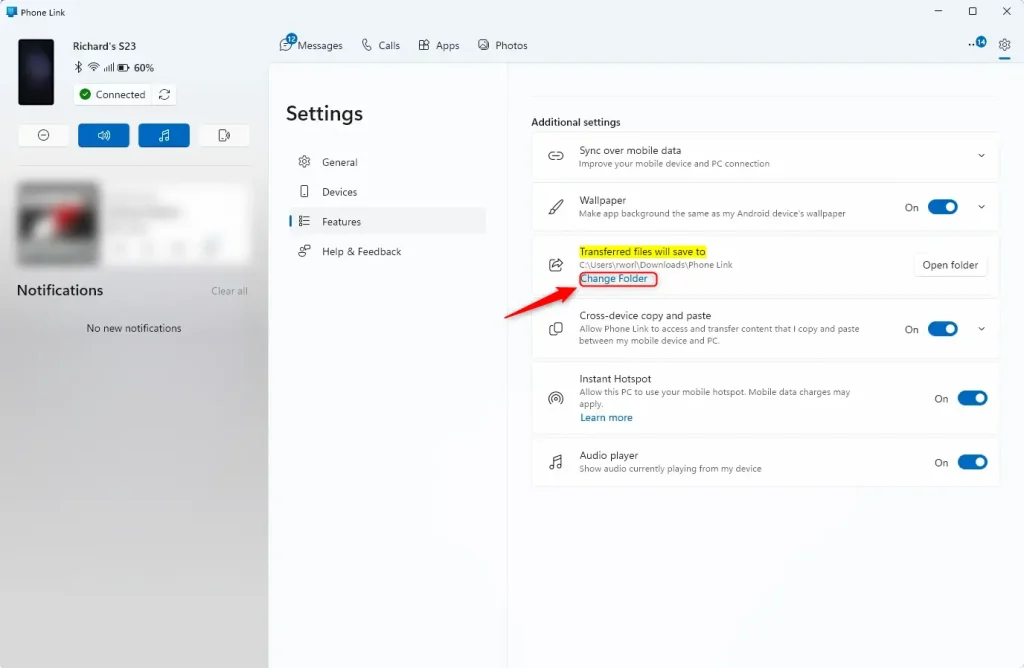
  5. Change folder link phone link app
  6. A folder window will open. Use File Explorer to find the folder you want. Click Select Folder when you’re done.
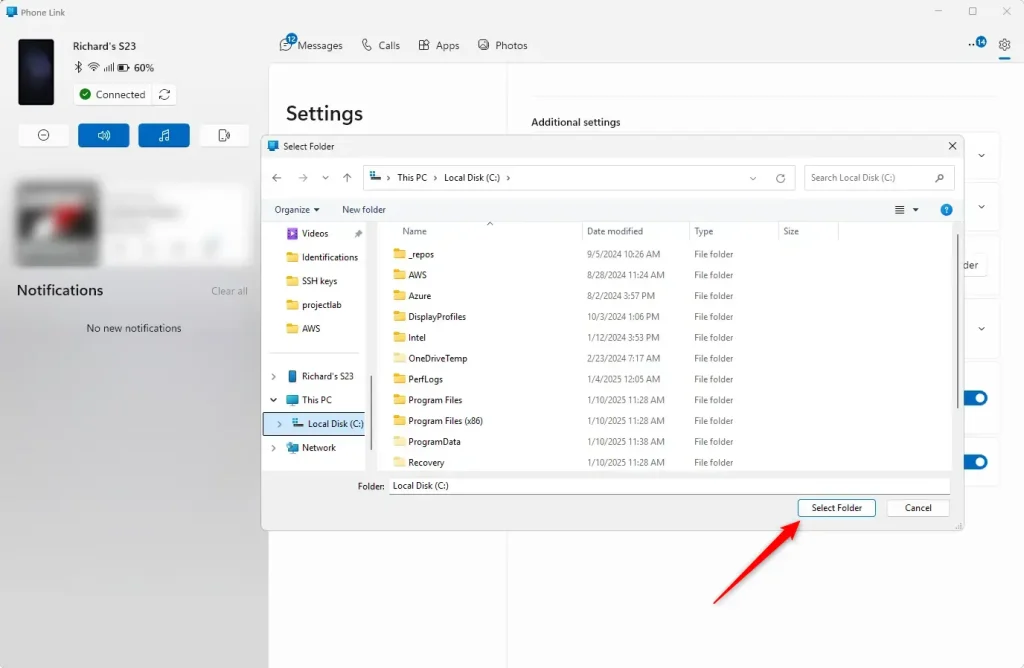
  7. Change folder link phone select folder

That’s it! Your Phone Link files will now go to the new folder you chose.

What Happens Next?

Any new files you transfer from your phone will save to your new folder location. Old files that were in the original folder will stay there.

Summary

Changing where Phone Link saves files is simple and helpful:

  • Phone Link normally saves files to C:\Users\UserName\Downloads\Phone Link.
  • You can pick any folder you want instead.
  • Open Phone Link, go to Settings, then Features.
  • Look for “Transferred files will save to” and click Change Folder.
  • Choose your new folder using File Explorer.
  • All future transfers will go to your new location.

Frequently Asked Questions

How do I change the download folder for the Phone Link app in Windows 11?

To change the download folder for the Phone Link app, open the app and go to Settings. Under Features, click on 'Change Folder' in the Additional settings section, then navigate to your desired folder using File Explorer and select it.

What is the default download location for files received via Phone Link in Windows 11?

The default download location for files received through the Phone Link app is C:UsersDownloadsPhone Link. You can modify this location to better suit your file organization needs.

Can I access my phone's apps through the Phone Link app on Windows 11?

Yes, the Phone Link app allows you to access your phone's apps and data directly from your Windows PC. This feature lets you browse, play, chat, and more using your PC's larger screen and keyboard.

What steps should I follow to link my phone with my Windows 11 PC using Phone Link?

To link your phone with your Windows 11 PC, open the Phone Link app and follow the prompts to add your phone. Ensure that both devices are connected via Wi-Fi or Bluetooth for seamless integration.

Is it possible to change the Phone Link app settings on Windows 11?

Yes, you can change various settings in the Phone Link app, including the download folder location. Access the app's settings by clicking the gear icon in the top right corner and navigate to the Features menu.

Categories:

Tags:

2 responses to “How to Change Phone Link Download Folder in Windows 11”

  1. Shantnu Kumar Swami Avatar
    Shantnu Kumar Swami

    hey, i want to know how you got the device in file explorer “richard’s s23” i also had it previously but idk why this feature is missing now from my devices can you please help me .

    @shantnu108
    [email protected]

  2. […] If you want to change this folder, you can learn how here. […]

Leave a Reply

Your email address will not be published. Required fields are marked *

