How to Change Font Size in Windows 11 Handwriting Panel

Changing the font size in the Windows 11 Handwriting Panel requires adjusting your main display scale, because Microsoft does not include a separate size slider for the panel itself. The Handwriting Panel turns handwriting from a digital pen or finger into typed text on your screen.
Moving your system scaling from the default 100% to 125% makes text and icons larger across your entire display, which also enlarges the handwriting box. You can change this scaling in the Display settings menu whenever the default panel writing area feels too small to use comfortably.
You can change the font size in Windows 11 Handwriting Panel via Settings. Go to Bluetooth & devices, then Pen & Windows Ink, and select Small, Medium, or Large. This adjusts the text size within the panel.
Why Change the Font Size?
Larger text reduces eye strain, while a compact footprint leaves more room for open windows. Finding the correct balance helps speed up daily workflows.
Method 1Using Windows Settings (Easiest Way)
The Windows 11 handwriting font size is easiest to change through the main Settings app on your computer. You can adjust how large your written words appear when using the touch keyboard or a digital stylus by navigating to the pen and windows ink menu. This built-in option lets you pick a comfortable size without changing any advanced system files or downloading extra software.
- Open the Settings app:
- Click the Start menu and select Settings, or
- Press
Windows key + Ion your keyboard
- Click on Bluetooth & devices on the left side
- On the right side, find and click Pen & Windows Ink
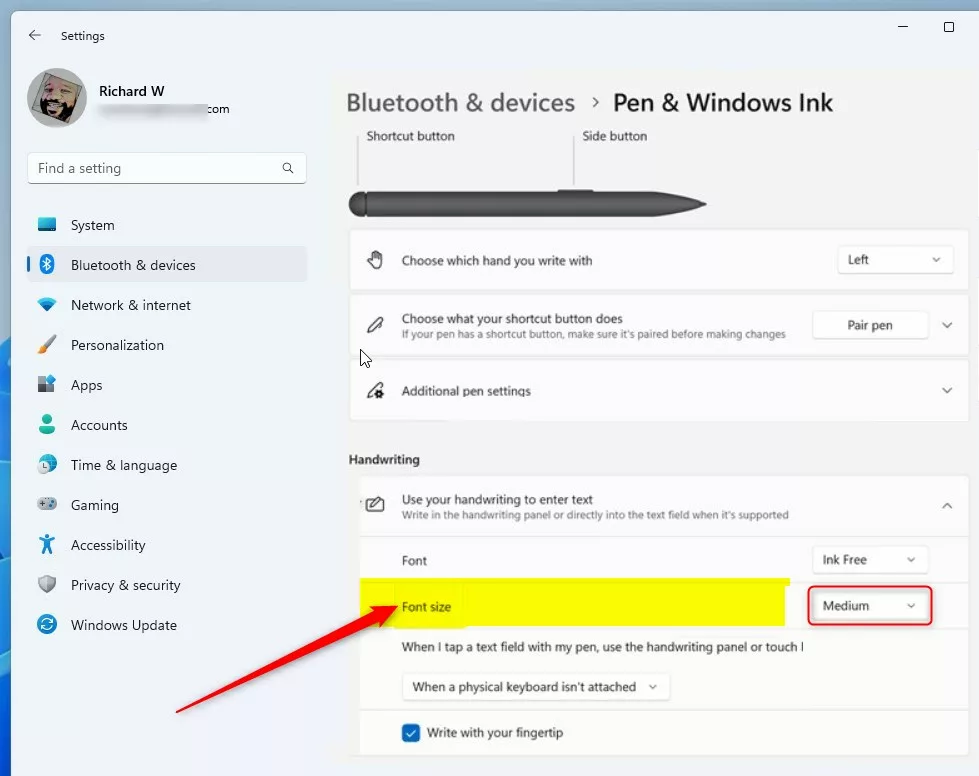
- Look for the section called Use your handwriting to enter text and click to expand it
- Choose your preferred font size:
- Small
- Medium (the default option)
- Large
- Close the Settings app when you’re done
Method 2Using Windows Registry Editor (Advanced Users Only)
The Windows 11 handwriting font size can also be updated through the Registry Editor (a database that stores low-level system settings). This advanced method requires you to sign in with an administrator account and change specific system keys manually. Most people should stick to the settings app, but this approach works well if the standard menu options do not fix your display size.
⚠️ Admin Required: Administrative permissions are required to open the Registry Editor.
- Open the Registry Editor:
- Press
Windows key + R - Type
regeditand press Enter
- Press
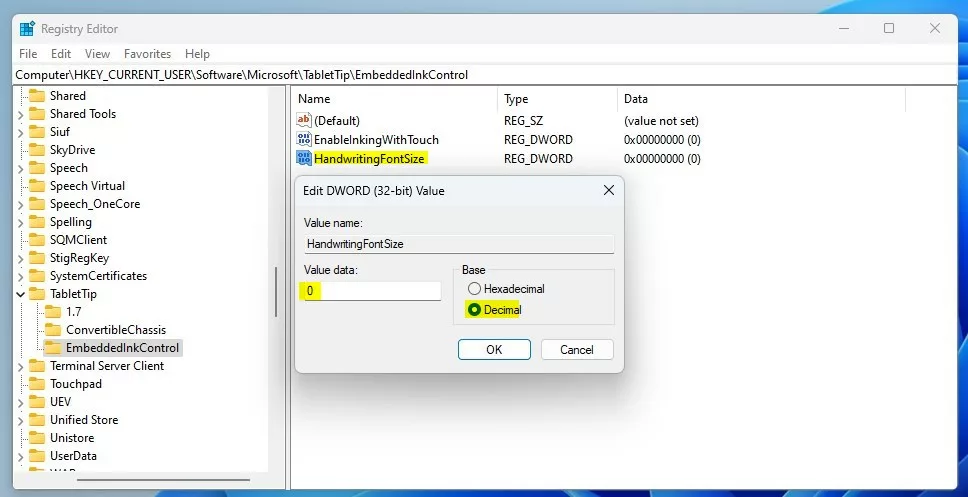
- Navigate to this folder path:
HKEY_CURRENT_USER\Software\Microsoft\TabletTip\EmbeddedInkControl - If the EmbeddedInkControl folder is missing:
- Right-click on TabletTip
- Select New Key
- Name it EmbeddedInkControl
- Inside EmbeddedInkControl, right-click on the right side pane
- Select New DWORD (32-bit) Value
- Name this new value HandwritingFontSize
- Double-click HandwritingFontSize
- Set the Base to Decimal
- Enter one of these numbers for your font size:
0for Small1for Medium2for Large
- Click OK
- Close the Registry Editor
- Restart your computer to apply the changes
Summary
Changing your Windows 11 handwriting font size takes just a few steps using either the standard Settings app or the advanced Registry Editor. The settings menu provides a fast and safe way to adjust your text for everyday typing and writing. If you prefer deeper system control, the registry method gives you an alternative way to set your preferred writing dimensions.
- Easiest method: Use the Windows Settings app. Go to Bluetooth & devices, then Pen & Windows Ink, and pick your size.
- Advanced method: Use the Windows Registry Editor to manually edit the HandwritingFontSize value.
Selecting the right path depends on personal preference. Questions and troubleshooting inquiries belong in the comments section below.
How to make writing bigger on 🪟 Windows 11?
To change your display in Windows, select Start Settings Accessibility Text size To make only the text on your screen larger, adjust the slider next to Text size.
What size font is handwriting usually?
Most handwriting has a body height that is between 1/8 inch and 1/4 inch tall, so any ascenders and descenders extend beyond that, and add to the total size.
Why is my Windows font suddenly small?
Check Display Settings: Go to Settings System Display Under the Scale and layout section, ensure that the scaling is set to 100% or your preferred size.
Was this guide helpful?

About the Author
Richard
Tech Writer, IT Professional
Richard, a writer for Geek Rewind, is a tech enthusiast who loves breaking down complex IT topics into simple, easy-to-understand ideas. With years of hands-on experience in system administration and enterprise IT operations, he’s developed a knack for offering practical tips and solutions. Richard aims to make technology more accessible and actionable. He's deeply committed to the Geek Rewind community, always ready to answer questions and engage in discussions.


No comments yet — be the first to share your thoughts!