

How to Change Dock Position in Ubuntu Linux

This post describes the steps to change the Dock position on the screen in Ubuntu Linux.

By default, Dock (or apps launcher) in Ubuntu Linux has application icons that are left-aligned or docked on the left of the screen. However, most modern operating systems will have it at the Bottom of the screen.

For users who are used to having the app launcher at the bottom of their screen, the steps below will show you how to change that.

Ubuntu Linux has a setting to change the default configuration that lets users decide whether the Dock should align to the left, right, or Bottom.

You cannot move it to the top since the system menu bar is already docked at the top of your screen.

How to align the Dock to the left, right, or Bottom in Ubuntu Linux

As mentioned above, Ubuntu Linux has a setting to change the default configuration that lets users decide whether the Dock should align to the left, right, or Bottom.

Below is how to align the Dock in Ubuntu Linux.

Ubuntu Linux has a centralized location for the majority of its settings. From system configurations to creating new users and updating, all can be done from the System Settings panel.

To get to System Settings, open the Activities overview and start typing Settings.

Ubuntu Linux Activities overview screen for settings access

Alternatively, click on the System menu at the top-right corner of the top bar on your desktop.

On the System menu, select Settings, as highlighted below.

Ubuntu Linux system menu highlighting settings option

In the Settings app, click on the Appearance tile.

In the System Settings -> Appearance, under Dock, select Position on the screen tile and choose the Position to the Left, Right, or Bottom, as highlighted below.
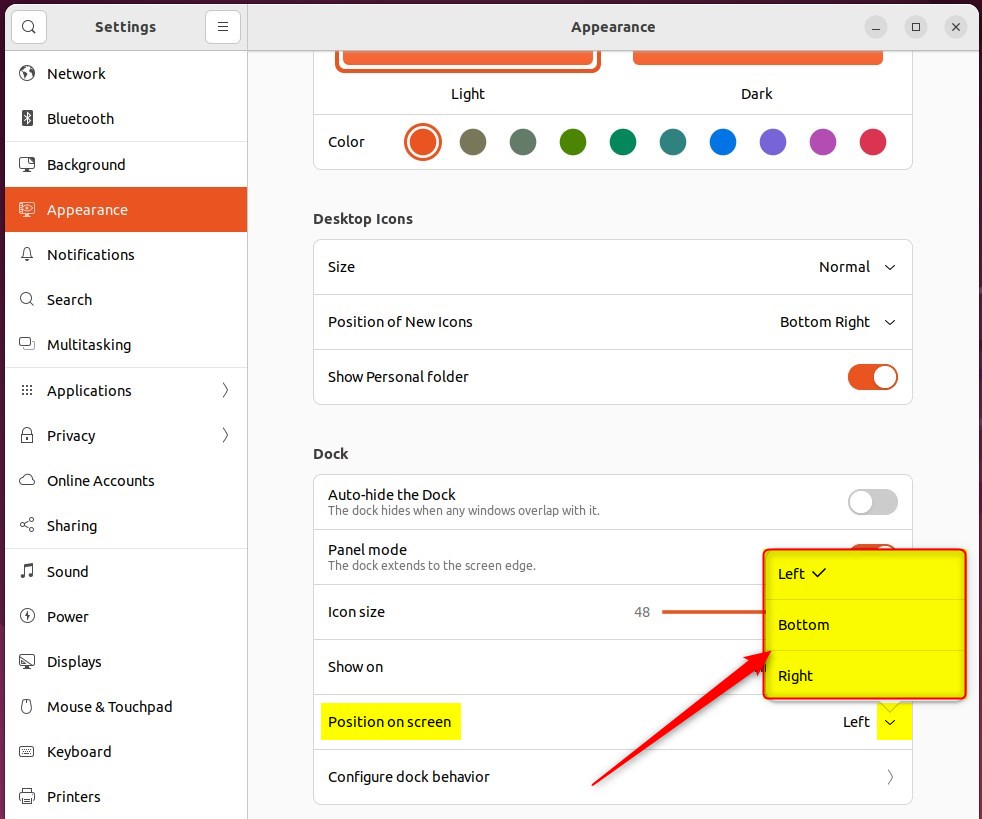
Changing Dock position in Ubuntu Linux interface

That should do it! You can now close the Settings app.

Conclusion:

  • In Ubuntu Linux, the default position for the Dock is left-aligned, but users can easily change it to the Bottom or right through the system settings.
  • The Appearance tile in the System Settings allows users to select the Dock position on the screen and customize the desktop environment to their preference.
  • Changing the Dock position to the Bottom, left, or right can improve the user experience for those accustomed to having the app launcher in a different location on the screen.


Frequently Asked Questions

How do I change the Dock position in Ubuntu Linux?

To change the Dock position in Ubuntu Linux, open the Settings app from the Activities overview. Navigate to the Appearance section and select the desired position for the Dock: Left, Right, or Bottom.

Can I move the Dock to the top of the screen in Ubuntu?

No, you cannot move the Dock to the top of the screen in Ubuntu Linux because the system menu bar is already located there. The Dock can only be positioned to the left, right, or bottom of the screen.

What is the default position of the Dock in Ubuntu Linux?

The default position of the Dock in Ubuntu Linux is left-aligned on the screen. Users can change this setting to better suit their preferences.

Where can I find the Dock position settings in Ubuntu?

You can find the Dock position settings in the System Settings app under the Appearance section. From there, you can choose to align the Dock to the left, right, or bottom of the screen.

Will changing the Dock position affect my user experience in Ubuntu?

Yes, changing the Dock position can enhance your user experience by allowing you to customize the desktop environment to your liking. If you're accustomed to having the app launcher in a specific location, adjusting the Dock can make navigation easier.

Categories:

  1. […] Dock or launcher shows you your favorite running applications. You can add, remove, and rearrange applications on […]

  2. […] you install Ubuntu Linux, default application icons are automatically added to the Dock or launcher by […]

  3. […] Like Windows and other operating systems, when the taskbar or launch automatically hides or disappears when out of focus to make the screen look bigger, Ubuntu Linux can do the same with the Dock. […]

  4. […] Linux File Manager has its icon on the Dock by default. Open File […]

  5. […] the Ubuntu Software icon in the Dock, or search for Software in the Activities overview search […]

  6. […] primary Display is the one with the Dock, the top bar with the menu, and where the Activities overview is […]

  7. […] the File Manager app icon on the Dock or from the Activities […]

  8. […] the Ubuntu Software icon in the Dock, or search for Software in the Activities overview search […]

Leave a Reply

Your email address will not be published. Required fields are marked *
