
This guide shows you how to turn on or off a special setting in Windows 11. It’s called “Reducing Protections for Agent Connectors.” This setting controls how AI tools on your computer can connect to other apps and services.
What Is “Reducing Protections for Agent Connectors”?
Windows 11 (build 26220.7344) added a new feature. It lets AI agents (small programs that help with tasks) connect to other software or data easily.
By default, these agent connectors work in a safe way. They have limited access to protect your PC. But if you turn on “reducing protections,” they get more access. They can do more things. This might be helpful but also riskier.
Why Would You Change This Setting?
Turn it ON if you want AI tools to work with more apps and do more for you. Turn it OFF if you want to keep your PC safer with fewer connections.
How to Turn It On or Off Using Windows Settings
This is the easiest way to change this setting.
- Open the Settings app. You can do this two ways:
- Click the Start menu and select Settings, or
- Press Windows key + I on your keyboard.
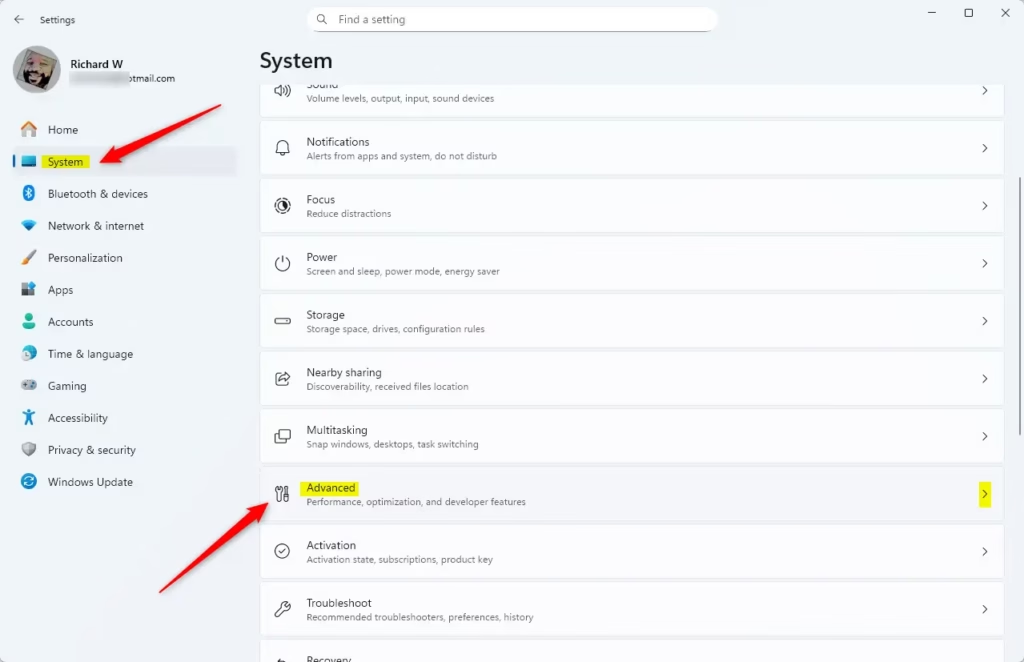
- In Settings, click System on the left side.
- On the right, find and click Advanced.
- Look for the section called AI components.
- Find the switch labeled “Enable more agent connectors by reducing protections” and turn it On or Off depending on what you want.
How to Change This Setting Using the Registry (For Advanced Users)
If you’re comfortable with making changes in the Windows Registry, you can also enable or disable this feature here. Be careful—changing the registry incorrectly can cause problems.
⚠️ Requires admin privileges
Before you start:
- Back up your registry or
- create a System Restore point just in case.
- Open the Registry Editor by typing
regeditin the Start menu search and pressing Enter. - Navigate to this folder path:
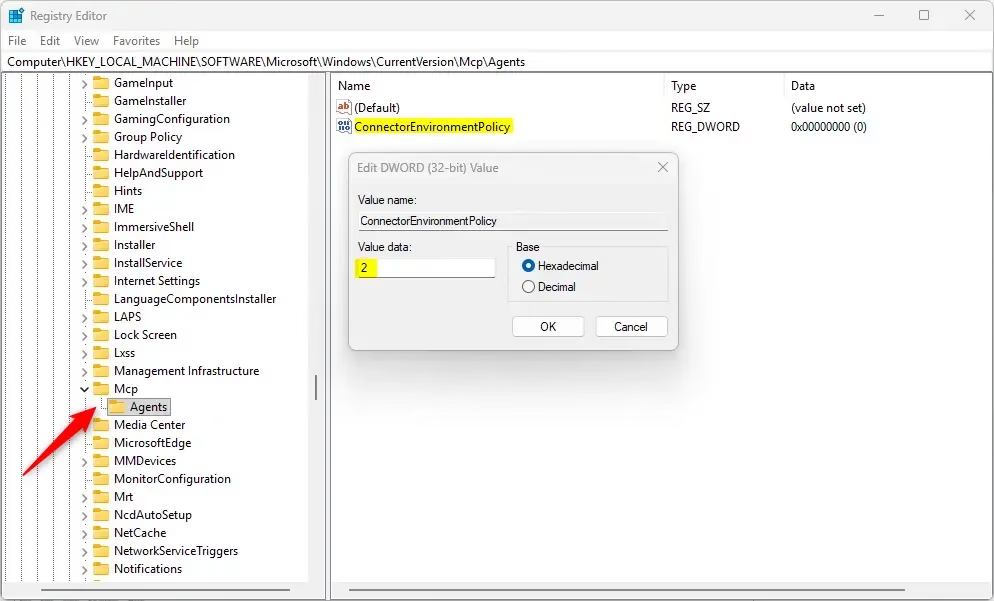
Computer\HKEY_LOCAL_MACHINE\SOFTWARE\Microsoft\Windows\CurrentVersion\McpAgents - Right-click on the Agents folder, select New > DWORD (32-bit) Value.
- Name the new DWORD value
ConnectorEnvironmentPolicy. - Double-click it and set the value to:
2to enable reducing protections (allow more access)1to disable reducing protections (keep it safe)
- Click OK and close the Registry Editor.
- Restart your computer to apply the change.
What Happens When You Change This?
When you enable reducing protections, AI agents can connect to more apps and services. They’ll work faster and do more tasks for you. When you disable it, your PC stays safer but AI tools have fewer connections.
Summary
- Turning on “Reducing Protections for Agent Connectors” lets AI agents have more power to connect with other apps. But it can lower security.
- By default, these connectors run safely with limited access to protect your PC.
- Use the Settings app for an easy way to change this. Or use the Registry for more control (but be careful!).
- Always back up your PC or registry before making big changes.
- Check the official Microsoft guide for the most up-to-date information.
- You now know how to control agent connector protections in Windows 11!



Leave a Reply