How to Boot into Windows Recovery Environment in Windows 11

You boot into the Windows Recovery Environment (WinRE) in Windows 11 to troubleshoot and fix serious startup problems or system issues when your PC won’t load Windows normally.
WinRE is a special troubleshooting section accessible before your main Windows 11 operating system loads, acting like a portable repair kit.
It allows you to perform advanced recovery tasks, such as repairing startup errors, restoring from a system image, or resetting your PC to a factory state.
Accessing WinRE is crucial for recovering your system when standard methods fail, providing tools to resolve boot failures or corrupted system files on your Windows 11 device.
Understanding the Windows Recovery Environment Architecture
WinRE is based on the Windows Preinstallation Environment (WinPE). It is a minimal operating system that runs independently of your main Windows installation. When your system fails to boot, the Boot Configuration Data (BCD) store triggers the WinRE partition to load. This allows you to run diagnostic tools even if your main system files are corrupted.
How to enter the Recovery Environment
There are a few ways to get to this menu. The easiest way is through your Settings.
1. Open the Settings app. You can press the Windows key + I on your keyboard or click Start and then Settings.
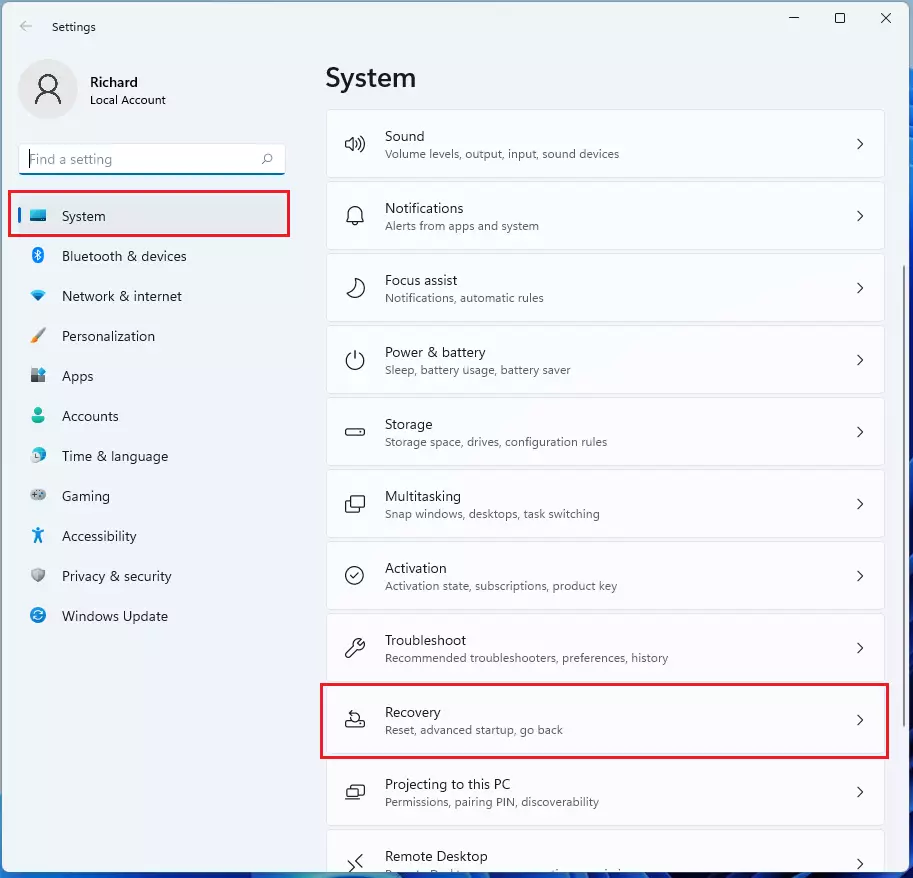
2. In the Settings window, click on System and then select the Recovery option.
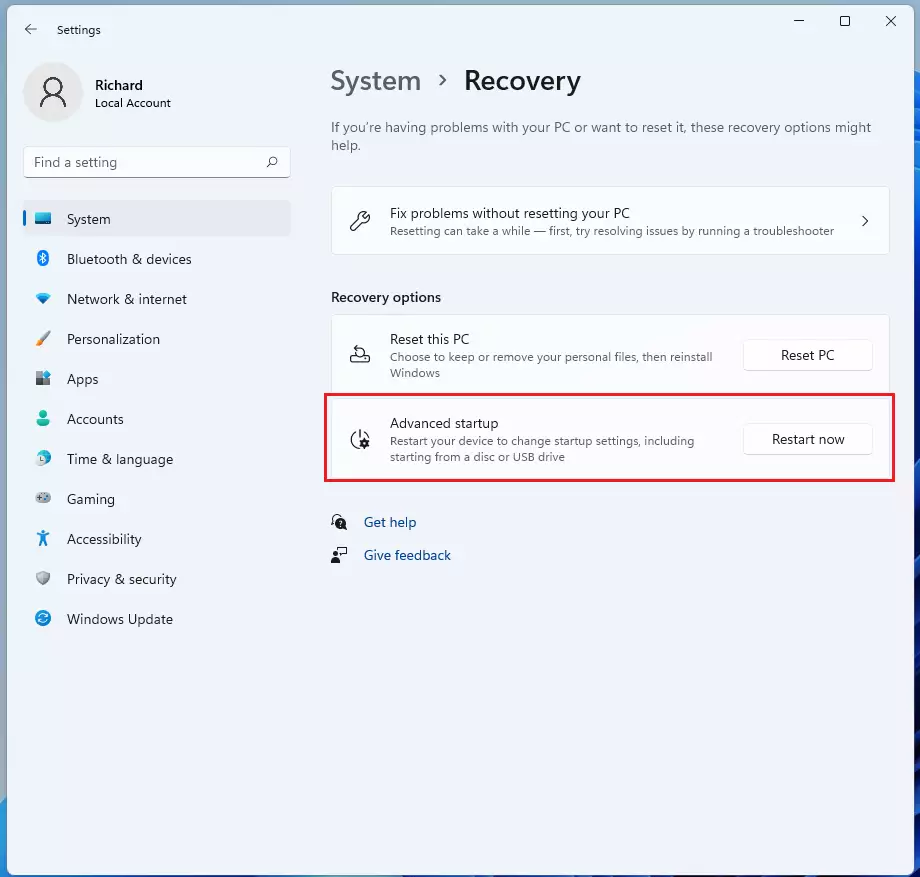
3. Look for the “Advanced startup” section. Click the Restart now button.
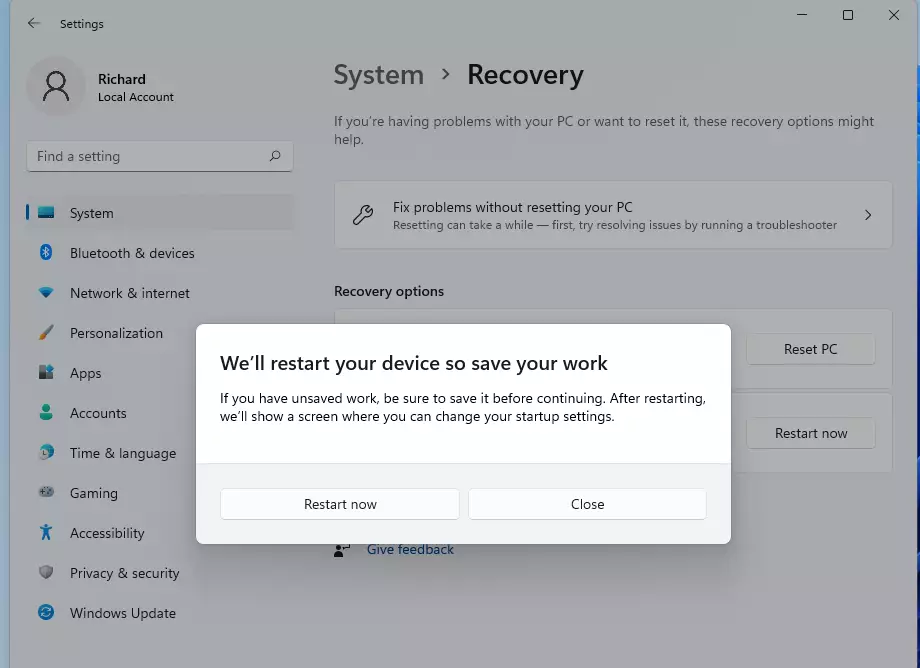
4. A confirmation box will appear. Click Restart now again to reboot your machine into the recovery menu.
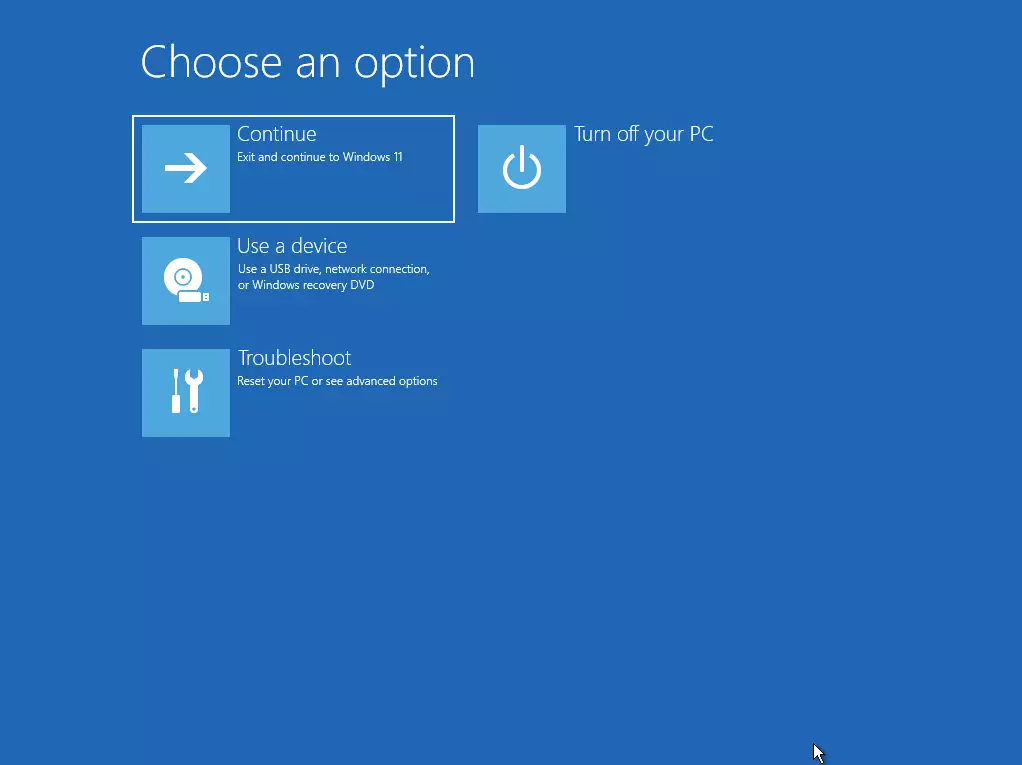
5. Once the computer restarts, you will see a blue screen with several options. Click Troubleshoot to see the available repair tools.
Alternative Methods
- Shift + Restart: Open the Start menu, click Power, and hold the SHIFT key while clicking Restart. This is the fastest way to trigger the recovery menu.
- Command Prompt (Requires Admin Privileges): Open the Command Prompt as an administrator and type the following command:
shutdown /r /o - Recovery Media: If your system is unbootable, use a usb-drive-in-windows-11/" class="sal-link" rel="noopener" target="_blank" data-sal-id="23536">USB recovery drive. Insert the drive, boot your PC, and select the USB from your BIOS/UEFI boot menu.
Essential Tools Inside WinRE
Once inside the Troubleshoot menu, you can access several powerful utilities:
- Startup Repair: Automatically fixes common issues that prevent Windows from loading.
- Command Prompt: Allows you to run manual commands like
chkdsk C: /f /rto fix disk errors,sfc /scannowto repair system files, ordism /online /cleanup-image /restorehealthfor deep image repairs. - System Image Recovery: Restores your entire computer from a previously saved backup file.
- Reset this PC: Reinstalls Windows. Warning: Depending on your choice, this can remove all your personal files and installed apps. Always back up your data first.
Summary
The Windows Recovery Environment is a powerful tool for fixing system errors. You can access it through the Settings app, the Start menu, or the command line. Whether you need to restore your system or troubleshoot a boot error, WinRE provides the tools necessary to get your computer running properly again.
What should I do if WinRE is not found?
If WinRE is missing, your recovery partition may be corrupted or disabled. You can try to re-enable it using the command reagentc /enable in an elevated Command Prompt. If that fails, you will need to use Windows installation media on a USB drive to perform repairs or reinstall the operating system.
Can I customize the Windows Recovery Environment?
Yes, advanced users can customize WinRE by adding custom drivers, language packs, or specific diagnostic tools. This is typically done by mounting the WinRE.wim image file using the DISM tool. This process requires technical knowledge of the Windows Assessment and Deployment Kit (ADK) and is generally intended for IT professionals.
What is the difference between Reset this PC and WinRE?
WinRE is the environment that hosts various tools, including Startup Repair and Command Prompt. Reset this PC is a specific feature found inside that environment. While WinRE is used to diagnose and fix issues, Reset this PC is a destructive process that reinstalls the operating system to resolve persistent software corruption.
Was this guide helpful?

About the Author
Richard
Tech Writer, IT Professional
Richard, a writer for Geek Rewind, is a tech enthusiast who loves breaking down complex IT topics into simple, easy-to-understand ideas. With years of hands-on experience in system administration and enterprise IT operations, he’s developed a knack for offering practical tips and solutions. Richard aims to make technology more accessible and actionable. He's deeply committed to the Geek Rewind community, always ready to answer questions and engage in discussions.




No comments yet — be the first to share your thoughts!