

This article explains how to change the way in which the narrator reads capitalized text in Windows 11.
Narrator is a screen-reading app built into Windows that reads the text on your screen aloud and describes events for users with low vision or blindness.
When you use the Narrator app, you can turn on or off its keyboard shortcuts, launch it automatically, adjust the voice, speed, and volume, manage natural voices, lower other apps volume when Narrator is speaking, change Narrator audio output device, change verbosity level, emphasize formatted text, enable or disable Narrators phonetic reading, pause for punctuation, adjust how the Narrator read advanced details, and more.
Another setting one can configure with the Narrator is to adjust how capitalized text is read on Windows.
Microsoft changed how capitalized text is read with the Narrator to improve accessibility for visually impaired users. The previous way of reading capitalized text, with a higher pitch, could be confusing for some users and needed consistency with how sighted users read text.
Narrator now has three options one can select from” [Don’t’ announce], [Increase pitch], and [Say cap]. You can select one of these options to use with Narrator that fits your needs.
Change how Narrator read capitalized text
As mentioned above, users can change how the Narrator read capitalized text in Windows.
Here’s how to do it.
First, open the Windows Settings app.
You can do that by clicking on the Start menu and selecting Settings. Or press the keyboard shortcut (Windows key + I) to launch the Settings app.
When the Setting app opens, click the Accessibility button on the left and select the Narrator tile on the right to expand it.

On the Narrator settings pane, under “Verbosity,” expand the “Verbosity level” tile. Then, select and “Change how capitalized text is read” tile, and select one of its options below:
- Don’t announce
- Increase pitch
- Say cap
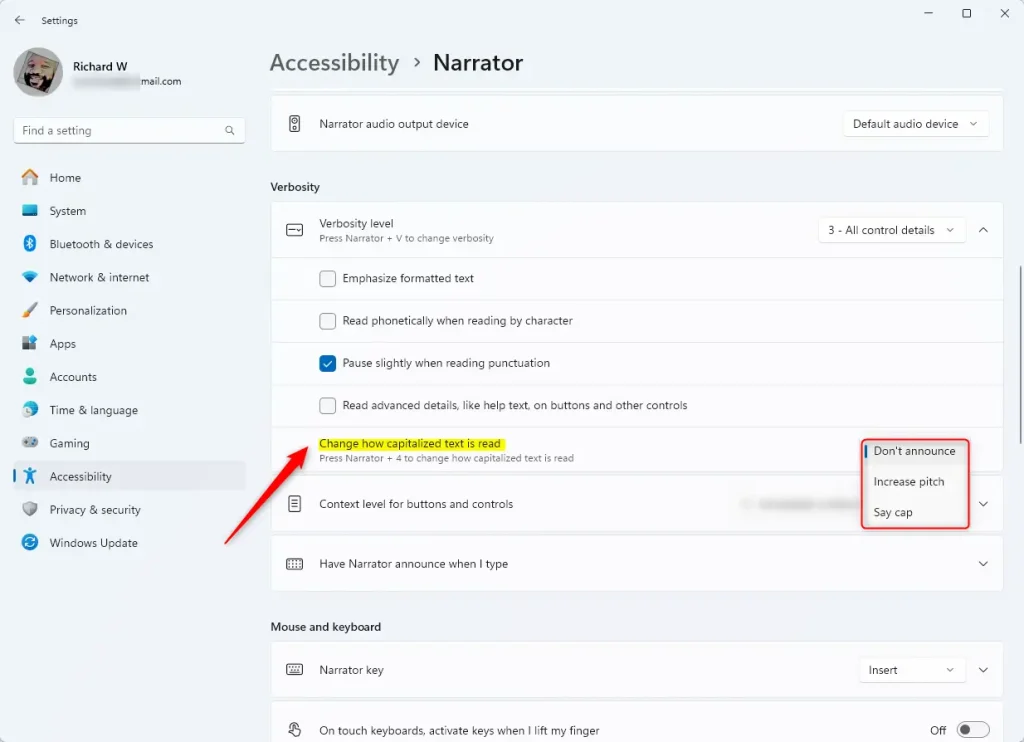
Additionally, you can press Narrator + 4 to cycle through the capitalization reading mode options.
Exit the settings app when you’re done.
That should do it!
Conclusion:
- In Windows 11, changing how capitalized text is read by Narrator can improve accessibility
- Users can select from options such as “Don’t announce,” “Increase pitch,” and “Say cap”
- With a few simple steps in the Windows Settings app, users can customize how Narrator reads capitalized text to suit their needs better
Leave a Reply Cancel reply