How to Change Text Cursor Thickness in Windows 11

Windows 11 lets you change the thickness of your text cursor, that blinking vertical line showing where you type. This is helpful because the default 1-pixel thick cursor can be hard to see, especially on large screens or if your vision isn’t perfect.
You can make the text cursor thicker, up to 20 pixels, to make it stand out more. This simple change can make typing much easier and reduce eye strain.
Adjust your text cursor thickness in Windows 11 via Settings > Accessibility > Text cursor. Use the slider to select a thickness between 1 and 20 pixels. This makes the blinking line easier to see while typing.
Why Change Your Cursor Thickness?
The default text cursor in Windows 11 is only 1 pixel wide, which can be hard to see on today’s screens, especially if you have trouble with small details. Changing your cursor thickness makes it much easier to find where you’re typing, improving your typing experience. Windows 11 lets you make the cursor thicker, from 1 pixel up to 20 pixels.
Windows 11 lets you adjust text cursor thickness from 1 pixel up to 20 pixels. This customization helps improve visibility for many users. The following sections will detail three distinct methods for changing the text cursor’s thickness.
Learn More
Make your mouse, keyboard, and other input devices easier to use – Microsoft Support Learn how to use Windows accessibility features to make your mouse, keyboard, and other input devices easier to use. CaretWidth
Option 1Use Settings
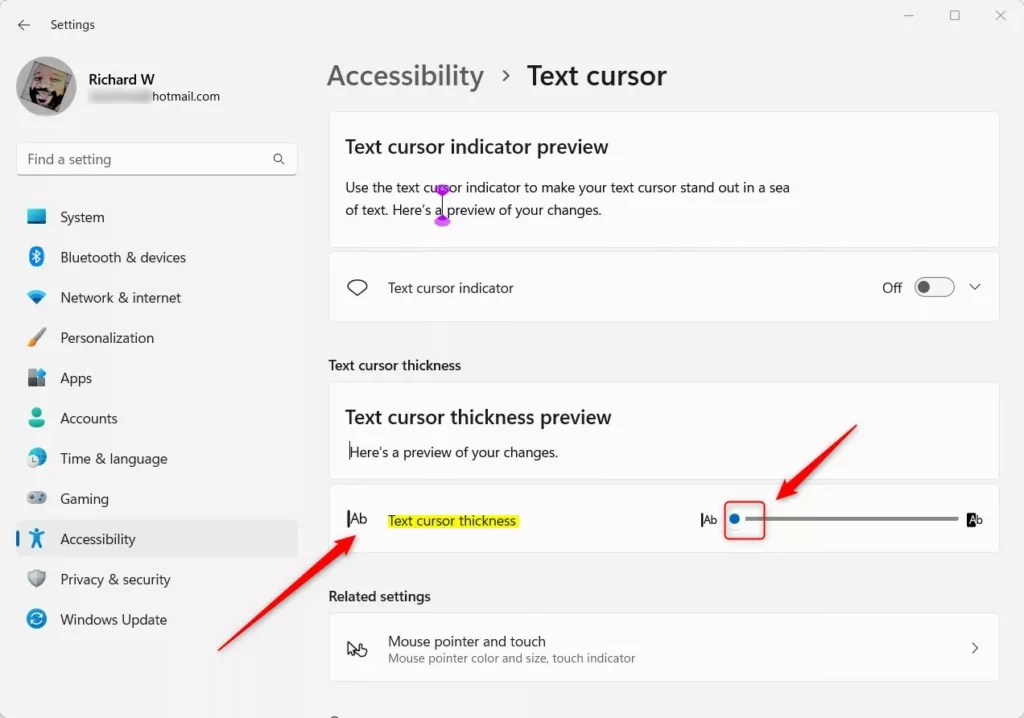
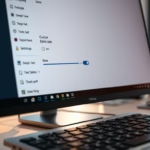
You can change your text cursor thickness in Windows 11 using the Settings app. Open Settings, go to Accessibility, and find the Text cursor section. A slider lets you adjust the thickness from 1 to 20 pixels, making it much easier to spot where you’re typing.
- Open Settings by pressing
Win+Ion your keyboard. - Click Accessibility on the left side.
- Click Text cursor on the right side. Open Text cursor settings
- Find the Text cursor thickness slider.
- Move the slider between 1 and 20 pixels until it looks right to you.
- The preview will show you how thick your cursor will be.
- Close Settings when you’re done.
Option 2Use Control Panel
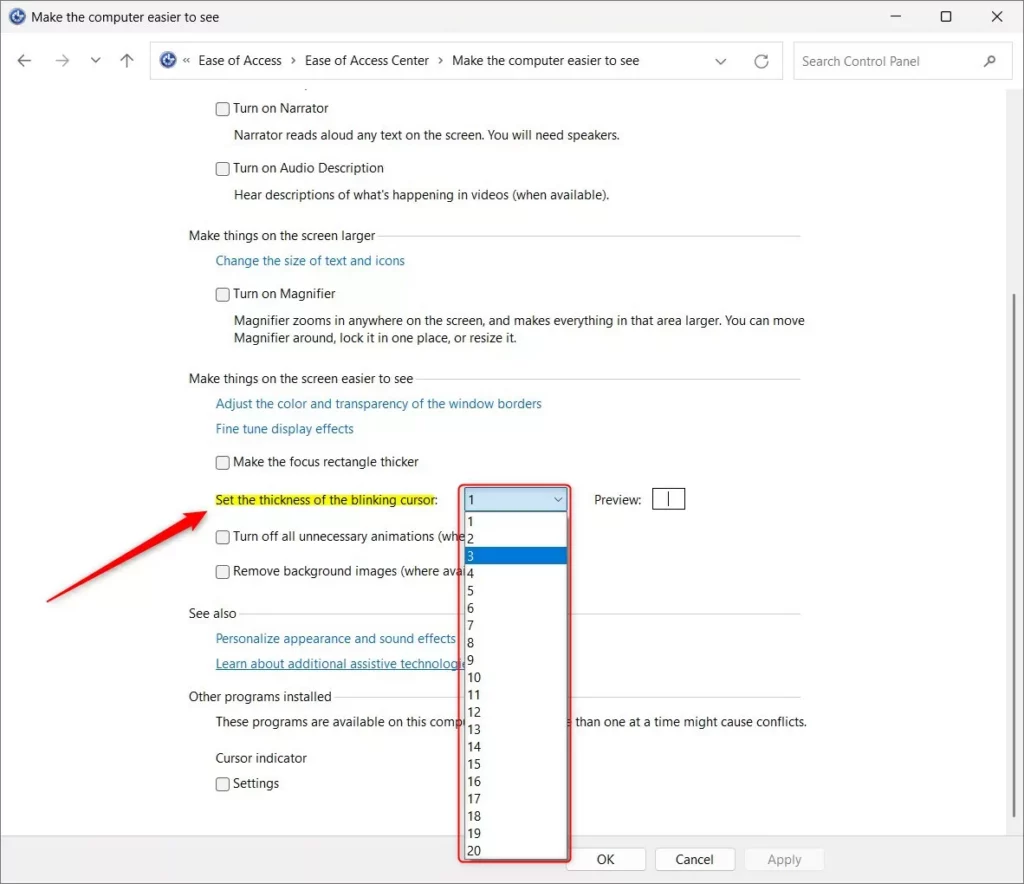
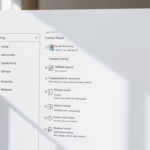
If you prefer an older method, you can change your text cursor thickness in Windows 11 using the Control Panel. Open Control Panel and switch to icon view, then click on Ease of Access Center. From there, select ‘Make the computer easier to use’ to find the option to adjust the blinking cursor’s thickness.
- Open Control Panel and switch to icons view.
- Click Ease of Access Center.
- Click Make the computer easier to use.
- Find the Set the thickness of the blinking cursor dropdown menu.
- Select a thickness between 1 and 20 pixels.
- Click OK to save your changes.
Option 3Use Registry Editor
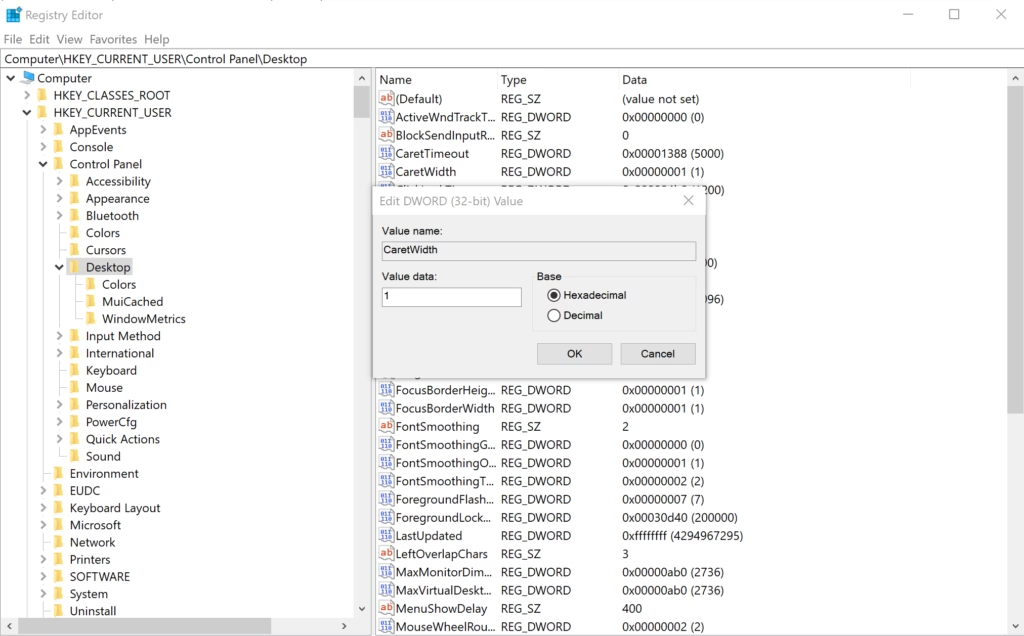
For advanced users, changing the text cursor thickness in Windows 11 can be done with the Registry Editor, but this requires administrator rights. You’ll need to open the Registry Editor, go to a specific location, and change a value called ‘CaretWidth’ to set your desired cursor thickness.
- Press
Win+Rto open Run. - Type
regedit.exeand press Enter. - Navigate to this location in the left pane:
HKEY_CURRENT_USER\Control Panel\Desktop
- In the right pane, find CaretWidth.
- Double-click CaretWidth to open it.
- Select Decimal.
- Type a number between 1 and 20 for your cursor thickness.
- Click OK to save.
- Close Registry Editor.
- Sign out and sign back in, or restart your computer for the changes to take effect.
Summary
Making your text cursor thicker in Windows 11 helps you easily see where you’re typing, especially if the default thin line is hard to spot. You can change the cursor thickness using three main methods: the Settings app, the traditional Control Panel, or the advanced Registry Editor. Pick the method that feels easiest for you to get the perfect cursor size.
How to change cursor thickness in 🪟 Windows 11?
Make your mouse more visible by changing the color and size of the mouse pointer. Select the Start button, then select Settings > Ease of Access > Mouse pointer , and choose the options that work best for you.
How do I change the thickness of my cursor?
And search for settings. When your settings menu comes up, scroll down to accessibility. From here, go ahead and click on text cursor. Here on this menu.
How do I make my mouse thicker?
Then I’m going to go up to where it says settings. And I’m going to click on settings. Now in the little dialogue box that opens, here right down here you want to click on ease of access.
Was this guide helpful?

About the Author
Richard
Tech Writer, IT Professional
Richard, a writer for Geek Rewind, is a tech enthusiast who loves breaking down complex IT topics into simple, easy-to-understand ideas. With years of hands-on experience in system administration and enterprise IT operations, he’s developed a knack for offering practical tips and solutions. Richard aims to make technology more accessible and actionable. He's deeply committed to the Geek Rewind community, always ready to answer questions and engage in discussions.


No comments yet — be the first to share your thoughts!