How to Enable or Disable Virtual Machine Platform in Windows 11

You enable or disable the Virtual Machine Platform in Windows 11 to manage hardware virtualization access for applications like Docker Desktop and WSL 2.
The Virtual Machine Platform is a core Windows component that provides the hypervisor necessary for running virtual machines and other containerized environments efficiently on your hardware.
This feature is essential for leveraging hardware virtualization, a requirement for modern development tools and operating systems. For instance, Windows Subsystem for Linux 2 (WSL 2), now a default in Windows 11 build 22000, specifically depends on it.
You might want to enable it to use WSL 2 or run specific virtual machine software. Conversely, disabling it can sometimes help free up system resources when you don’t need those capabilities.
You can enable or disable the Virtual Machine Platform in Windows 11 through Settings, Control Panel, Command Prompt, or PowerShell. Navigate to Settings > System > Advanced > Virtual Workspaces and toggle the switch, or use the “Turn Windows features on or off” Control Panel option.
Enable Virtual Machine Platform Using Settings
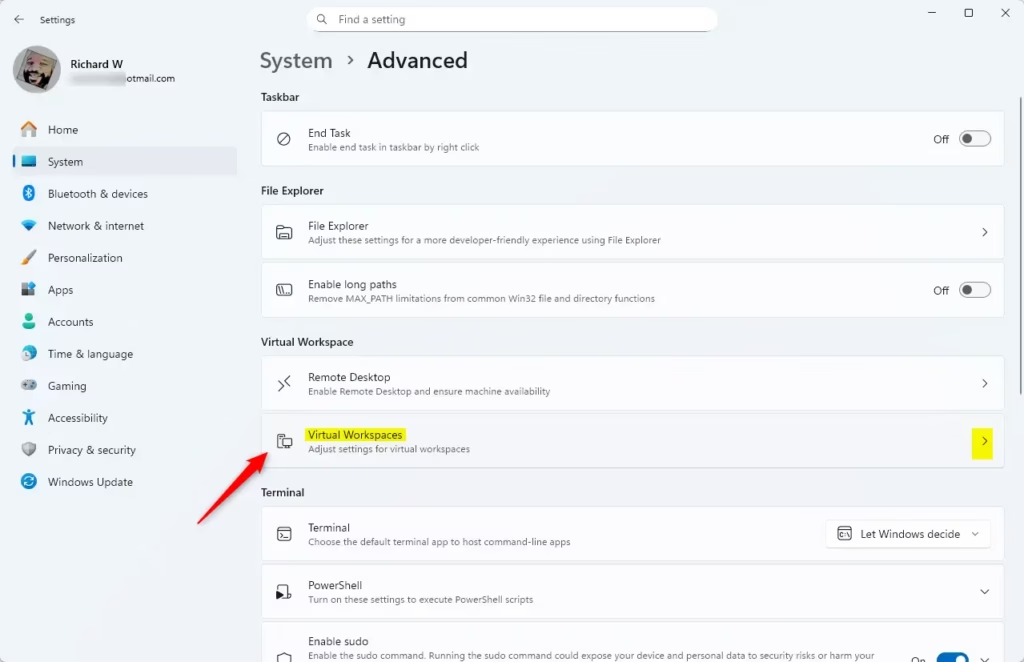
You can easily turn on the Virtual Machine Platform using the Windows Settings app. Just open Settings, go to System, then Advanced, and finally click on Virtual Workspaces to find the toggle.
- Open the Windows Settings app. Click the Start menu and select Settings. Or press Windows key + I.
- Click System on the left side.
- Select Advanced on the right to expand it.
- Click on Virtual Workspaces to expand it.
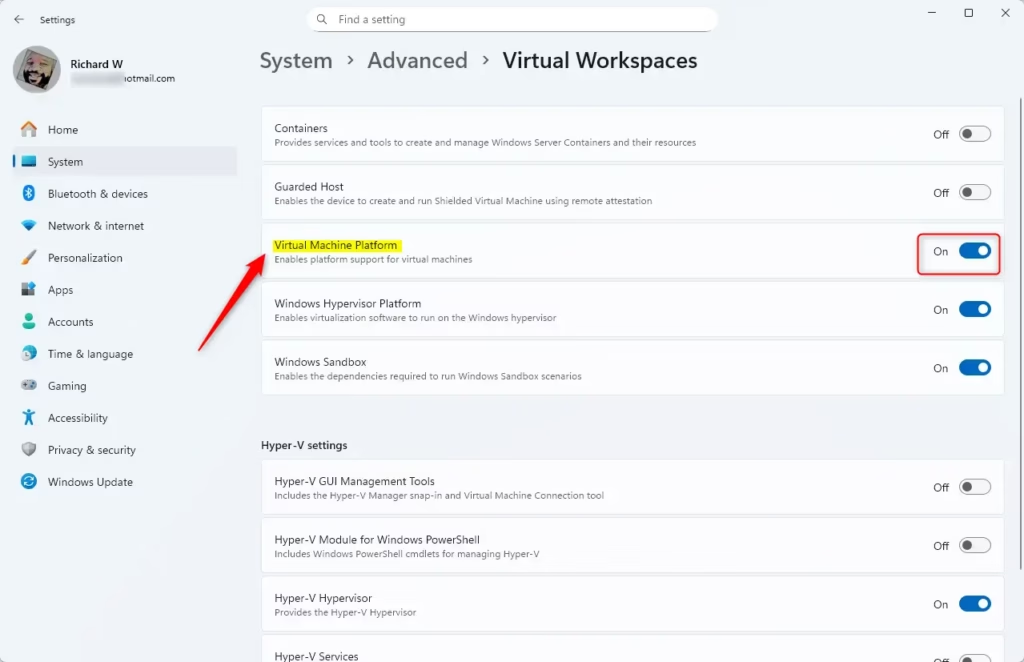
- Toggle the Virtual Machine Platform button on or off.
- Close the Settings app.
Enable Virtual Machine Platform Using Control Panel
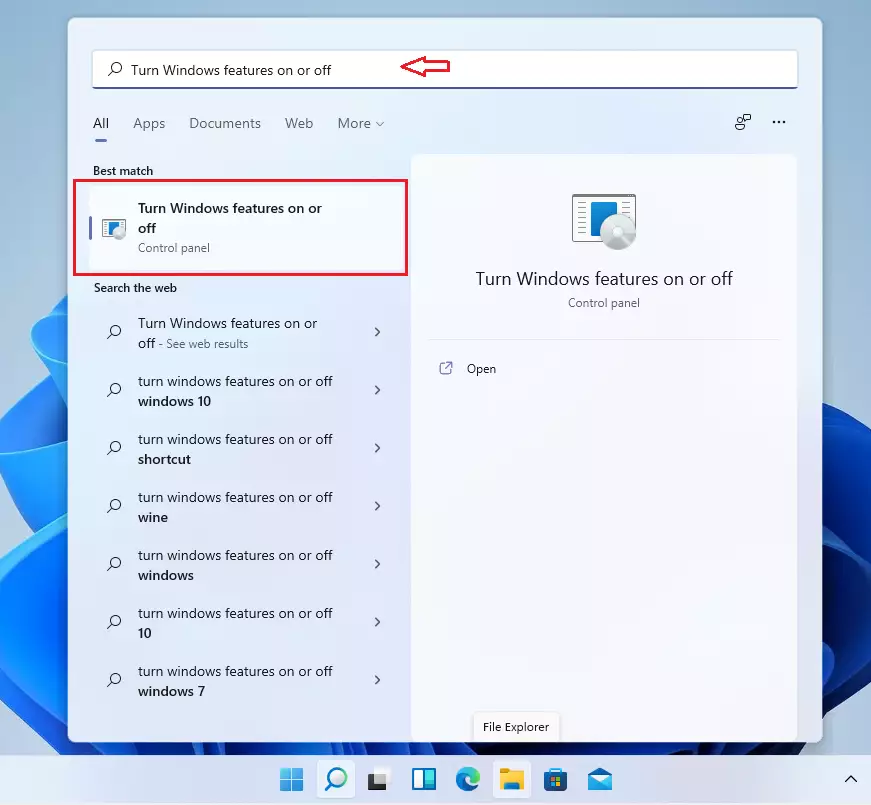
Using the older Control Panel is another way to turn on the Virtual Machine Platform. You’ll need to search for ‘Turn Windows features on or off’ and then check the box for Virtual Machine Platform.
- Click Start and type “Turn Windows features on or off” in the search bar.
- Select the result to open the Windows Features pane.
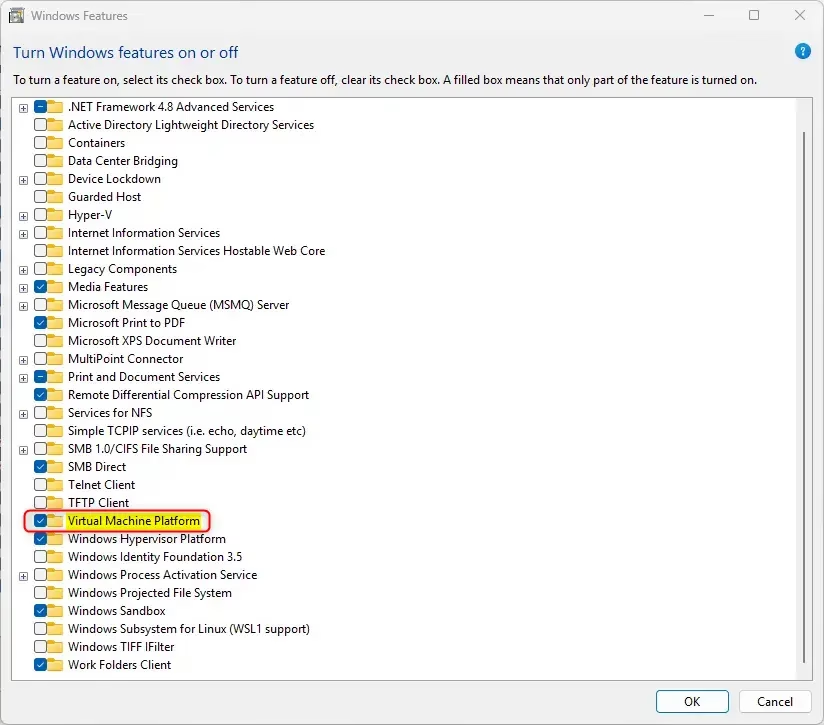
- Scroll down and check the box next to Virtual Machine Platform to turn it on.
- To turn it off, uncheck the box .
What happens next? You’ll see a message asking you to restart your computer to complete the process.
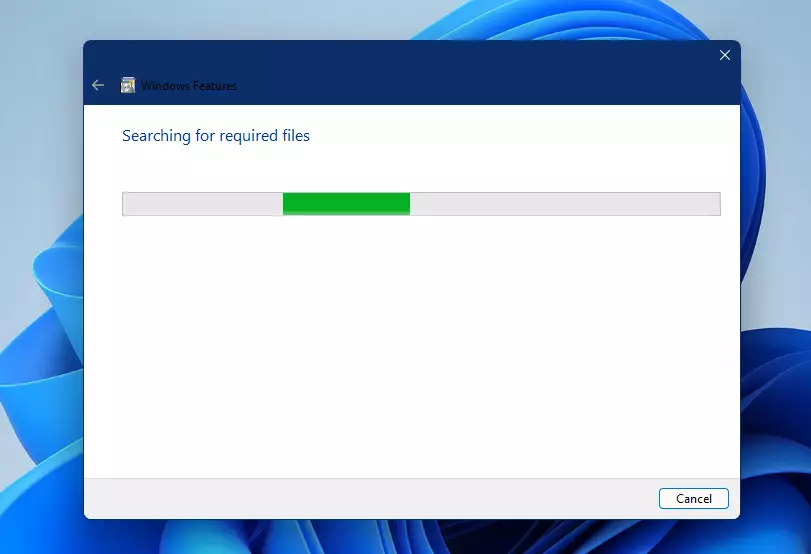
- Restart your computer.
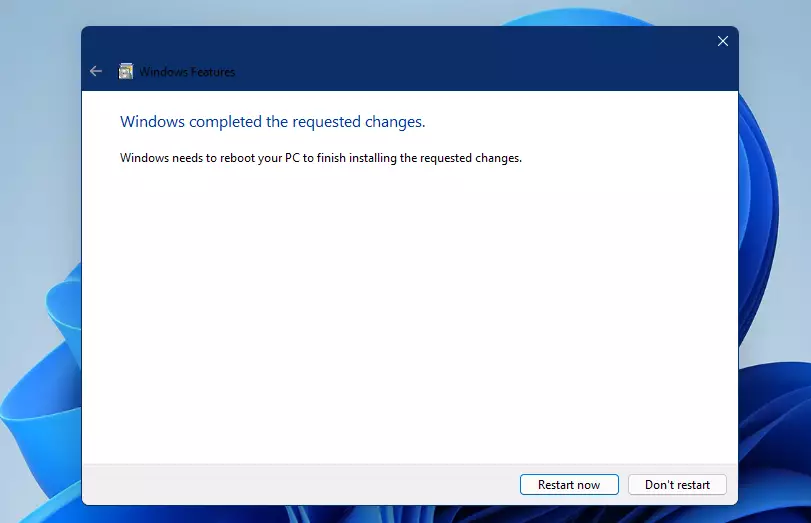
After restarting, Virtual Machine Platform will be active. You can now create virtual machines and run different operating systems.
Enable Virtual Machine Platform Using Command Prompt
You can turn on the Virtual Machine Platform using the Command Prompt if you prefer. Open Command Prompt as an administrator and type the DISM command to enable the feature.
- [REQUIRES ADMIN PRIVILEGES] Click Start, search for Command Prompt, right-click on it, and select Run as administrator.

- Copy and paste this command, then press Enter:
DISM /Online /Enable-Feature /FeatureName:"VirtualMachinePlatform"To turn it off, run this command instead:
DISM /Online /Disable-Feature /FeatureName:"VirtualMachinePlatform"- Restart your computer.
Virtual Machine Platform should now be installed and enabled.
Enable Virtual Machine Platform Using PowerShell
For those who like using PowerShell, you can turn the Virtual Machine Platform on or off with a simple command. Open PowerShell as an administrator and use the Enable-WindowsOptionalFeature command.
- [REQUIRES ADMIN PRIVILEGES] Open the Start menu and search for PowerShell.
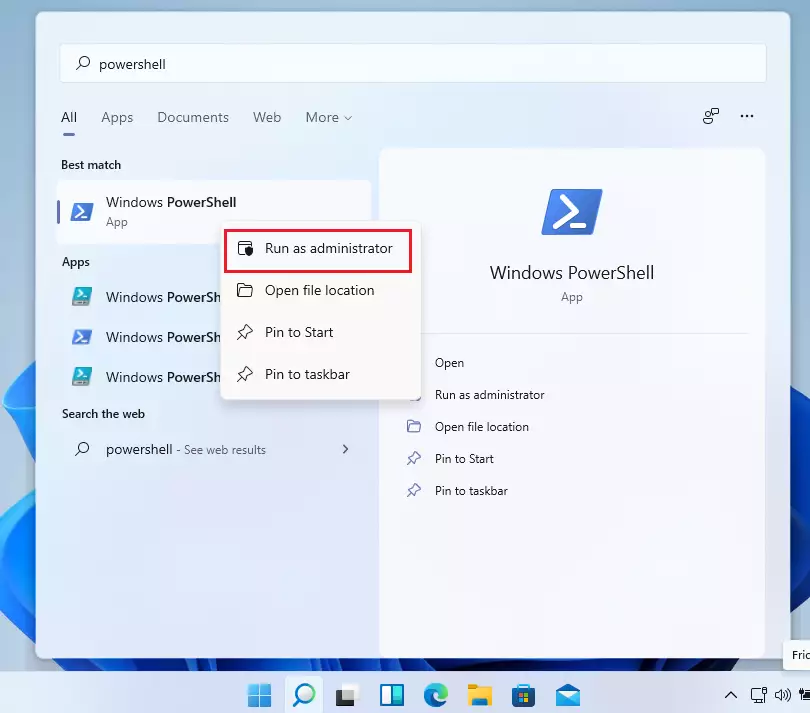
- Type this command to enable Virtual Machine Platform:
Enable-WindowsOptionalFeature -Online -FeatureName "VirtualMachinePlatform"To disable it, run this command instead:
Disable-WindowsOptionalFeature -Online -FeatureName "VirtualMachinePlatform"- Restart your computer for the changes to take effect.
Summary
The Virtual Machine Platform in Windows 11 lets you create and run virtual machines. You can turn it on or off using the Settings app, Control Panel, Command Prompt, or PowerShell, each offering a different approach to manage this feature.
- Settings app — The easiest method for most users
- Control Panel — Uses the older Windows features panel
- Command Prompt — Requires admin privileges; use the DISM command
- PowerShell — Requires admin privileges; use the Enable-WindowsOptionalFeature command
No matter which method you choose, always restart your computer after enabling or disabling the feature. Once enabled, you can create virtual machines and test different operating systems for development and testing purposes.
What happens if you enable the virtual machine platform?
Virtualization lets your Windows device emulate a different operating system, like Android or Linux. Enabling virtualization gives you access to a larger library of apps to use and install on your device. If you upgraded your device from Windows 10 to Windows 11, these steps help you enable virtualization.
How long does it take to enable the virtual machine platform?
Enabling features like the Hypervisor Platform or Windows Subsystem for Linux completes in just a few seconds, but enabling the Virtual Machine Platform takes more than 10 minutes.
Was this guide helpful?

About the Author
Richard
Tech Writer, IT Professional
Richard, a writer for Geek Rewind, is a tech enthusiast who loves breaking down complex IT topics into simple, easy-to-understand ideas. With years of hands-on experience in system administration and enterprise IT operations, he’s developed a knack for offering practical tips and solutions. Richard aims to make technology more accessible and actionable. He's deeply committed to the Geek Rewind community, always ready to answer questions and engage in discussions.


No comments yet — be the first to share your thoughts!