How to Enable or Disable Windows Hypervisor Platform in Windows 11

Enable Windows Hypervisor Platform via Settings > System > Advanced > Virtual Workspaces, or by checking the box in “Turn Windows features on or off.” You can also use DISM or PowerShell commands to toggle it. This feature allows programs like VirtualBox to run virtual machines.
What is Windows Hypervisor Platform?
Windows Hypervisor Platform lets you run virtual machines, which are like computers inside your computer, on Windows 11.
Why would you use this? When you turn on this feature, your computer’s hardware works faster to run virtual machines.
Turn On Windows Hypervisor Platform Using the Settings App
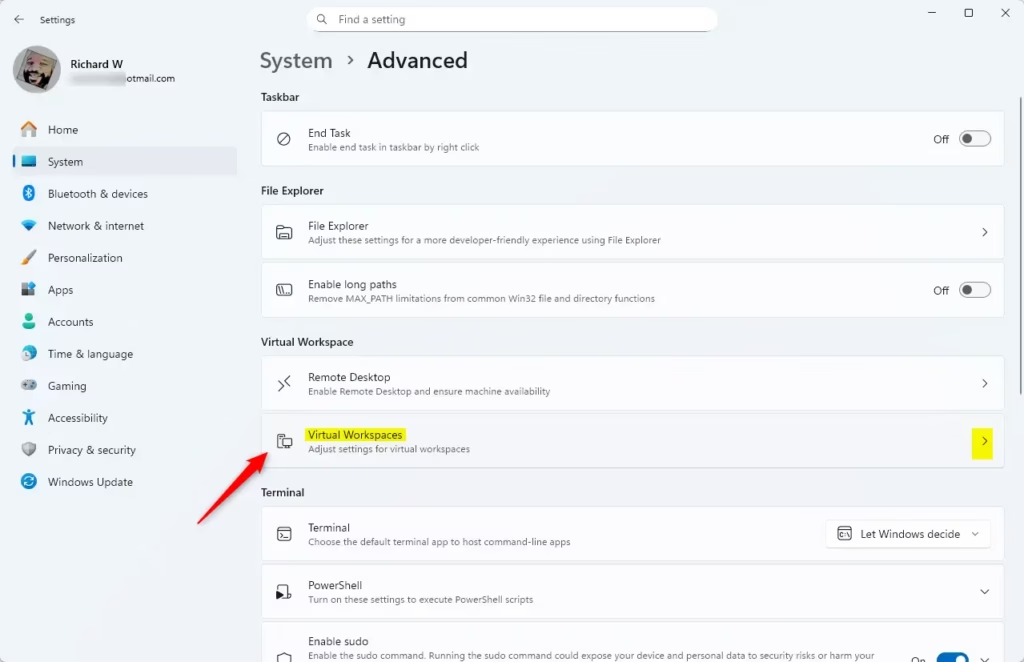
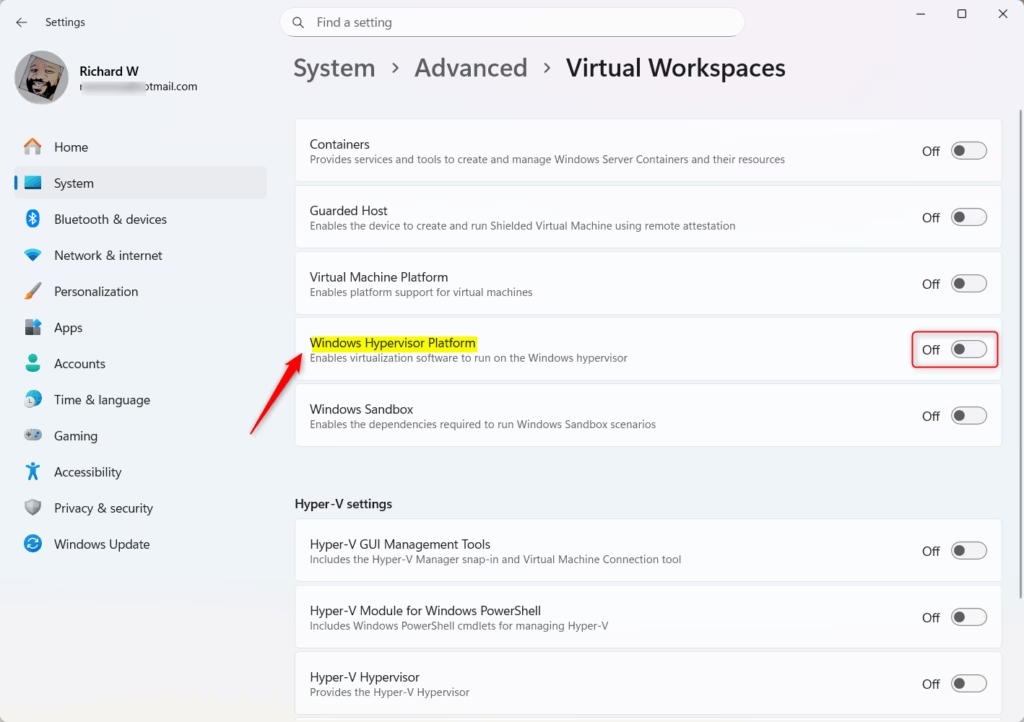
You can turn on the Windows Hypervisor Platform easily using the Settings app by going to System, then Advanced, and finding Virtual Workspaces.
- Open the Settings app. Click the Start button and select Settings. Or press Windows key + I on your keyboard.
- Click System on the left side.
- Click Advanced on the right side to see more options.
- Click on Virtual Workspaces to open it.
- Find the switch labeled Windows Hypervisor Platform and turn it On.
- Close the Settings app when you’re done.
Turn On Windows Hypervisor Platform Using Control Panel
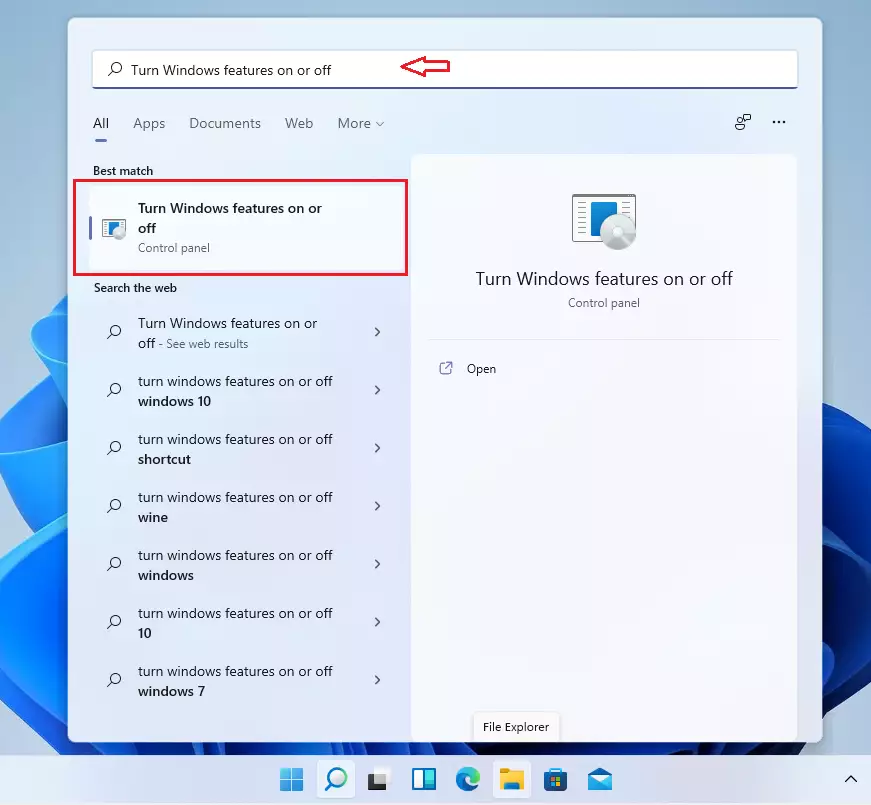
To turn on the Windows Hypervisor Platform using the Control Panel, search for ‘Turn Windows features on or off’, find it in the list, and check the box.
- Click Start, type “Turn Windows features on or off”, and click the matching result.
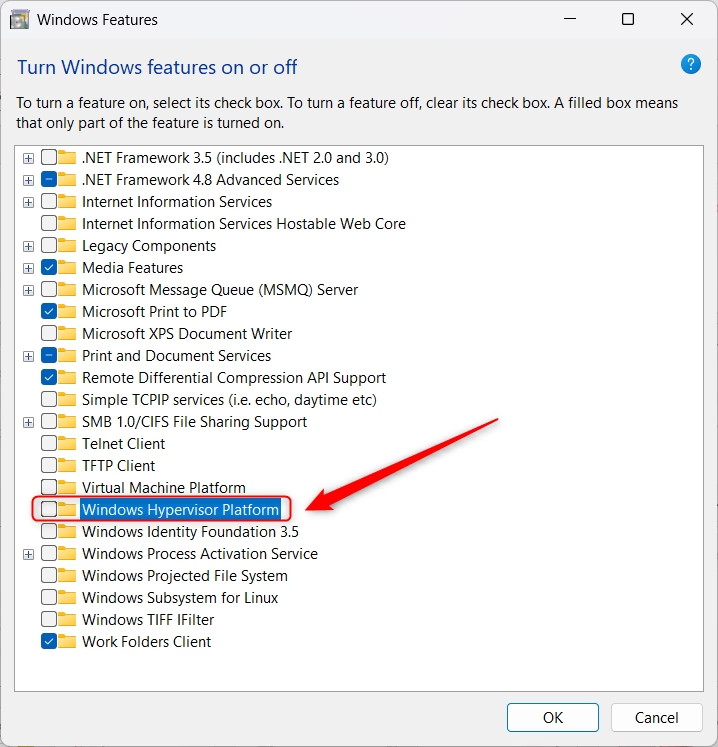
- In the Windows Features window that opens, scroll down and find Windows Hypervisor Platform.
- Check the box next to it to turn it on.
- Click OK to save.
- Your PC might ask you to restart. Go ahead and restart to apply the changes.
Turn On Windows Hypervisor Platform Using Command Prompt
You can turn on the Windows Hypervisor Platform using Command Prompt by running it as an administrator and typing the command DISM /Online /Enable-Feature /FeatureName:”HypervisorPlatform”.
If you like using commands, try this method:
- Click Start, type Command Prompt, right-click it, and choose Run as administrator.
- Copy and paste this command, then press Enter to turn on Hypervisor Platform:
DISM /Online /Enable-Feature /FeatureName:"HypervisorPlatform"To turn it off, use this command instead:
DISM /Online /Disable-Feature /FeatureName:"HypervisorPlatform"Remember to restart your computer to apply the changes.

Turn On Windows Hypervisor Platform Using PowerShell
To turn on the Windows Hypervisor Platform with PowerShell, open it as an administrator and enter the command Enable-WindowsOptionalFeature -Online -FeatureName “HypervisorPlatform”.
PowerShell is another tool for running commands. Here’s how to use it:
- Click Start, type PowerShell, right-click it, and choose Run as administrator.
- To turn on Hypervisor Platform, type this command and press Enter:
Enable-WindowsOptionalFeature -Online -FeatureName "HypervisorPlatform"To turn it off, use:
Disable-WindowsOptionalFeature -Online -FeatureName "HypervisorPlatform"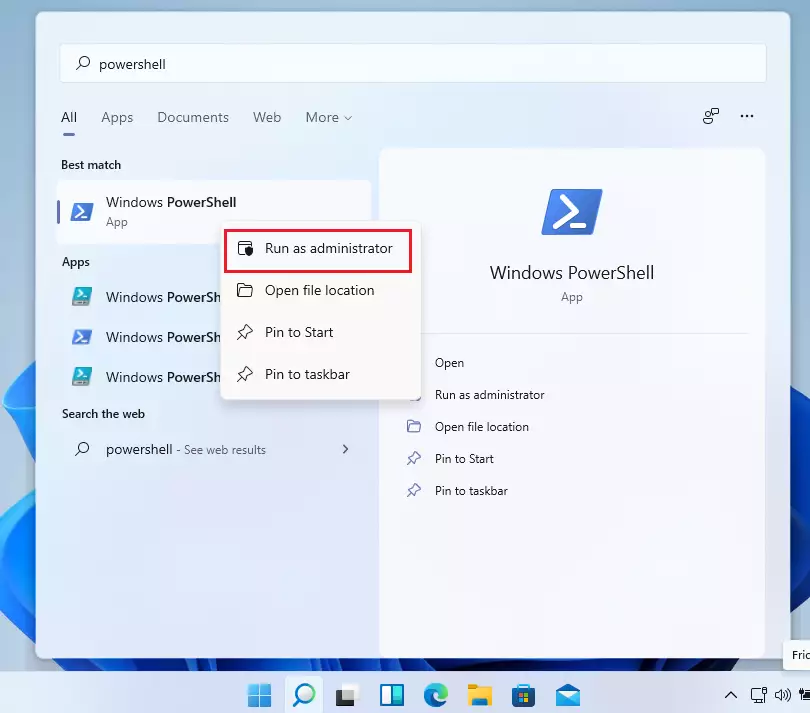
How to Create Virtual Machines Using Hyper-V Manager
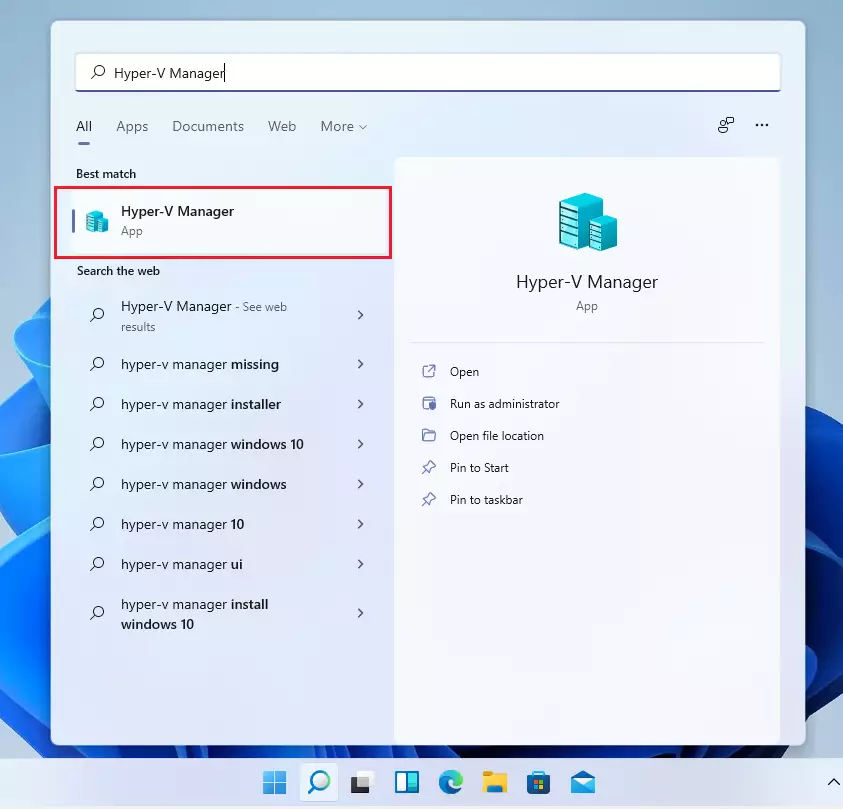
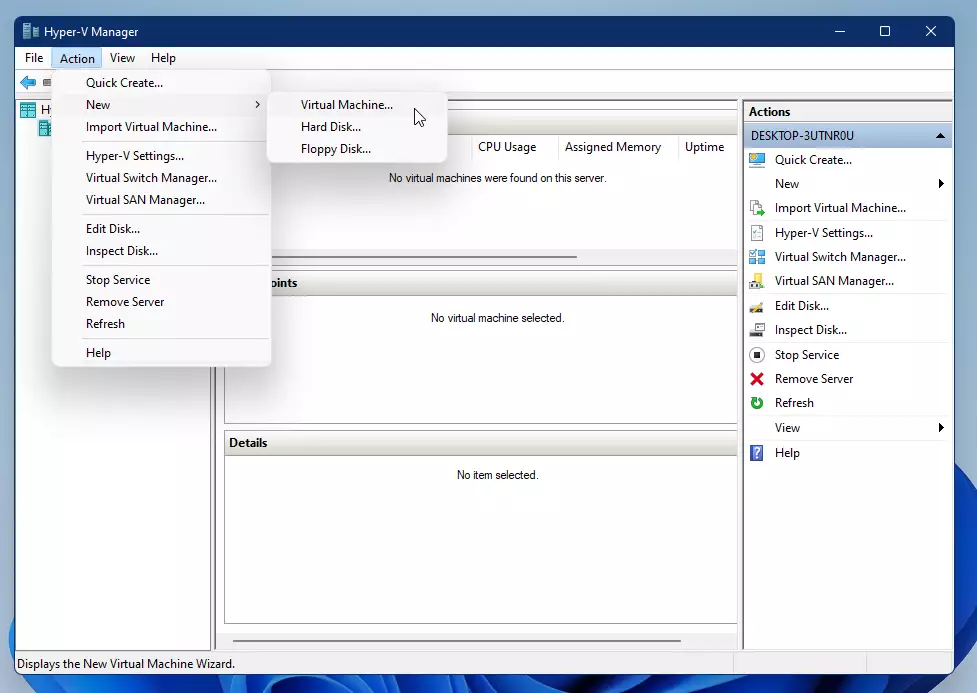
After turning on the Windows Hypervisor Platform, you can create virtual machines by searching for and opening Hyper-V Manager, then choosing Action > New > Virtual Machine.
- Click Start and search for Hyper-V Manager.
- Open the app. In the menu, click Action > New > Virtual Machine.
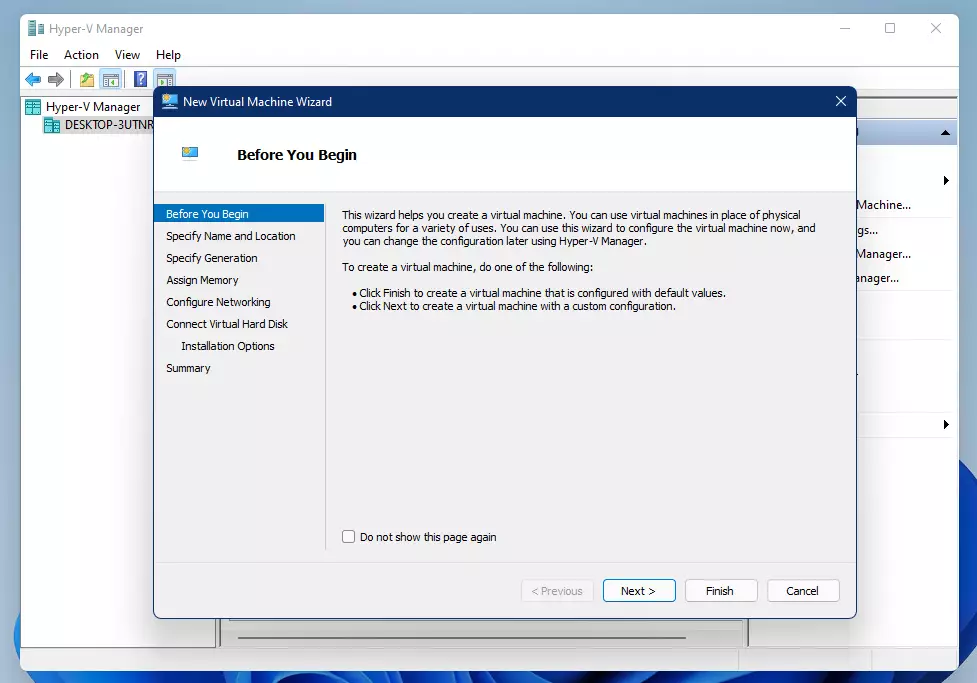
- Follow the instructions in the wizard to set up your new virtual machine.
What happens when you do this? You’ll be able to run other operating systems inside Windows 11!
Summary
Windows Hypervisor Platform lets you run virtual machines on Windows 11, and you can turn it on or off using Settings, Control Panel, Command Prompt, or PowerShell.- Windows Hypervisor Platform helps you run virtual machines on Windows 11.
- You can turn it on or off through Settings, Control Panel, Command Prompt, or PowerShell.
- After enabling it, you can create and manage virtual machines using Hyper-V Manager.
- This is useful if you want to try out other operating systems or test software safely.
- For more tips on Windows 11, check out Geek Rewind.
Is IT safe to disable Windows hypervisor platform?
Before you disable Hyper-V (the virtualization technology on Windows), know that some security features rely on it. Turning off Hyper-V might expose your computer to more security risks.
Was this guide helpful?

About the Author
Richard
Tech Writer, IT Professional
Richard, a writer for Geek Rewind, is a tech enthusiast who loves breaking down complex IT topics into simple, easy-to-understand ideas. With years of hands-on experience in system administration and enterprise IT operations, he’s developed a knack for offering practical tips and solutions. Richard aims to make technology more accessible and actionable. He's deeply committed to the Geek Rewind community, always ready to answer questions and engage in discussions.




No comments yet — be the first to share your thoughts!