
This guide will help you turn the blinking cursor on or off on a Braille display when using Windows 11.
What is Narrator? Narrator is a built-in Windows app that reads aloud what’s on your screen. It helps people who have trouble seeing or are blind.
When you use Narrator, you can also:
And many other settings to make it easier to use.
Why change the blinking cursor? When you use a Braille display with Narrator, you can choose to have the cursor blink or stay still. The blinking cursor shows where you are on the screen. Some people like it, others don’t.
How to Turn the Blinking Cursor On or Off for a Braille Display
Follow these easy steps to change the blinking cursor setting on your Braille display in Windows 11:
- Open Windows Settings: Click the Start menu (the Windows icon at the bottom left), then click Settings. Or press Windows key + I on your keyboard to open Settings quickly. Learn more about opening Settings
- Go to Accessibility: In the Settings window, click Accessibility on the left side.
- Select Narrator: On the right side, find and click the Narrator section to open its settings.

- Find Braille Settings: Scroll to the Braille section, then click Use a braille display with Narrator to open braille options.
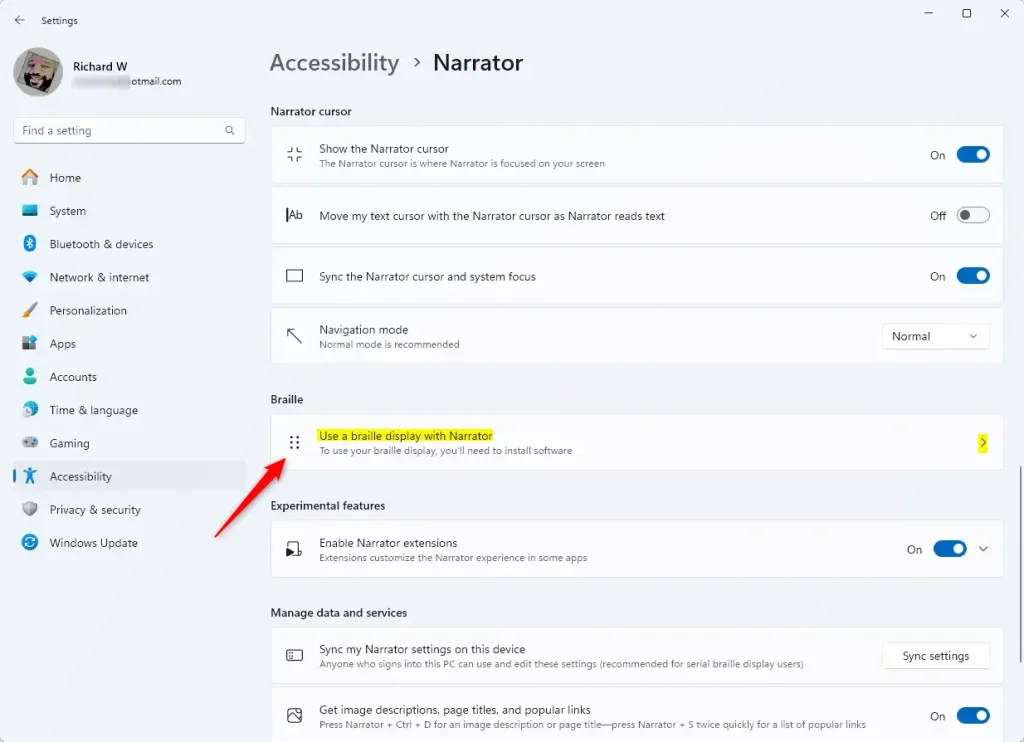
- Install Braille support if needed: If you haven’t installed Braille support yet, click Download and install braille. More on installing Braille support
- Add your Braille display: Click Add a braille display and choose your Braille display’s brand and how it connects to your PC.
- Turn the blinking cursor on or off: Under the Braille cursor section, find Blink cursor on braille display. Toggle the switch to turn it On or Off.
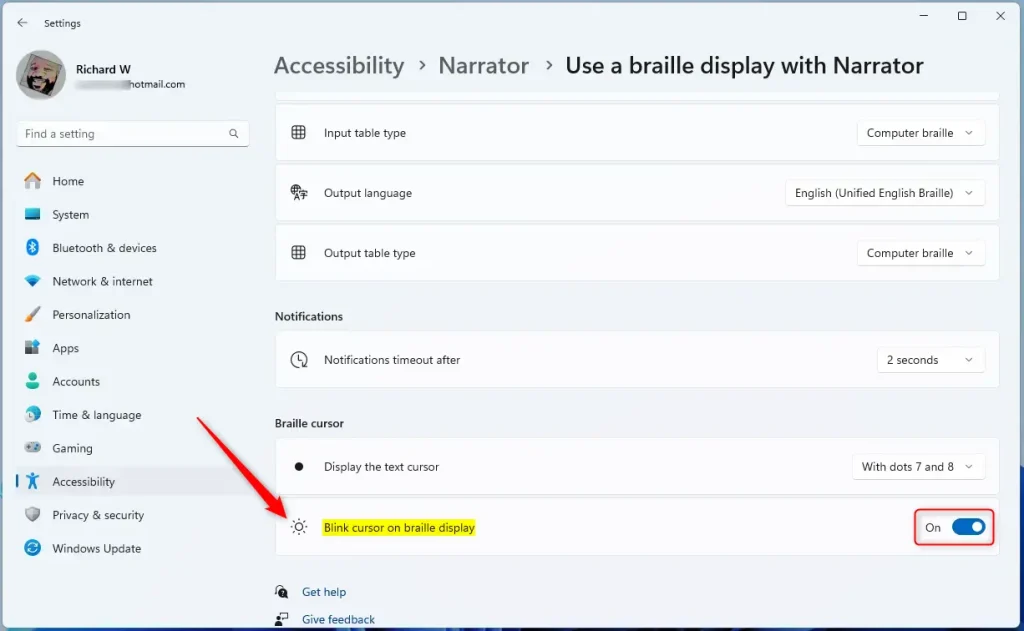
That’s all! You’ve now set your Braille display cursor to blink or stay still, whichever you prefer.
Summary
- You can choose to have the cursor blink or not on your Braille display in Windows 11.
- Changing this setting is easy through Windows Settings and the Narrator app.
- This helps make Windows more comfortable and easier to use for people who rely on Braille displays.



Leave a Reply