How to Use Snipping Tool’s New Text Extractor Feature

You can extract text from images using the Snipping Tool’s new Text Actions feature in Windows.
This powerful tool, available in the latest Snipping Tool version for Windows 11, lets you copy text directly from any screenshot, saving you hours of manual typing.
Simply snip an image containing text, and the Snipping Tool’s AI will automatically detect and make that text editable or copyable. For example, you can capture a sign and instantly have its text ready to paste into a document.
You no longer need third-party applications for basic text extraction from images.
Use the Text Actions feature in Snipping Tools
You can now pull text from any screenshot or image file using the Text Actions feature. You can also use the Quick Redact feature to automatically hide email addresses or phone numbers in your snips.
Here is how to do it:
- First, capture a snip using the Win + Shift + S shortcut or by opening the app.
- Once the image opens in the editor window, click the Text Actions icon. This looks like a document or text symbol in the toolbar.
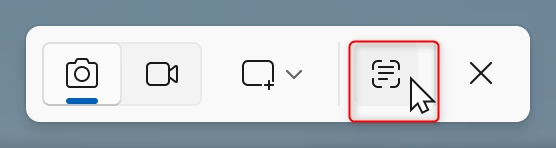
The app will scan your image for text. You can select specific words to copy or click “Copy all text” to grab everything at once. If you need to protect your privacy, look for the Quick Redact option to mask sensitive items like phone numbers or emails before sharing.
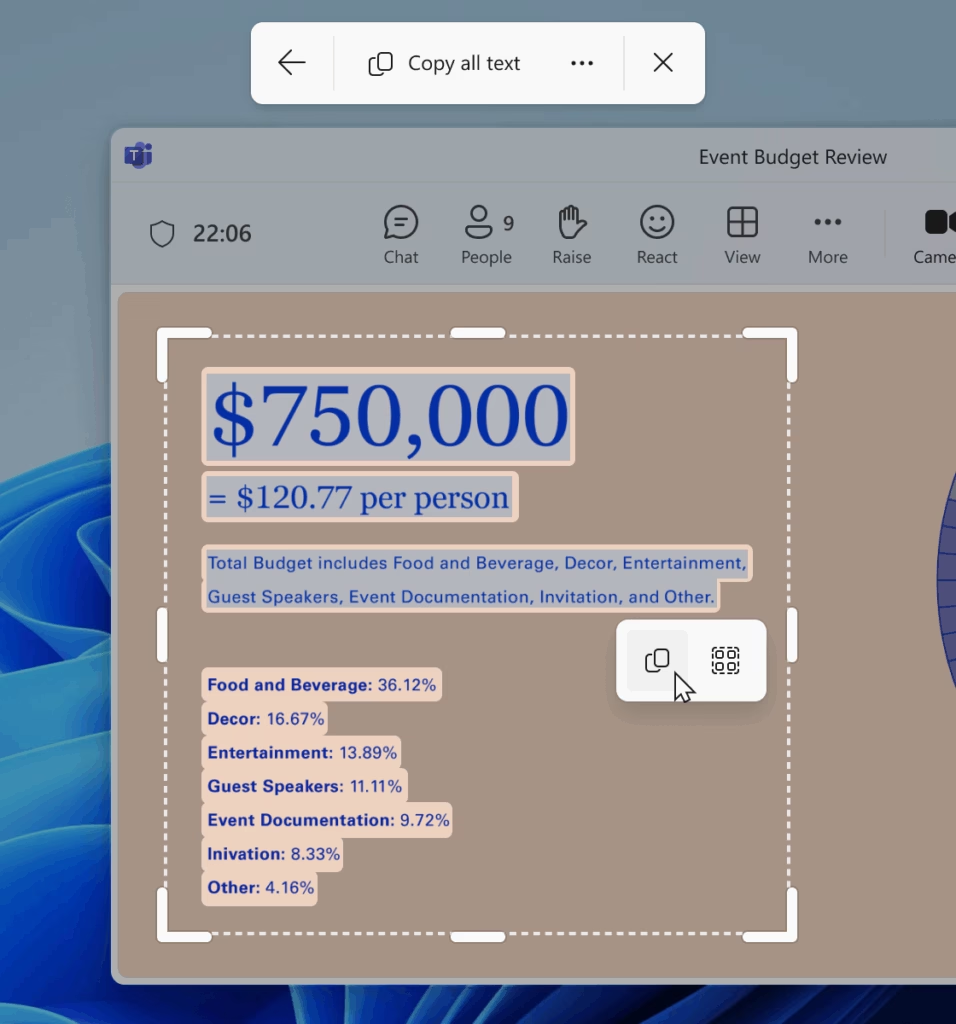
You can also click the “More options” menu. From here, you can choose to “Remove line breaks” from your text or enable “Automatically copy text” for a faster experience.
That is all there is to it!
Reference: Microsoft blog
Conclusion
The Text Actions feature helps you work faster by turning images into editable text. Accessing it is simple: just capture your snip and click the Text Actions icon in the editor window. With added tools like Quick Redact, you can manage your digital information safely and efficiently.
Was this guide helpful?

About the Author
Richard
Tech Writer, IT Professional
Richard, a writer for Geek Rewind, is a tech enthusiast who loves breaking down complex IT topics into simple, easy-to-understand ideas. With years of hands-on experience in system administration and enterprise IT operations, he’s developed a knack for offering practical tips and solutions. Richard aims to make technology more accessible and actionable. He's deeply committed to the Geek Rewind community, always ready to answer questions and engage in discussions.




No comments yet — be the first to share your thoughts!