How to Cancel Print Job in Windows 11


You cancel a print job in Windows 11 by stopping the print spooler service or clearing the printers-print-queue-in-windows-11/" class="sal-link" rel="noopener" target="_blank" data-sal-id="38183">print queue directly.
A print job gets stuck when a document fails to send correctly to your printer, halting all subsequent print requests behind it.
Clearing a stuck print job ensures your Windows 11 printer can process new documents without interruption, freeing up your device.
For instance, if you sent a large file that won’t print, it occupies the queue and needs to be removed.
How to cancel a print job from the notification area
When you are printing, a small printer icon often appears in your taskbar. Look for it near the clock.
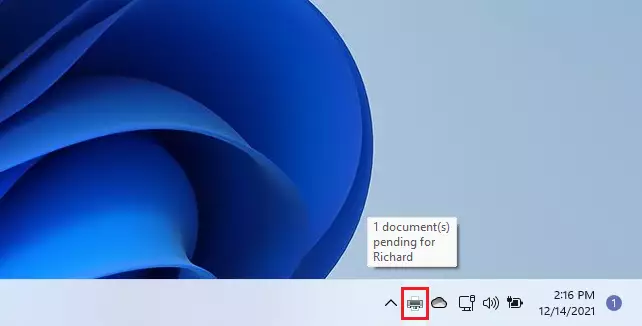
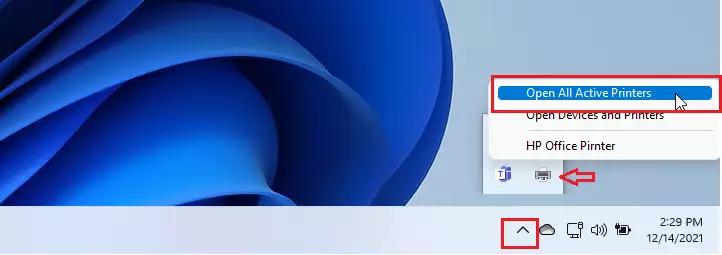
Right-click the printer icon and select Open All Active Printers.
How to open the print queue using Settings
If you do not see the icon, use the Settings app instead.
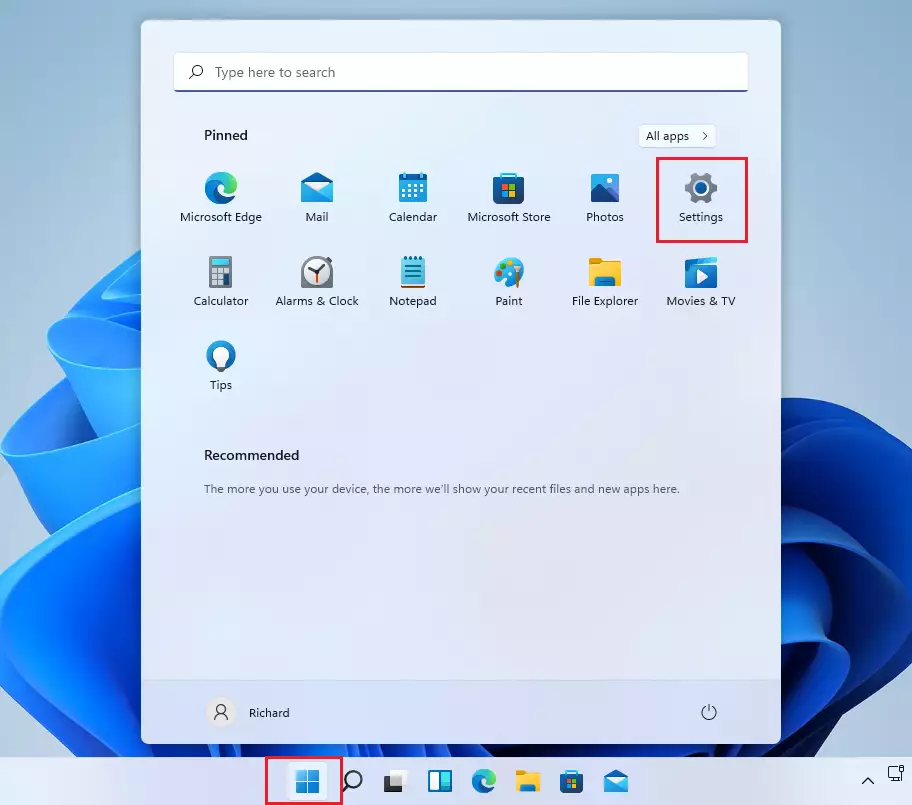
- Open the Start menu and click Settings.
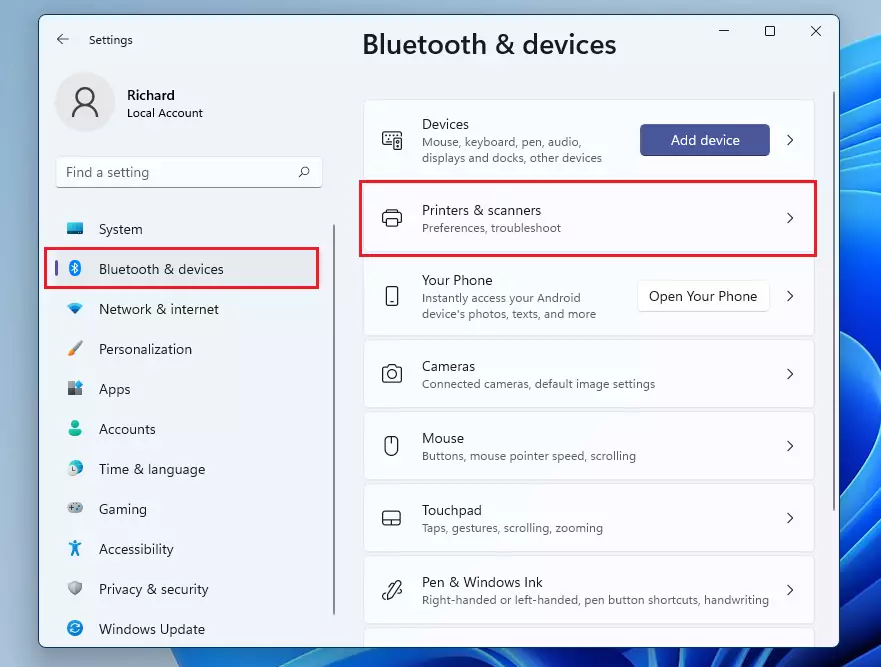
- Click Bluetooth & devices, then select Printers & scanners.
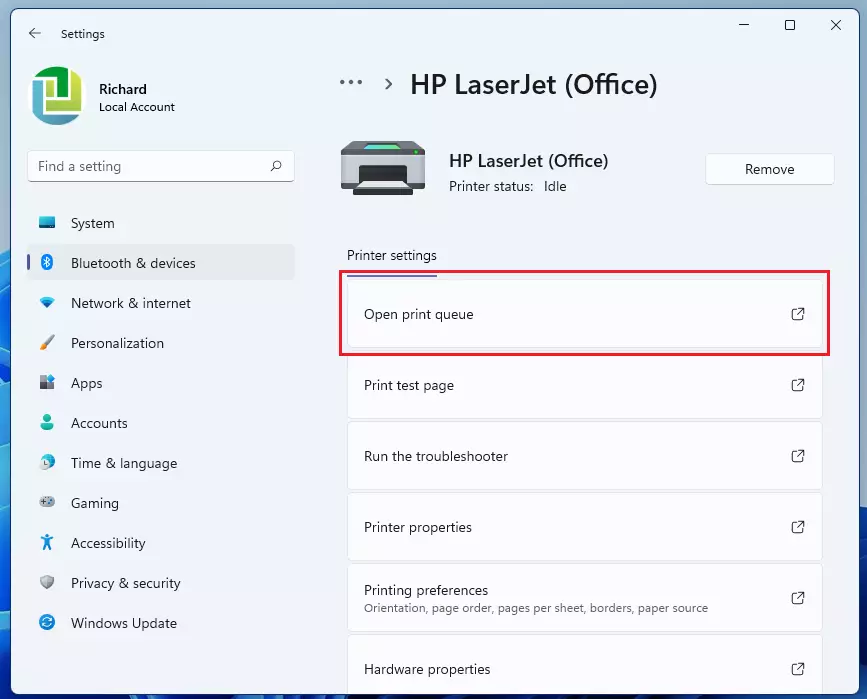
- Click on the name of your printer from the list.
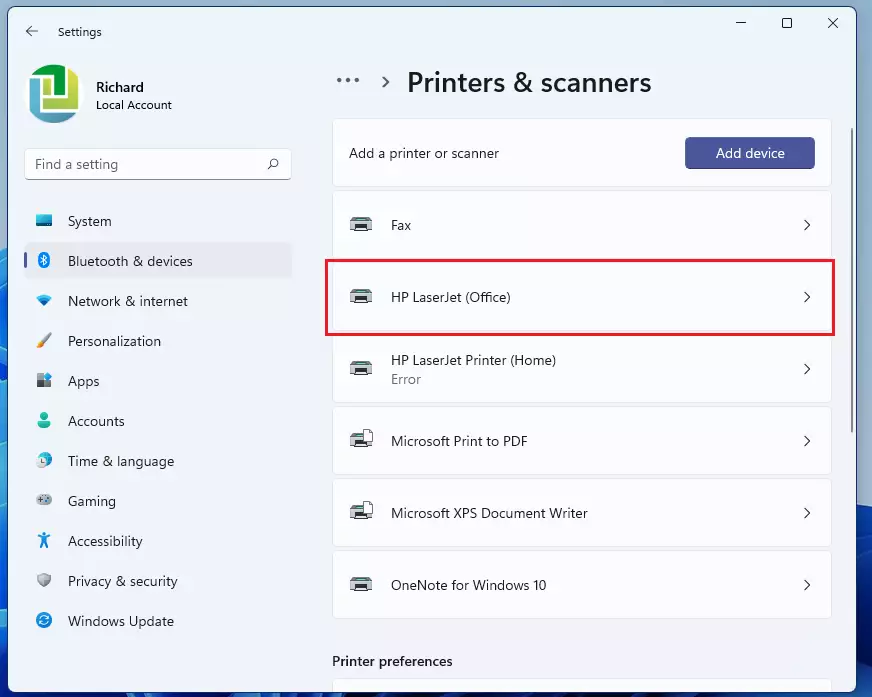
- Click Open Print Queue.
Troubleshooting a stuck print queue
If the cancel button is greyed out or the job says ‘Deleting’ but never disappears, the Print Spooler service may be hung. You can force clear it by restarting the service.
[ADMIN PRIVILEGES REQUIRED]: You must run these commands as an administrator. Open the Start menu, type ‘cmd’, right-click it, and select ‘Run as administrator’.
net stop spoolerdel /Q /F /S %systemroot%\System32\Spool\Printers\*.*net start spooler
After running these, your print queue should be empty. If issues persist, try the official Microsoft Print Troubleshooter.
Summary
Canceling a stuck print job is simple. You can reach the queue through the taskbar icon or the Windows Settings menu. If a job refuses to go away, use the command line to restart the Print Spooler service. Keeping your queue clear ensures your printer runs smoothly.
Why does my print job say ‘Deleting’ but never disappears?
This happens when the Print Spooler service is stuck or the printer is still trying to communicate with the computer. The job is marked for deletion, but the system cannot finish the task. Restarting the Print Spooler service usually forces the system to clear the stuck file immediately.
Do I need to restart my printer after canceling a job?
Usually, no. Once you cancel the job in Windows, the printer should stop automatically. However, if the printer remains unresponsive or shows an error light, turning the printer off and back on can help clear its internal memory and reset the connection to your computer.
How do I cancel a print job from a network printer?
Canceling a network print job works the same way as a local printer. Open the print queue on your computer using the Settings app or the taskbar icon. Because the job is sent from your machine, your computer manages the queue, allowing you to cancel it locally.
Was this guide helpful?

About the Author
Richard
Tech Writer, IT Professional
Richard, a writer for Geek Rewind, is a tech enthusiast who loves breaking down complex IT topics into simple, easy-to-understand ideas. With years of hands-on experience in system administration and enterprise IT operations, he’s developed a knack for offering practical tips and solutions. Richard aims to make technology more accessible and actionable. He's deeply committed to the Geek Rewind community, always ready to answer questions and engage in discussions.


No comments yet — be the first to share your thoughts!