How to Stop Skype from Starting Automatically on Windows 11


You can stop Skype from starting automatically on Windows 11 by disabling its startup setting.
Startup Apps are programs that automatically launch when you turn on your computer. Disabling Skype’s auto-start can significantly improve your Windows 11 boot time. Many users find Skype enables this feature by default upon installation.
By taking a few simple steps within Windows 11 settings, you gain control over when Skype launches. This action frees up valuable system resources immediately after you log in, allowing other applications to run more smoothly.
Disable Skype in Windows 11 Startup Apps settings. For the Microsoft Store version, go to App settings and toggle “Runs at log-in” off. For the desktop version, open Task Manager, find Skype on the Startup tab, and choose Disable.
Disable the Microsoft Store version of Skype
If you downloaded Skype from the Microsoft Store, here’s how to disable its auto-start:
- Click the Start button and type “Skype.”
- Right-click the Skype icon and select App settings.
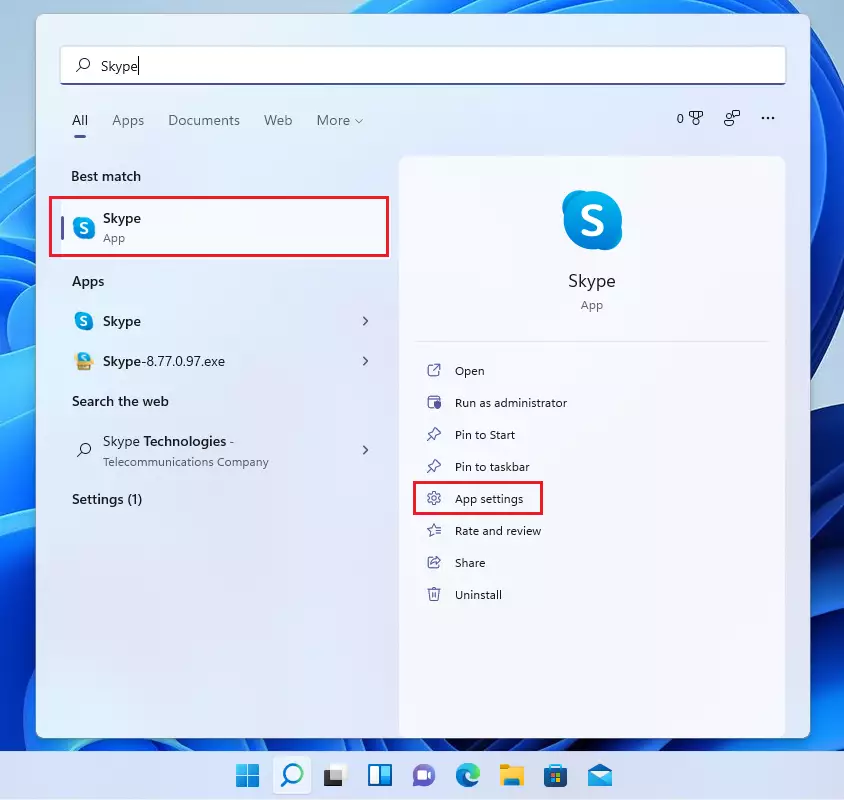
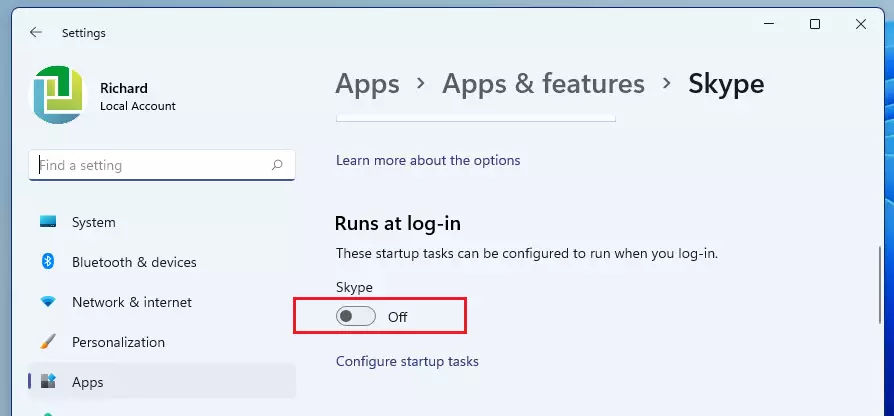
- Look for the section labeled Runs at log-in.
- Toggle the switch to the Off position.
Disable the traditional desktop version of Skype
You can stop the traditional desktop version of Skype from starting automatically using the Windows Task Manager by disabling it in the startup list.
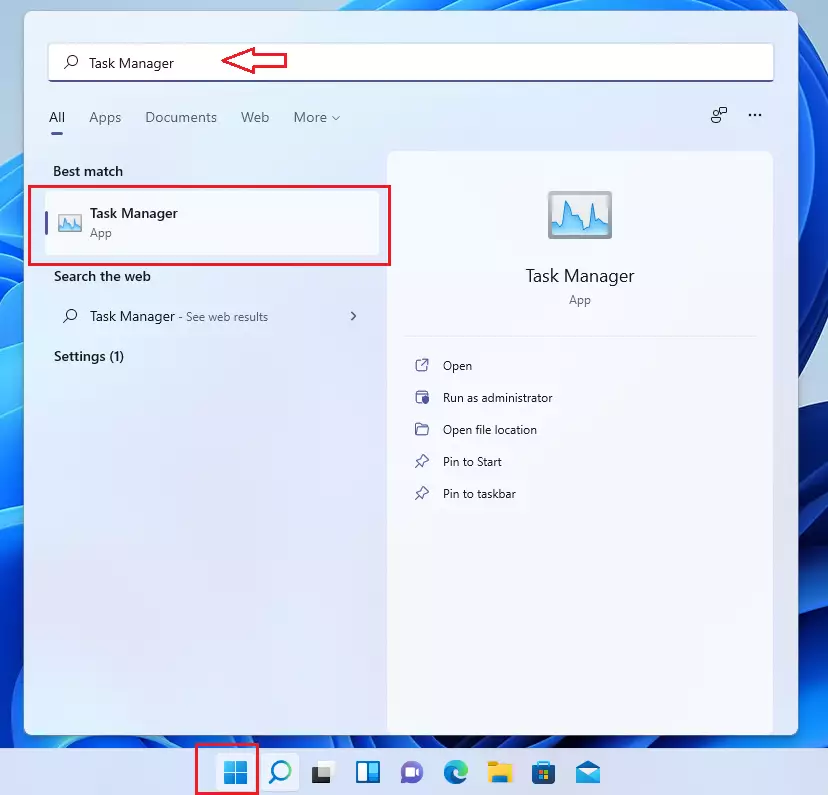
- Click the Start button and search for Task Manager. Open it.
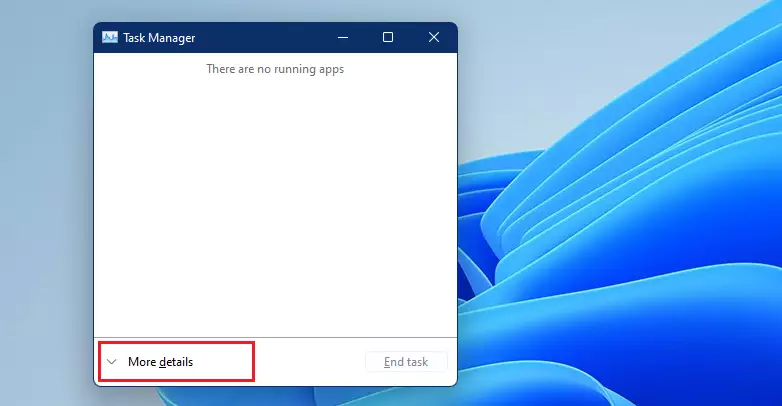
- Click the Startup tab. (Note: If you do not see tabs, click More details first.)
- Find Skype in the list.
- Right-click on it and choose Disable.
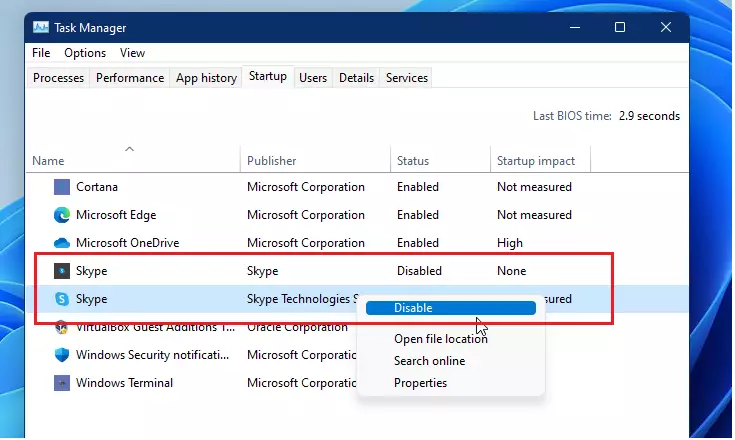
Note: This step requires administrator privileges if your system settings are restricted.
Disable auto-login from within the Skype app
You can stop Skype from starting automatically and signing you in by changing a couple of settings right inside the Skype app itself.
- Open the Skype app.
- Click the three dots (…) near your profile name and select Settings.
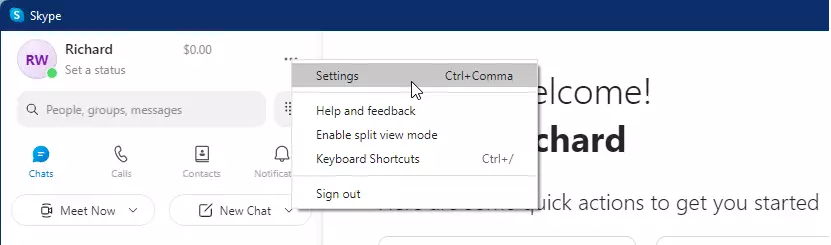
- Select General from the menu on the left.
- Turn off the buttons for Automatically start Skype and On close, keep Skype running.
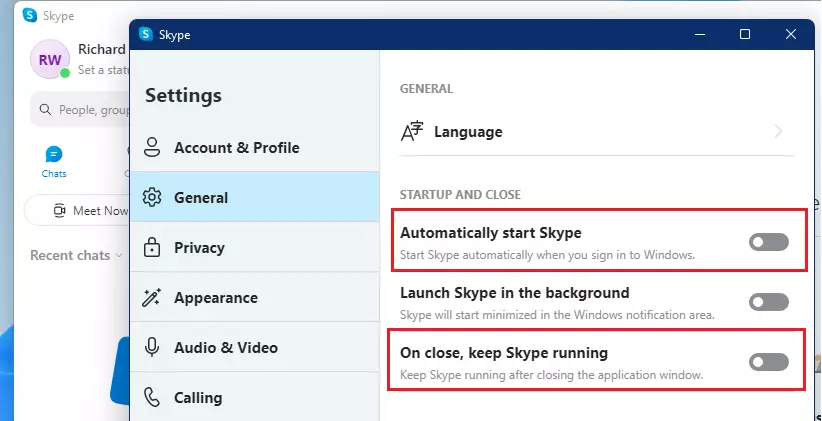
Summary
Stopping Skype from launching automatically is a simple way to help your computer run better.
Frequently Asked Questions
Was this guide helpful?

About the Author
Richard
Tech Writer, IT Professional
Richard, a writer for Geek Rewind, is a tech enthusiast who loves breaking down complex IT topics into simple, easy-to-understand ideas. With years of hands-on experience in system administration and enterprise IT operations, he’s developed a knack for offering practical tips and solutions. Richard aims to make technology more accessible and actionable. He's deeply committed to the Geek Rewind community, always ready to answer questions and engage in discussions.


Great Article.
I like the way you write this article or tutorial or how to ..
BTW, what software are you using for the headline picture or (headline image)?
May I know it?
Thank you so very much
I’m running Windows 11 build 22000.675. None of the above options exist in this build. The only way to stop Skype from running automatically is by editing the registry or changing the power option for Skype to Never. Windows has become a virus harboring viruses the average user can’t get rid of in the name of control and progress. (can you tell I dislike Windows)
same problem