How to Set Up Parental Controls in Windows 11


You set up parental controls in Windows 11 to manage your child’s digital experience, limiting screen time, filtering content, and tracking activity.
Windows 11 offers robust built-in parental controls through Microsoft Family Safety. These features allow you to create a safer online environment for your child’s PC usage by setting clear boundaries.
You can restrict access to inappropriate websites and apps, set daily screen time limits for up to 13 hours of use per day, and monitor their activity remotely. This ensures your child balances their online time with other activities.
Open Settings, navigate to Accounts, then Family & other users, and click Add account to create a child’s account. Manage limits and filters by clicking Manage family settings online to access the Microsoft Family Safety dashboard.
How to create a child account on 🪟 Windows 11
Creating a child account on Windows 11 is the first step to setting up parental controls, and you can do this easily through the Settings app.
1. Open Settings by pressing the Windows key + I on your keyboard or by clicking Start and then Settings.
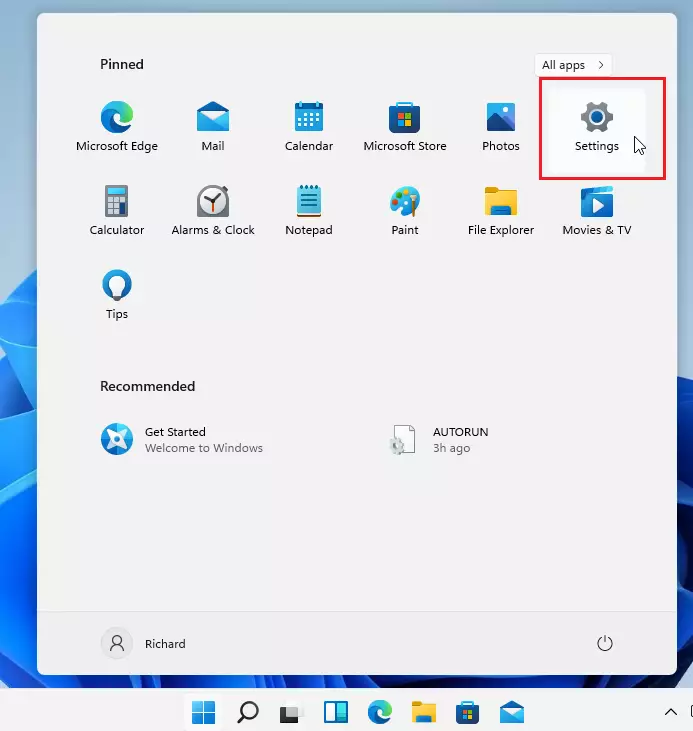
2. In the Settings menu, click on Accounts on the left side.
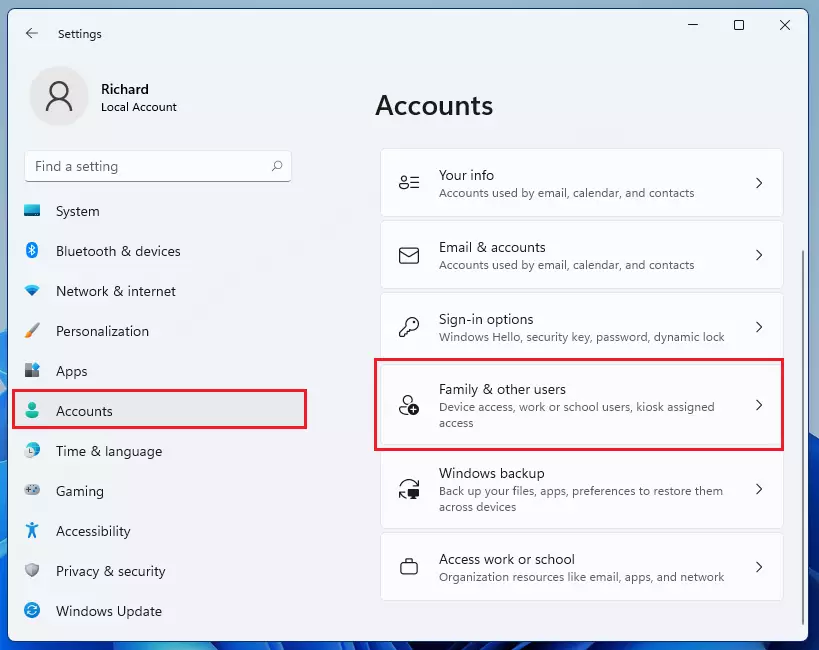
3. Select Family & other users on the right side of the screen.
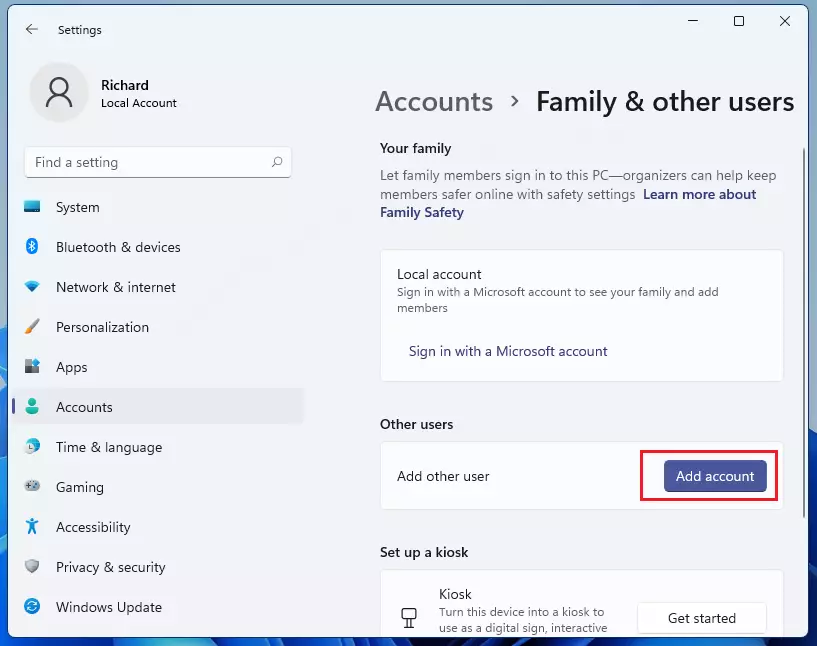
4. Look for the Your family section and click the Add account button.
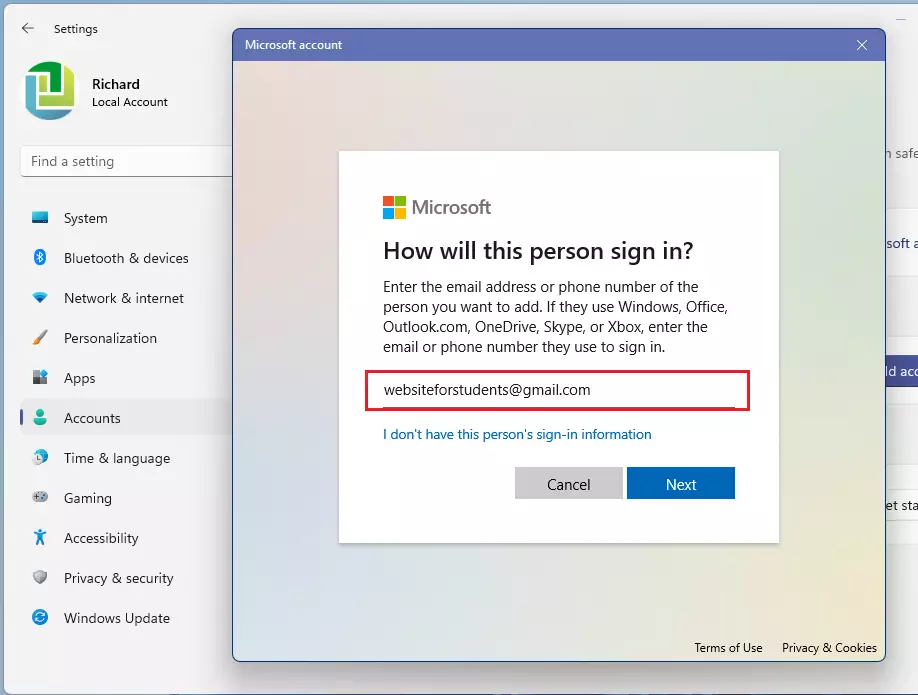
5. Enter the email address associated with your child’s Microsoft account and click Next.
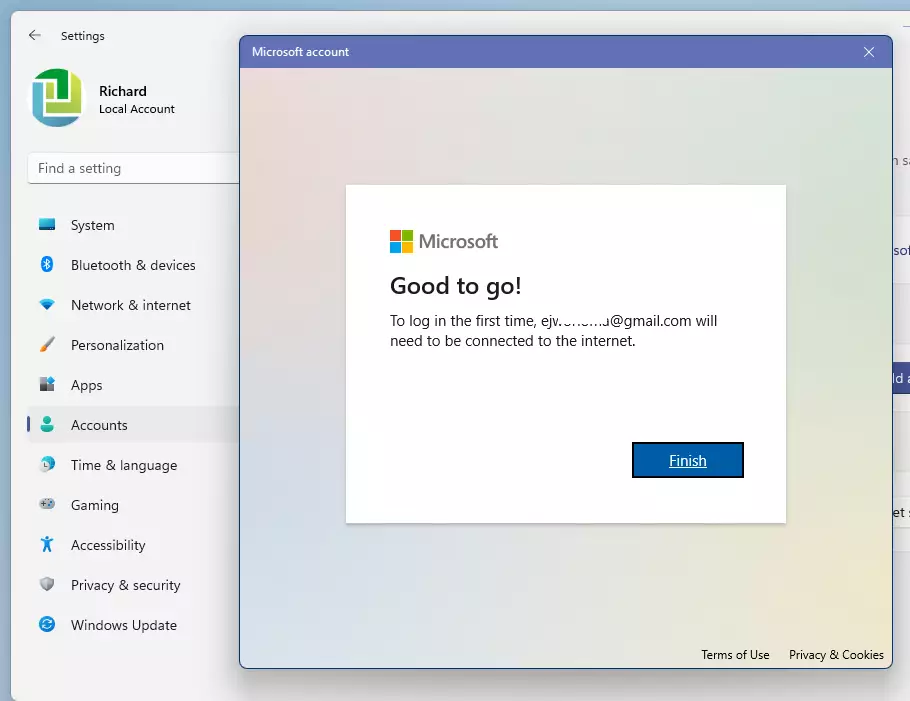
6. Follow the prompts to finish the setup, then click Finish.
Managing screen time and content filtering
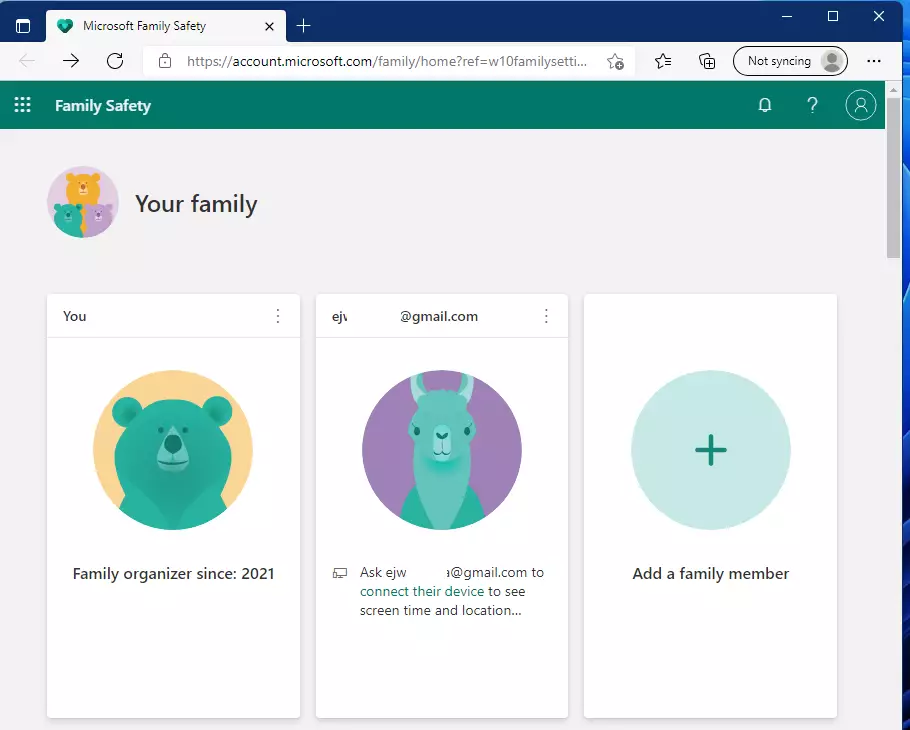
After setting up your child’s account, you can manage their Windows 11 screen time and content filtering using the Microsoft Family Safety website.
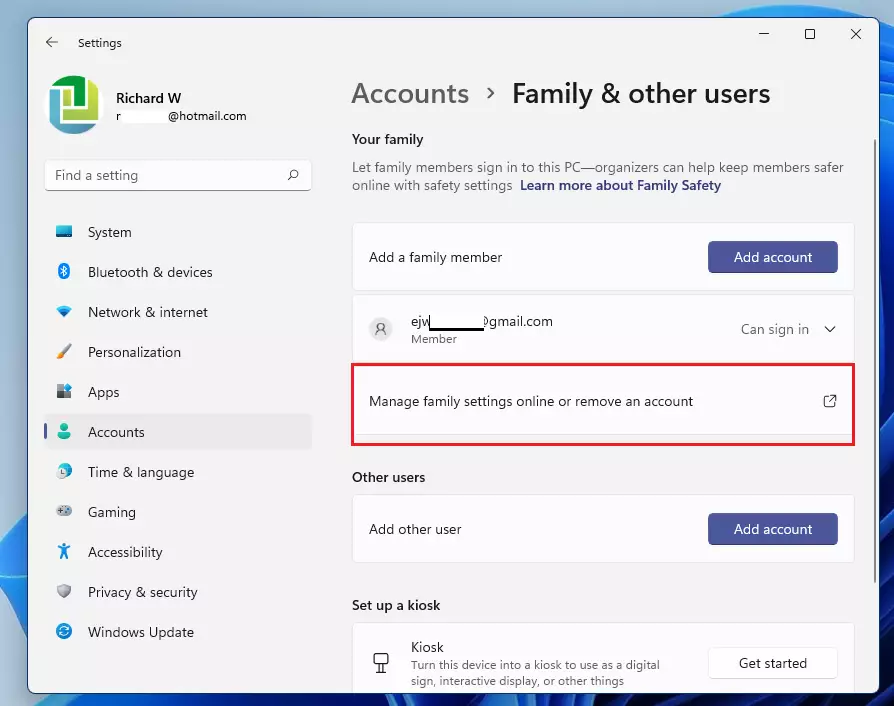
This opens the Microsoft Family Safety dashboard. Here you can:
- Screen time limits: Set daily schedules for how long your child can use the computer.
- App and game limits: Block specific apps or set time limits for games.
- Web filtering: Block inappropriate websites and filter search results.
Troubleshooting and advanced configuration
If settings are not applying, ensure the child is signed into their Microsoft account on the PC. You can download the Microsoft Family Safety app to monitor activity on the go. If you need to change parental consent settings, head over to your Microsoft account security page.
Related Topics
- How to create a Microsoft account
- Managing Microsoft account security
- Setting up Xbox integration for family groups
Summary
Setting up Windows 11 parental controls is a great way to protect your child online by creating a standard account linked to your administrator account. This gives you control over their digital experience, and checking activity summaries helps keep their environment safe.
Which devices are compatible with 🪟 Windows 11 parental controls?
Windows 11 parental controls work on any device running Windows 10 or 11. They’re also compatible with Xbox consoles and Android devices that have the Microsoft Family Safety app installed. This allows you to manage screen time and content filtering across all your family’s devices from one central location.
What happens when a child requests more screen time?
When a child hits their screen time limit in Windows 11, they’ll get a notification and can ask for more time. You’ll get this request via email or the Microsoft Family Safety app, where you can approve or deny it right away.
Was this guide helpful?

About the Author
Richard
Tech Writer, IT Professional
Richard, a writer for Geek Rewind, is a tech enthusiast who loves breaking down complex IT topics into simple, easy-to-understand ideas. With years of hands-on experience in system administration and enterprise IT operations, he’s developed a knack for offering practical tips and solutions. Richard aims to make technology more accessible and actionable. He's deeply committed to the Geek Rewind community, always ready to answer questions and engage in discussions.



No comments yet — be the first to share your thoughts!