How to Rename Audio Devices on Windows 11


You can rename audio devices on Windows 11 to easily identify your speakers, headphones, or microphones.
Renaming customizes the technical names Windows assigns, like “Realtek(R) Audio,” to user-friendly labels such as “Gaming Headset” for better clarity.
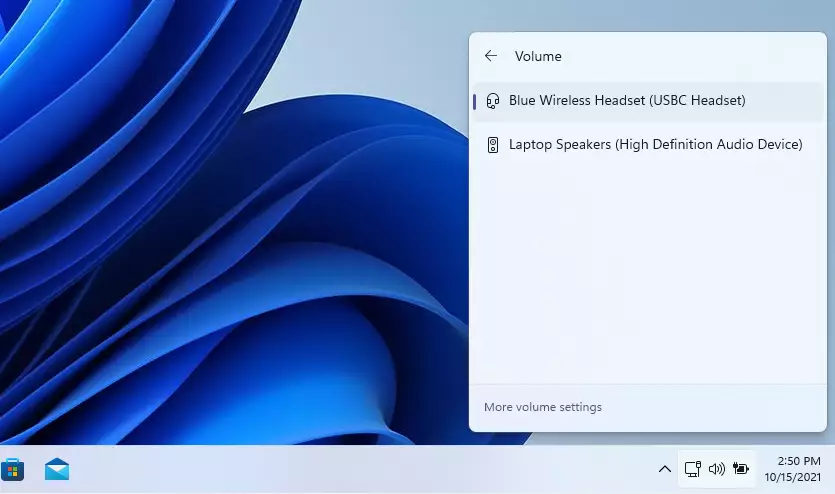
This makes it simple to pick the right audio input or output, avoiding mix-ups during calls or gaming. Windows 11 handles this easily through its Settings app, with the new name showing up immediately in the volume flyout and application settings.
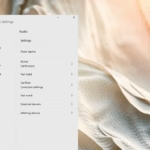
Open Settings, go to System, then Sound. Click the arrow next to the device you want to rename, click the Rename button, type your new name, and click Rename. This applies to both output and input devices.
How to rename audio devices on 🪟 Windows 11
Renaming your audio devices on Windows 11 is simple and helps you easily tell your speakers, headphones, or other sound gear apart. You can do this directly within the main Settings app without needing any special tools.
- Open your Settings app. Press Windows key + I on your keyboard or click Start and select Settings.

windows 11 start settings - In the menu on the left, click System. Then, click on Sound on the right side of your screen.

Windows Sound tile in Windows Settings app - Look under the Output section to see your connected speakers or headphones. Click the arrow next to the device you want to change.
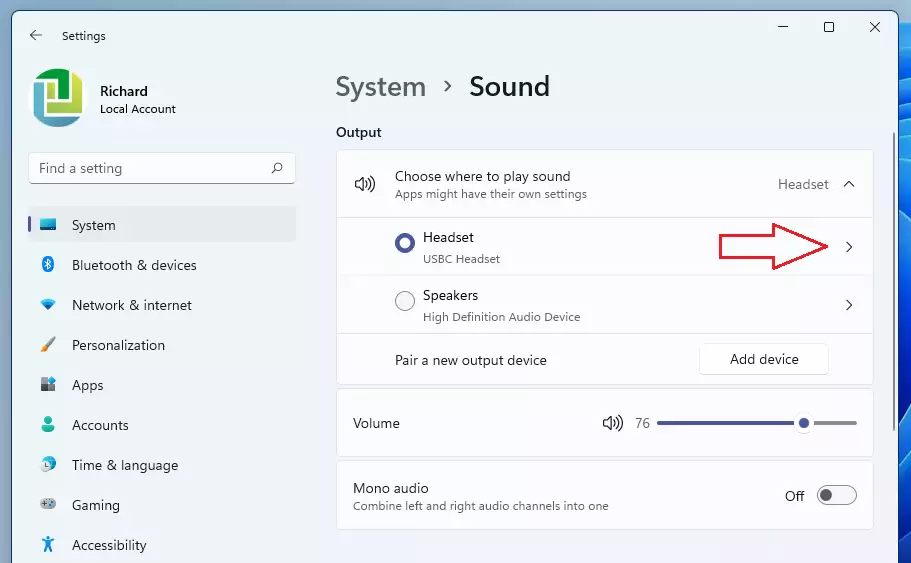
rename sound device on windows 11 - Look for the device name and click the Rename button.
- Type in your preferred name and click Rename to save your changes.
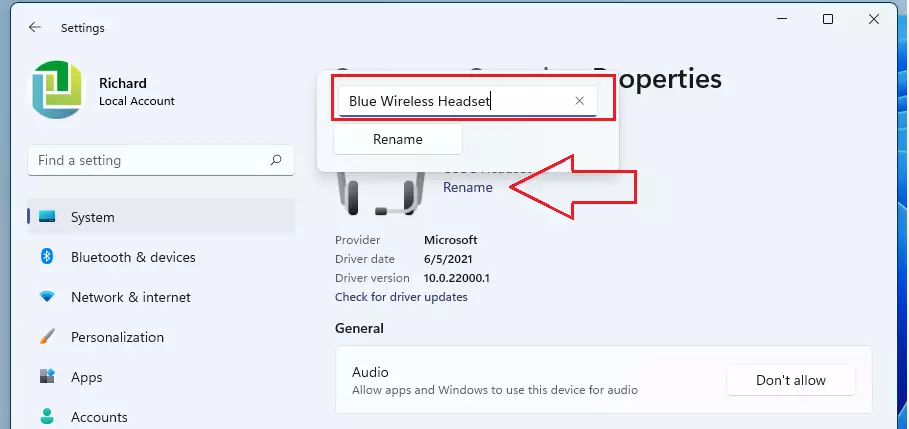
windows 11 rename audio device
You can follow these same steps for your microphones or other recording gear found under the Input section. Your changes will take effect right away.
Advanced: Registry-level renaming
If your audio device names keep changing back on Windows 11, you might need to rename them using the Registry Editor, but this is an advanced method. Editing the registry incorrectly can cause problems, so proceed with caution if you choose this path.
If a device name keeps resetting, you may need to edit the registry directly. Press Windows key + R, type regedit, and press Enter. Navigate to:
HKEY_LOCAL_MACHINE\SOFTWARE\Microsoft\Windows\CurrentVersion\MMDevices\Audio\Render
Inside these folders, you will find keys representing your hardware. You can modify the DeviceDesc string to force a name change. This is useful for persistent naming issues where the standard settings app fails to save your preferences.
Troubleshooting persistent device names
Sometimes Windows 11 resets your audio device name after a driver update. This happens because the driver overwrites the registry entry. To fix this, ensure your drivers are up to date via Device Manager. If the issue persists, try disabling and re-enabling the device in the Sound Control Panel.
Summary
Renaming audio devices on Windows 11 helps you organize your sound setup, avoid sending audio to the wrong place, and makes setup easier with quick, clear labels.Can I rename Bluetooth audio devices?
Yes, you can rename Bluetooth audio devices. Navigate to Settings > Bluetooth & devices > Devices. Find your audio device, click the three dots, and select Rename. This changes how the device appears across your entire Windows 11 system, ensuring consistency when you connect your wireless headphones or speakers.



No comments yet — be the first to share your thoughts!