How to Enable Compact View in Windows 11 File Explorer

You enable compact view in Windows 11 File Explorer to reduce spacing between items, fitting more files onto your screen.
Compact view reverts File Explorer to a denser, more traditional layout, similar to how it appeared in Windows 10 and earlier versions. This change is particularly useful for users who primarily navigate with a mouse and keyboard, as the default Windows 11 spacing can consume valuable screen real estate.
By enabling this setting, you’ll immediately notice you can see significantly more files and folders without needing to scroll down your window. This makes navigating large directories much faster and more efficient.
How to turn on File Explorer compact view
You can change this setting easily through the folder options menu.
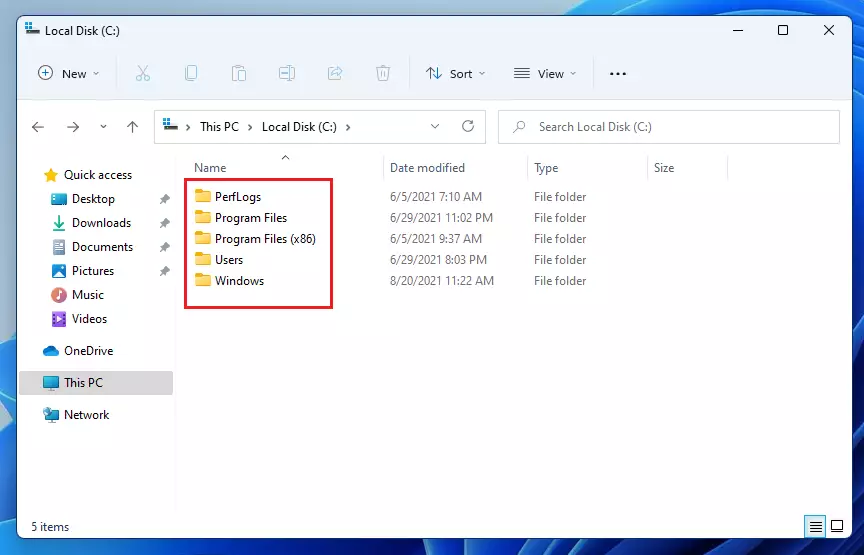
Here is a screenshot of File Explorer’s default layout:
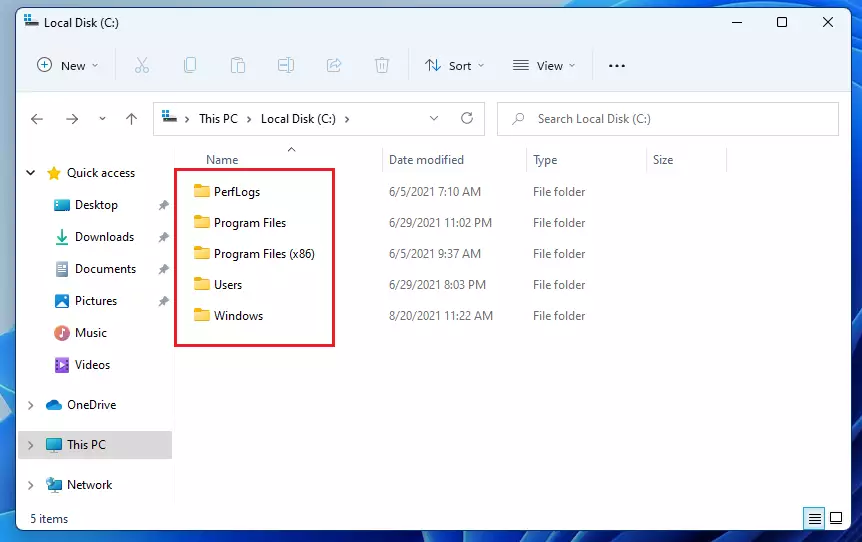
1. Open File Explorer.
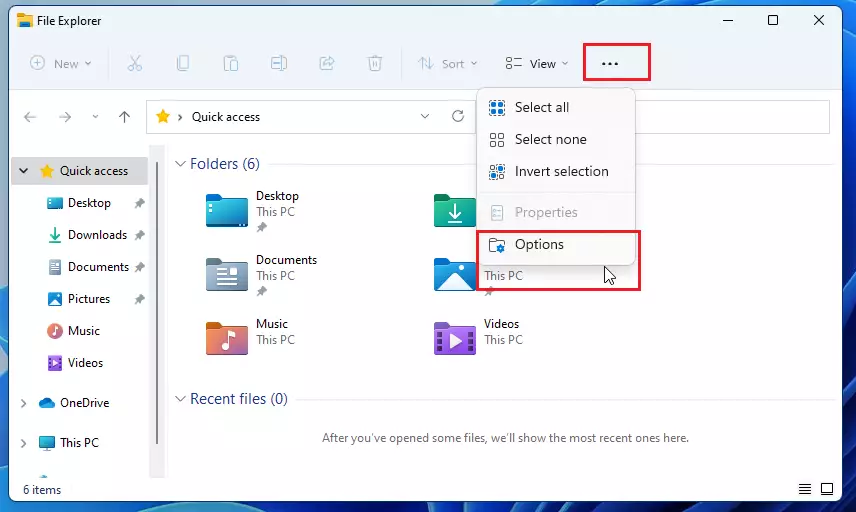
2. Click the three dots (ellipse) in the top toolbar.
3. Select Options.
4. Go to the View tab.
5. Under Advanced settings, check the box for Decrease space between items (compact view).
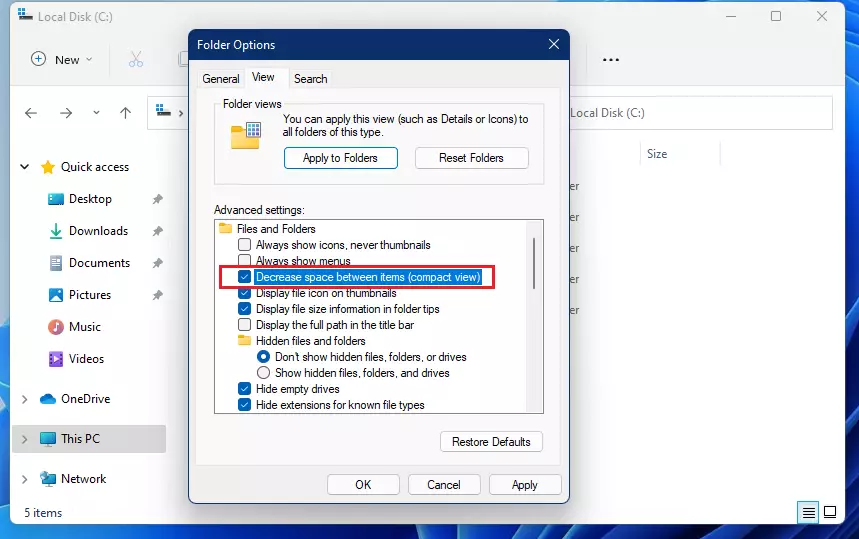
6. Click Apply and then OK.
Your folders will now show a tighter, more compact list.
Advanced Configuration: Registry Tweak
If the menu option is missing, you can force this change using the Registry Editor. [Requires Admin Privileges]
1. Press ⊞ Win+R, type regedit, and press Enter.
2. Navigate to: HKEY_CURRENT_USER\Software\Microsoft\Windows\CurrentVersion\Explorer\Advanced
3. Look for a value named UseCompactMode.
4. Double-click it and change the value to 1 to enable it, or 0 to disable it.
Troubleshooting: Why is Compact View greyed out?
Sometimes you cannot click the option. This usually happens if a system policy is blocking view changes. Ensure your Windows is fully updated via official Microsoft documentation. If you are on a work computer, your IT department may have locked these settings.
Summary
The Windows 11 compact view is a simple way to optimize your workspace. By reducing item padding, you gain more screen real estate. This is perfect for power users who manage many files. You can toggle this via the Folder Options or the Registry Editor. Remember that this is a system-wide change that helps you scroll less and see more.
Does Compact View affect all folders or just the current one?
When you enable compact view in File Explorer, it applies globally to all folders. This ensures a consistent experience across your entire system, allowing you to see more files in every directory without needing to toggle the setting for each individual folder you open.
How do I reset File Explorer view settings to default?
To reset everything, open the Folder Options menu as shown above. Click the View tab and then click the Reset Folders button. This will revert all folder view customizations, including the compact mode setting, back to the original Windows 11 factory defaults.
Was this guide helpful?
No comments yet — be the first to share your thoughts!