
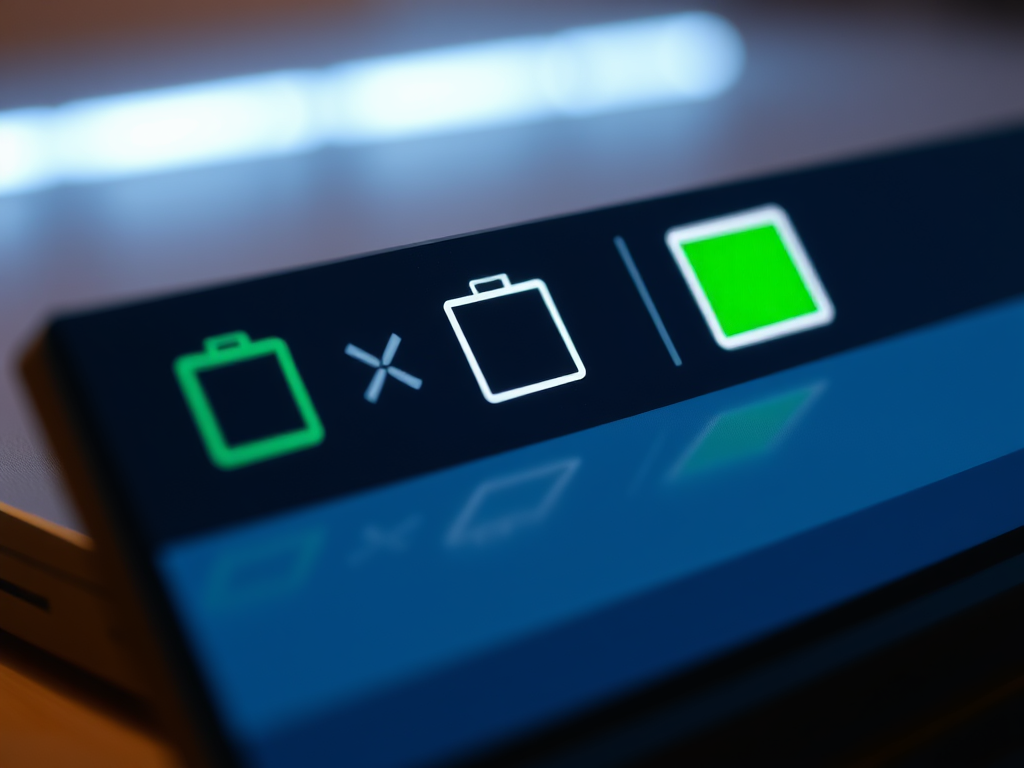
This article explains how to enable or disable showing battery percentage on the taskbar on Windows 11.
Windows lets you check your device’s battery status when you hover your mouse over the battery icon on the Taskbar. However, beginning with Windows 11 build 26120.3000, Microsoft introduced new and improved battery icons in Windows 11.
Showing the battery percentage on the taskbar in Windows is helpful because it lets users quickly check how much battery life is left without opening additional settings or menus.
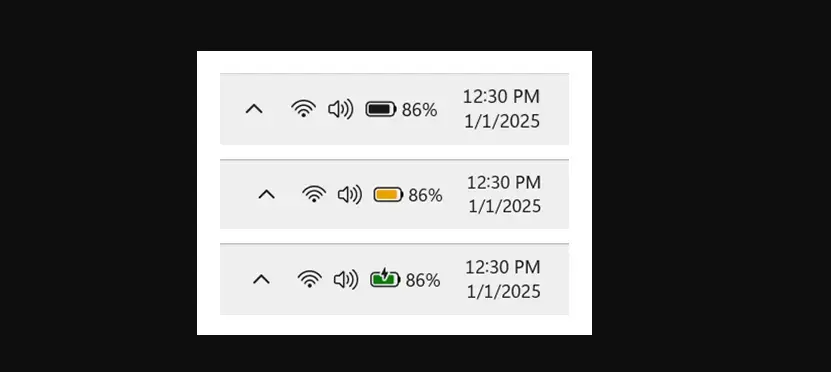
When your battery icon is green, your PC is charging and in a good state. A yellow battery icon will let you know that your PC is using the battery in energy-saving mode – this automatically happens when your battery is less than or equal to 20% to preserve power.
When the battery icon is red, you have a critically low battery and should plug in your PC as soon as possible.
With this feature, Microsoft is also introducing the ability to show your battery percentage next to the battery icon in the system tray.
Show battery percentage on the Taskbar
As mentioned, a new feature introduced with the latest Windows Dev build lets users display their device’s battery percentage on the Taskbar.
Here’s how to do it.
First, open the Windows Settings app.
You can do that by clicking on the Start menu and selecting Settings. Or press the keyboard shortcut (Windows key + I) to launch the Settings app.
When the Setting app opens, click the System button on the left.

On the right, select the Power & battery tile to expand it.
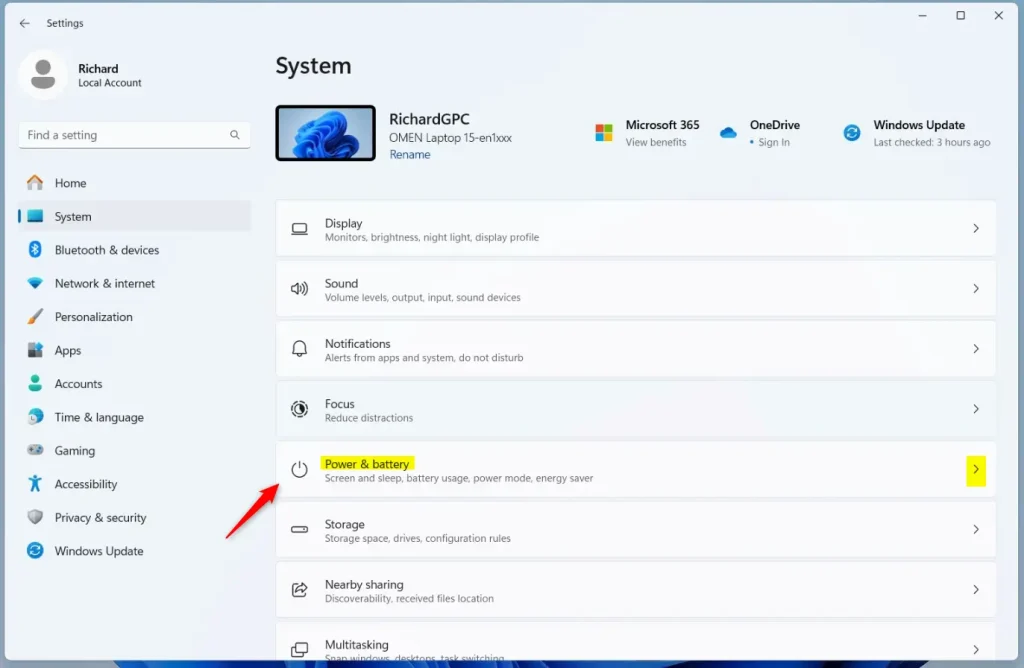
On the System > Power & battery setting pane, select the “Battery percentage” tile. Then, toggle the switch button to the On or Off position to enable or disable it.
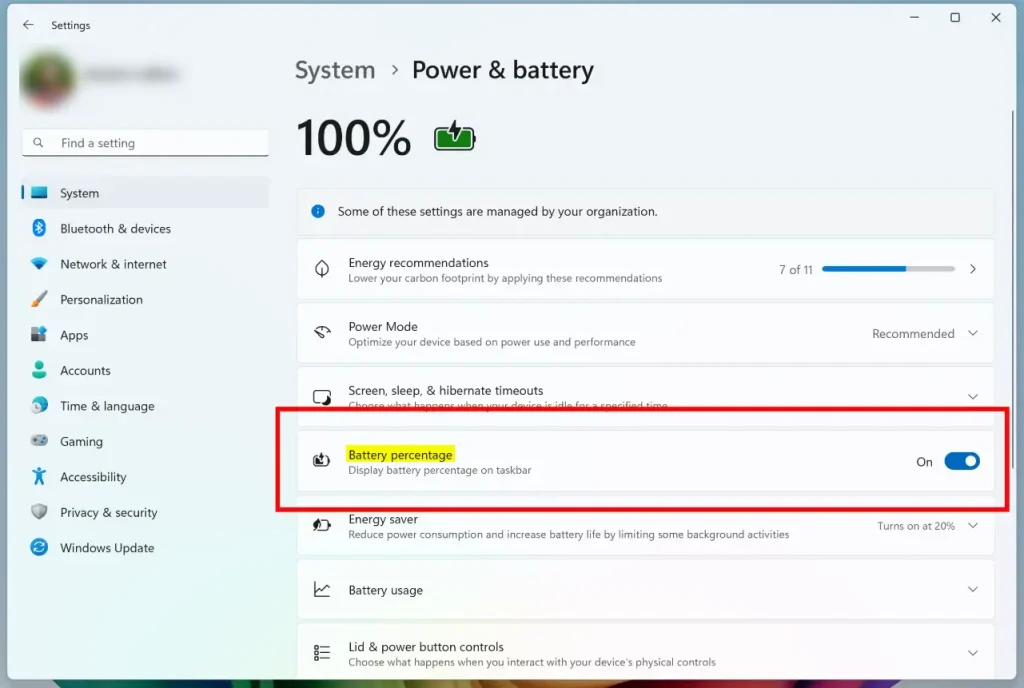
You can close the Settings app when you’re done.
Enable or disable battery percentage on the Taskbar using the Windows Registry
Another way to enable or disable showing your device’s battery percentage on the Taskbar is to use the Windows Registry Editor.
Remember to back up your registry before making any changes or create a System Restore point as a precaution.
First, open the Windows Registry and navigate to the folder key path below.
ComputerHKEY_CURRENT_USERSoftwareMicrosoftWindowsCurrentVersionExplorerAdvanced
Right-click Advanced > New > DWORD (32-bit) Value and name the new DWORD IsBatteryPercentageEnabled.
Double-click IsBatteryPercentageEnabled and change the value 1 to display your device’s battery percentage on the Taskbar.
Enter 1 to disable showing your device’s battery percentage on the Taskbar.
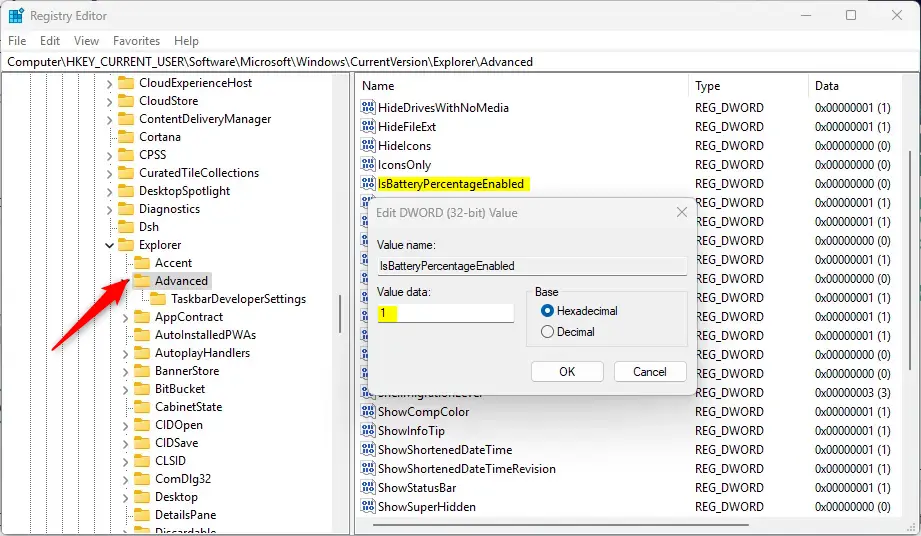
You may have to reboot your computer to apply the changes.
That should do it!
Reference:
Conclusion:
In summary, displaying the battery percentage on the Windows 11 taskbar can enhance user experience by providing quick access to battery status. Here are key points to remember:
- Easily Accessible: Provides instant battery life visibility without navigating through menus.
- Visual Indicators: Battery icons (green, yellow, red) communicate charging status and battery health.
- Customization Options: Users can enable or disable the battery percentage through the Settings app or Registry Editor, allowing for a personalized experience.
- Backup Precautions: It’s always advisable to back up your registry or create a system restore point before making changes.
Following the outlined steps, users can effortlessly manage their device’s battery information based on their preferences.

Leave a Reply