How to Enable Rewrite with Copilot in Microsoft Edge

You enable “Rewrite with Copilot” in Microsoft Edge by accessing Copilot directly within the browser’s sidebar. “Rewrite with Copilot” is an AI-powered tool that offers instant text suggestions to improve your writing.
This feature helps you refine emails, social media posts, and other typed content directly within Microsoft Edge, which is built on the Chromium engine, the same foundation as Google Chrome.
For instance, “Rewrite” works as a context-sensitive tool, modifying existing text. This differs from the full-page “Compose” feature, which generates content from scratch.
Enable or disable “Rewrite with Copilot” in Microsoft Edge
To use these tools, you must first allow them in your settings. Open the Microsoft Edge browser and follow these steps:
- Click the Settings and more (three dots) button in the top right corner and select Settings.
- On the left menu, go to Privacy and services. Ensure that Show Copilot is turned on and that you have enabled Allow Microsoft to use your browsing data. These must be active for the features to work.
- Next, click the Languages tab on the left.
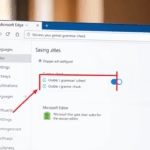
- Look for the Writing assistance section. Depending on your version, you will find Rewrite with Copilot or Compose settings here.
- Toggle the switch to On or Off based on your preference.
Close the Settings page when you are done. Your changes are saved automatically.
Customizing your rewrite
When you highlight text and open the Rewrite menu, you will see new options. You can now choose a specific Tone (like Professional or Casual), a Format (like a list or a paragraph), and the Length (Short or Long). This helps the AI match your specific needs.
Why customize? It keeps your voice consistent. What happens? The AI generates a draft that fits your requested style perfectly.
Reference:
Conclusion
Managing the “Rewrite with Copilot” feature in Microsoft Edge is easy. By following these steps, you can control how much AI help you receive while browsing. This keeps your writing efficient and tailored to your goals.
Do you have questions? Leave a note in the comments section below.
Was this guide helpful?

About the Author
Richard
Tech Writer, IT Professional
Richard, a writer for Geek Rewind, is a tech enthusiast who loves breaking down complex IT topics into simple, easy-to-understand ideas. With years of hands-on experience in system administration and enterprise IT operations, he’s developed a knack for offering practical tips and solutions. Richard aims to make technology more accessible and actionable. He's deeply committed to the Geek Rewind community, always ready to answer questions and engage in discussions.

No comments yet — be the first to share your thoughts!