Customize Microsoft Edge: Show or Hide the Sidebar Button

This article explains how to add or remove the sidebar button on the toolbar in Microsoft Edge.
Microsoft Edge is the default browser in Windows 11. However, users can switch to their preferred or favorite browser anytime. Edge is based on Chromium, similar to Google Chrome and other Chromium-based browsers today.
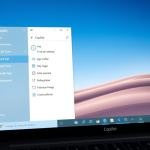
Your Microsoft Edge browser shows the Copilot button at the top right corner of the toolbar. When you remove the Copilot button on the toolbar in Microsoft Edge, Edge will show the Sidebar button in its place by default.
You can also copilot/" class="sal-link" rel="noopener" target="_blank" data-sal-id="8411">show or hide the sidebar button on the toolbar in Edge.
For several reasons, someone might want to show or hide the sidebar button on the toolbar in Microsoft Edge. For example, if you frequently use the Sidebar for tasks such as taking notes or viewing your browsing history, having the toolbar button visible can save you time and clicks.
On the other hand, if you prefer a cleaner and less cluttered interface, you may want to hide the toolbar button and access the Sidebar using keyboard shortcuts or other methods. Ultimately, it comes down to personal preference and your browser use.
Show or hide the sidebar button on the toolbar in Edge
As mentioned, when you hide the Copilot button in Edge, it is replaced with a sidebar button. You can also hide or show the sidebar button on the toolbar.
Here’s how to do it.
Open Microsoft Edge and click the ellipses icon (…) in the top-right corner.
Select “Settings.”

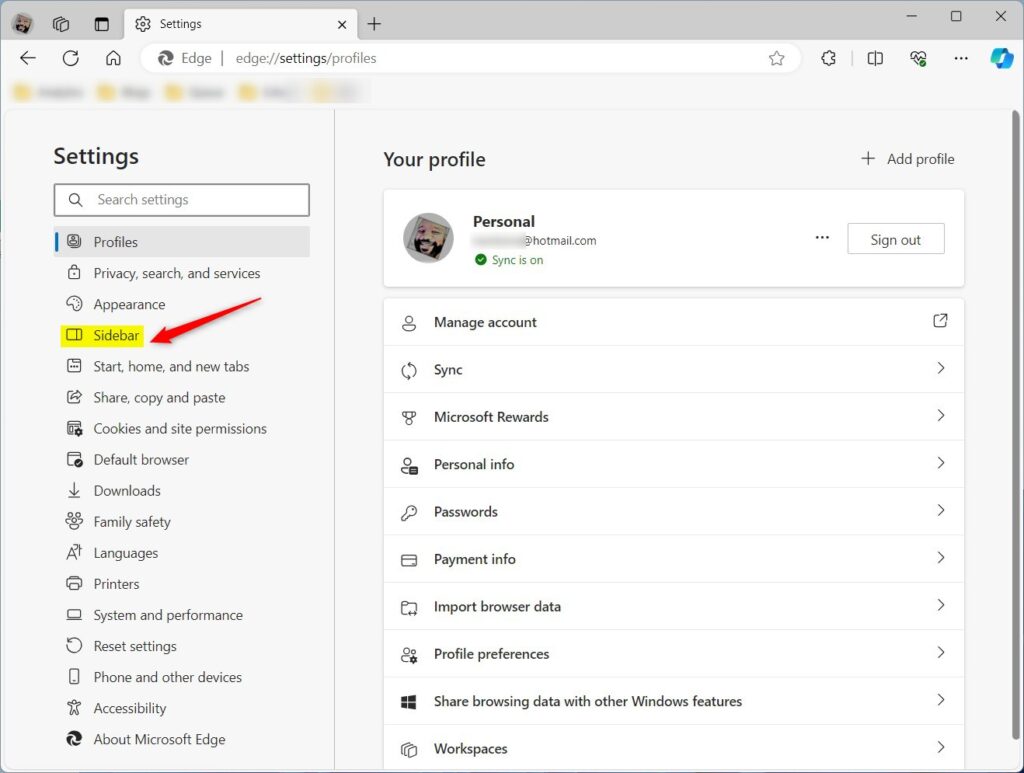
Next, click on the Sidebar on the left panel.
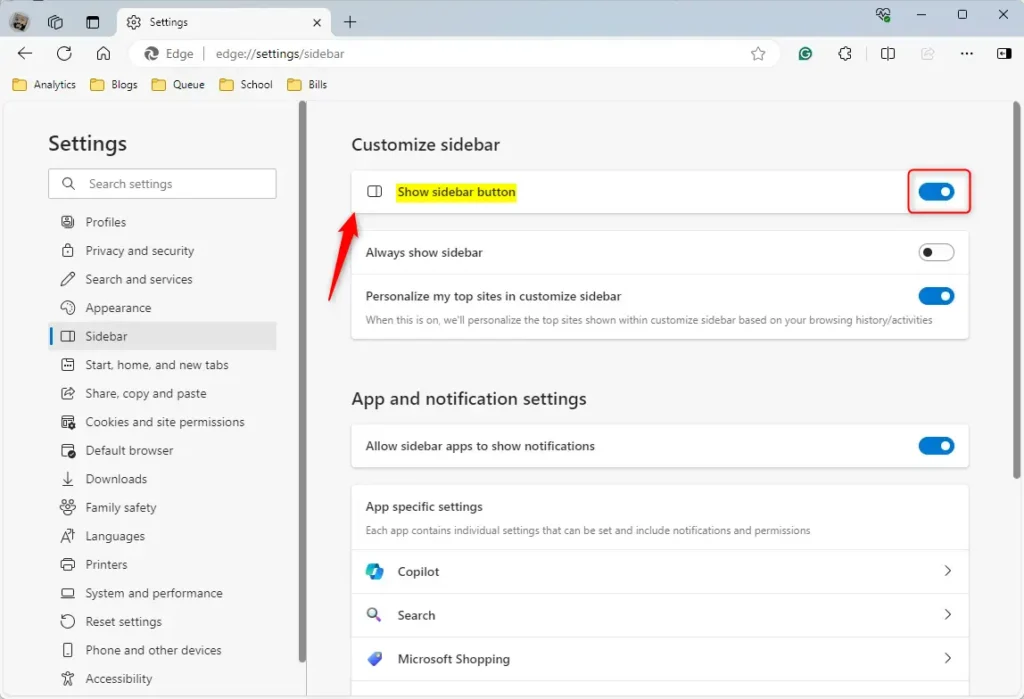
Select the “Show sidebar button” tile under the Customize Sidebar on the Sidebar settings page, then toggle the switch to the On position to enable.
To disable it, toggle the button to the Off position.
The “Show sidebar button” is only available when you turn off the Copilot button in Edge.
Your changes should apply immediately.

Exit and restart the Microsoft.
That should do it!
Conclusion:
- The tutorial provides clear, step-by-step instructions for showing or hiding the sidebar toolbar button in Microsoft Edge.
- Users can customize their browsing experience based on personal preferences and usage patterns.
- Comments and feedback are welcome to improve the content and address potential errors.
Frequently Asked Questions
How do I show the sidebar button in Microsoft Edge?
What happens if I hide the Copilot button in Edge?
Can I customize the toolbar in Microsoft Edge?
Why would I want to hide the sidebar button in Edge?
Do changes to the sidebar button settings take effect immediately?
Was this guide helpful?



Leave a Reply