How to take a screenshot using Microsoft Edge


You can take a screenshot directly within Microsoft Edge using its built-in Web Capture tool.
This tool allows you to easily grab images of web pages or specific areas within your browser window, eliminating the need for separate screenshot software.
Edge, the default browser for Windows 11 and available for other operating systems, offers this convenient functionality right out of the box.
Since Microsoft Edge is built on the Chromium engine, similar to Google Chrome, you get a robust set of features for browsing and content management, including this integrated screenshot capability.
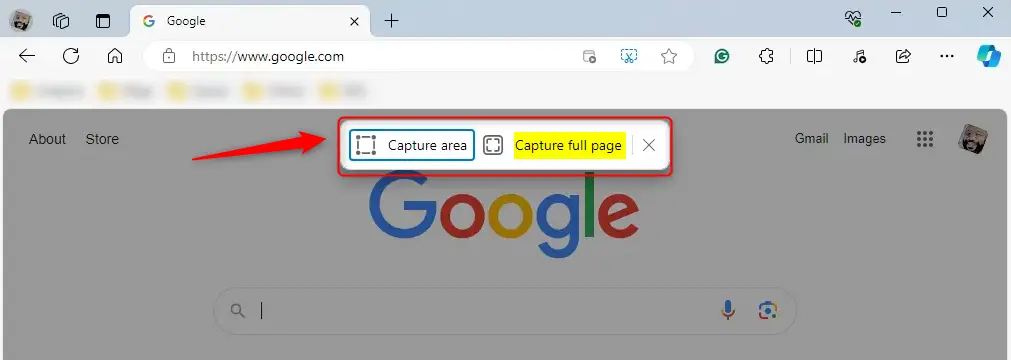
Open the Web capture tool by clicking the ellipses (…) menu and selecting Screenshot, or by pressing Ctrl+Shift+S. Choose “Capture full page” or “Capture area” to select what you want to save.
Screenshot the entire webpage in Edge
Taking a screenshot of an entire webpage in Microsoft Edge is simple. Just open the Edge browser and go to the webpage you want to capture, then open the web capture tool by clicking the ellipses (…) in the top-right corner and selecting ‘Screenshot’.
Here’s how to do it.
First, open the Microsoft Edge browser.
Then, navigate to the webpage you want to capture. Open the web capture tool in one of two ways:
Go to the ellipses (…) in the upper-right corner of your browser. This opens the Settings and more menu.
Select Screenshot from the drop-down menu.
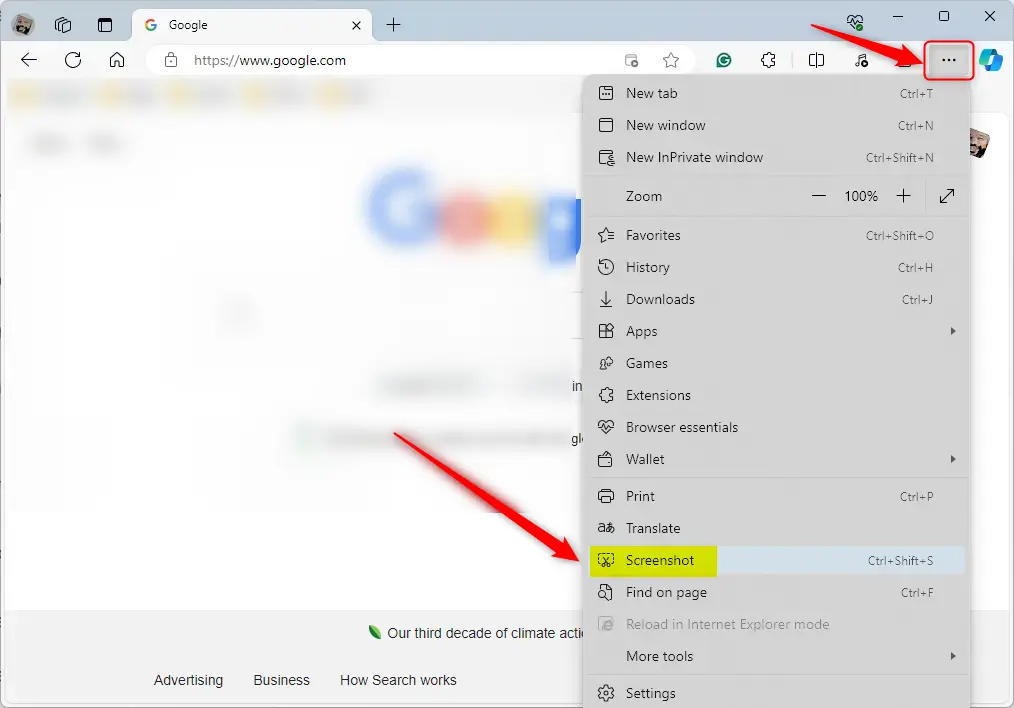
Alternatively, use the keyboard shortcuts Ctrl + Shift + S to open Screenshot in Edge.
Select Capture full page, the middle option, to grab your entire webpage.
Capture an area of a page
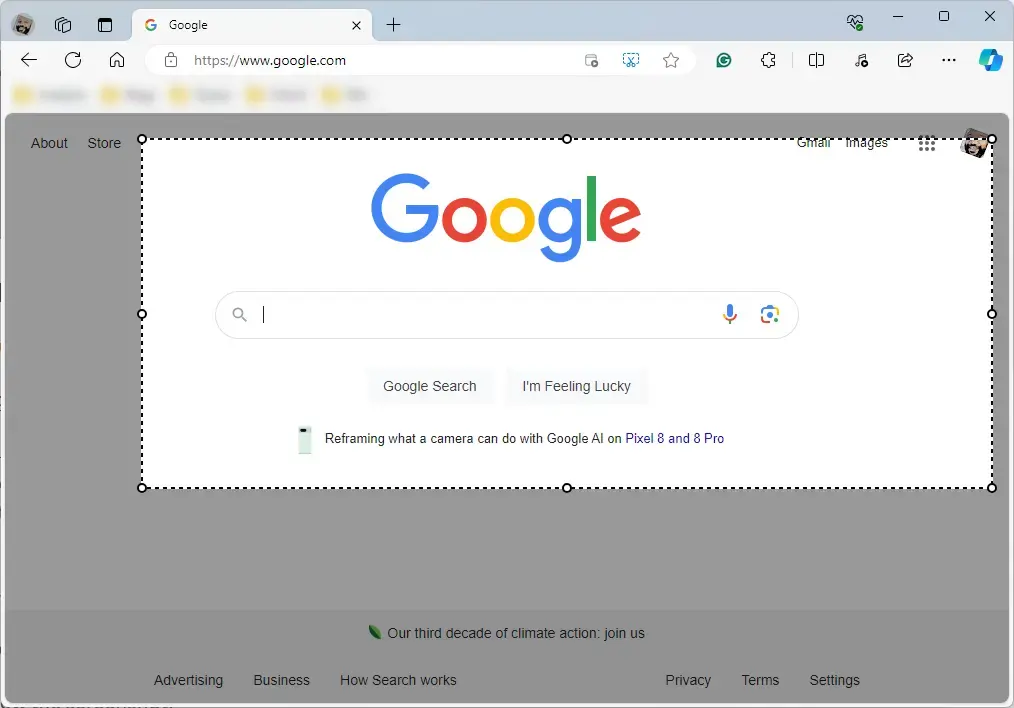
If you only need to screenshot a specific area of a webpage in Microsoft Edge, you can easily do that. After opening the Screenshot tool as described above, choose ‘Capture area’ and then select the exact part of your screen you want to save.
Follow the steps above to open Screenshot. A menu will appear when you do.
Choose Capture area, the left option, and then select the portion of your screen you want to capture.
Select Copy to save the image to your clipboard or Markup capture to review and add your own notes to the screenshot.
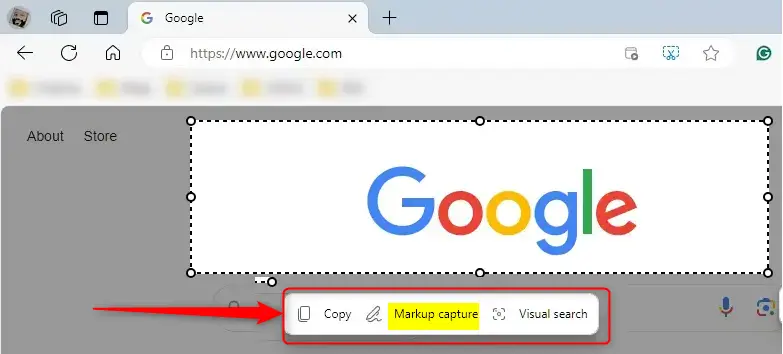
Once you’re happy with it, copy or save the screenshot to your device.
That should do it!
Reference:
Conclusion:
- In conclusion, capturing screenshots using Microsoft Edge is a convenient and easy-to-use feature that can save time and effort.
- The web capture tool can be highly beneficial, whether saving an image of a webpage for future reference, sharing information with others, or collaborating with a support team.
- The built-in screenshot tool allows users to capture the entire webpage or a specific area, offering versatility for various needs.
- For additional reference and details, the Microsoft Edge Learning Center provides comprehensive information on capturing screenshots of web pages.
- Feel free to share feedback or contribute additional insights through the comments below.
How do I do a screenshot on Microsoft?
Depending on your hardware, you may use the Windows Logo Key + PrtScn button as a shortcut for print screen. If your device does not have the PrtScn button, you may use Fn + Windows logo key + Space Bar to take a screenshot, which can then be printed.
Was this guide helpful?

About the Author
Richard
Tech Writer, IT Professional
Richard, a writer for Geek Rewind, is a tech enthusiast who loves breaking down complex IT topics into simple, easy-to-understand ideas. With years of hands-on experience in system administration and enterprise IT operations, he’s developed a knack for offering practical tips and solutions. Richard aims to make technology more accessible and actionable. He's deeply committed to the Geek Rewind community, always ready to answer questions and engage in discussions.




No comments yet — be the first to share your thoughts!