How to Use ‘Explain with Copilot’ in Windows 11 Notepad


Have you ever opened a confusing text file or a block of code and wished you knew what it meant? copilot-on-or-off-in-windows-11/" class="sal-link" rel="noopener" target="_blank" data-sal-id="37828">Windows 11 now has a tool to help you understand these files without leaving your notes.
Notepad is the basic app you use for writing simple notes. Microsoft has added a smart assistant feature to it, which you can read about in the Notepad version 11.2401.25.0 update.
Why use Explain with Copilot?
Sometimes, text files contain complicated code or strange logs that are hard to read. This tool lets you highlight that text and ask an AI assistant to explain it to you in plain English.
What happens when you use it?
When you trigger the command, your computer sends the selected text to the Copilot assistant. It then generates a summary or explanation so you can understand what you are looking at.
How to use Explain with Copilot
You do not need special permissions for this feature. It works for any standard user account.
- Open Notepad on your computer.
- Open the text file you want to understand.
- Highlight the specific text or code you want explained.
- Right-click the highlighted text and select Explain with Copilot, or press Ctrl + E on your keyboard.
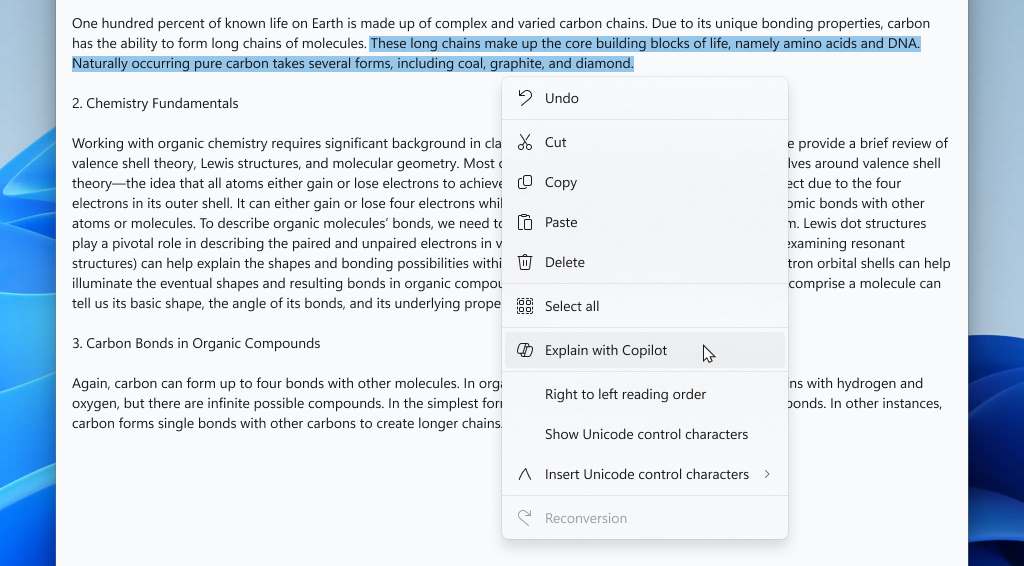
A new window will appear. Click the Send button to confirm you want the explanation. The AI will then show you exactly what the text means.

If you need to check your system paths, you can always look at files located in C:\Windows\System32, but for this feature, you just need to be inside the Notepad app.
Summary
The “Explain with Copilot” feature in Notepad is a quick way to get help with confusing text. By selecting your text and pressing Ctrl + E, you can get instant answers from your AI assistant. It makes reading logs and code much easier for everyone.
Reference: Windows blog
What is the 'Explain with Copilot' feature in Notepad?
How do I use 'Explain with Copilot' in Notepad?
Is 'Explain with Copilot' available in all versions of Notepad?
What types of content can I analyze with 'Explain with Copilot'?
Can I provide feedback on the 'Explain with Copilot' feature?
Was this guide helpful?

About the Author
Richard
Tech Writer, IT Professional
Richard, a writer for Geek Rewind, is a tech enthusiast who loves breaking down complex IT topics into simple, easy-to-understand ideas. With years of hands-on experience in system administration and enterprise IT operations, he’s developed a knack for offering practical tips and solutions. Richard aims to make technology more accessible and actionable. He's deeply committed to the Geek Rewind community, always ready to answer questions and engage in discussions.




No comments yet — be the first to share your thoughts!