

This article explains enabling or disabling notifications when the keyboard in Windows 11 turns on the Sticky, Filter, or Toggle keys.
Sticky, Filter, and Toggle Keys are accessibility features in Windows that help people with physical disabilities to type more easily. Sticky Keys allow you to press and release a modifier key, such as Shift, Ctrl, Alt, or the Windows Logo key, and have it remain active until another key is pressed.
Filter Keys make the keyboard ignore brief or repeated keystrokes that could cause typing errors.
Toggle Keys play a tone each time you press the Caps Lock, Num Lock, or Scroll Lock keys, indicating whether those keys are on or off.
Windows lets you enable or disable the Sticky, Filter, or Toggle keys using the Settings app.
You can turn on a feature that notifies you when you turn on any of the above-mentioned keys. The steps below show you how.
Enable or disable “Notify me when I turn on Sticky, Filter, or Toggle from the keyboard” in Windows
Users can be notified when the Sticky, Filter, or Toggle keys are activated from the keyboard in Windows. You can enable or disable the feature; the steps below show you how.
First, open the Windows Settings app.
You can do that by clicking on the Start menu and selecting Settings. Or press the keyboard shortcut (Windows key + I) to launch the Settings app.
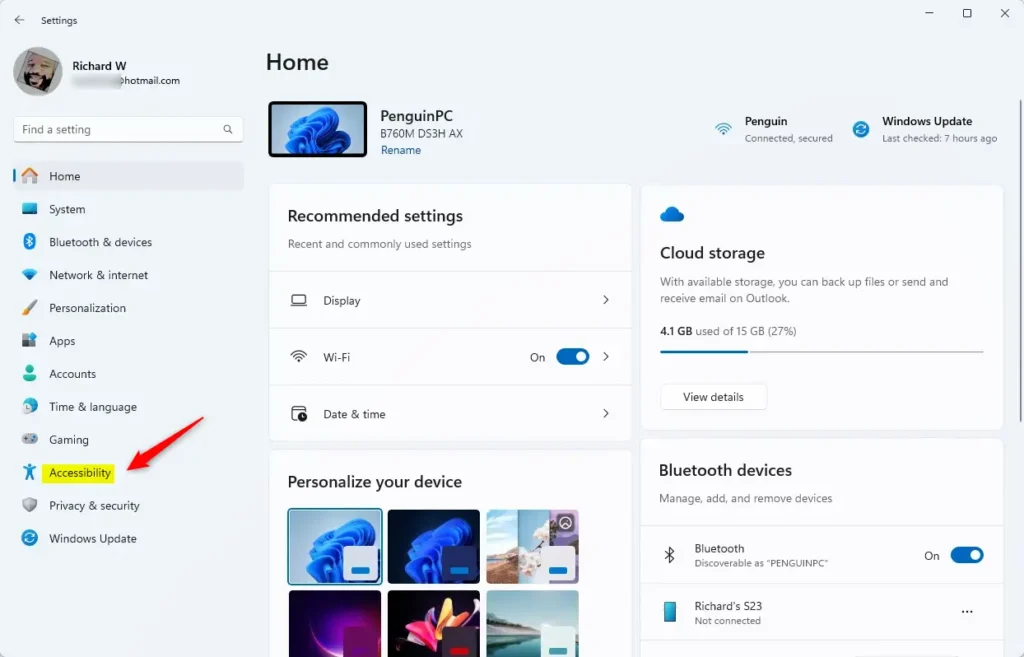
When the Setting app opens, click the Accessibility button on the left.
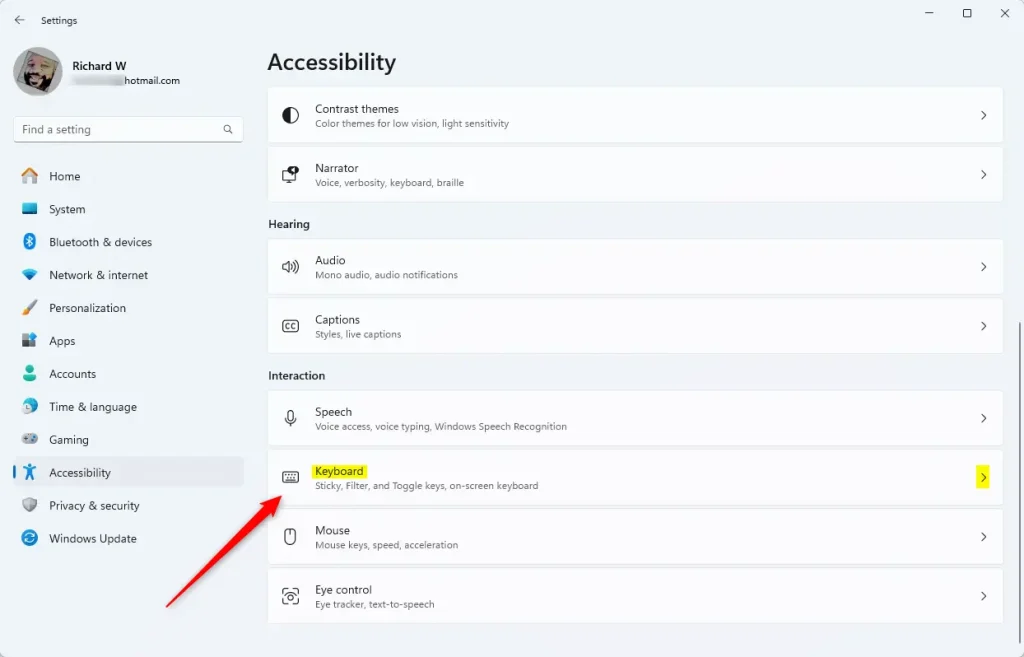
Select the Keyboard tile under ‘Accessibility’ on the right to expand it.
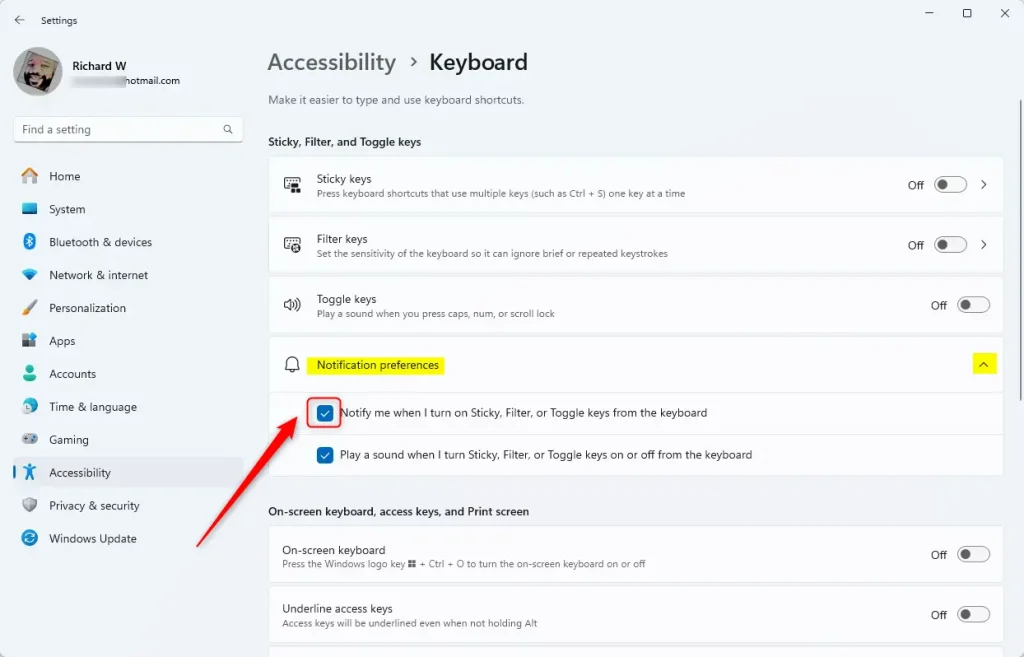
Next, select the “Notification preferences” tile to expand it. Then, check the box next to “Notify me when I turn on Sticky, Filter, or Toggle keys on or off from the keyboard” to enable it.
To disable it, uncheck the box.
Close the Settings app when you’re done.
That should do it!
Conclusion:
- The article explained how to enable or disable notifications when the Sticky, Filter, or Toggle keys are activated from the keyboard in Windows 11.
- It detailed the accessibility features of Sticky, Filter, and Toggle Keys and their functions.
- The step-by-step guide provided clear instructions on how to access the Windows Settings app and customize the Notification preferences for these keys.
- Readers were encouraged to use the comments section for feedback, corrections, or additional insights.

Leave a Reply