How to Check Disk Drive Partition Style in Windows 11


You check your disk drive partition style in Windows 11 to determine if it uses GPT (GUID Partition Table) or MBR (Master Boot Record).
The partition style dictates how Windows accesses your disk’s partition and boot information. For optimal performance on modern hardware, Windows 11 generally requires GPT on systems with UEFI firmware.
Understanding your disk’s partition style is important. For instance, you must confirm your drive is GPT before installing Windows 11, as the OS mandates GPT for UEFI booting.
Right-click the Start button, select Disk Management, right-click your disk in the lower pane, and choose Properties. The partition style (GPT or MBR) is shown on the Volumes tab. Alternatively, open Settings, go to System > Storage > Advanced storage settings > Disks & volumes, select your drive, and view its properties.
What is a Disk Drive Partition Style?
A disk drive partition style tells Windows how your hard drive organizes its information, like MBR or GPT.
Why Check Your Partition Style?
Why check? You need to know if your disk is compatible with modern Windows 11 requirements. When you check, you’ll know if you need to convert your disk to GPT to use advanced security features or support larger storage.
Method 1Using the Windows Settings App
- Open
Settingsby pressingWindows key + I. - Click
Systemon the left. - Select
Storage. - Expand
Advanced storage settings. - Click
Disks & volumes. - Select your drive and click
Properties. - View the
Partition Styleat the bottom.

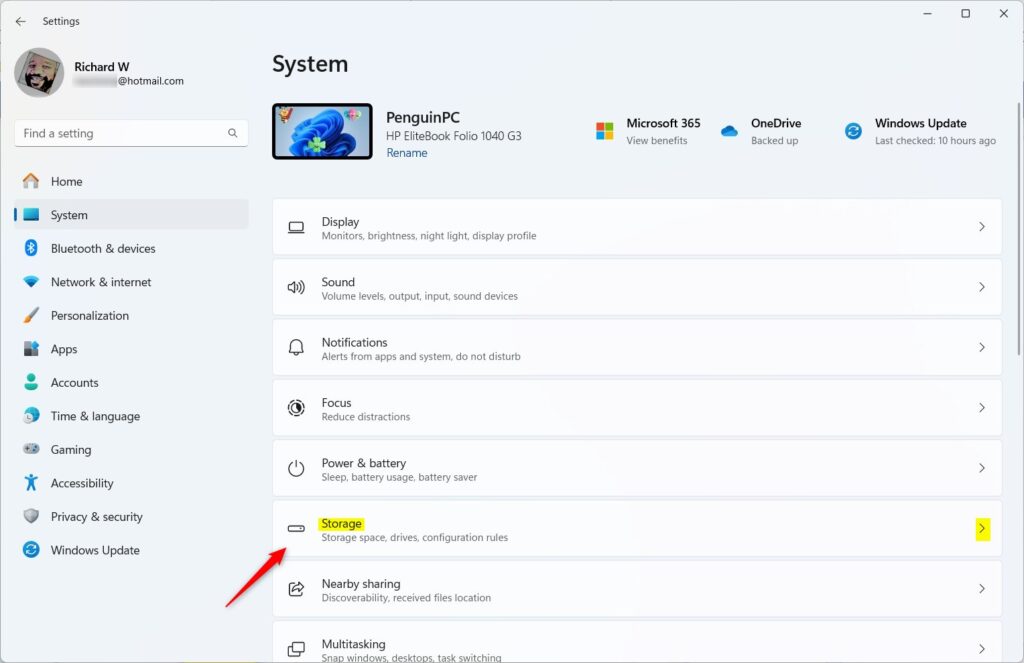
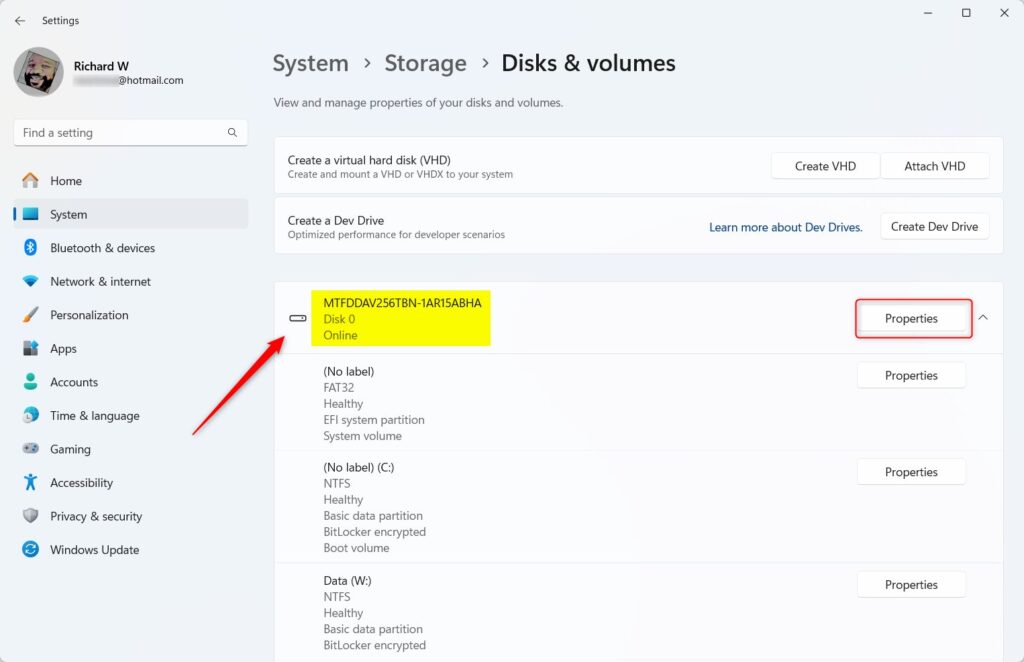
%%IMG6–>
Method 2Using Disk Management
- Right-click the
Startbutton and selectDisk Management. - Locate your disk (e.g., Disk 0) in the lower pane.
- Right-click the disk label and select
Properties. - Click the
Volumestab to see thePartition style.
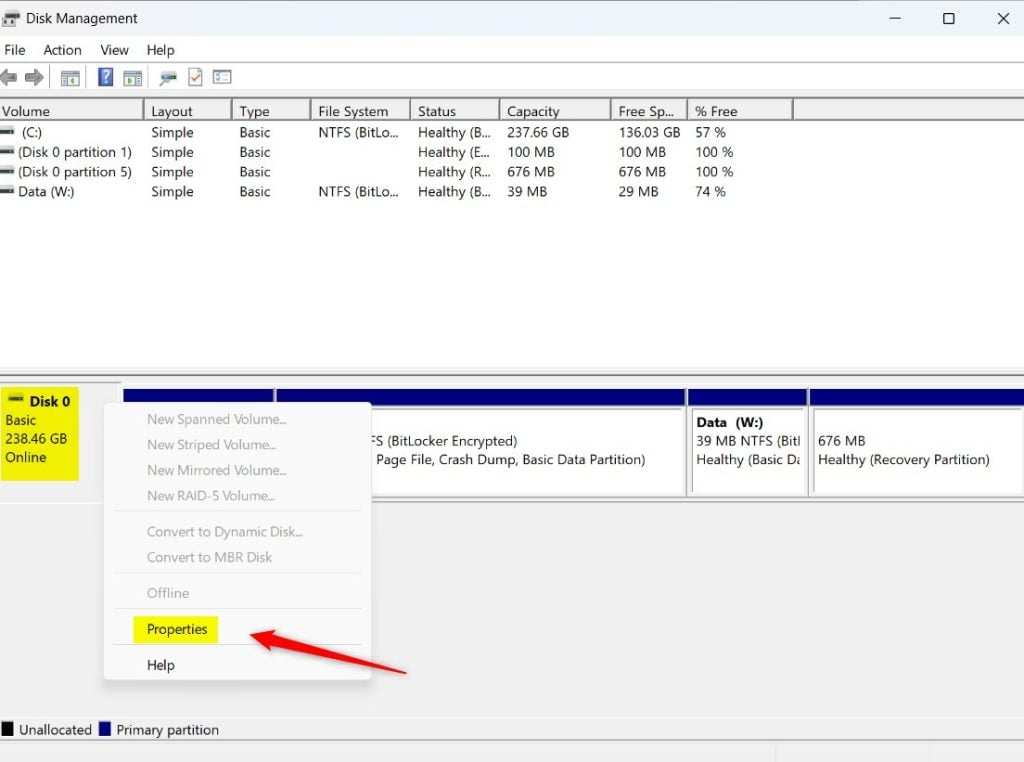
%%IMG8–>
Method 3Using the Command Line
Using PowerShell
Method 3: Using the Command Line. For a quick command-line view, you can use PowerShell. You can run this command to see your disk details:
Get-DiskUsing Command Prompt ⚠️ Requires Admin Privileges
- Search for
cmd, right-click it, and selectRun as administrator. - Type
diskpartand press Enter. - Type
list diskand press Enter.
diskpartConversion Pathways and Troubleshooting
If your disk uses the older MBR style, you might need to convert it to GPT, especially for Windows 11, and the mbr2gpt.exe tool can help.
Summary
You can check your disk drive partition style in Windows 11 using a few simple methods like Settings, Disk Management, or the DiskPart tool.
Can I convert MBR to GPT without losing data?
Yes, you can use the built-in mbr2gpt.exe tool in Windows 11 to convert your system drive without losing data. However, you must always perform a full backup of your files first. If you are converting a non-system drive, you may need to reformat it, which will erase all data.
How to check if HDD is SATA or SSD?
To check if your hard drive is a SATA HDD or an SSD, you can look at the label on the drive itself when you physically remove it from your computer.
Was this guide helpful?

About the Author
Richard
Tech Writer, IT Professional
Richard, a writer for Geek Rewind, is a tech enthusiast who loves breaking down complex IT topics into simple, easy-to-understand ideas. With years of hands-on experience in system administration and enterprise IT operations, he’s developed a knack for offering practical tips and solutions. Richard aims to make technology more accessible and actionable. He's deeply committed to the Geek Rewind community, always ready to answer questions and engage in discussions.


No comments yet — be the first to share your thoughts!