How to Change Device Name in Android Nearby Share on Windows 11

You change your device name in Android Nearby Share on Windows 11 by accessing the Nearby Share settings within Windows itself.
Nearby Share is a convenient feature that allows you to quickly and securely transfer files, like photos and documents, between your Android phone and your Windows 11 PC without needing cables.
By default, your PC shows up using its standard Windows name, but changing this makes it much easier to identify your computer when you have multiple devices connected.
This simple change also offers an extra layer of privacy, making your device less immediately identifiable to others nearby.
Once you complete the renaming process, this new, personalized name will appear on your Android device’s share menu, ensuring you always know which computer you’re sending files to.
How to change your device name
You must have the Nearby Share app installed first. If you need help, check this guide: How to install the Android Nearby Share app on Windows 11.
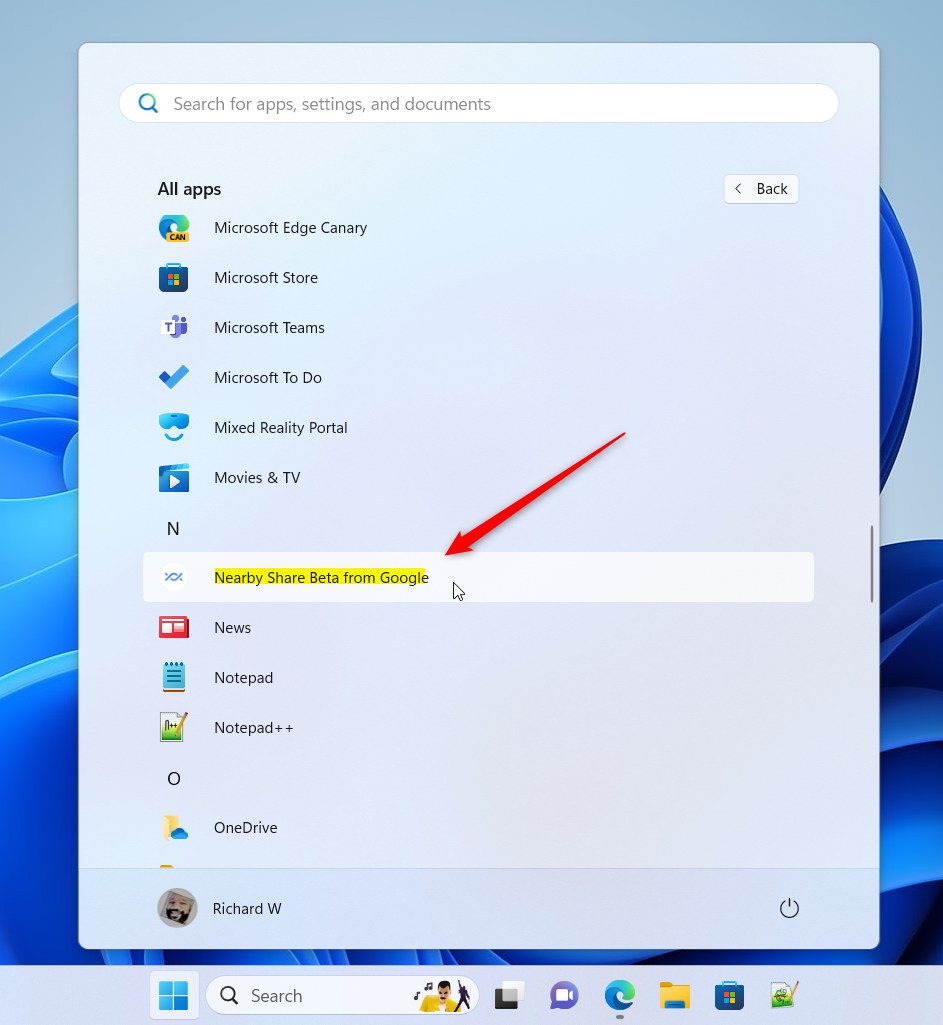
1. Open the app by clicking the Start menu and finding it in your app list.
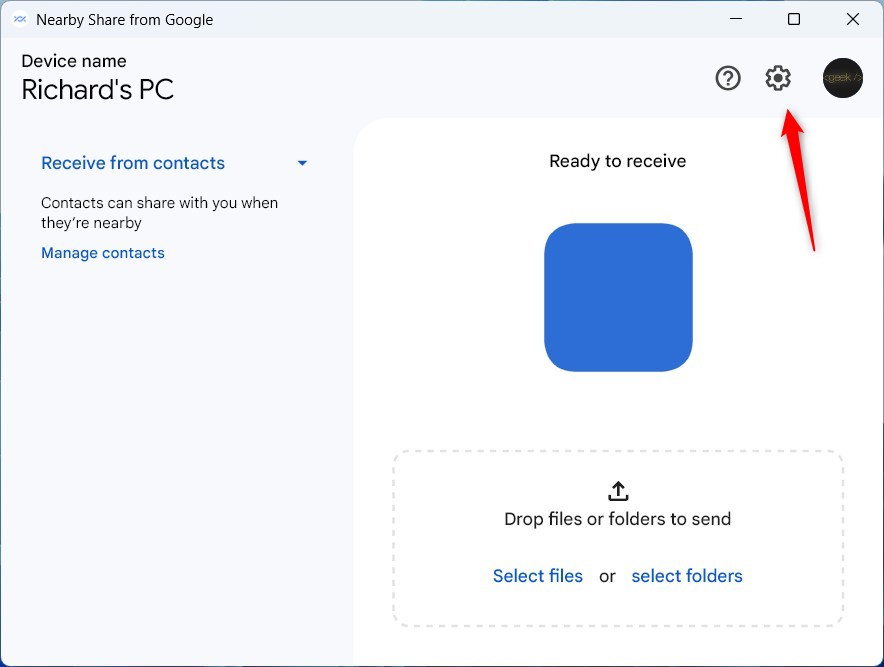
2. Click the Settings button (the gear icon) at the top right of the app window.
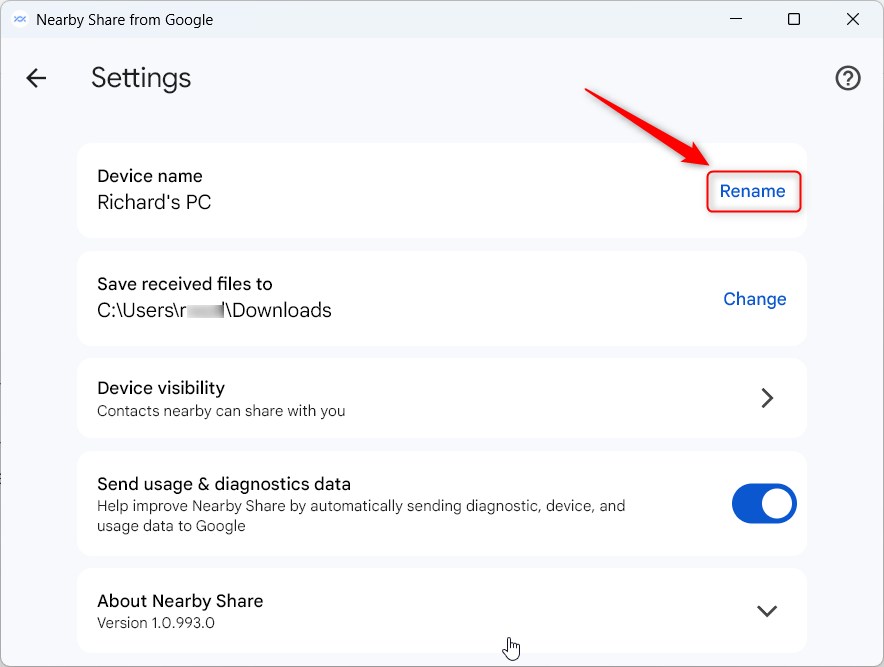
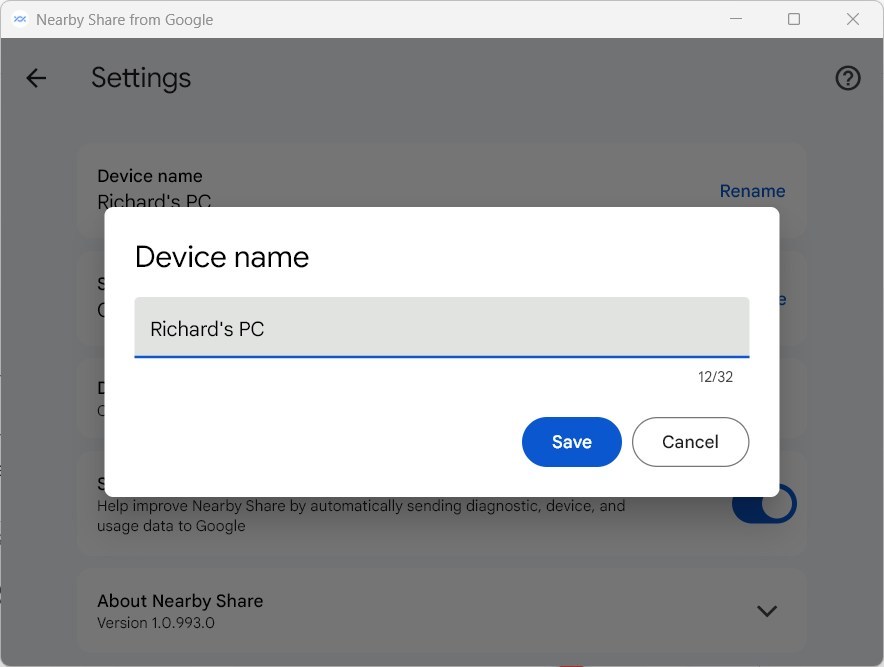
3. Find the Device name tile and click the Rename link.
4. Type in your new name and save your changes.
Troubleshooting: When the Name Does Not Update
Sometimes, the name change does not show up immediately due to cached data. If your PC still shows the old name, follow these steps to refresh your network profile and discovery services.
Restarting Discovery Services (Admin Required)
[ADMIN PRIVILEGES REQUIRED] Open the Start menu, type Services, and press Enter. Locate Function Discovery Resource Publication. Right-click it and select Restart. This forces Windows to broadcast your updated friendly name to nearby devices.
Clearing Bluetooth and Wi-Fi Cache
If the name persists, your Android device may have cached the old PC name. Toggle Bluetooth and Wi-Fi off and on again on your phone. This clears the local device cache and forces a fresh scan for nearby devices.
Registry and System Name Sync
Nearby Share often pulls the system name from Windows settings. To ensure your PC name is consistent, go to Settings > System > About and click Rename this PC. For advanced users, the system name is stored in the registry at 🗝️HKEY_LOCAL_MACHINE\SYSTEM\CurrentControlSet\Control\ComputerName\ComputerName. You can learn more about renaming your PC on the official Microsoft support page.
Summary
Changing your device name in Nearby Share is a simple way to organize your connected devices. It makes sharing files faster by helping you recognize your computer in a list of devices. If the name does not update, restarting the discovery services or clearing your phone’s Bluetooth cache will resolve the issue.
Why does my PC show the wrong name in Nearby Share?
Your PC might show the wrong name because the Nearby Share app or your Android device has cached the previous computer name. Restarting the Function Discovery services on your PC or toggling Bluetooth on your phone usually clears this cache and forces the system to display the updated device name.
Does changing my computer name automatically update Nearby Share?
Not always. While Nearby Share often syncs with your Windows system name, it maintains its own internal settings. If you change your computer name in Windows Settings, you should also manually update the name within the Nearby Share app settings to ensure it reflects correctly across all your connected devices.
Was this guide helpful?

About the Author
Richard
Tech Writer, IT Professional
Richard, a writer for Geek Rewind, is a tech enthusiast who loves breaking down complex IT topics into simple, easy-to-understand ideas. With years of hands-on experience in system administration and enterprise IT operations, he’s developed a knack for offering practical tips and solutions. Richard aims to make technology more accessible and actionable. He's deeply committed to the Geek Rewind community, always ready to answer questions and engage in discussions.



No comments yet — be the first to share your thoughts!