How to Auto-Open Xbox Controller Bar and Xbox Mode on Windows 11


Transforming your PC into a console-like interface is easier than ever. This guide explains how to enable the Xbox Controller Bar and understand the difference between the standard Game Bar and the new controller-optimized UI.
Why do this?
Setting the Controller Bar to open automatically saves you time. You won’t have to click through menus to start your gaming session. It makes your PC feel more like a dedicated game console, especially on devices like the Asus ROG Ally X.
What happens when done?
Once this is set, your computer will detect your controller as soon as it connects. The Controller Bar will appear on your screen immediately, ready for you to select your game or app without needing a mouse or keyboard.
Xbox Game Bar vs. Xbox Mode: What is the difference?
Many users confuse the standard Xbox Game Bar with the new Xbox Mode. The Game Bar is an overlay that sits on top of your desktop. The new controller-optimized interface, often called Xbox Mode, is a full-screen experience designed for navigation using only a controller. This console-like interface is perfect for users who want to browse their Xbox Game Pass library without touching a mouse.
System Requirements and Compatibility
Is Xbox Mode available on all Windows 11 PCs? Not exactly. You need to be running the latest version of Windows 11, preferably through the Windows 11 Insider Preview program to access the newest features. Ensure your Xbox Game Bar settings are updated via the Microsoft Store. This feature works best on handhelds and PCs designed for a PC gaming dashboard experience.
How to enable the automatic Controller Bar
Follow these steps to change your settings:
- Open the Xbox Game Bar by pressing the Windows key + G on your keyboard.
- Click the Settings (gear icon) button inside the Game Bar menu.
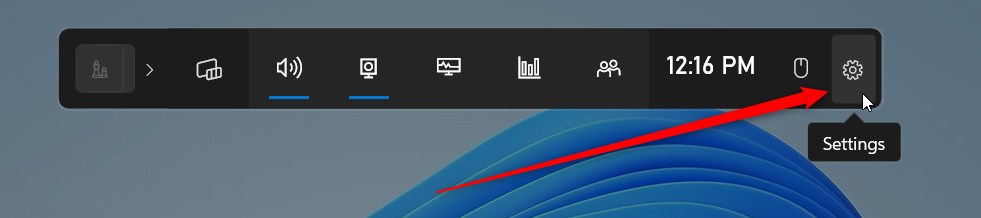
Note: You must have a user account with standard permissions to access these settings. [ADMIN PRIVILEGES REQUIRED: If you are unable to save settings, ensure your user profile has administrative rights to modify system-wide app configurations.]
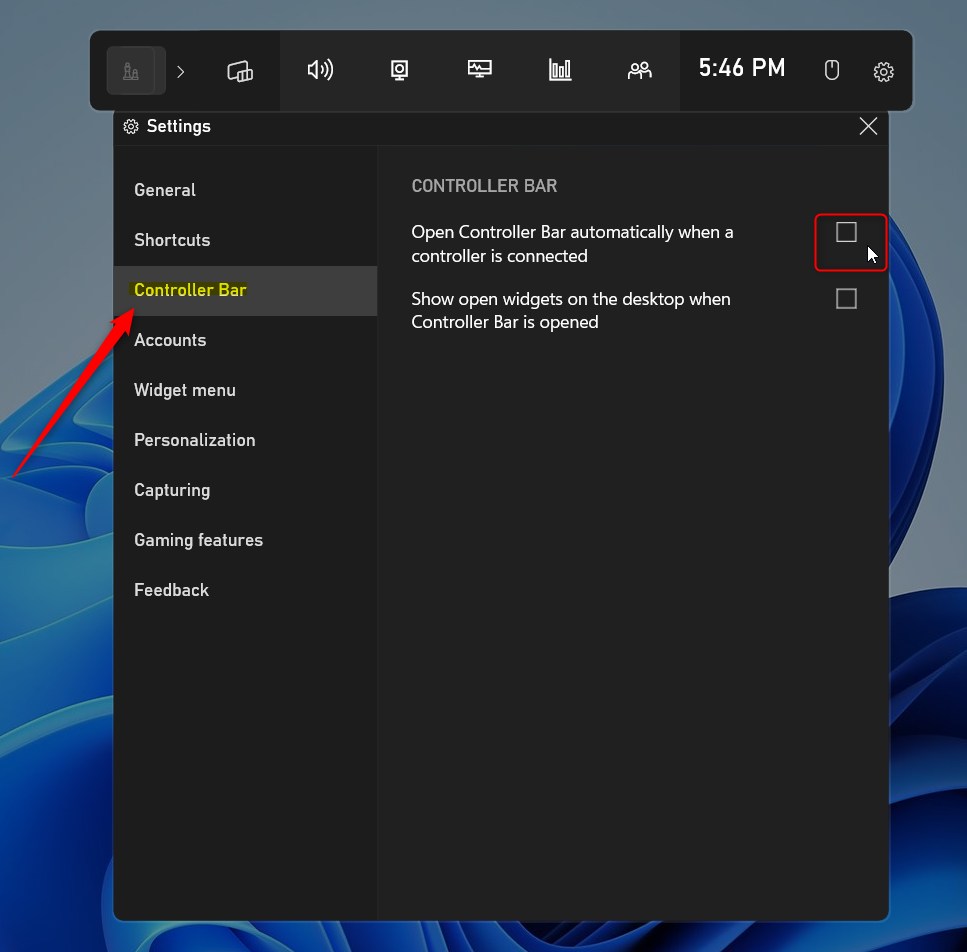
- On the left side of the window, click on the Controller Bar tab.
- On the right side, under the CONTROLLER BAR section, check the box that says “Open Controller Bar automatically when a controller is connected.”
Troubleshooting and Updates
If the bar does not appear, check for updates in the Microsoft Store. You can also verify your settings by navigating to C:\Windows\System32 if you are an advanced user, though the app settings menu is the preferred method. For official support, visit the Microsoft Xbox Support page.
Summary
You can make your Windows 11 gaming experience smoother by setting the Controller Bar to open automatically. By using the Game Bar settings menu, you can toggle this feature on or off whenever you like. This gives you full control over how your computer interacts with your gaming hardware, providing a seamless console-like experience.
How do I update my PC to support the new Xbox Controller interface?
To support the latest controller-optimized interface, ensure your Windows 11 is fully updated via Windows Update. Additionally, open the Microsoft Store, go to your Library, and click ‘Get updates’ to ensure the Xbox Game Bar app is running the latest version compatible with your hardware.
Can I disable the Xbox Controller Bar if I prefer the standard desktop?
Yes, you can easily disable it. Simply open the Xbox Game Bar using Windows key + G, navigate to the Settings menu, select the Controller Bar tab, and uncheck the box labeled ‘Open Controller Bar automatically when a controller is connected.’ This restores your standard desktop behavior.
Was this guide helpful?



Leave a Reply