How to Enable or Disable Widget Announcements on Taskbar in Windows 11


This guide shows you how to turn the “Show widgets rotation” feature on or off. This setting controls if you see live updates from your widgets right on your Windows 11 taskbar.
Many users search for how to enable Windows 11 widget rotation, but it is important to clarify that Windows 11 does not have a native feature called ‘widget rotation.’ What you see on your taskbar are ‘announcements’ or live updates. If your icons are not cycling or appear stuck, you are likely experiencing Windows 11 UI bugs rather than a missing setting.
Why do this? Widgets provide live feeds like news, weather, stocks, and traffic updates. By default, your taskbar usually just shows the weather. Changing this setting lets you see other live information without clicking anything.
What happens when done? Once you change this setting, your taskbar will either show a rotating feed of information or stick to just the weather icon.
How to Change Widget Updates on the Taskbar
Starting with build 25211, you can choose if your taskbar shows more than just the weather. You can control this from the Widgets settings page on your Taskbar.
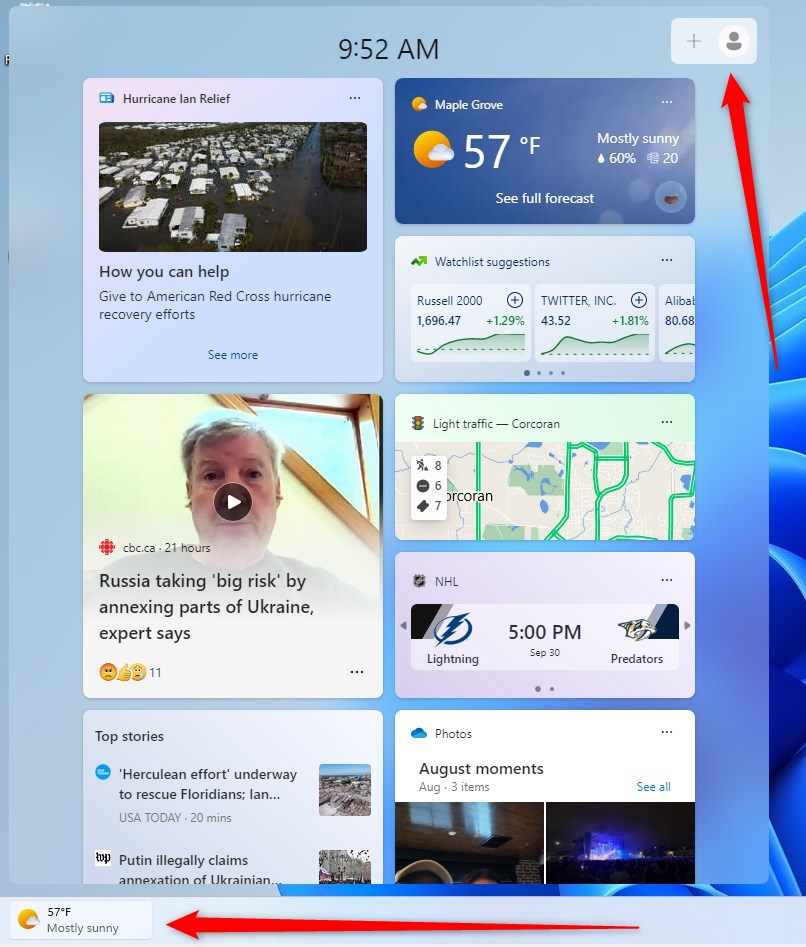
- Open your Widgets by clicking the weather icon on your taskbar. You can also press the Windows key + W on your keyboard.
- Click your Profile icon in the top-right corner to open the Widgets settings page.
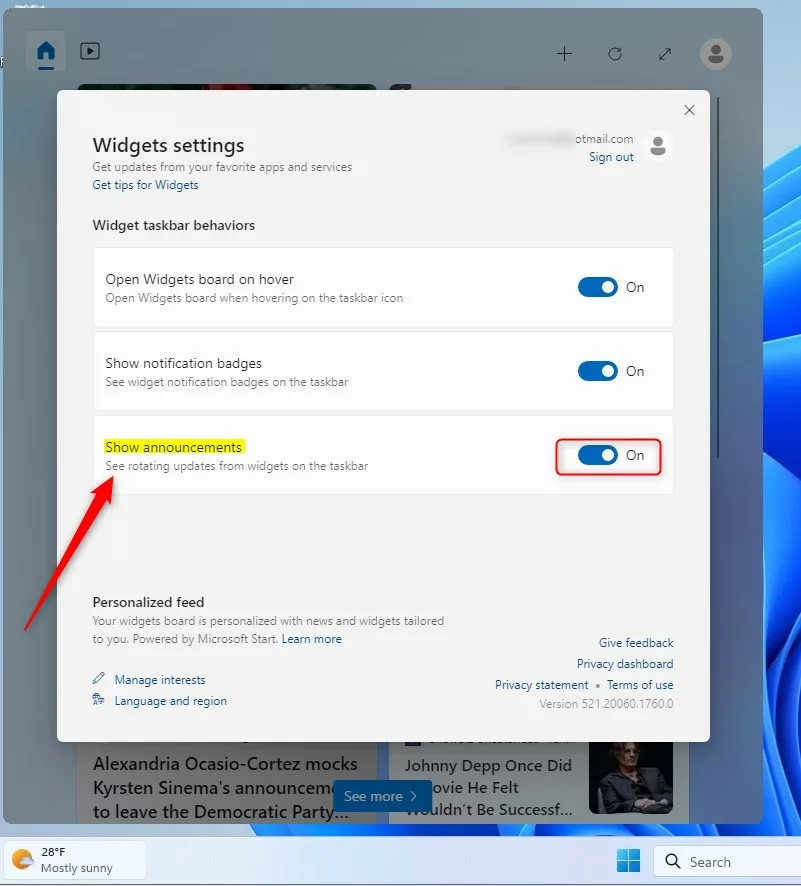
On the settings page, look for the section labeled Widgets taskbar behavior.
- To stop the updates, toggle the switch for Show announcements to the Off position.
- To see the updates again, toggle the switch back to the On position.
Troubleshooting Widget Issues
If your widgets are not working correctly, it might be due to third-party taskbar mods or a glitch in the Windows Explorer process. If you use tools like Windhawk to customize your taskbar, these can often conflict with the native widget board layout.
Restarting Windows Explorer
If your widgets are frozen, restarting the Windows interface often fixes the issue without a full reboot.
- Press Ctrl + Shift + Esc to open Task Manager.
- Find Windows Explorer in the list.
- Right-click it and select Restart.
Taskbar Orientation and Alignment
If you are using a vertical taskbar mod, you may notice that widget animations do not behave as expected. Windows 11 is designed for a horizontal taskbar. Modifying the taskbar alignment or orientation can break the widget icon animation. If you suspect a bug, check the official Microsoft Support documentation for standard configuration.
Summary
This guide covered how to manage widget announcements in Windows 11. We clarified that ‘widget rotation’ is actually a feature called ‘Show announcements.’ We also provided steps to troubleshoot UI bugs by restarting Windows Explorer and explained why third-party taskbar mods often interfere with native widget behavior.
Why is my widget icon not rotating on a vertical taskbar?
Windows 11 is natively designed for a horizontal taskbar. When you use third-party mods to force a vertical taskbar, the widget board layout often breaks. This prevents the widget icon animation from triggering correctly because the system cannot calculate the proper space for the rotating announcements.
Are widget rotation issues caused by third-party mods?
Yes, frequently. Tools like Windhawk or other UI modding software alter the core Windows Explorer files. These modifications can conflict with the native widget board, causing the ‘Show announcements’ feature to fail or stop rotating entirely. Disabling these mods is the best way to test if they are the cause.
Was this guide helpful?

About the Author
Richard
Tech Writer, IT Professional
Richard, a writer for Geek Rewind, is a tech enthusiast who loves breaking down complex IT topics into simple, easy-to-understand ideas. With years of hands-on experience in system administration and enterprise IT operations, he’s developed a knack for offering practical tips and solutions. Richard aims to make technology more accessible and actionable. He's deeply committed to the Geek Rewind community, always ready to answer questions and engage in discussions.


No comments yet — be the first to share your thoughts!