Enable Dark Mode in Ubuntu Linux: A Step-by-Step Guide


You enable dark mode in Ubuntu Linux to switch your desktop environment’s color scheme to darker hues, reducing eye strain and potentially saving battery life.
Dark mode, often referred to as a dark theme, utilizes darker colors for application windows, the taskbar, and menus, providing a more comfortable viewing experience in low-light conditions.
You can easily activate dark mode and customize accent colors within Ubuntu 22.04 LTS and later versions, allowing you to personalize your workspace to match your preferences or wallpaper.
Open System Settings and select Appearance. Under Style, choose the Dark option to enable dark mode. You can also select an accent color to customize the look.
Turn on or off Dark Mode in Ubuntu Linux
As we’ve seen, Ubuntu’s dark mode can help reduce eye strain and improve battery life on laptops and tablets.
Here’s how to turn dark mode on or off in Ubuntu Linux.
Ubuntu Linux has a centralized location for most of its settings. From changing system settings to creating new users and updating your software, you can do it all from the System Settings panel.

Alternatively, click on the System menu at the top-right corner of the top bar on your desktop.
On the System menu, select Settings, as highlighted below.

Click on the Appearance tile to open the panel in the Settings app.
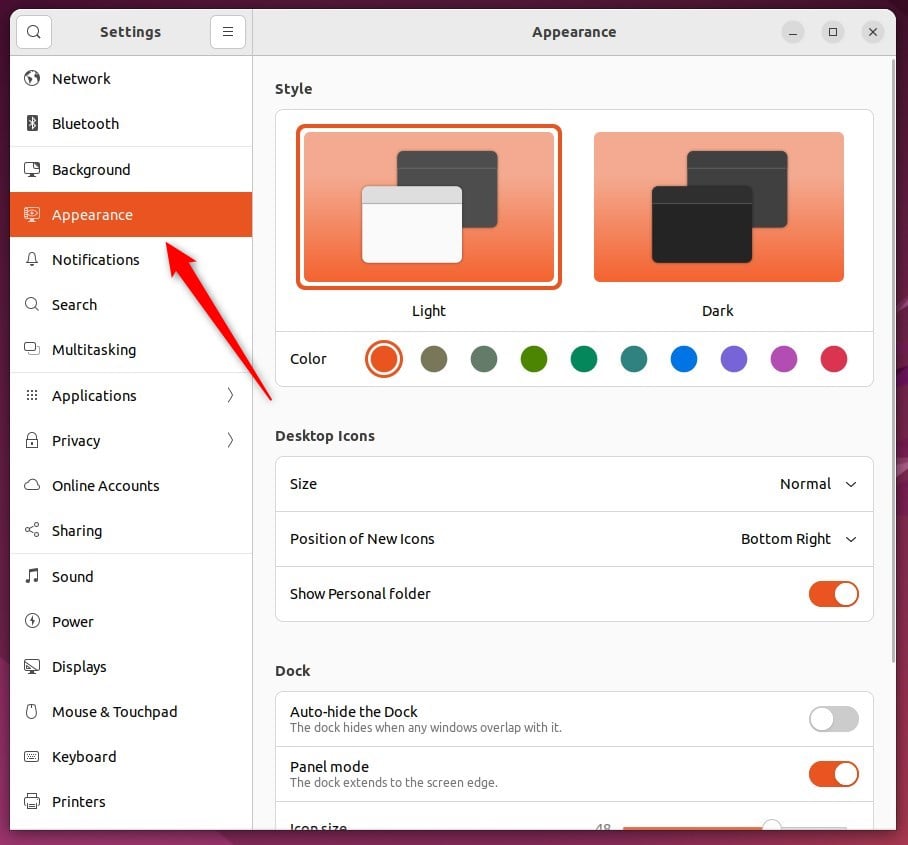
In the System Settings -> Appearance panel, under Style, select the Dark style template to choose dark mode.
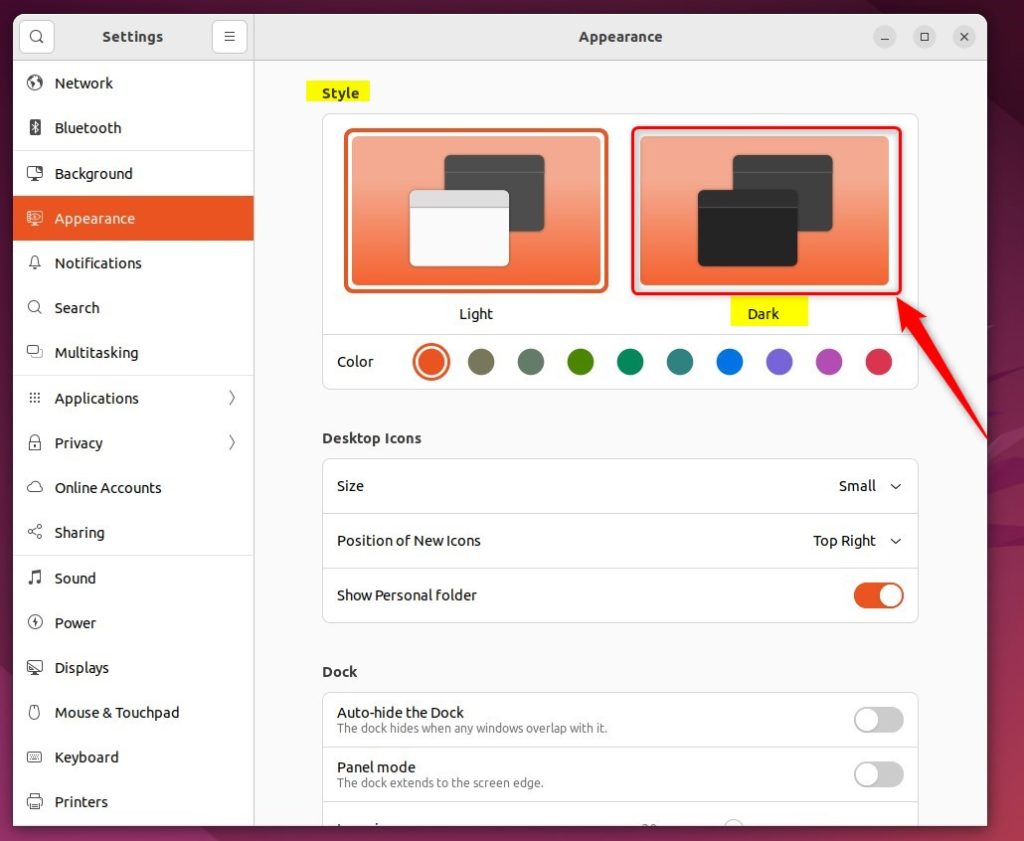
When you do, the Style should change to dark mode.
You can also choose an accent color or have Ubuntu Linux select one for you. The accent color will contrast with or match your wallpaper and windows color.
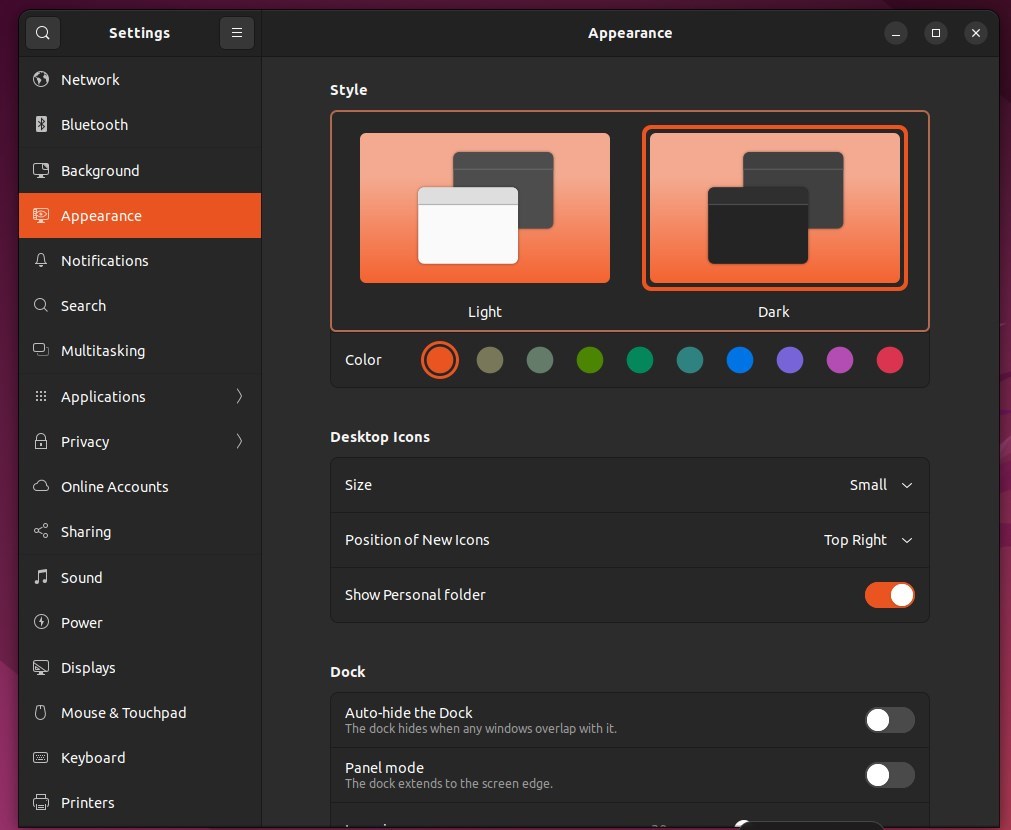
That should do it!
Conclusion:
- Enabling dark mode in Ubuntu Linux reduces eye strain and improves battery life for laptops and tablets.
- The dark mode is designed with colors that work well in low-lit environments, providing a comfortable viewing experience.
- Following the steps outlined in this article, users can easily toggle between light and dark mode in Ubuntu Linux, as per their preference.
Was this guide helpful?

About the Author
Richard
Tech Writer, IT Professional
Richard, a writer for Geek Rewind, is a tech enthusiast who loves breaking down complex IT topics into simple, easy-to-understand ideas. With years of hands-on experience in system administration and enterprise IT operations, he’s developed a knack for offering practical tips and solutions. Richard aims to make technology more accessible and actionable. He's deeply committed to the Geek Rewind community, always ready to answer questions and engage in discussions.



No comments yet — be the first to share your thoughts!