How to Check Your Ubuntu Version: A Simple Guide


You check your Ubuntu version using the lsb_release -a command in the terminal.
Ubuntu is a Debian-based Linux operating system offering a stable and user-friendly experience. Identifying your specific Ubuntu version is crucial for ensuring software compatibility and accessing the latest features.
Ubuntu releases typically follow a predictable schedule, with new versions appearing every six months and Long-Term Support (LTS) versions released every two years. For instance, Ubuntu 22.04 LTS, codenamed “Jammy Jellyfish,” provides stability and security updates for five years, extending support until 2027.
Open the terminal and run the command `lsb_release -a`. This will display your Ubuntu distribution ID, description, release number, and codename. You can also find the version in the Settings app under “About” if you are using the desktop environment.
How to find the Ubuntu Linux version on a computer
As described above, there are two types of Ubuntu Linux releases: Standard and Long-term support (LTS).
Below are steps you can use to find out the version of Ubuntu you are running.
The quickest way to find the Ubuntu Linux version is to use the lsb_release utility. LSB (Linux Standard Base) is a utility that provides information about Linux distribution.
To use the utility, open your terminal by typing Ctrl — Alt — T on your keyboard to open the terminal.
Then type the commands below:
lsb_release -a
That should output a similar info sheet below:
No LSB modules are available.
Distributor ID:	Ubuntu
Description:	Ubuntu 22.04.1 LTS
Release:	22.04
Codename:	jammy
That gives you the version of Ubuntu and the release number.
When you use the -d switch with the lsb_release command instead of –a, it displays the description only.
Description: Ubuntu 22.04.1 LTS
Another way to discover the Ubuntu Linux version is via the issue or the os-release file.
Run the commands below to display the content of the issue file. The issue file contains the operating system identification text.
cat /etc/issue
That should output a similar line as below:
Ubuntu 22.04.1 LTS n l
Alternatively, you may look in the /etc/os-release file to learn and find out the Ubuntu Linux version.
That file contains more operating system identification data. For example, run the commands below to display the os-release data for Ubuntu Linux.
cat /etc/os-release
That should output the lines below:
PRETTY_NAME="Ubuntu 22.04.1 LTS"
NAME="Ubuntu"
VERSION_ID="22.04"
VERSION="22.04.1 LTS (Jammy Jellyfish)"
VERSION_CODENAME=jammy
ID=ubuntu
ID_LIKE=debian
HOME_URL="https://www.ubuntu.com/"
SUPPORT_URL="https://help.ubuntu.com/"
BUG_REPORT_URL="https://bugs.launchpad.net/ubuntu/"
PRIVACY_POLICY_URL="https://www.ubuntu.com/legal/terms-and-policies/privacy-policy"
UBUNTU_CODENAME=jammy
The hostnamectl command also shows you info about Ubuntu Linux. Run the commands below to view the Ubuntu Linux version.
hostnamectl
That should up the info sheet below:
 Static hostname: Ubuntu2204
       Icon name: computer-vm
         Chassis: vm
      Machine ID: 103bd8b830824b90bca97c6ac84ad445
         Boot ID: 8f430b32cc1b4831959fbdcae616810f
  Virtualization: oracle
Operating System: Ubuntu 22.04.1 LTS
          Kernel: Linux 5.15.0-47-generic
    Architecture: x86-64
 Hardware Vendor: innotek GmbH
  Hardware Model: VirtualBox
Discovering the Ubuntu version number from the command line has many ways.
Find the Ubuntu Linux version via desktop system settings
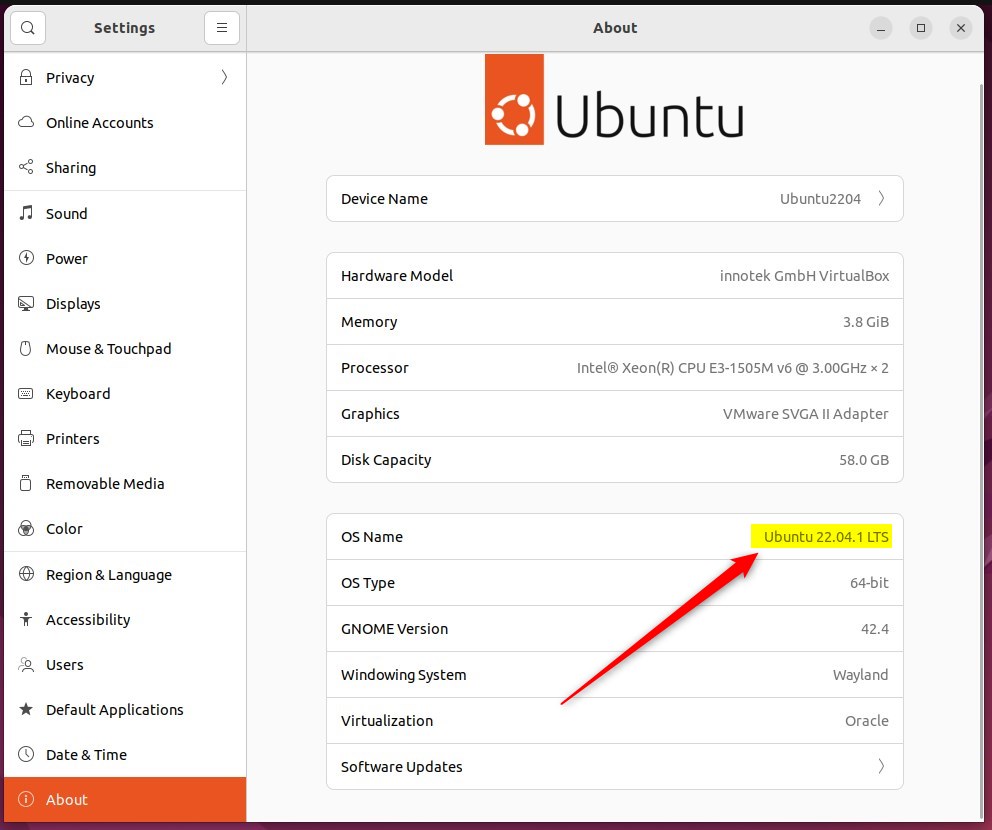
If you are on a Ubuntu desktop and want to view the version of Ubuntu Linux running on your computer, you can do that from the Settings app.
To do that, click on the top bar and select the System menu at the top right corner.
Then select Settings.

In the Settings app, select About. You should see details about your computer, including the Ubuntu Linux version.
That should do it!
Conclusion:
- The post demonstrated multiple methods for discovering the version of Ubuntu Linux running on a computer, including command-line utilities such as
lsb_release,cat /etc/issue,cat /etc/os-release, andhostnamectl. - It also outlined how to find the Ubuntu Linux version via desktop system settings, providing a user-friendly alternative to command-line approaches.
- The comprehensive guide allows users to easily determine the Ubuntu version, catering to novice and experienced users.
- Feel free to engage through the comment section if there are any errors or additional insights.
Was this guide helpful?

About the Author
Richard
Tech Writer, IT Professional
Richard, a writer for Geek Rewind, is a tech enthusiast who loves breaking down complex IT topics into simple, easy-to-understand ideas. With years of hands-on experience in system administration and enterprise IT operations, he’s developed a knack for offering practical tips and solutions. Richard aims to make technology more accessible and actionable. He's deeply committed to the Geek Rewind community, always ready to answer questions and engage in discussions.




No comments yet — be the first to share your thoughts!