Customize Ubuntu Desktop Themes Easily


You can easily customize Ubuntu desktop themes to completely change your PC’s visual appearance.
A desktop theme is a collection of visual elements, like fonts, colors, icons, and window borders, that work together to create a unified look and feel for your operating system.
Ubuntu 22.04 LTS, for example, lets you switch between light and dark theme variants directly from the settings, with a high-contrast option available in Accessibility for better visibility.
While newer Ubuntu versions might not bundle as many pre-made themes as older ones, you can still apply the included styles or download and install custom themes to make your Ubuntu desktop uniquely yours.
Change your Ubuntu desktop theme by opening Settings, clicking Appearance, and selecting a new color or style. For more advanced customization like cursor and window changes, install and use GNOME Tweaks. You can also download and install custom GTK themes.
How to switch themes in Ubuntu Linux
Switching Ubuntu desktop themes lets you change how your computer looks, from colors to icons.
Even though Ubuntu Linux doesn’t offer packaged themes by default, you can still customize colors and styles using the System Settings panel.
Below is how to change the theme and style in Ubuntu Linux.
Ubuntu Linux has a centralized location for the majority of its settings. From system configurations to creating new users and updating, all can be done from the System Settings panel.

Alternatively, click on the System menu at the top-right corner of the top bar on your desktop.
From the System menu, pick Settings. (It’s highlighted in the image below.)

Click the Appearance tile to open its panel within the Settings app.
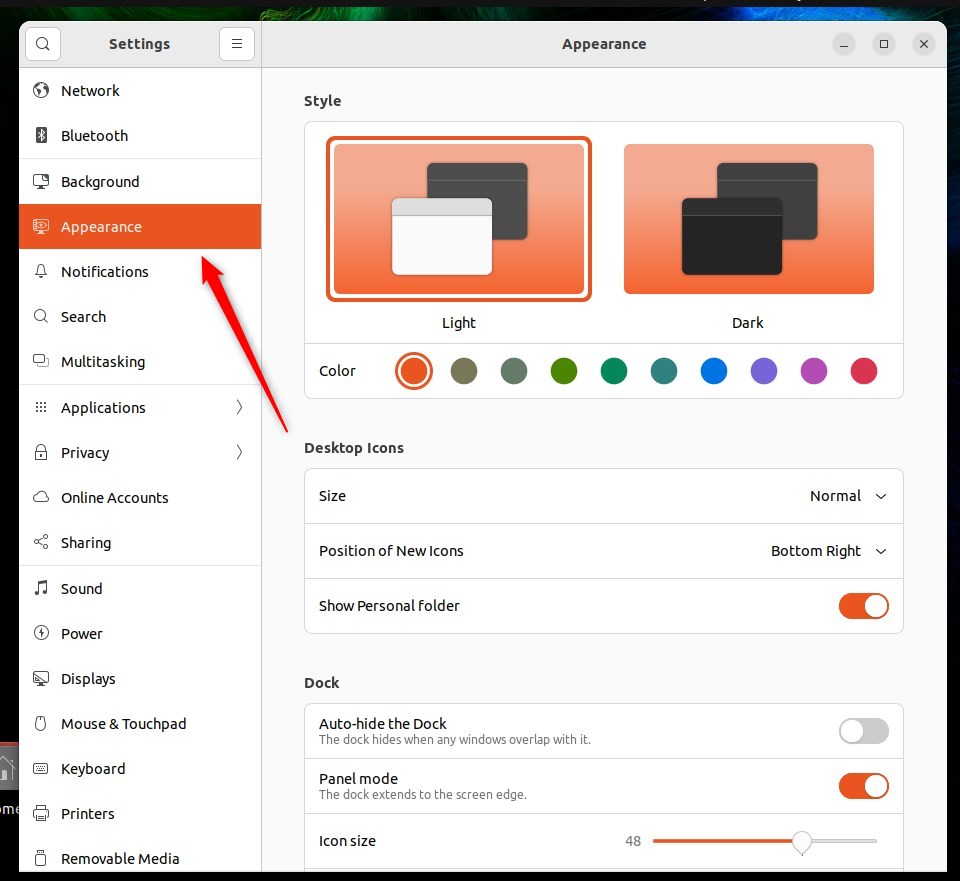
In the System > Appearance settings pane, choose a new color for various interface elements.
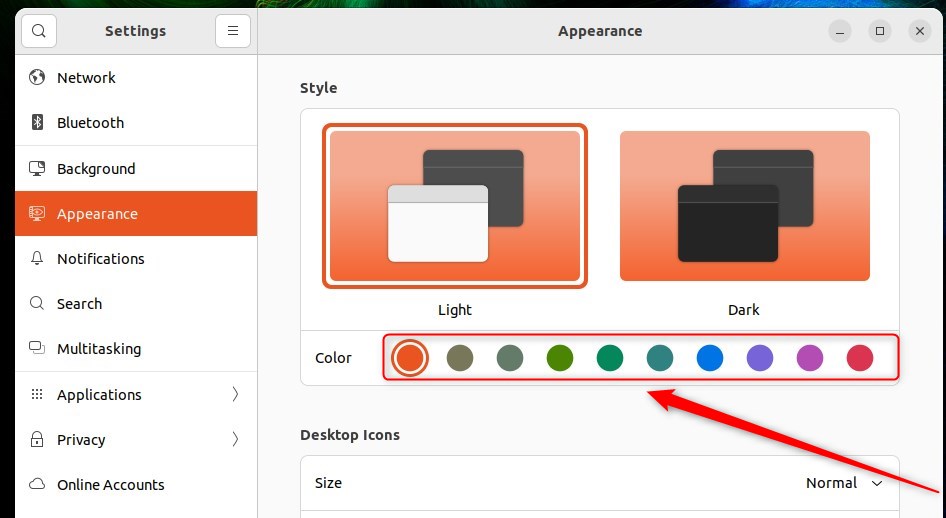
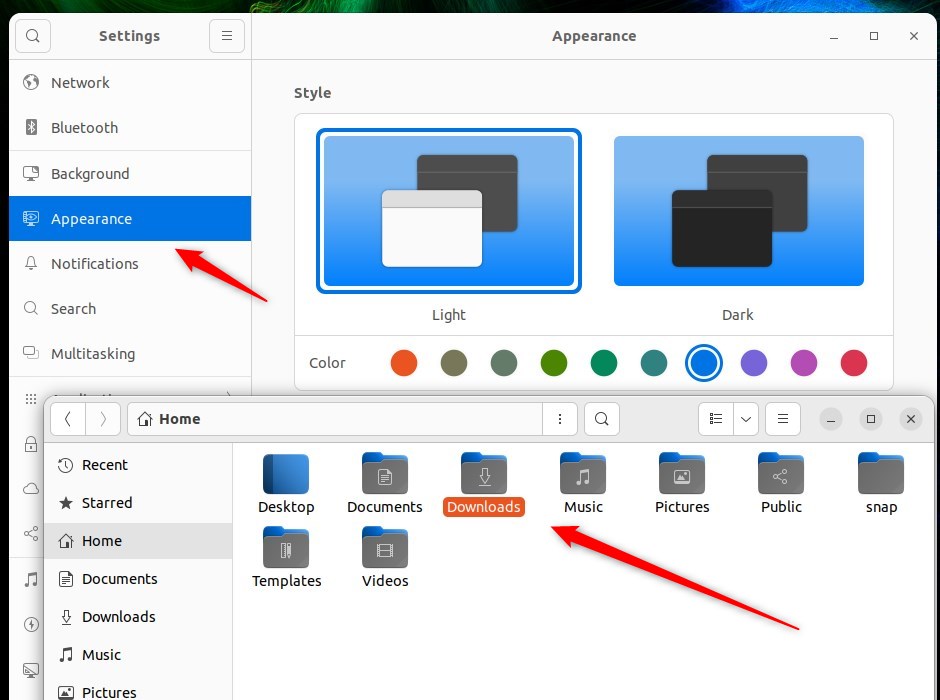
As soon as you select a color, it applies to objects and styles right away.
The mouse cursor and background are not changed when you change the style color.
If you want to make more advanced changes, like adjusting your mouse cursor color or window styles, GNOME Tweaks is the tool you’ll want.
To do that, use the steps below:
Press Ctrl+Alt+T on your keyboard to open the terminal. Then, enter the following commands to install GNOME Tweaks.
sudo apt install gnome-tweaks
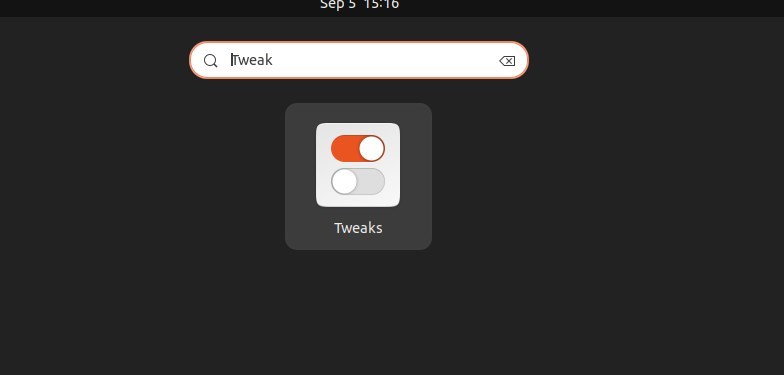
Once installed, head to the Activities overview and search for ‘Tweaks’.
Inside the app, under the Appearance section, you can select the changes you want to make to your desktop’s look and feel.
You can also download GTK3/4 themes from the link below to further customize your desktop.
After downloading, extract the theme files and copy the theme folder to the following path:
/usr/share/themes
You’ll need to open Nautilus (the file manager) with administrator privileges to copy the theme into that location.
Finally, use GNOME Tweaks to apply the new theme after copying the folders.
And that’s it!
Conclusion:
- Personalizing your desktop theme and style in Ubuntu Linux allows you to create a unique computing experience tailored to your preferences.
- Although Ubuntu Linux doesn’t offer packaged desktop themes by default, you can easily customize colors and styles through the System Settings panel.
- In addition to changing the color and style, GNOME Tweaks provides further options for modifying your desktop’s appearance, including cursor color and window styles.
- Downloading GTK3/4 Themes from external sources and integrating them with your system allows for even more diverse customization possibilities.
- By following these steps, you can transform the look and feel of your Ubuntu Linux desktop to suit your taste and needs.
Can you customize an Ubuntu desktop?
Here let's say. If I go to preferences. And from here go to scrolling you can hide the scroll bar to make it look more clean. And you can go to colors.
Are there themes for Ubuntu?
An Update to the Ubuntu Light Themes One of our key objectives when we started conceptualising the new themes was their ability to be immediately recognisable as Ubuntu, even if represented as a…
Was this guide helpful?

About the Author
Richard
Tech Writer, IT Professional
Richard, a writer for Geek Rewind, is a tech enthusiast who loves breaking down complex IT topics into simple, easy-to-understand ideas. With years of hands-on experience in system administration and enterprise IT operations, he’s developed a knack for offering practical tips and solutions. Richard aims to make technology more accessible and actionable. He's deeply committed to the Geek Rewind community, always ready to answer questions and engage in discussions.



No comments yet — be the first to share your thoughts!